

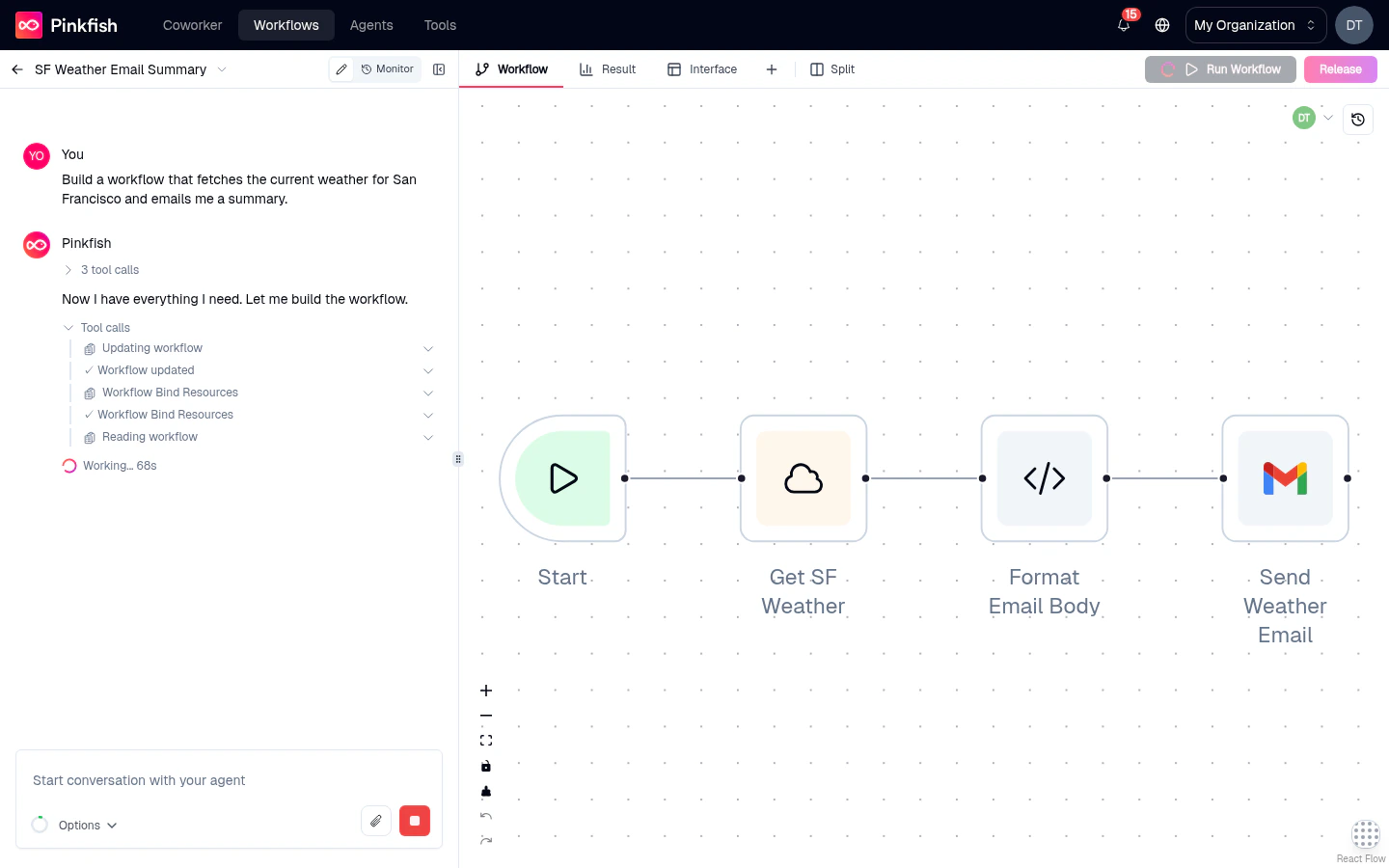
Key capabilities
Natural-language authoring
Describe what you want the workflow to do. The agent adds, connects, and configures nodes.
Context-aware
Point the agent at specific nodes — right-click a node and add it to the chat context, or select it and ask. Attach files to a message for the agent to reason over.
Iterative
Ask the agent to reshape the graph — “run these in parallel”, “add error handling”, “replace this with a code block”. It edits in place.
Streaming
Responses stream live. You see the agent’s reasoning, tool calls, and edits as they happen.
The input
Type in the chat input, pressEnter to send, Shift+Enter for a new line. Attachments and the prompt-context controls surface around the text field.
Attachments
Click the paperclip to attach a file directly to the message. Files appear as chips next to the input and travel with the prompt into the conversation. The agent can open and reason over most common formats — images, PDFs, CSVs, text, JSON, spreadsheets, docs.Examples button
New to Agent Mode? Click the Examples button to open a library of starter prompts — “scrape a page and email me a summary”, “watch a Gmail label and post to Slack”, and so on. Select one to prefill the input and tweak before sending.The conversation
Message types
The agent uses multiple message formats depending on what it’s doing:- Assistant messages — markdown with code fences, headings, and lists. Rendered inline in the chat.
- Intro message — the welcome message on a fresh workflow with suggested next steps.
- Step / automation summary — after the agent finishes a chunk of work, it posts a summary of what changed on the canvas.
- Skill reference blocks — a clickable card when a skill is invoked.
- Todo list — a running checklist the agent maintains for multi-step tasks, with items marked done as it completes them.
- Browser session — a mini-viewer showing the agent’s live browser actions when browser automation is in play.
- Inactive connection reference — a warning badge when a connection used in the workflow is no longer valid.
Prompt context
Above the input, small context chips accumulate as you use the chat or select nodes on the canvas. These are things the next message will include by default — referenced nodes, added files, skill callouts. Click the × on a chip to remove it before sending. When you right-click a node on the canvas and choose Add node to the chat context, the node appears here as a chip — great for “explain what this node does” or “replace this with X”.Sending nodes to chat
Two ways to include a canvas node in your next message:- Right-click the node → Add node to the chat context — adds it as a chip.
- Select the node and type your question — the selection travels with your prompt automatically.
Collapsing the chat
To give the canvas more room, click the collapse arrow at the top of the chat panel. The panel shrinks to a narrow strip with an open-chat button. Click it to restore the chat to its previous width.Tips for effective prompts
Be specific about inputs and outputs
Be specific about inputs and outputs
Rather than “process the data”, say “take a CSV of leads, score each with Clearbit, and write the top 10 to a Google Sheet”. The agent picks better nodes when it knows the contract.
Name the tools you want
Name the tools you want
If you want Slack, say Slack. The agent will use Pinkfish’s MCP server catalog — naming the app shortens the reasoning loop.
Ask for error handling explicitly
Ask for error handling explicitly
“Add a retry with 3 attempts” or “route errors to Slack” gets you a more robust workflow than default generation.
Iterate in chunks
Iterate in chunks
Build the happy path first, then ask the agent to layer on branches, approvals, and edge cases.
Coding agent vs. Coworker
Both are AI chats inside Pinkfish, but they’re different products:What’s next
Canvas
Once the agent adds nodes, rearrange and connect them visually.
Running a workflow
Test what the agent built — with inputs, mock mode, or a live trigger.