The Guardian Agent brings self-healing capabilities to your workflows. When a workflow fails, the Guardian Agent automatically diagnoses the problem, determines the root cause, and generates a concrete fix — then hands that fix to the Workflow Builder Agent to apply the repair. The entire cycle from error detection to code fix happens through AI, with you approving each step.This means workflows don’t just fail and wait for someone to debug them. The Guardian Agent reads the error analytics, inspects the code, figures out what went wrong, and writes the repair — you just review and approve.
Code errors (auto-fixable via Workflow Builder Agent)
Since workflows must be working before they can be published, production errors are almost always caused by real-world conditions that weren’t accounted for during development. The Guardian Agent identifies these and writes targeted fixes:
Type
Examples
Unexpected data shapes
An API starts returning a new field format, an upstream node produces null where it didn’t before, an array is empty when it was always populated during testing
Unhandled edge cases
A user record has no email, a currency field contains a string, a list has 10,000 items instead of the expected 50
External API changes
A third-party API changes its response structure, adds required parameters, or deprecates an endpoint
Volume and scale issues
Payloads larger than expected, rate limits hit at production traffic levels, timeouts on operations that were fast in testing
Code configuration drift
A tool name or server name was renamed, parameter requirements changed after an MCP server update
The Guardian Agent also compares your current draft code against the published version. If a fix has already been made in the draft but not yet published, it will tell you — so you don’t duplicate work.
For code-fixable issues, the Guardian Agent writes a detailed repair prompt — including the root cause, the affected nodes, and the specific code changes needed. Multiple issues are combined into a single prompt so everything can be fixed in one pass.With your approval, the Guardian Agent then hands this repair prompt directly to the Workflow Builder Agent, which opens the workflow and applies the fixes automatically. You stay in control — the Guardian Agent always asks before invoking the Workflow Builder Agent, and you can review the proposed changes before they’re applied.For issues that can’t be fixed by code (expired tokens, missing connections), the Guardian Agent tells you exactly what manual steps to take.
The easiest way to understand the Guardian Agent is to watch it close the loop on an automation that is actively failing. This walkthrough takes you from “my workflow just broke in production” to “it’s fixed and running again” without leaving the Pinkfish app.
1
Build an automation that touches real-world data
Create a workflow that calls an external API and transforms its response. In development, every record the API returns looks the same — so a snippet like items.map(x => x.email.toLowerCase()) passes testing and gets published.Typical shapes that later cause failures in production:
A field you expected to always be present (email, name, id) is null or missing on some records
An upstream API adds a new field format, changes casing, or returns a string where it previously returned a number
A list you tested with 50 items arrives with 10,000
An MCP tool or connection is renamed after the workflow is published
None of these break a workflow during the build — they only surface once real traffic hits the published version.
2
Publish and let it fail
Publish the workflow and let it run against real production traffic — either on a schedule, via a trigger, or through a live integration. A record eventually comes through where email is null, the transform throws Cannot read property 'toLowerCase' of null, and the run fails.One failed run on its own is a blip. A pattern of failing runs is what the Guardian Agent picks up on.
3
Guardian surfaces the problem in Notifications
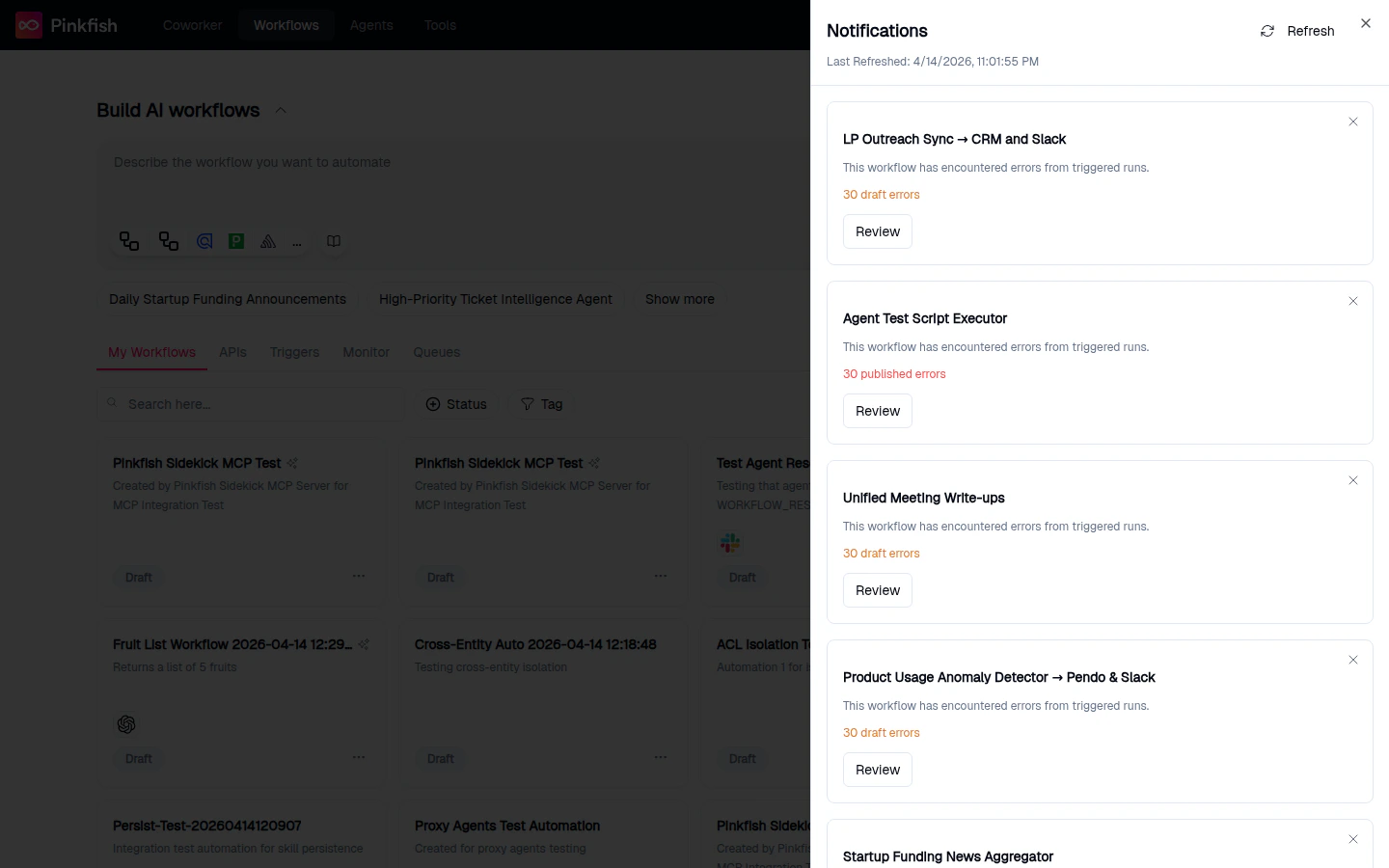
You don’t have to go looking for errors. The Notifications bell in the top navigation bar shows an unread count the moment a workflow starts accumulating failures from triggered runs.
Notifications bell with unread count
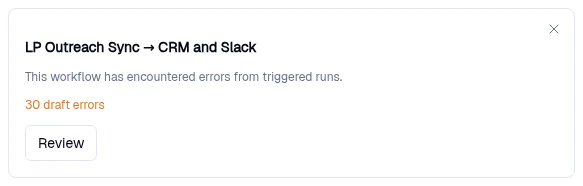
Open the bell and you’ll see a card for each affected workflow — the workflow name, a short summary, an error count, and a Review button:
A single error card — 'This workflow has encountered errors from triggered runs.'
The panel mixes two scopes of notification so nothing slips through the cracks:
Workflow error cards (org-scoped) — shown to every admin/builder in the org. One card per failing workflow.
Connection error cards (user-scoped) — shown only to the connection’s owner. If your personal Google, Slack, or API connection expires, loses auth, or is revoked upstream, the card tells you which connection broke and links you straight to the connection’s settings so you can reauthorize. Because these are user-scoped, a teammate reauthorizing their own connection never clutters your panel, and vice versa.
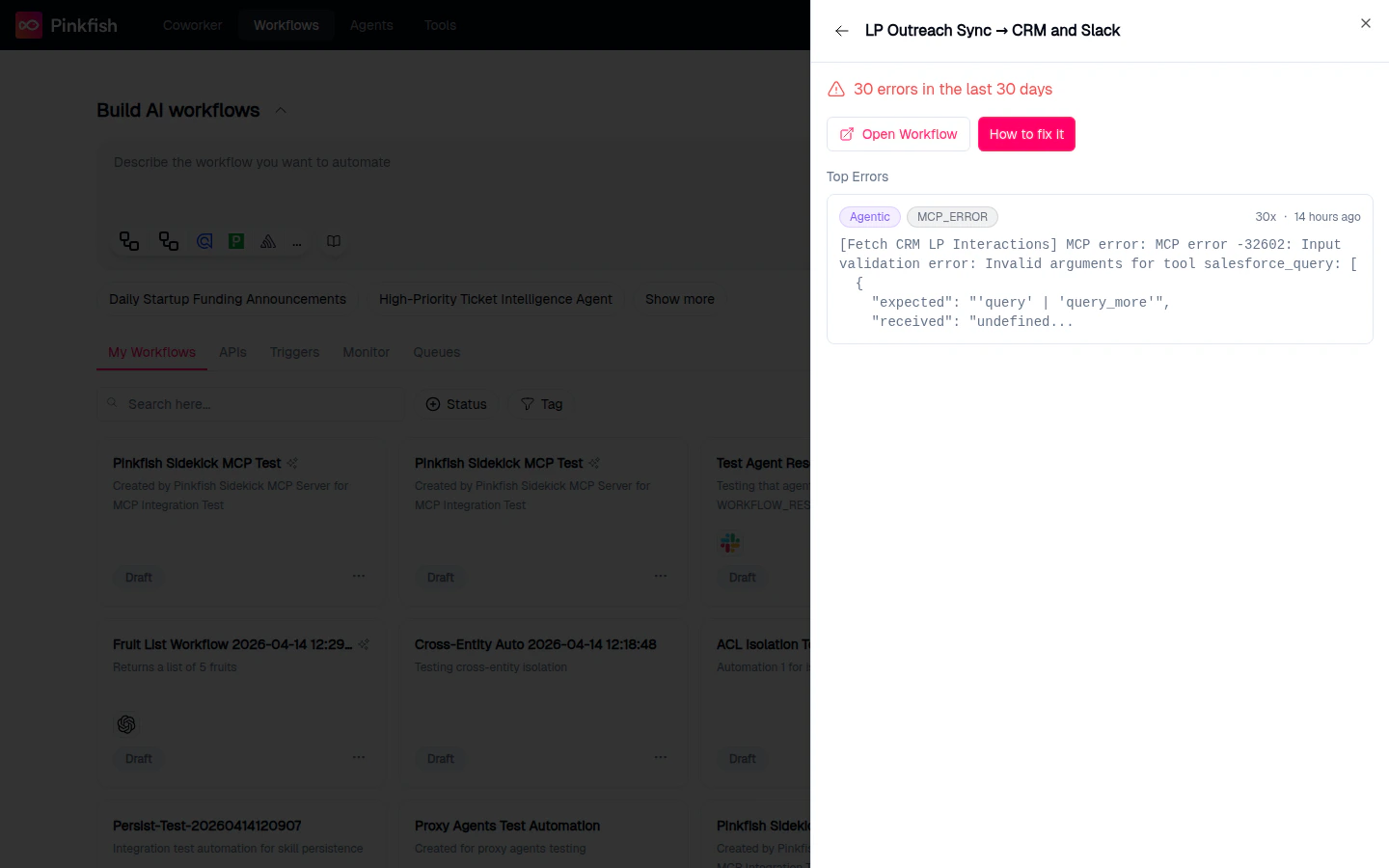
Click Review. The Guardian Agent panel opens docked beside your workflow, with the affected workflow already selected and its error summary pre-loaded — “30 errors in the last 30 days”, plus the Top Errors list grouped by pattern:
4
Start a new analysis
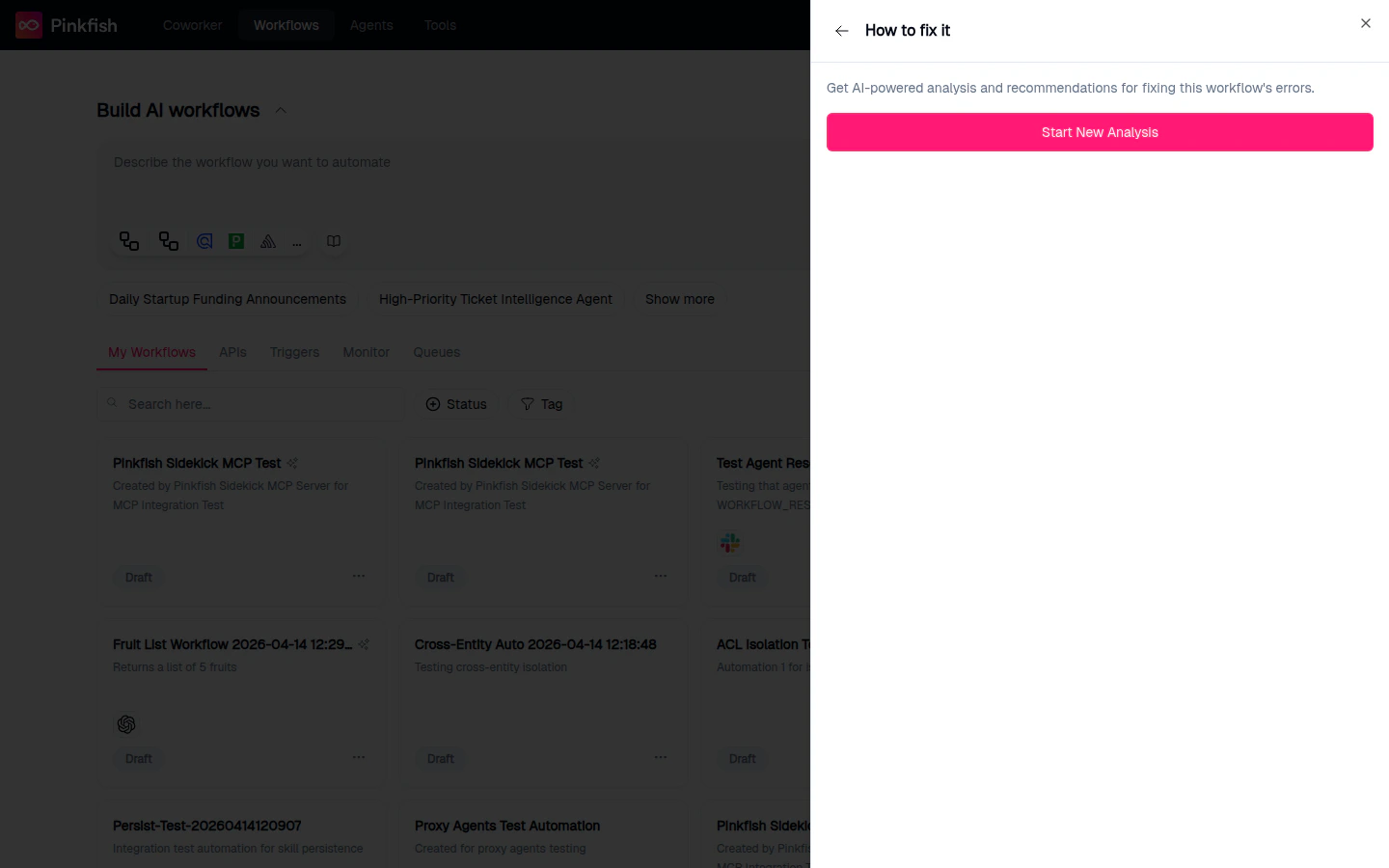
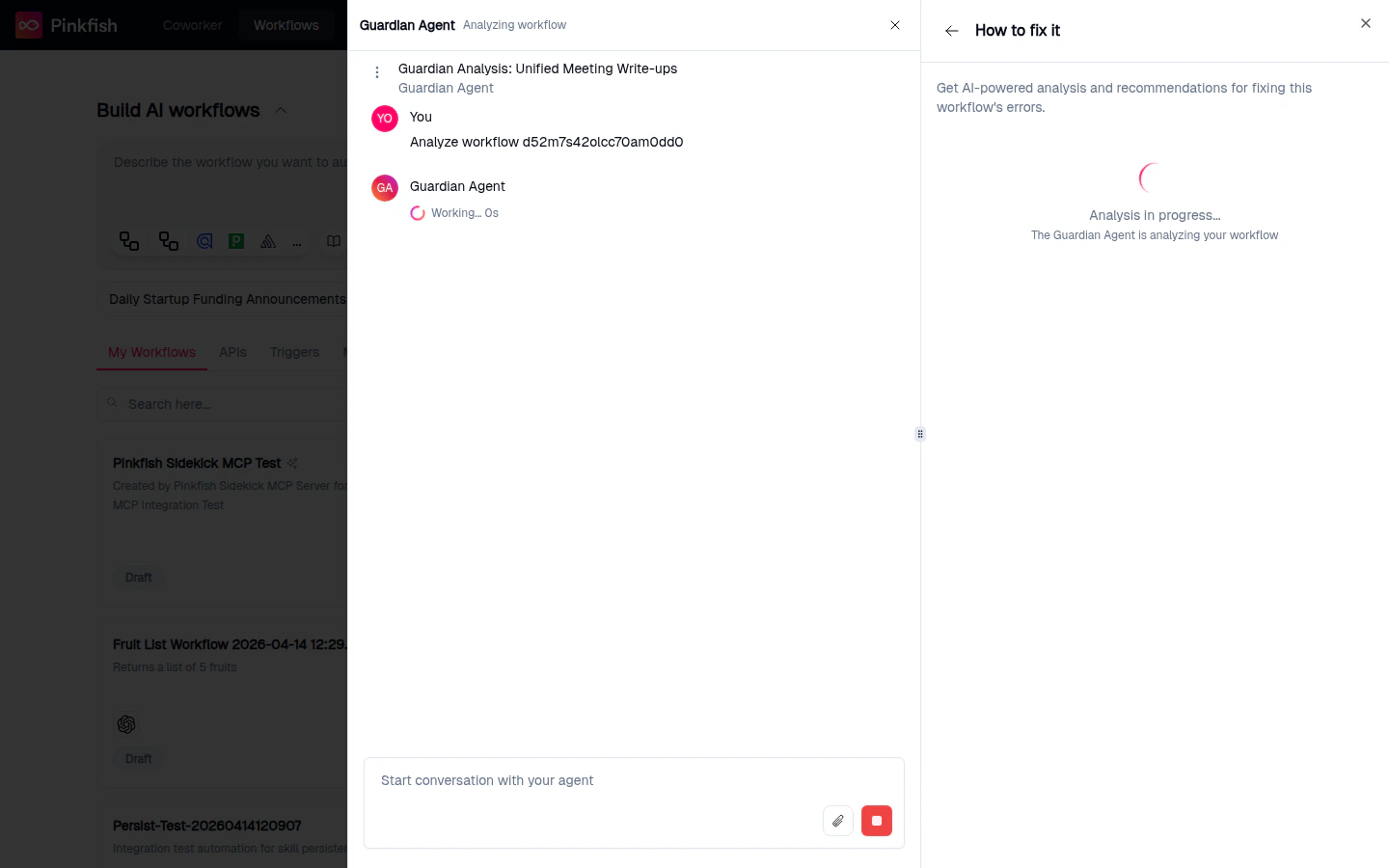
Inside the Guardian Agent panel, click How to fix it, then Start New Analysis:The button label changes to “Starting Analysis…” while the session spins up, then the chat panel opens alongside a status card that reads “Analysis in progress… The Guardian Agent is analyzing your workflow.”During this phase, the Guardian Agent pulls the workflow’s error analytics, reads the published and draft code, and inspects recent run inputs and outputs. When it’s done, the session moves to Ongoing and the panel populates with:
Errors analyzed — the total number of error patterns it found
Top Errors — the patterns that matter most
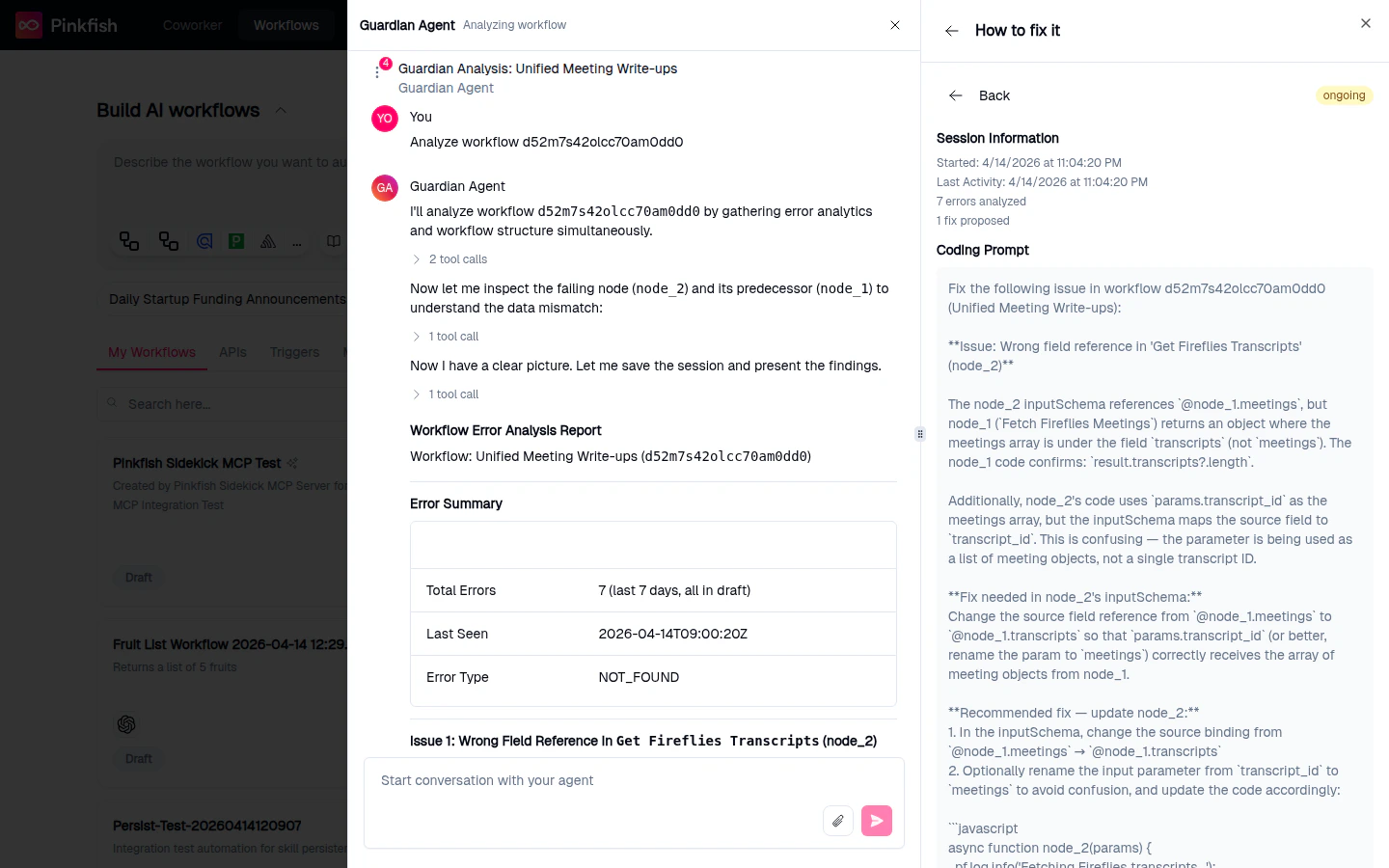
Coding prompt — a detailed repair instruction for any code-fixable issues
User actions — manual steps if anything requires your attention (expired tokens, missing connections, etc.)
5
Chat with the Guardian Agent
The Guardian Agent isn’t just a one-shot analyzer — it’s a chat agent you can talk to. The chat panel opens with:
Guardian AgentI analyze workflows for errors and recommend fixes.
Ask it anything about what it found. Good prompts:
“Why is this failing?”
“Show me the exact records that triggered the error.”
“What’s different between the draft and the published version?”
“Can you fix this?”
When the analysis finishes, the chat shows the Guardian’s reasoning inline and the right-hand panel fills in with a full Workflow Error Analysis Report — total errors, error type, the specific node at fault, and a step-by-step Coding Prompt describing the exact change to make:When you ask it to fix the issue, the Guardian Agent asks for your approval before doing anything:
I’ve generated a repair prompt for these issues. Would you like me to send it to the Workflow Builder Agent to fix the workflow?
The Guardian Agent never modifies your workflow without this explicit confirmation.
6
Approve the fix — the Workflow Builder Agent takes over
Reply Yes (or click the approval action) and the Guardian Agent hands the repair prompt to the Workflow Builder Agent. The Workflow Builder Agent opens the workflow, applies the code changes — typically adding the null check, adjusting the data shape, renaming the tool, whatever the fix requires — and saves a new draft.In the Guardian panel, the fix status transitions through Pending → In Progress → Applied. You can review the draft that the Workflow Builder Agent produced before publishing.
7
Publish and watch it succeed
Once you’re happy with the repaired draft, publish it. The next triggered run picks up the new version and completes successfully — the loop is closed.Back in the Guardian panel, mark the session Resolved (or let it auto-resolve once the fix status reaches Verified). The Previous Analyses list keeps the full history, so the next time someone asks “what changed?”, the answer — diagnosis, proposed fix, approval, repair, and outcome — is all in one place.
Without the Guardian Agent, the path from a failing production run back to a fix is: someone notices the red alert, opens the workflow, scrubs through run history, hypothesizes a cause, edits the code, republishes, and hopes. With the Guardian Agent, the diagnosis and the fix are generated for you, the Workflow Builder Agent applies them, and you stay in control of the approval — the whole cycle happens inside Pinkfish, in minutes, without leaving chat.
When the Guardian Agent has a fix ready, it will ask for your approval:
“I’ve generated a repair prompt for these issues. Would you like me to send it to the Workflow Builder Agent to fix the workflow?”
Once you approve, the Guardian Agent sends the repair prompt to the Workflow Builder Agent, which opens the workflow and applies the code changes. This is where the self-healing loop closes — diagnosis, fix generation, and repair all happen through AI, with your approval as the gate between each step.The Guardian Agent will never invoke the Workflow Builder Agent without your explicit permission.