

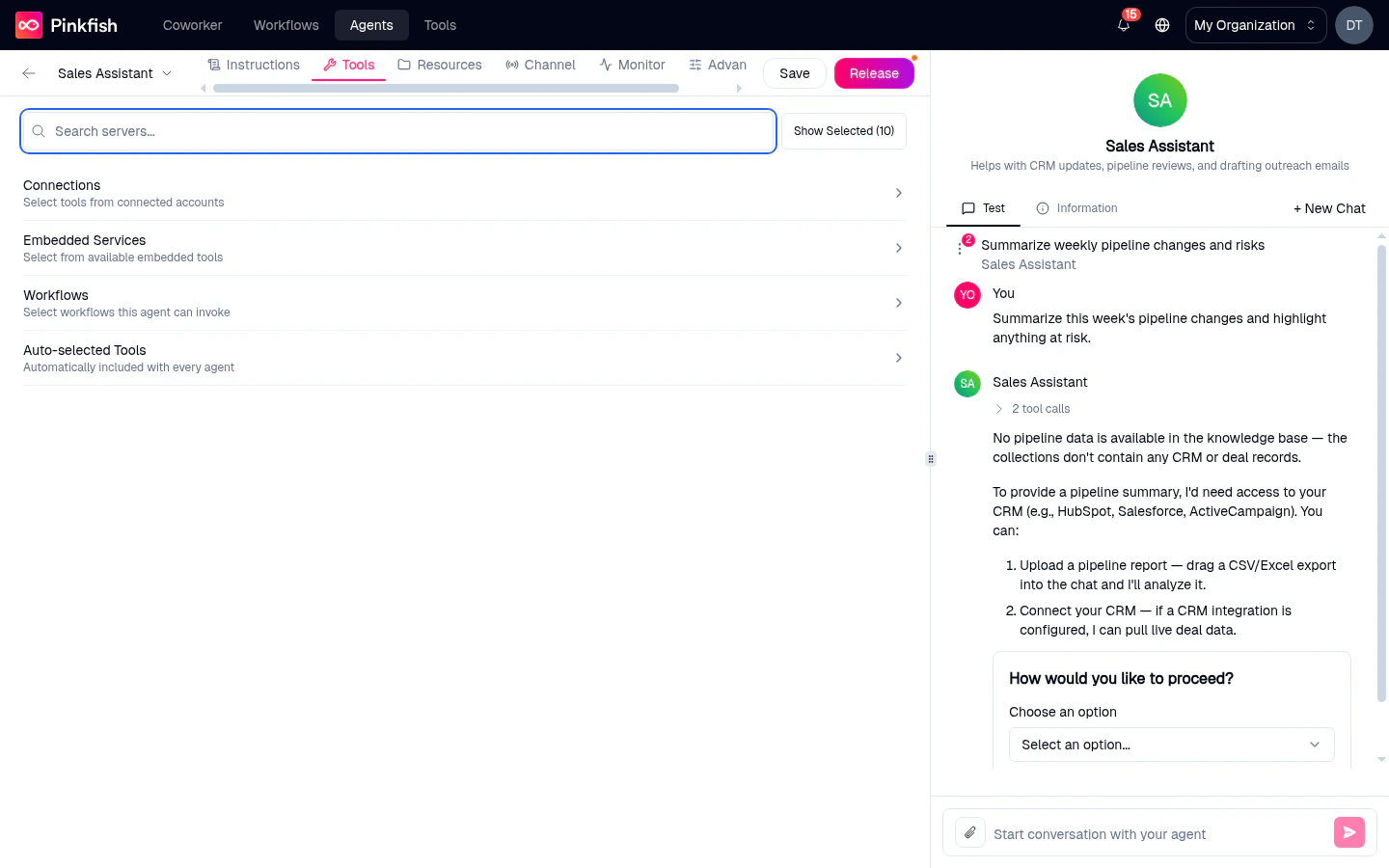
The four categories
Tools are grouped into expandable sections. Click a section header to expand or collapse it.Connections
MCP servers for third-party integrations that authenticate via OAuth or API keys — Slack, Gmail, Google Drive, Salesforce, HubSpot, Jira, Notion, and many more. These draw from the Integrations you’ve connected in your workspace. For each server, you can:- Check the whole server — the agent gets every tool the server exposes.
- Click to expand — pick a subset of tools. Useful when a server exposes 50 tools but you only need three.
Embedded Services
Pinkfish’s built-in MCP servers that don’t require an OAuth connection — things like code execution, artifact management, and agent-memory helpers. These are always available to any user in the org.Agents
(Only visible when other agents exist.) Other agents in your workspace that this agent is allowed to delegate to. When selected, the target agent shows up as a callable “tool” — the current agent can invoke it the same way it would invoke any other tool. This is how you build teams of specialized agents instead of one monolithic one.Workflows
Pinkfish workflows that the agent can trigger.“Select workflows this agent can invoke”A workflow attached here appears to the agent as a tool: the agent decides when to call it, passes input, and receives the workflow output as a structured response. Great for multi-step procedures that you’ve already encoded as a workflow (e.g. “run the customer onboarding flow”).
Workflows attach here, not under Resources. A common confusion — “resources” in Pinkfish means data (datastores, filestores, KBs), while workflows are actions and live under Tools.
Auto-selected Tools
Tools that every agent gets automatically. Checkboxes are shown but locked — you can see what’s included, not toggle it. Examples (subject to platform evolution):- Write Artifact / Read Artifact / List Artifacts — lets the agent produce files, spreadsheets, and documents inside a chat.
- Write Artifact from URL — ingest content from a URL as an artifact.
- Run Code — execute Python snippets.
Finding tools
- Search servers… — filter the entire list by server name or description (case-insensitive, 200 ms debounce).
- Show Selected (N) — toggle the view to just the tools you’ve checked. The
Nalways reflects the current selection count. - Select all / Deselect all — per-section bulk toggles.
Discovery Tools (tool overflow)
Selecting more than 25 tools triggers a banner:“You’ve added more than 25 tools. To keep agents effective at scale, Discovery Tools are automatically enabled so the agent can dynamically find the right tool among the ones selected. This may add a few seconds to execution but improves accuracy.”With Discovery on, the agent first searches its tool library for candidates before calling any of them — slightly slower per turn but dramatically more accurate when the toolset is broad.
You don’t need to enable Discovery Tools manually. Pinkfish decides based on how many tools you selected.
Tool approvals and interactive UI (human-in-the-loop)
Some tools are configured to pause for explicit user approval before running, and agents can also ask users for input mid-conversation. Unlike fixed “always allow / ask / never” policies, Pinkfish interaction is runtime-driven: the agent either drafts a call and waits for Approve / Reject, or asks the user to pick from options before it proceeds. Approvals have four states:
Approvals are surfaced in chat where the conversation is happening — a Coworker chat, a Slack thread, or a Teams thread. They can also be granted without a Pinkfish login when the approval is configured to
allowPublicAccess.
Approvals are most useful for destructive or sensitive actions — paid calls to external APIs, production writes, outbound email.
Approvals are configured per-tool at the platform level (and on workflow nodes, for workflows that are attached as tools). The Tools tab lets you pick the tools; the approval behavior is inherited from each tool’s settings.
Connections — how the agent picks one
If your organization has multiple accounts connected for the same integration (e.g. a personal Gmail and a team Gmail), the agent needs to know which one to use.- For integrations that belong to a single user, the agent uses your connection when you’re the one chatting with it. When another user chats with the same agent, it uses theirs. Integrations are not shared across accounts — this is why sharing an agent doesn’t hand out your OAuth tokens.
- For integrations that belong to an org-level account, everyone who has access to the agent uses the same connection.
Related
- MCPs — how agents discover and call MCP tools.
- Resources tab — data the agent can read and write (separate from Tools).
- API connections — the integrations that feed the Connections section.
- Agent Management API — programmatic tool configuration.