

Key Features
Chat from any device
Reach your agents from the Slack desktop, web, or mobile client. Great for quick requests while you’re away from the Pinkfish app.
Per-agent or org-wide
Enable Slack on one agent at a time, or turn it on for the whole organization and opt individual agents out.
Upload files into the chat
Drop images, PDFs, CSVs, or documents into the thread and the agent can read and act on them.
Rich responses
Agents post answers in-thread, upload generated files, and share rendered web apps as links you can open in a browser.
How It Works
- Install the Pinkfish Slack app into your workspace via OAuth. You can connect one agent at a time, or enable Slack for the entire organization.
- Open a DM with the Pinkfish app in Slack.
- Send a message. Pinkfish identifies you by the email on your Slack profile and matches it to your Pinkfish account. On your first message, the app walks you through any account, organization, or agent selection it needs. If your organization has Auto-Onboarding configured for your email domain and Slack workspace, you don’t need a Pinkfish account first — one is created automatically and you join the organization as a member.
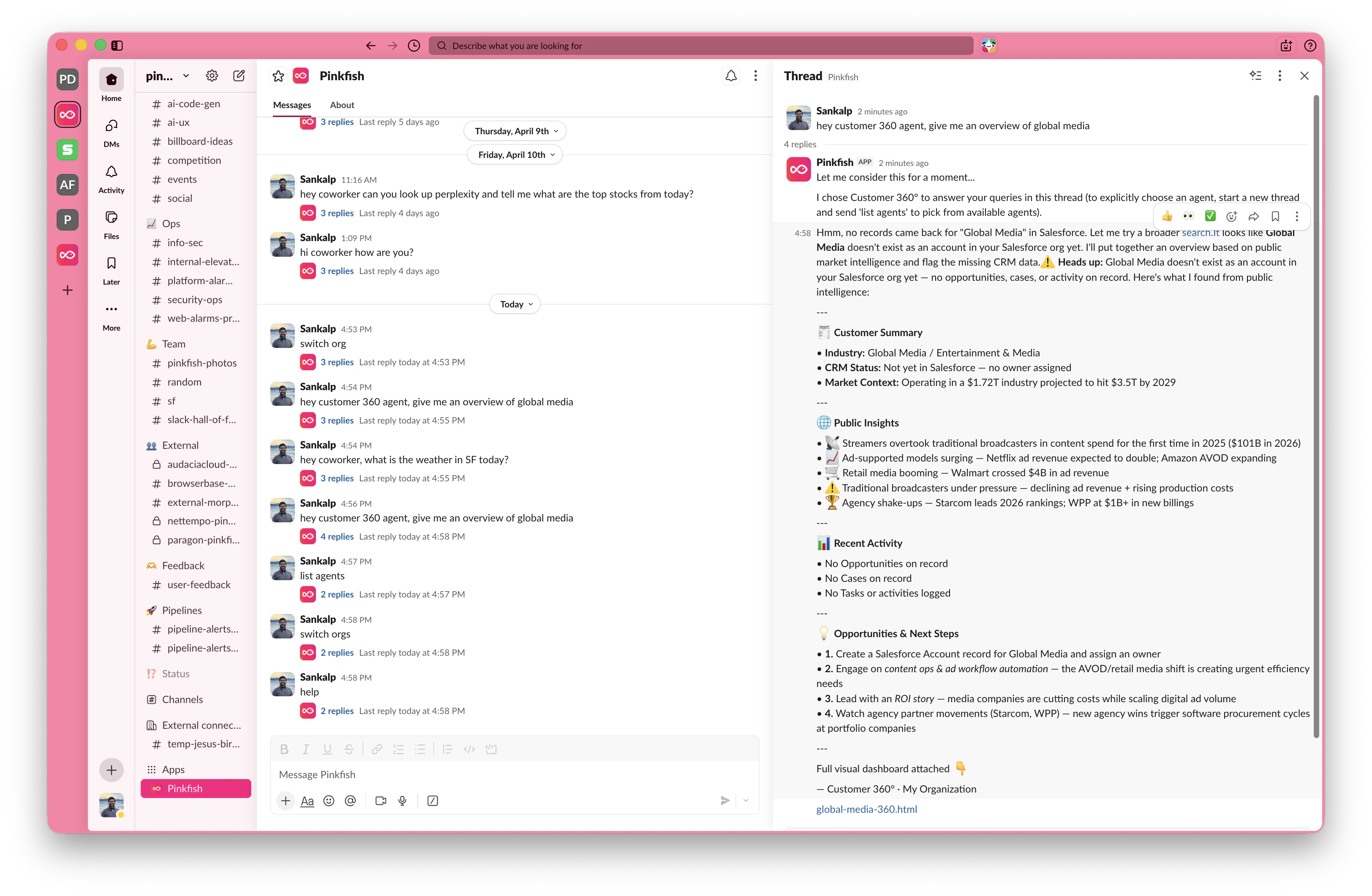
- The agent runs. Pinkfish posts a short “thinking” note in the thread so you know the request was received, then replies with the full answer once the agent is done.
- Outputs flow back. Short text answers appear as Slack messages, generated files upload to the thread, and rendered HTML artifacts come through as shareable links that open the web app in your browser.
Enabling Slack for an Agent
Open the agent you want to reach from Slack and go to the Channel section of the agent editor.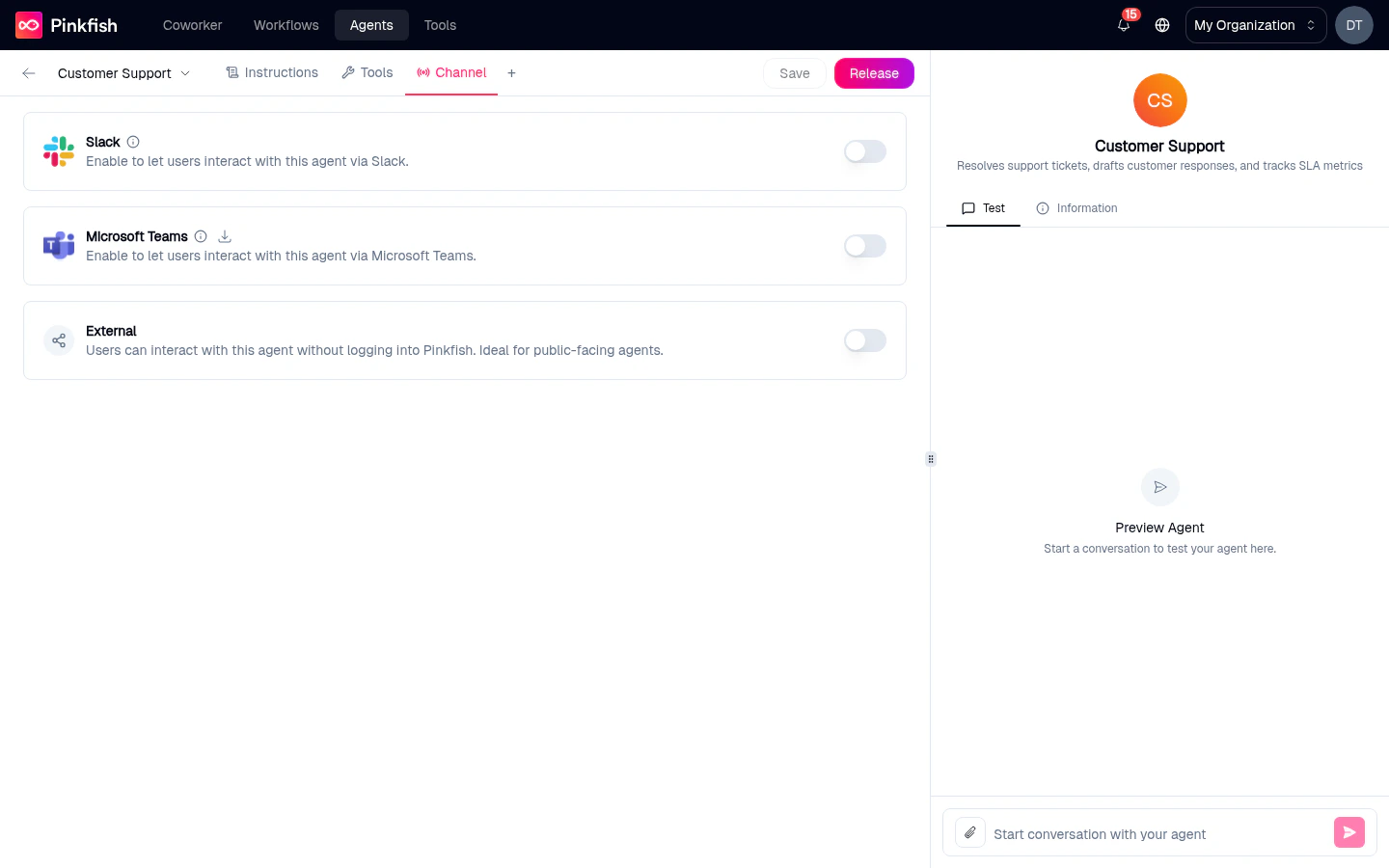
- Toggle Slack on.
- A browser popup redirects you to Slack to authorize the Pinkfish app in your workspace.
- Approve the requested permissions. Slack returns you to Pinkfish, and the agent is now reachable from a DM in that workspace.
- The Pinkfish app sends you a welcome DM confirming the connection.
Organization-wide Slack
If your organization has Slack enabled globally, every published agent is reachable from Slack by default. The per-agent Slack toggle flips to an opt-out control: leave it on to keep the agent available in Slack, or turn it off to hide just that agent.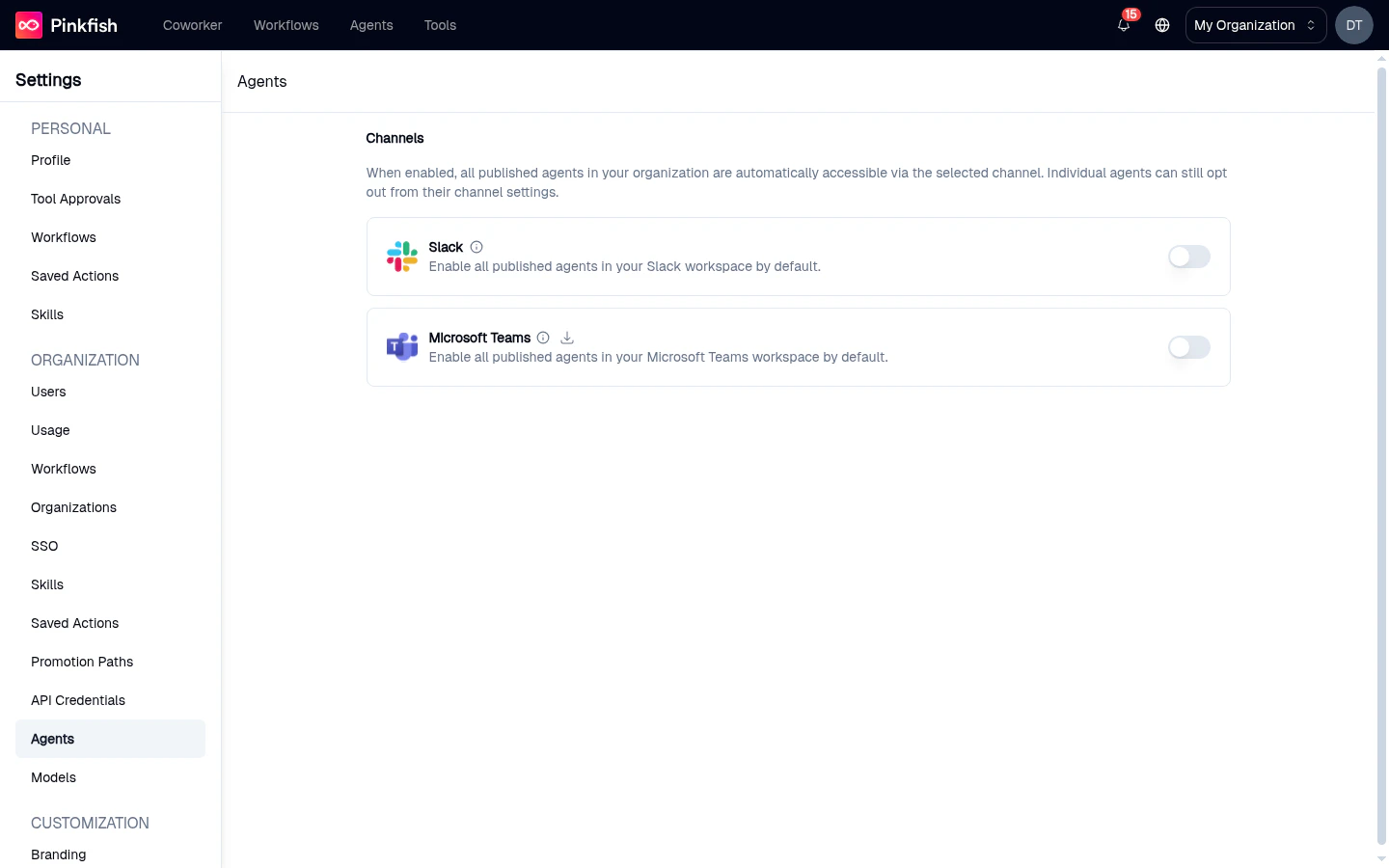
Threads and Conversations
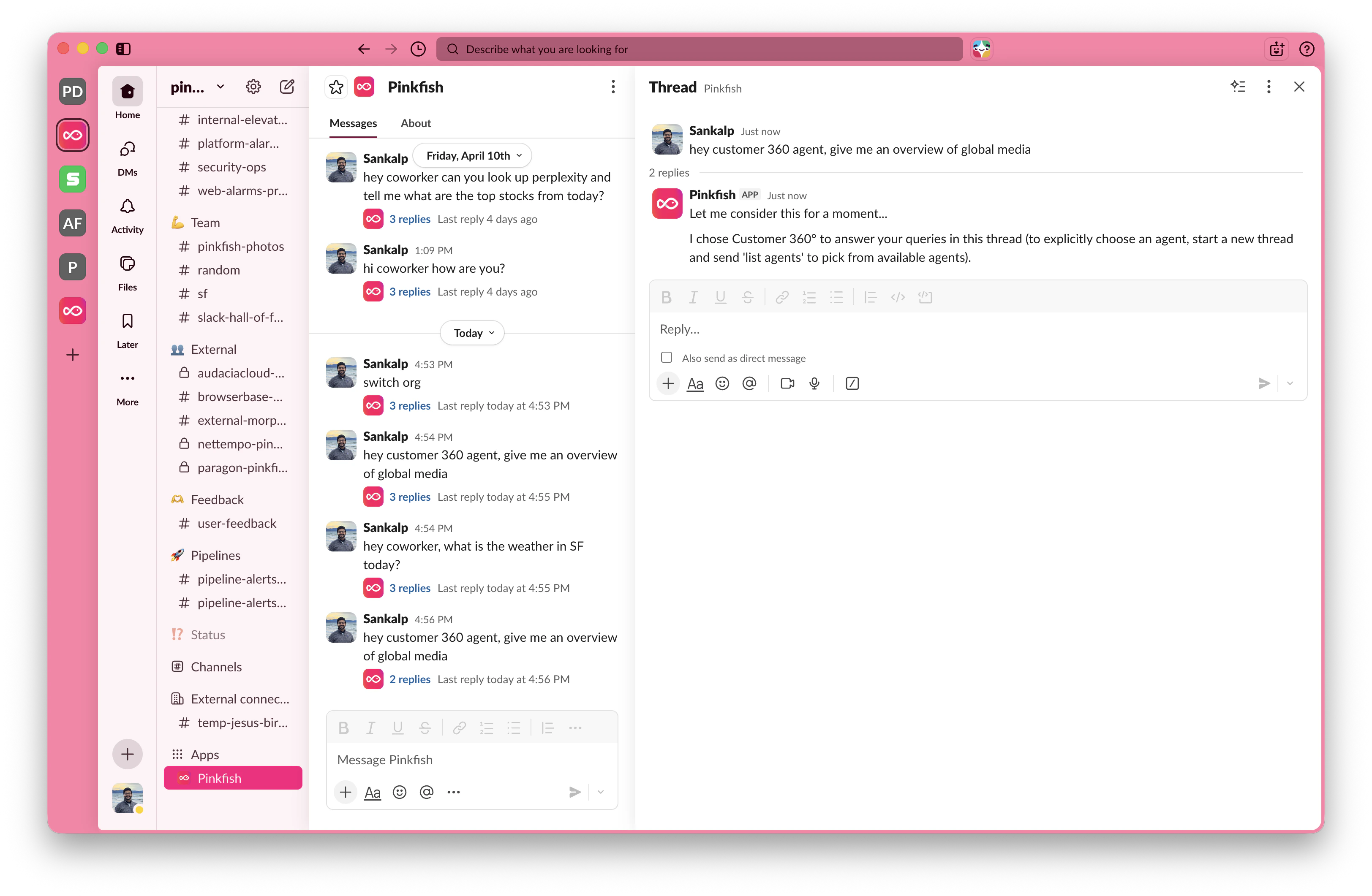
Pinkfish treats Slack threads as chats.- Start a new conversation by sending a new top-level message in the DM. Each new thread starts a fresh chat with a clean context.
- Continue a conversation by replying inside an existing thread. The same agent keeps the context of everything that was said.
- Switch agents by starting a new thread. You can’t swap agents inside an existing thread.
Picking an Agent
When you send a new message, Pinkfish routes it one of two ways:- If the DM is wired to a specific agent, that agent answers.
- Otherwise, Pinkfish picks the best match from the agents available in your organization and runs it.
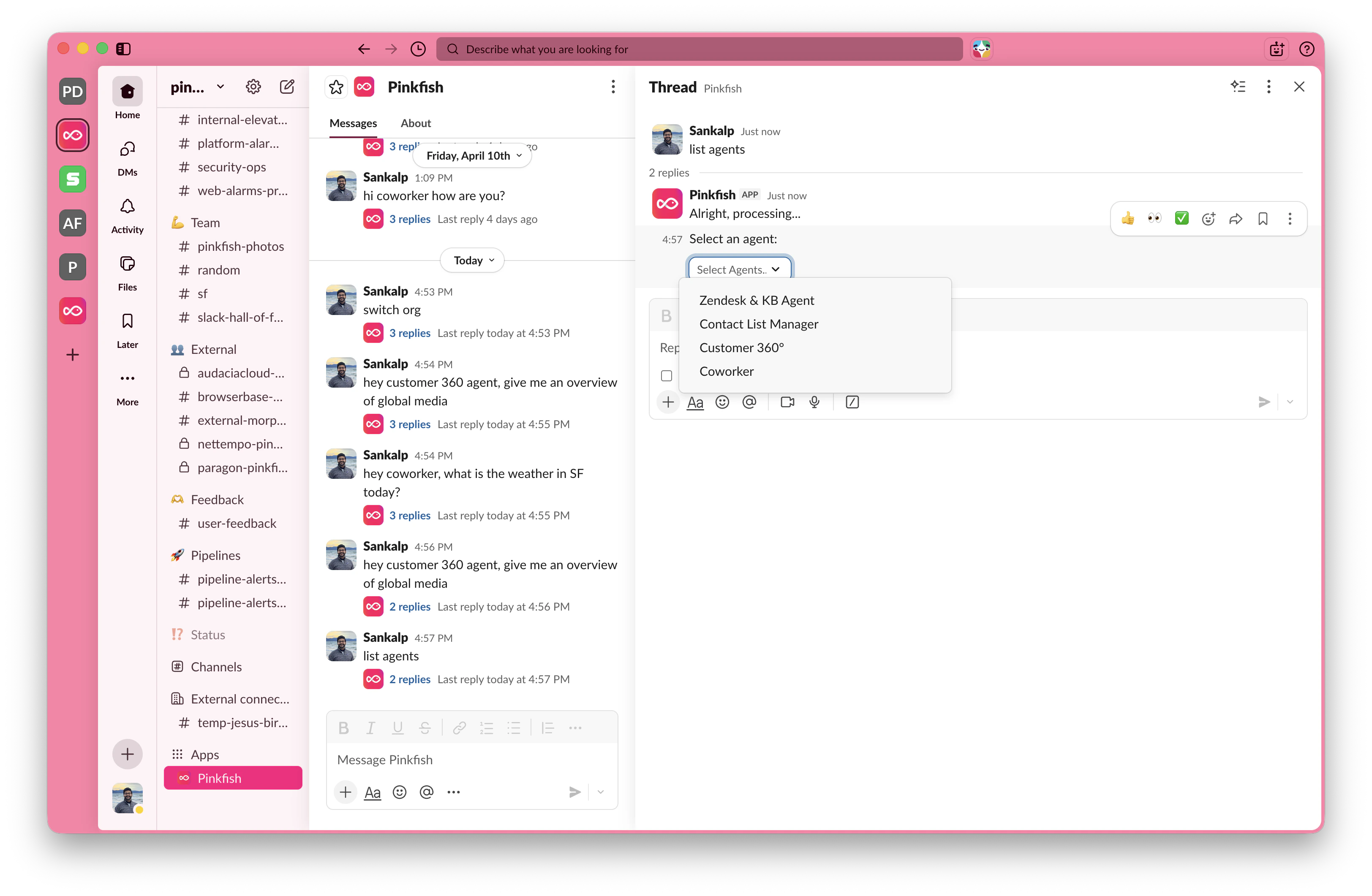
list agents. Pinkfish replies with a dropdown labeled Select Agents… listing every agent you have access to; pick one and it handles the thread.
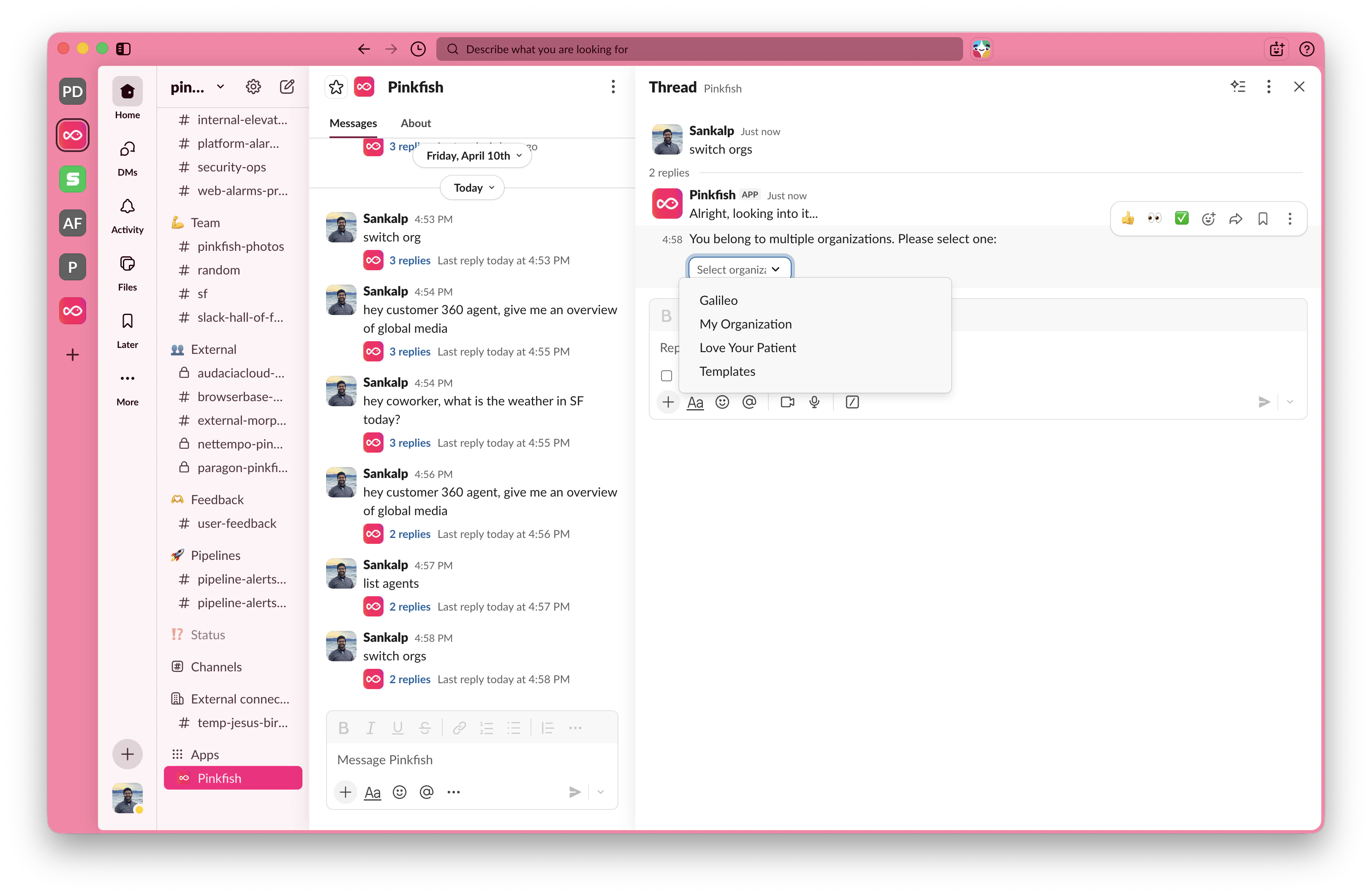
switch orgs.
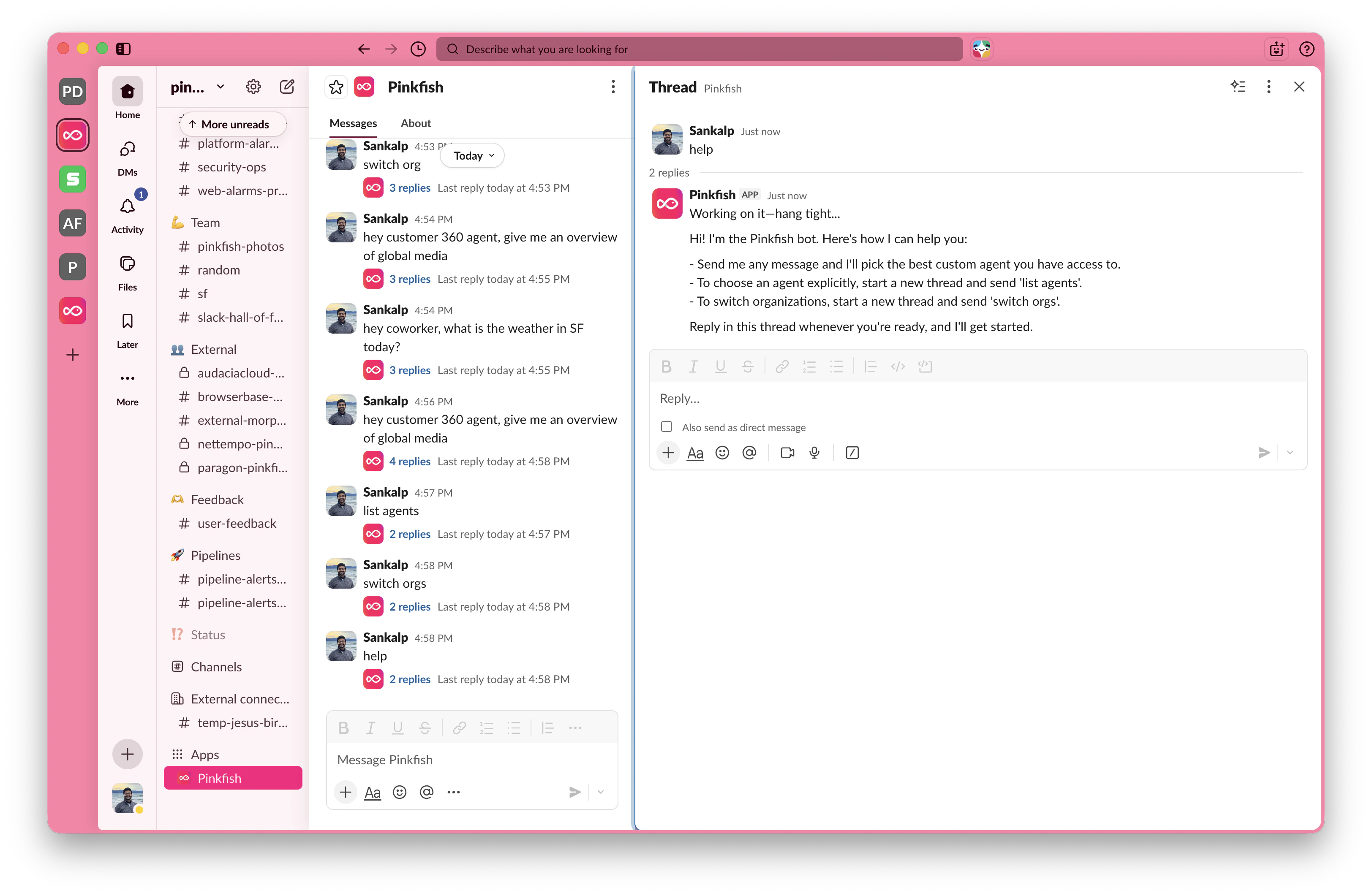
Built-in Commands
Pinkfish recognizes a few plain-text phrases as commands when they’re the first message in a new thread:
These aren’t Slack slash commands — just type them as a normal message.
Uploading Files Into the Chat
Drop files into the Slack DM the same way you’d share them with a teammate — drag them in, paste an image, or use Slack’s + attachment button — and send a message alongside. Pinkfish downloads the attachments and hands them to the agent, so you can ask things like “Summarize this contract” or “Extract the line items from this invoice.” Common file types work: images (PNG, JPG), PDFs, CSVs, spreadsheets, and text documents. Individual files up to 50 MB are supported.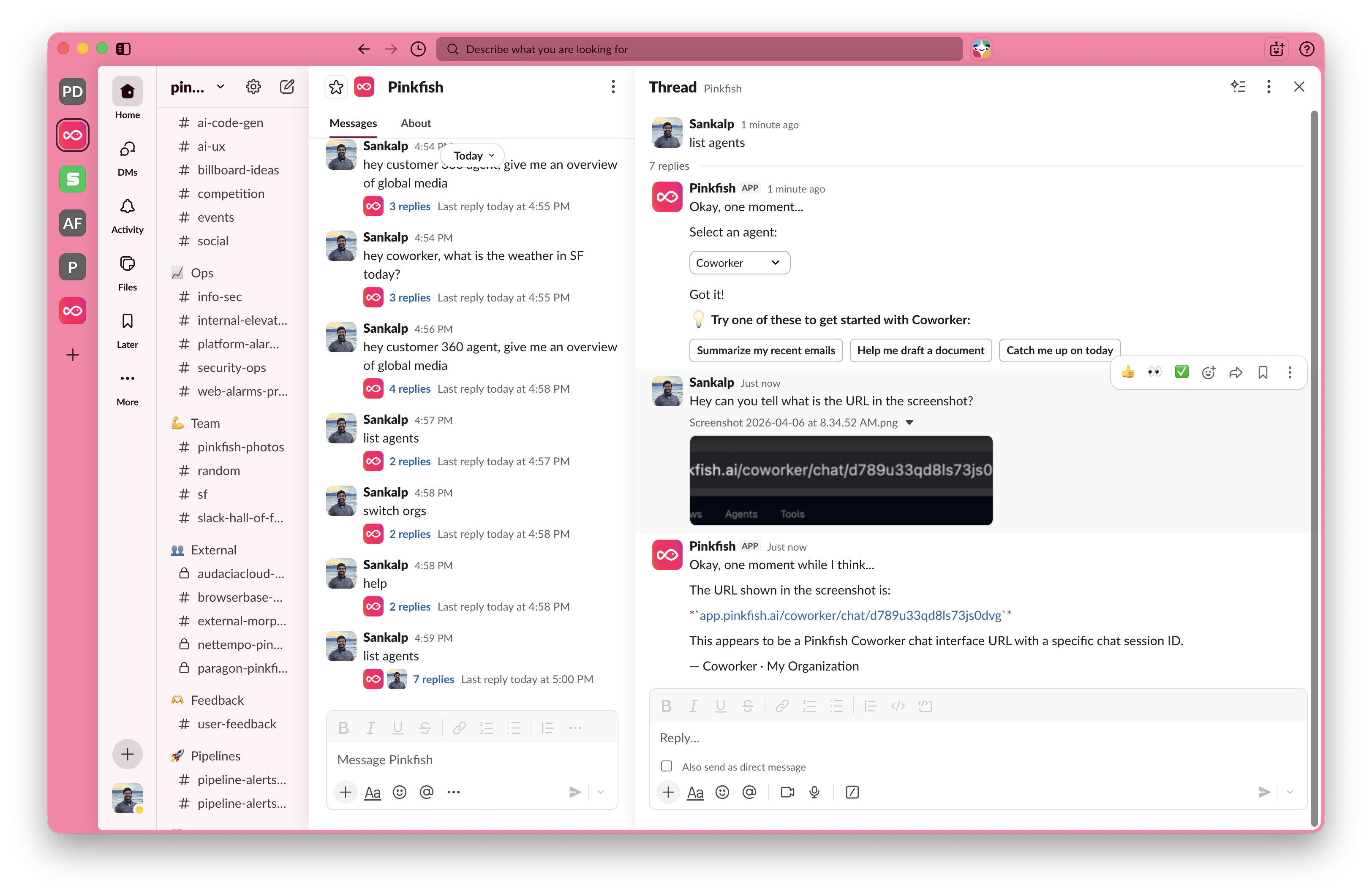
Prompt Examples
Agents that ship with prompt examples expose them inside the Slack conversation. When you first DM an agent — or start a new thread withswitch orgs / list agents — Pinkfish posts a short greeting followed by a Select a prompt… dropdown listing every example. Pick one and Slack sends the prompt text back to the agent as if you had typed it yourself, so you don’t have to copy/paste a suggested query or remember the exact phrasing.
Prompt examples are managed from the agent’s editor in the Pinkfish web app (see Agent Mode — Chat). Any changes there are reflected in Slack and Microsoft Teams automatically the next time a new conversation starts.
Rich Responses
Formatting
Agents write in Markdown, and Pinkfish renders responses using Slack’s native formatting:- Bold and links show up as Slack-formatted text.
- Headings become bold section labels.
- Code blocks and inline code are preserved as monospace.
- Markdown tables are rendered inside code blocks so columns stay aligned in Slack.
Files and artifacts
Approving Tools
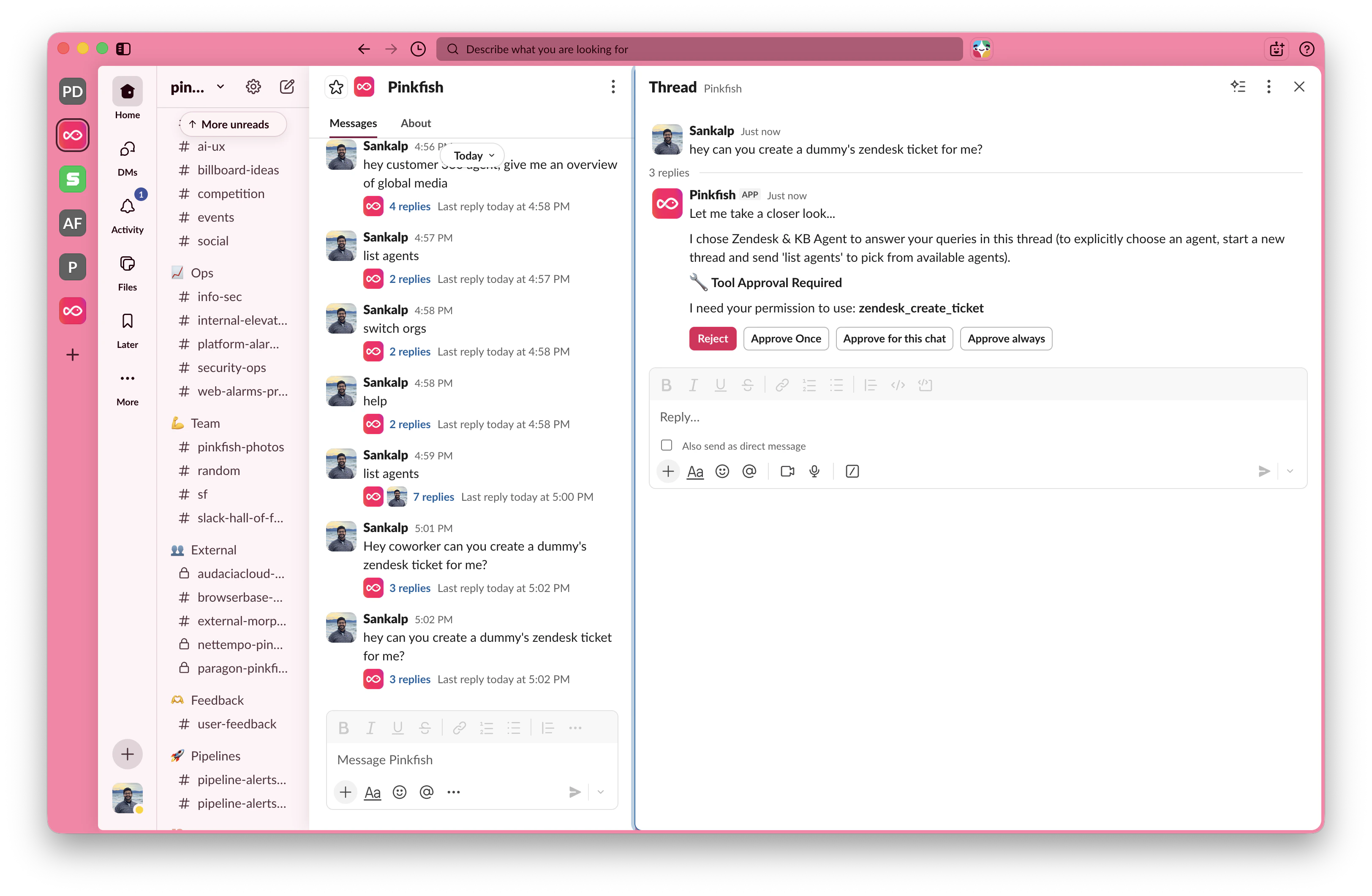
When an agent needs to use a tool for the first time, Pinkfish asks for approval right in the thread. You’ll see a prompt like 🔧 Tool Approval Required along with four buttons:- Reject — cancel the tool call
- Approve Once — allow just this call
- Approve for this chat — allow this tool for the rest of the thread
- Approve always — allow this tool in any future Slack conversation
Inviting the Bot to a Channel
When you invite the Pinkfish app to a Slack channel, it immediately posts a short welcome at the channel root introducing itself and showing how to interact with it. The welcome works the same way in public and private channels. Inviting the Pinkfish app to a public channel — the welcome posts at the channel root. The same welcome shows up when the bot is invited to a private channel. Most conversations with an agent still happen in direct messages — inviting the bot to a channel is primarily for discoverability.Notes
- The Pinkfish Slack app authenticates you using the email on your Slack profile. Make sure that email matches the one on your Pinkfish account.
- Each agent connects to a single Slack workspace per organization.
- The Slack Channel is a separate feature from the Slack MCP server, which lets agents act on Slack as a tool (posting to channels, reading messages, and so on). The two can be used together.
- If your team uses Microsoft Teams instead, see Microsoft Teams for the equivalent integration.
- For other ways to start a workflow or agent, see Triggers. For Coworker inside the Pinkfish app, see Coworker.