

Sharing Permissions
Every entity within Pinkfish can be shared. Currently Workflows, Agents and Connections can be shared easily within an organization. In the future, we will enable data store, file store and vault to be shared. Each share grants one of two levels. The lower level is named for what it lets you do with that resource, so it reads differently per resource — Run a workflow or connection, Chat with an agent — but it is the same underlying level in every case.Sharing your workflows
Simply navigate to theLibrary menu item on the left side of your Pinkfish dashboard. Once there click the Share icon from the Action column. Alternatively you can open the workflow you wish to share and click the options menu (⋮) in the upper right corner of that workflow and select Share from the dropdown menu.
Next a confirmation modal will appear allowing you to choose who you are intending to share this workflow with and their permission level. Either one or more individual people, or your entire organization.
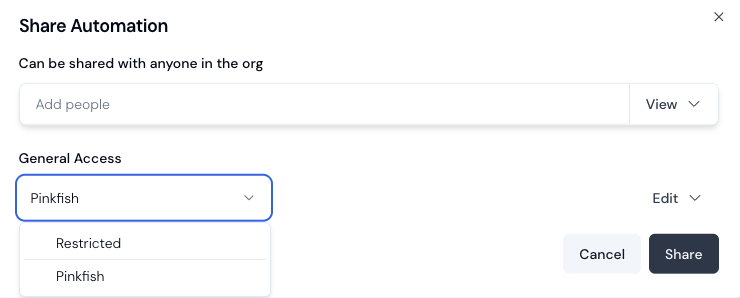
Sharing Options:
- Share with users individually in the Add People section. It will autocomplete based on email addresses for the organization.
- Share with an entire organization by selecting General Access
- Set permission levels for each user or organization
- Run: Users can run the workflow, but cannot edit, delete, or share it
- Manage: Users can run, edit, delete, and share the workflow, and manage its triggers and API keys
- Click
Shareto apply the settings, and the specified users will immediately gain access to the workflow at the specified permission level.
Managing Shared Access
To modify or revoke sharing permissions, first navigate to the workflow’s sharing settings. From there, you can adjust permission levels for individual users or the entire organization as needed. If you want to remove access completely simply click the dropdown menu arrow next to a user’s permission, or the General Access dropdown arrow next to the organization. Finally, apply your changes to update the permissions using theShare button.
Individual vs. Organization permissions
- A user’s effective permission is the higher of their individual grant and the organization-wide grant — neither one caps the other
- If a user has individual Manage access, they retain it even when organization-wide access is only Run
- The reverse is equally true: if organization-wide access is Manage and a user’s individual grant is only Run, they still get Manage. Lowering one grant does not restrict a user who is entitled through the other — to reduce someone’s access, lower both
- Organization-wide permissions apply to all current and future members of your organization
- Workflow can not be shared with users who exist outside of your organization.
- Deleting a workflow requires Manage permission — Edit access alone is not enough. When a user with Manage permission deletes a shared workflow, it is removed from the library of everyone who had access to it, because a shared workflow is one live copy rather than a copy per person.
- Since shared workflows are meant to be a collaboration tool, if multiple users who have access attempt to make changes to the workflow at the same time, a race condition will occur. In which the last user to save will overwrite the changes made by the others.
Access Control
Access to shared workflows follows these rules:- Users must be explicitly granted access or be members of an organization with access
- Members of different organizations cannot access the workflow unless specifically granted access
- The access level (Run or Manage) determines what actions users can take with the shared workflow
- Only users with Manage permission can modify the workflow or its sharing settings
Connection Sharing
Integration Connections can be shared using theConnect menu item on the left side of the Pinkfish dashboard. Once there click the Share icon from the Action column.
For agents, sharing a connection is only half the setup — you also pin it to the agent’s tool so runners use it instead of their own. See Tool Sharing and Identity for the full picture, including what happens when a connection is missing at run time.
- If you share a workflow without sharing it’s connections, the users or organization to whom you share the workflow will not have access to the connections used in the workflow.
- If you later decide to share the connections, you will need to do so separately for each user or organization.
- If you share a workflow and additionally share it’s connections, the users or organization to whom you share the workflow will have access to the connections used in the workflow.
- If you later decide to unshare the connections, you will need to do so separately for each user or organization. Keep in mind though that doing this may cause the workflow to stop working as expected.
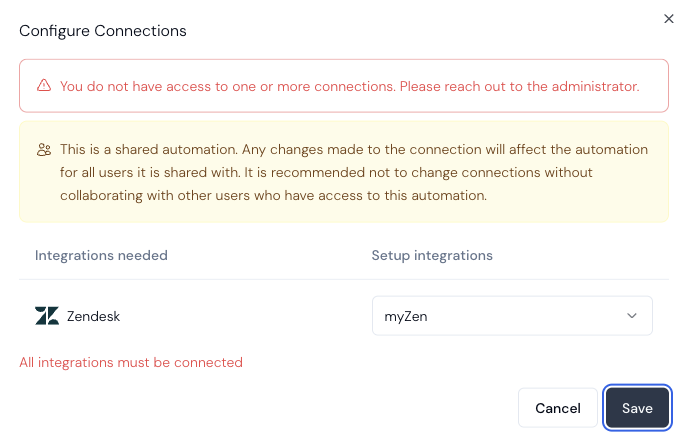
- Connections are shared with the same permission level options as workflows and can be shared with users, or entire organizations.
- If a user with whom a workflow is shared decides to use their personal (non-shared) iteration of a connection, this change will propagate to all users who have shared access to the workflow.