Save successful code executions and replay them automatically when you send a similar prompt
Saved Actions let Pinkfish remember code that has already been written and executed for you, so the next time you send a similar prompt, the same working solution can be reused instantly. This cuts down on redundant code generation, makes repeated tasks faster, and keeps known-good patterns at your fingertips.
When an agent writes and successfully executes code to answer one of your prompts, you can save that prompt + code pair by giving it a thumbs-up. Pinkfish stores the pair in a vector index scoped to you, your organization, and (optionally) a shared global pool.The next time you send a prompt, Pinkfish performs a similarity search against these saved pairs. If a strong enough match is found, the matching code is suggested to the agent as a starting point — the agent can run it as-is, adapt it, or ignore it and generate fresh code.Matching is cascading: your personal saved actions take priority, then your organization’s, and finally the global pool shared across all organizations.
The best way to understand Saved Actions is to walk through a full round-trip: send a prompt that triggers code execution, save it with thumbs-up, then send a similar prompt in a new chat and watch it replay.
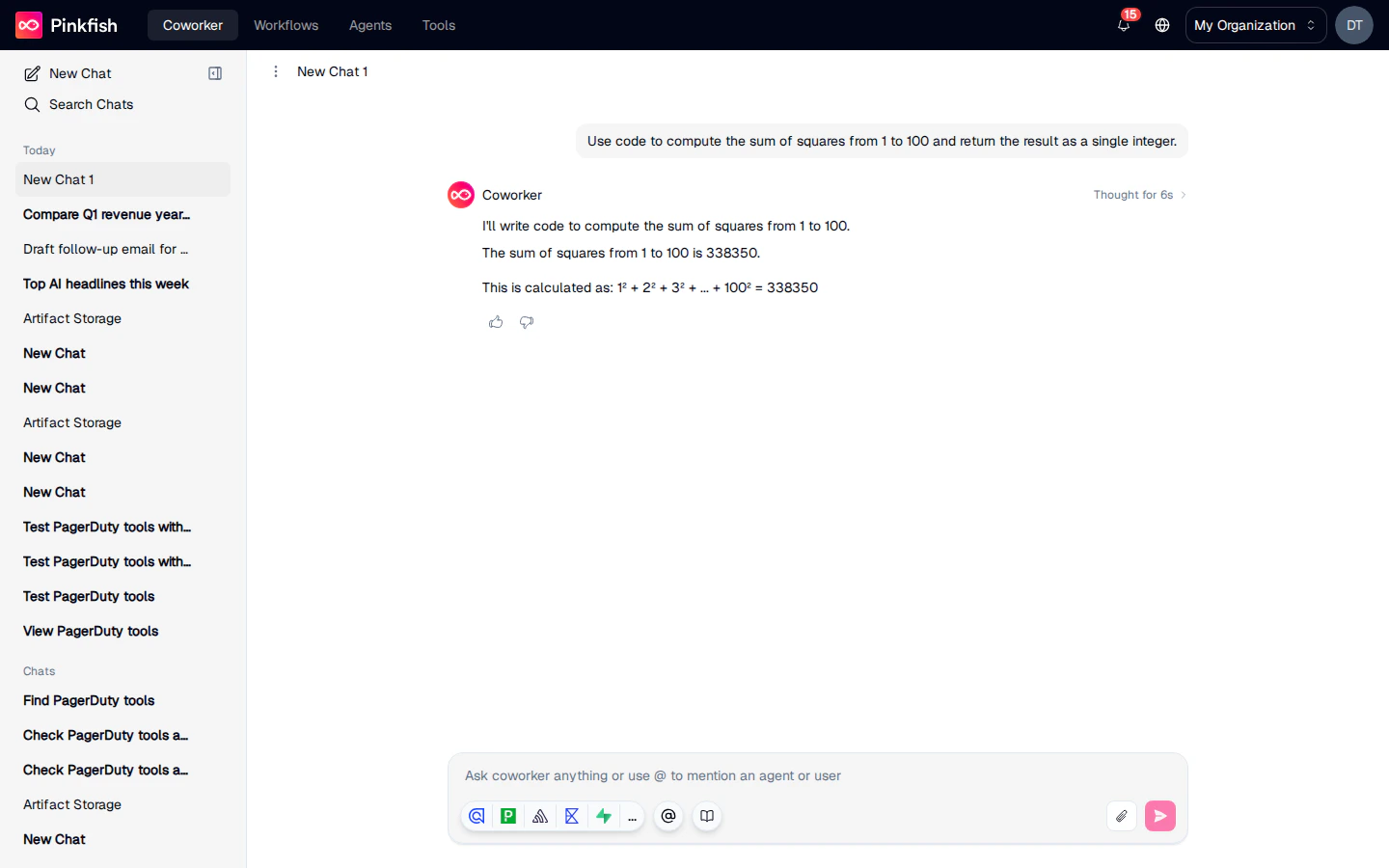
In a new chat, send a prompt that the agent will clearly answer by writing and running code — for example:
Use code to compute the sum of squares from 1 to 100 and return the result as a single integer.
The agent generates code, executes it, and returns the answer. When a response includes a successful code execution, the thumbs-up and thumbs-down buttons appear below it.Here’s the key part of the response close up — the thumbs controls sit directly under the agent’s answer:
Click thumbs-up to save the prompt and the executed code as a new saved action. The thumbs-up turns green and a confirmation appears:
The prompt saved is the original request you sent — not any intermediate tool calls — and the code saved is the last successful code execution from that response.
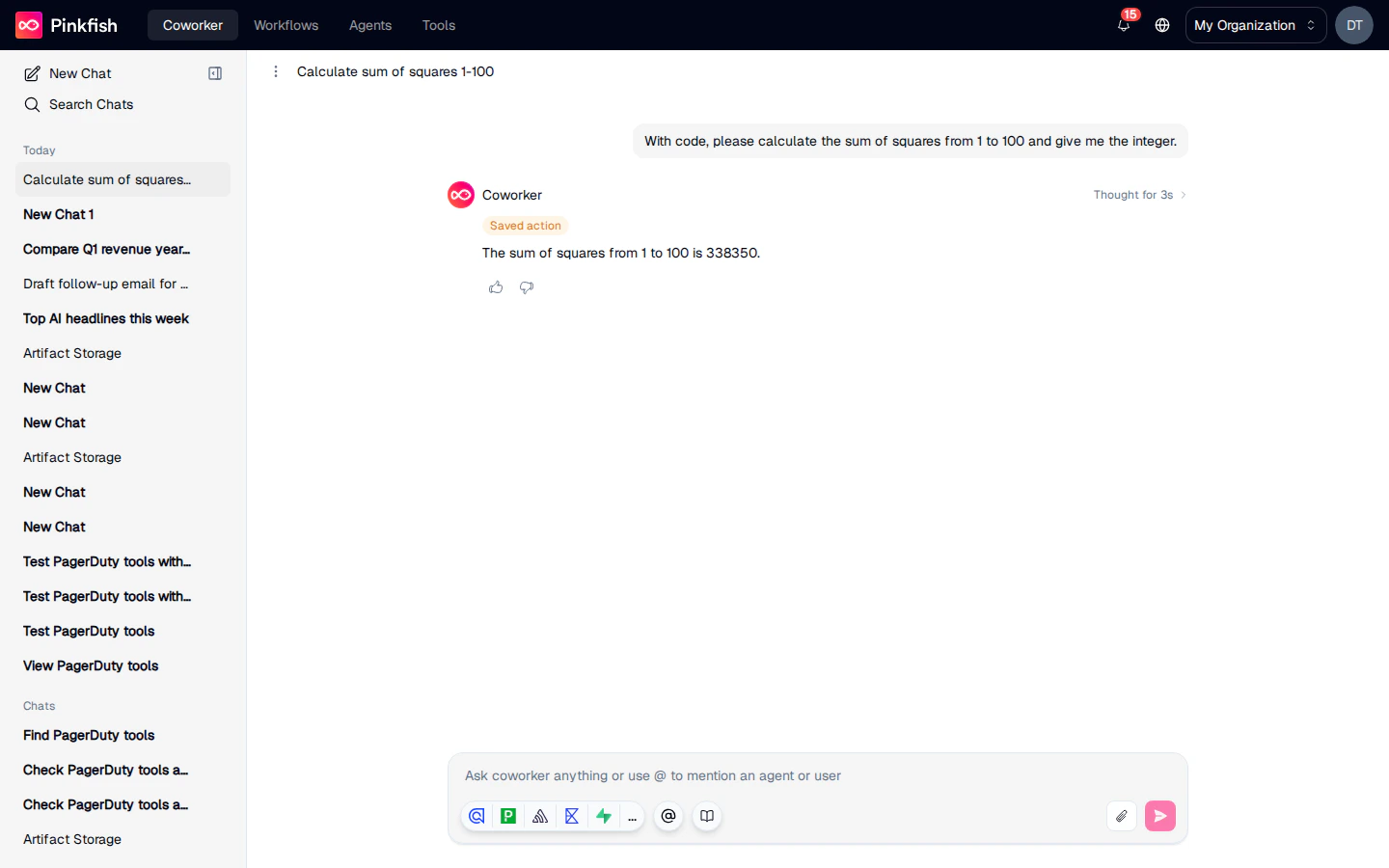
Start a new chat and send a similar (but not identical) prompt:
With code, please calculate the sum of squares from 1 to 100 and give me the integer.
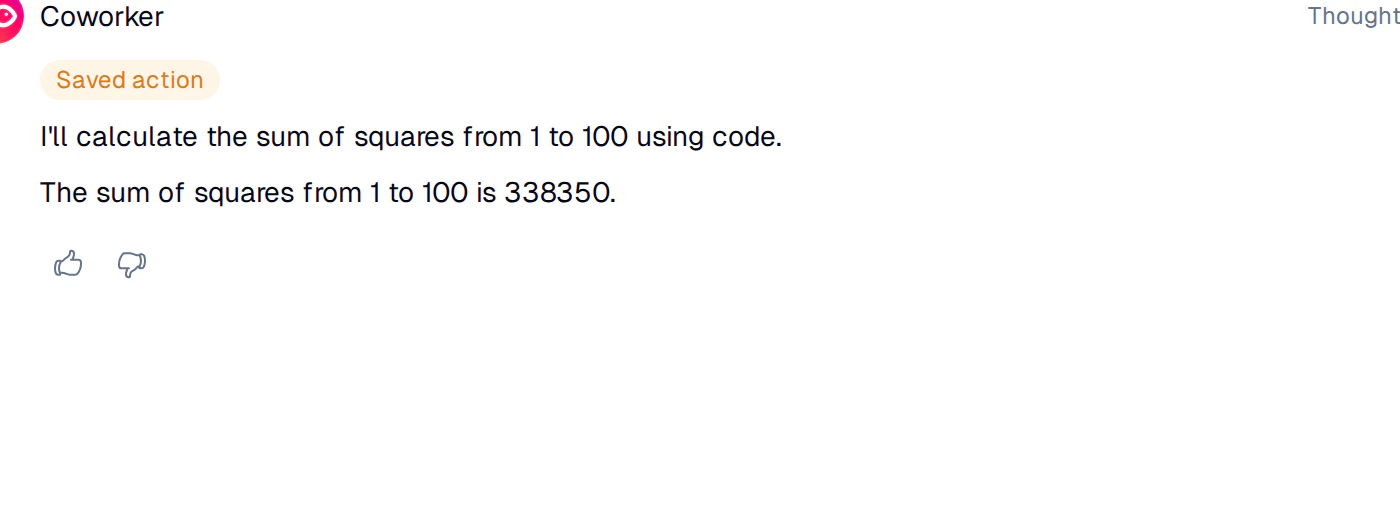
Because the semantic similarity is above the match threshold, Pinkfish intercepts the prompt and suggests the saved code to the agent. The response is tagged with an amber Saved action pill above it, so you know the answer came from a cache hit rather than a fresh generation:Full chat view for context:On a cache hit, the thumbs controls behave differently:
Thumbs-up now means “This result was correct” — confirming that the replayed saved action was the right one to use.
Thumbs-down means “Delete this saved action” — removing it so it won’t be used again. You’ll be asked to confirm before the entry is deleted.
If the agent adapts the cached code rather than running it as-is, thumbs-up on the new response saves the adapted version as a new saved action, linked back to the original. This lets the cache evolve over time as your prompts shift, without overwriting the entry that someone else might still be matching against.
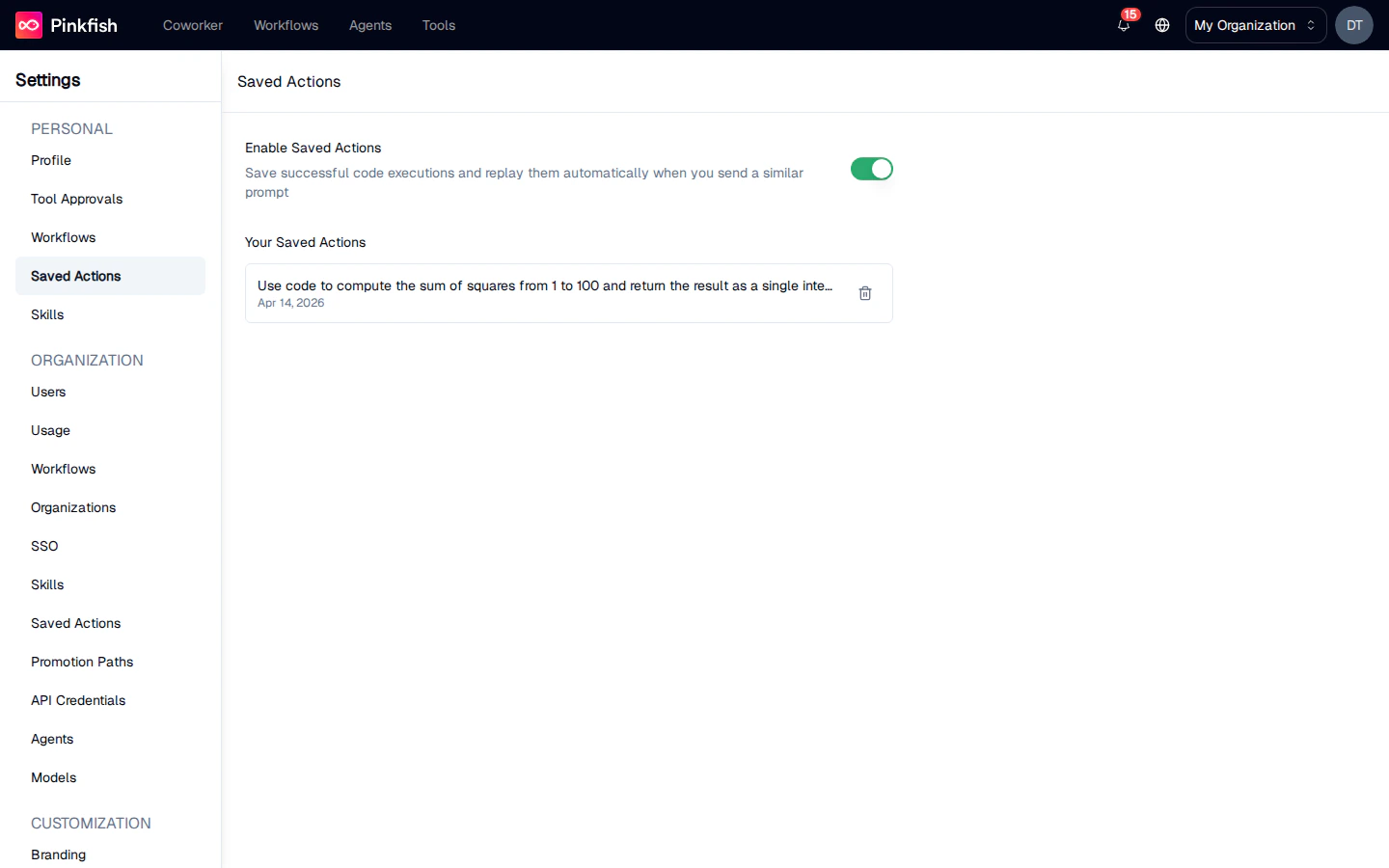
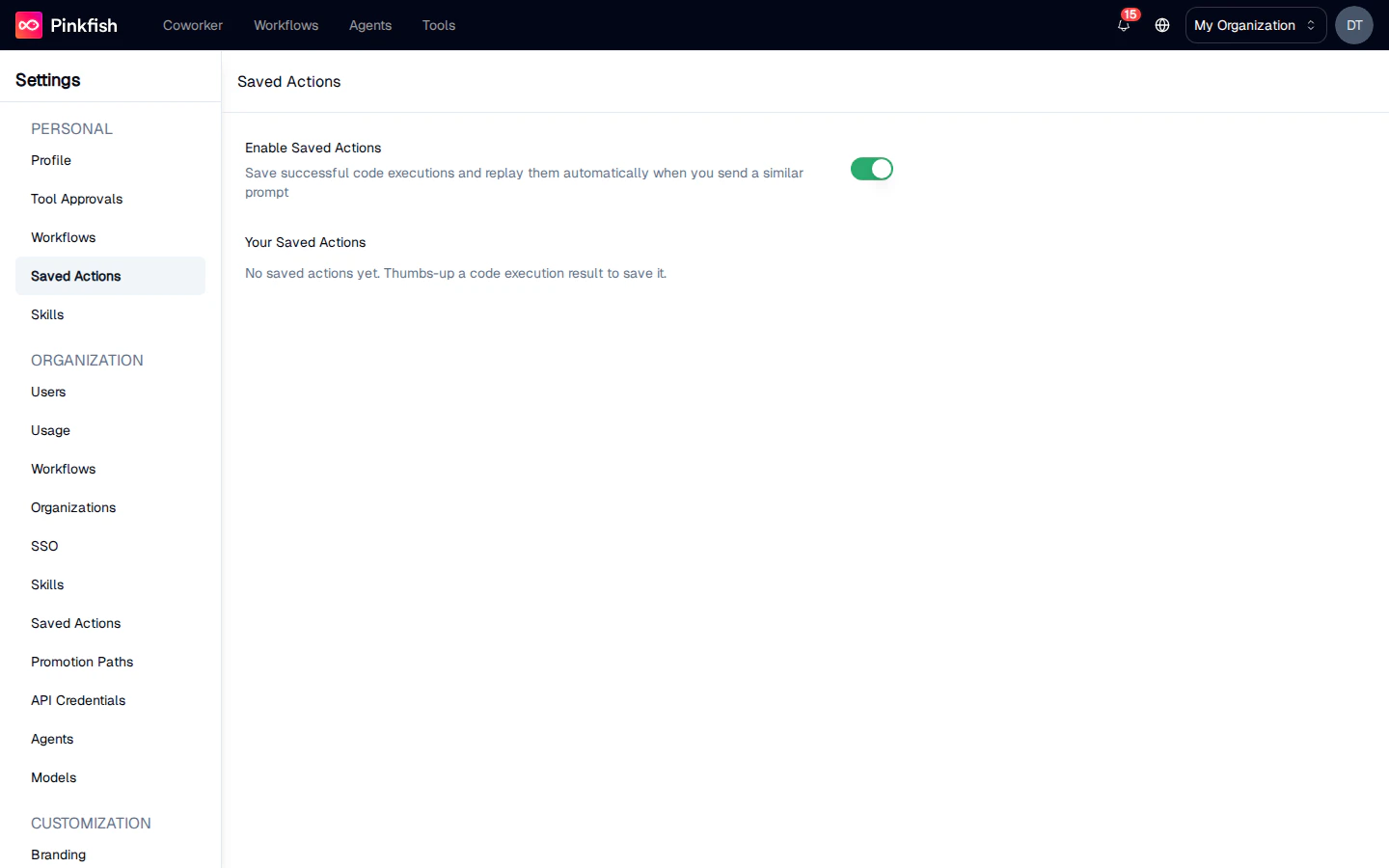
The Settings → Saved Actions page (under PERSONAL) is where you manage everything you’ve saved.From this page you can:
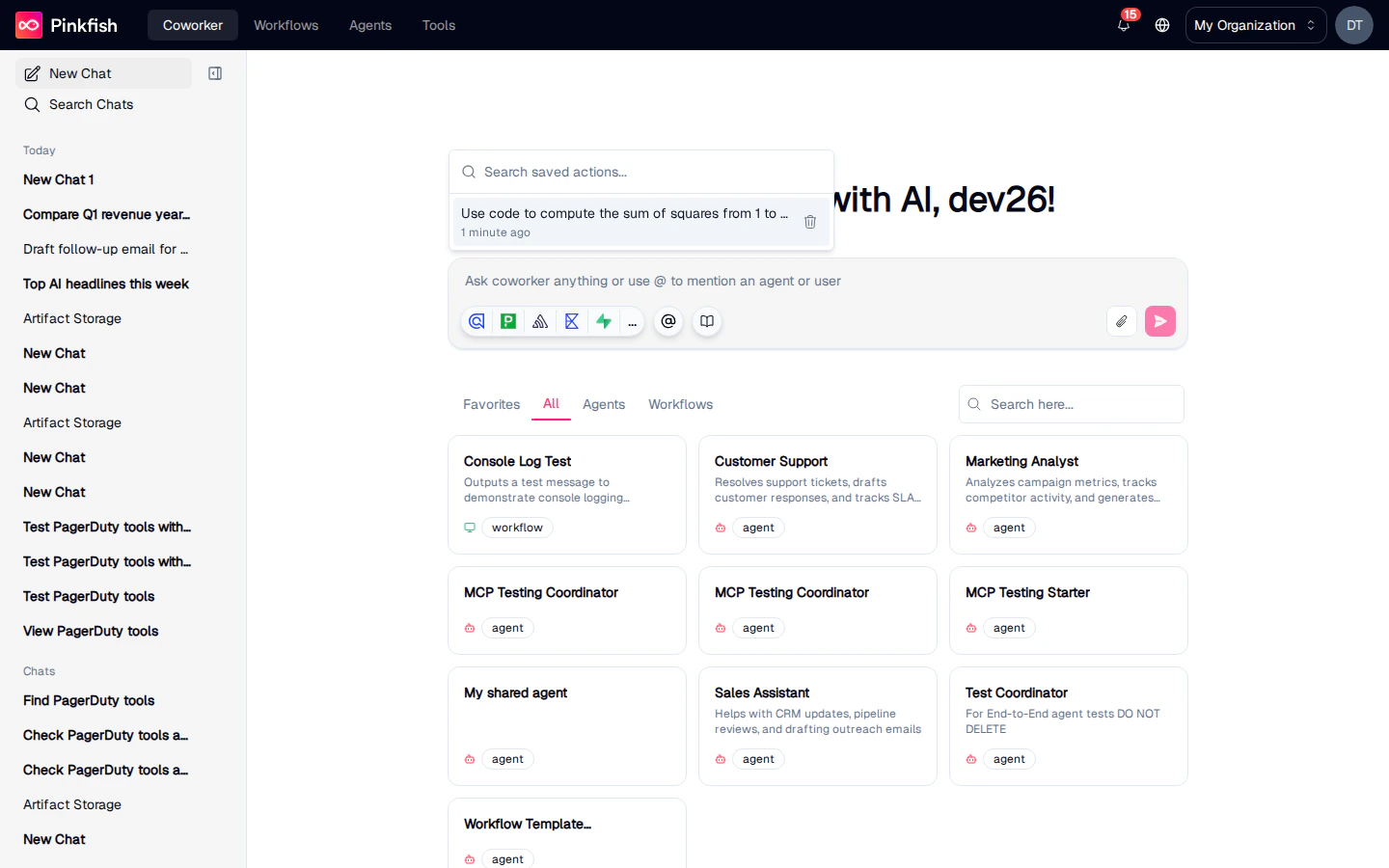
Enable Saved Actions — toggle the entire feature on or off for your account. When disabled, the thumbs-up controls and the / slash command in chat are hidden, and no automatic matching is performed against your prompts.
Your Saved Actions — browse the full list, with the prompt preview and creation date for each entry.
Delete — remove any individual saved action with the trash icon.
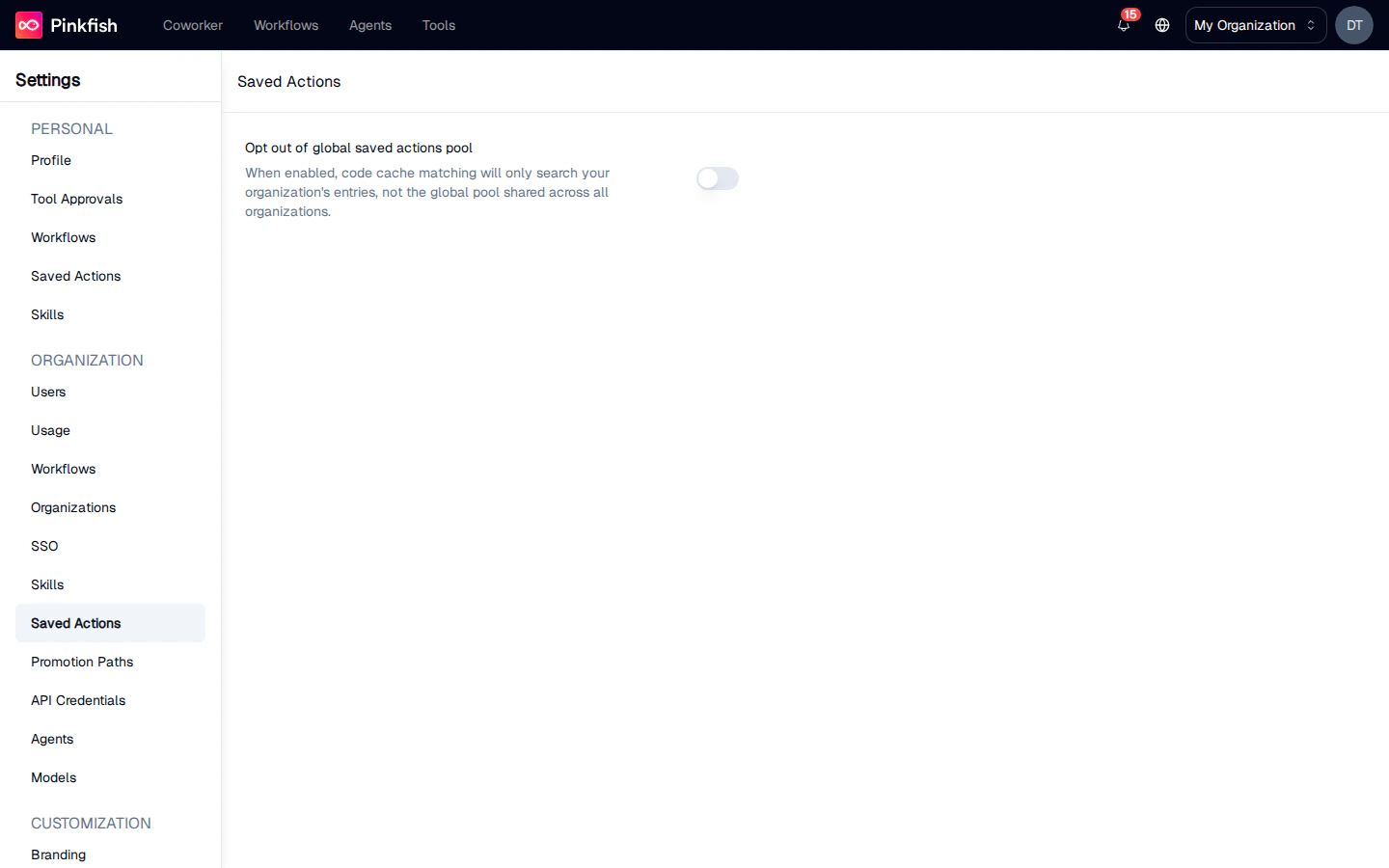
Organization administrators have an additional settings page under Settings → Saved Actions (in the ORGANIZATION section).
Opt out of global saved actions pool — when enabled, prompt matching only considers saved actions created by members of your organization. The global pool shared across all Pinkfish organizations is excluded.
Use this toggle when your organization wants stricter isolation — for example, to make sure prompts are only answered with code that has been reviewed and approved internally.
Every saved action is tagged with the user and organization that created it. When a prompt comes in, Pinkfish queries all eligible scopes at once and returns the strongest match, with priority broken in this order:
Personal — your own saved actions.
Organization — saved actions created by any member of your organization.
Global — saved actions created by any Pinkfish user, unless your organization has opted out of the global pool.
A saved action is only ever visible to its creator in the Settings UI — other users can’t browse your list, even if their prompts match and reuse your code. Organization administrators can toggle the global-pool opt-out, but cannot view, edit, or delete saved actions made by individual members of the org.
Saved Actions are enabled by default for all accounts. Administrators can’t disable the feature org-wide, but individual users can turn it off from Settings → Saved Actions.
There’s no expiry: saved actions live until you delete them, either from the Settings page, from the / slash command picker, or by thumbs-down on a cached response.
Only successful code executions trigger the save-able state — if an agent’s response didn’t run code, the thumbs-up control won’t appear.
Saved actions aren’t deduplicated. Thumbs-upping the same prompt + code twice creates two entries; remove duplicates from Settings → Saved Actions if you want to keep the list tidy.
Assistant
Responses are generated using AI and may contain mistakes.