

A short demo walk-through is available here: Pinkfish for Teams demo.
Key Features
Agents in Teams
Message any published agent you have access to from a Teams direct chat with the Pinkfish bot.
Coworker Sync
Every Teams conversation appears as a chat in Coworker — continue the same thread from the web app.
Auto Agent Routing
Send a message and Pinkfish routes it to the best-matching agent, or pick an agent explicitly with
list agents.Adaptive Cards
Interactive cards handle agent selection, tool approvals, and connection picks directly inside Teams.
How It Works
Teams users chat with a single app called Pinkfish for Teams. Behind the scenes:- Each incoming Teams message is routed to an agent in your active organization.
- If you haven’t picked an agent for the conversation, Pinkfish uses the message to auto-select the best-matching published agent — or shows a picker if it can’t decide.
- The agent runs the same way it would in the Pinkfish web app, posting its response (and any interactive prompts) back into the Teams conversation as Adaptive Cards.
- The full conversation is persisted to Coworker, with each Teams conversation mapped to one Coworker chat.
reset chat to start over.
Setup
Setting up Microsoft Teams has two sides: an admin installs the Pinkfish app in your Teams org once, then each end user signs in to link their account.Admin: Install the Pinkfish app in Teams
An administrator needs to sideload the Pinkfish app into your Microsoft Teams organization so the bot becomes available to everyone.- In the Pinkfish web app, open an agent and go to the Channel tab, or go to Settings → Channels. Find the Microsoft Teams row.
-
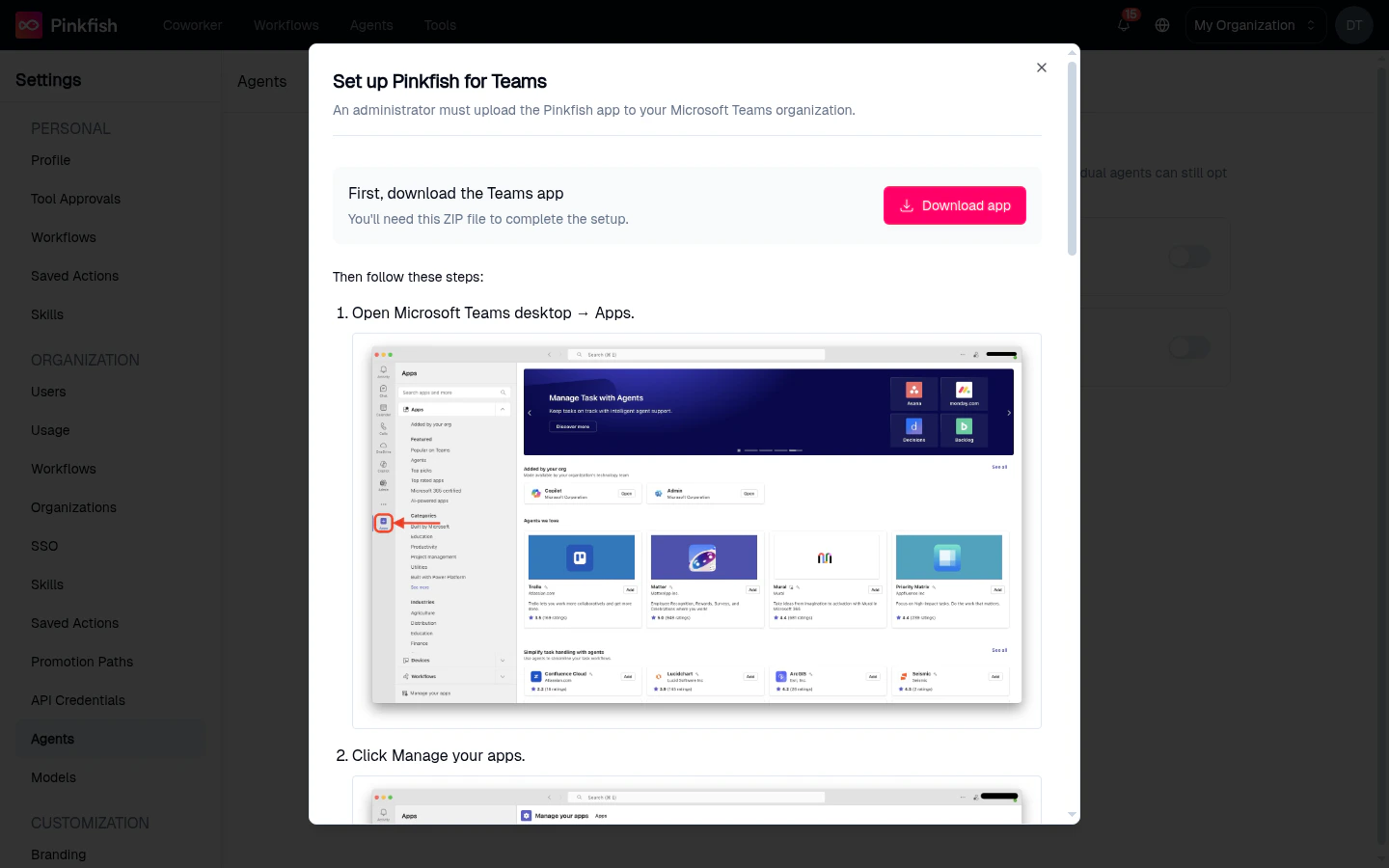
Click the download icon next to the Microsoft Teams label to open the Set up Pinkfish for Teams dialog.
-
Click Download app. This generates a ZIP package (
teams-{environment}-package.zip) that contains the app manifest and icons configured for your Pinkfish environment. -
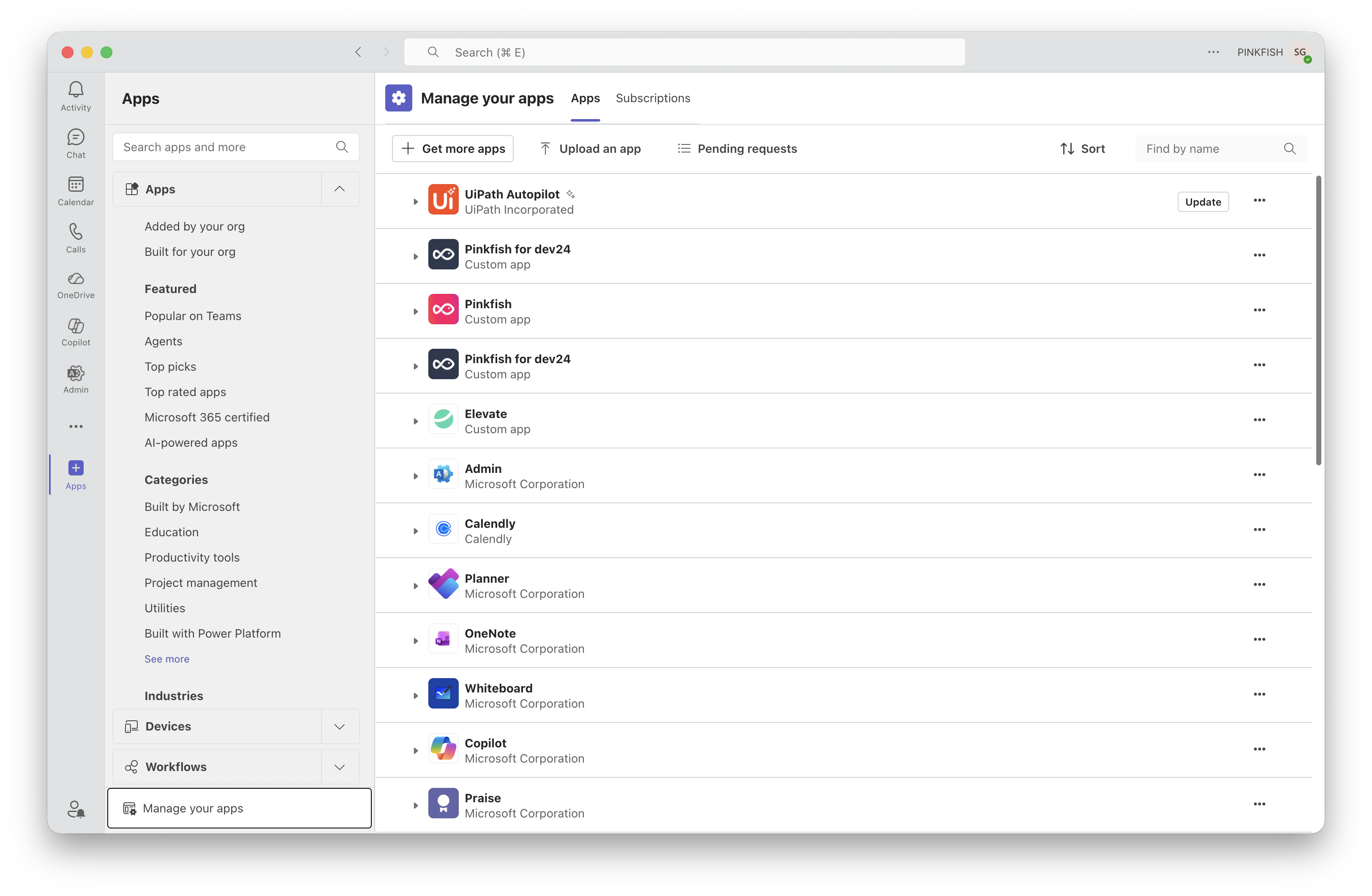
Open Microsoft Teams (desktop) and navigate to Apps → Manage your apps.
-
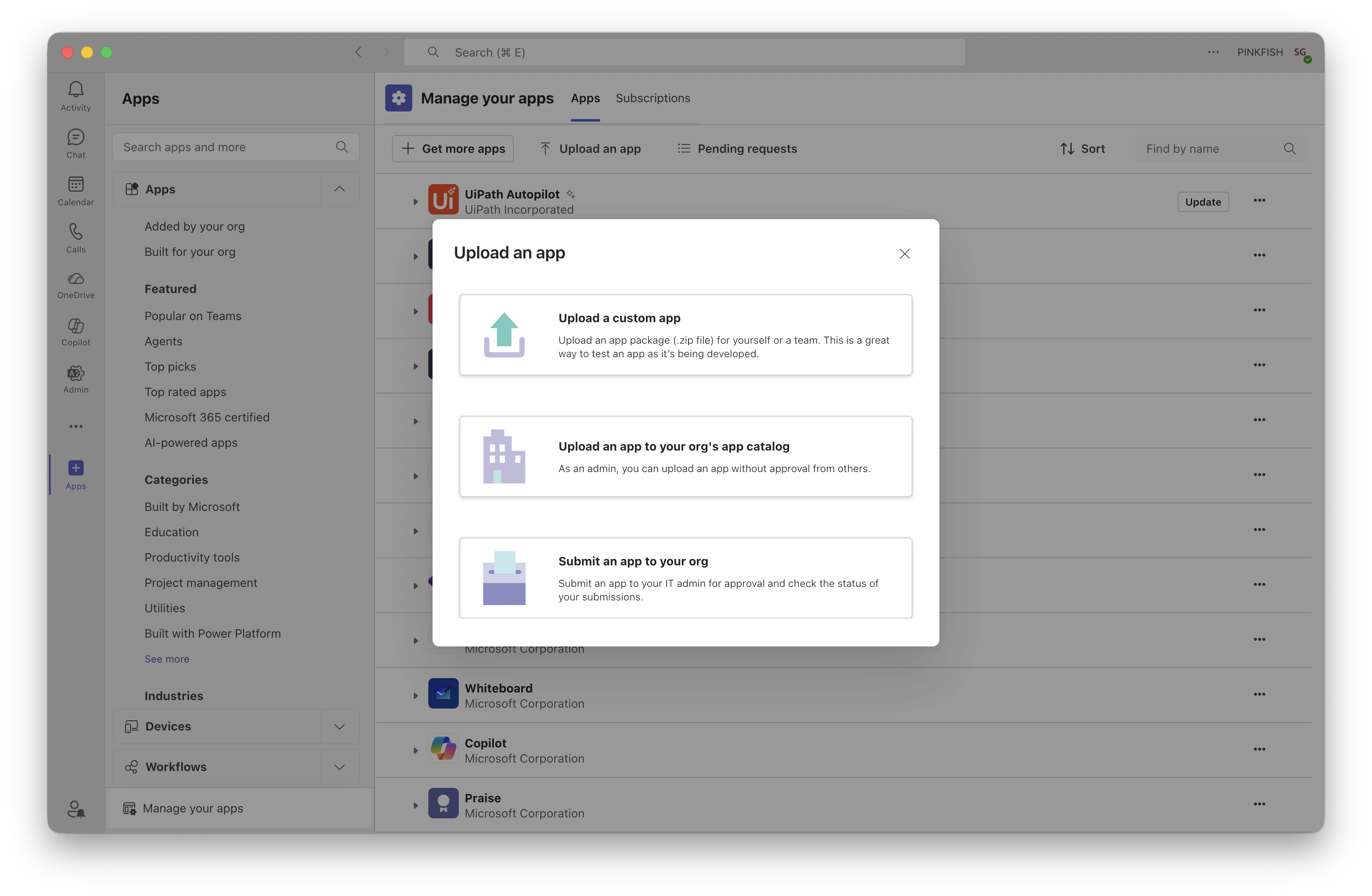
Upload the ZIP to your org’s app catalog.
-
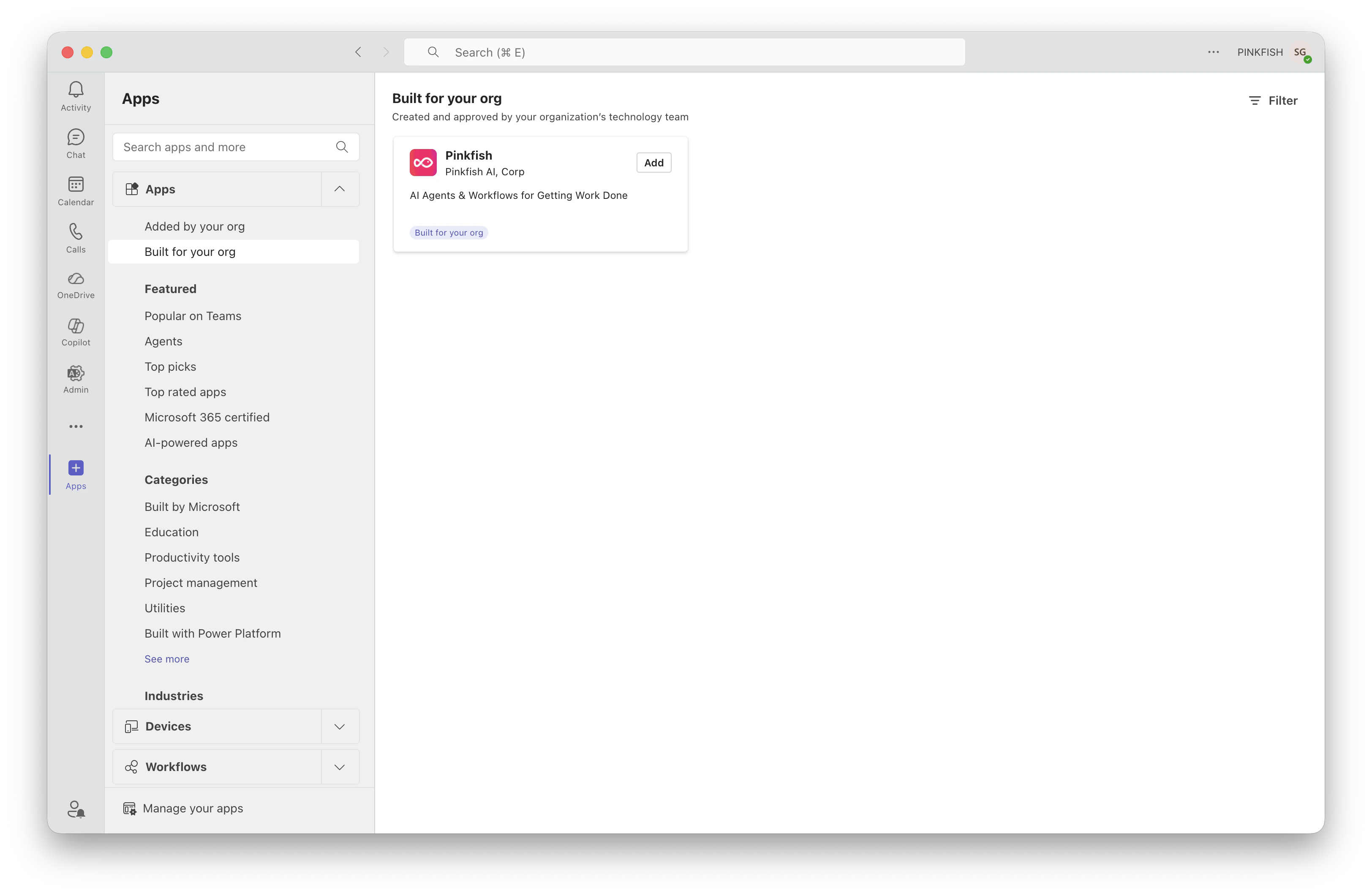
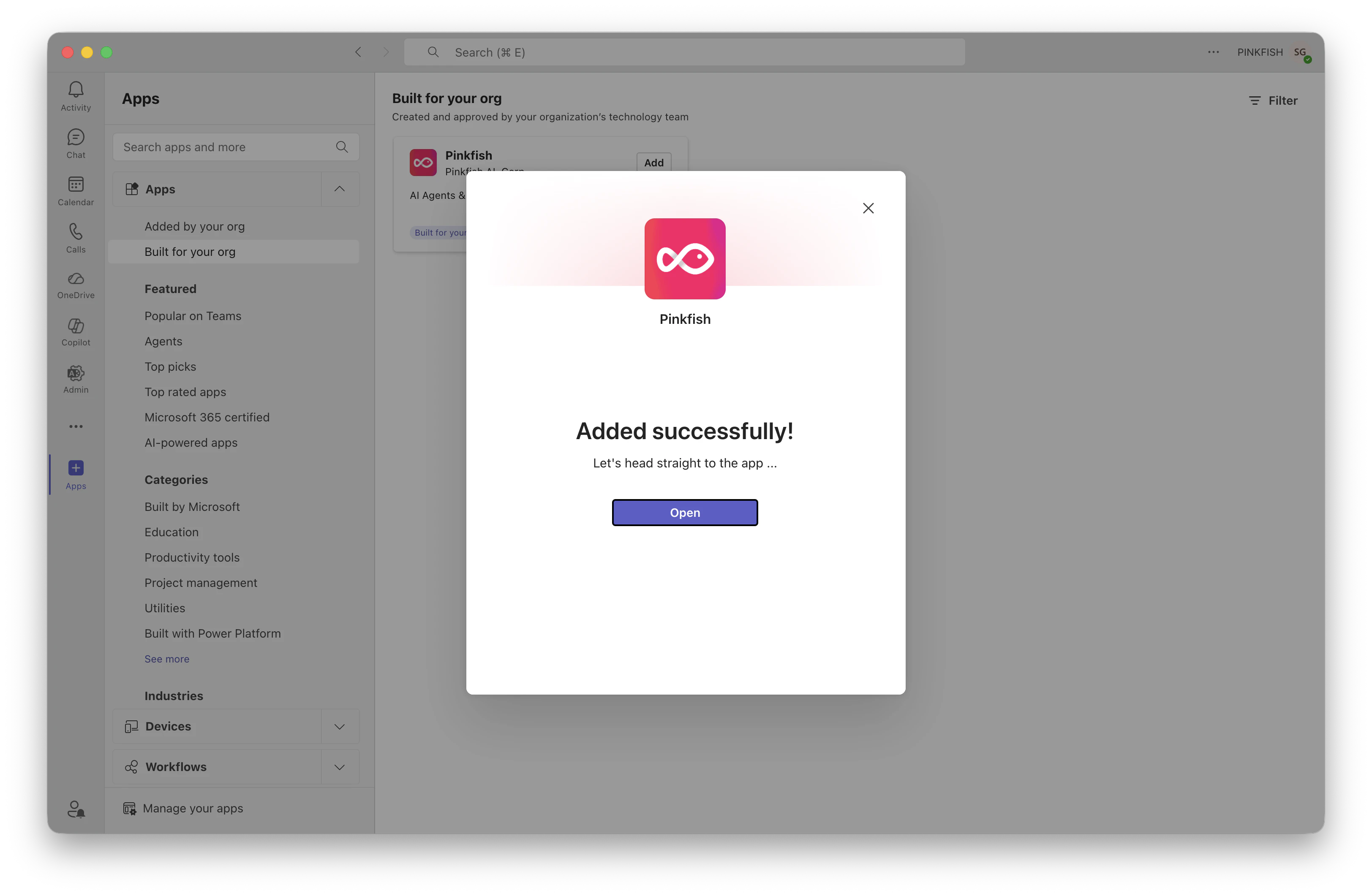
Under Built for your org, find the Pinkfish app and click Add.
-
Confirm installation when Teams prompts you, then click Open to start using Pinkfish for Teams.
End user: First-time sign in
The first time a user messages the Pinkfish bot in Teams, they are asked to sign in with their Microsoft account. This uses Microsoft’s OAuth2 flow against Azure AD and grants Pinkfish access to the Teams profile needed to match the user to their Pinkfish account. If your organization has Auto-Onboarding configured for your email domain and Teams tenant, users without a Pinkfish account skip the sign-in step entirely: an account is created for them automatically, they join the organization as members, and their first message routes straight to an agent. After signing in once, the user can send messages freely.Enabling Agents in Teams
Pinkfish offers two ways to make published agents available in Teams:Option 1: Org-level (all agents)
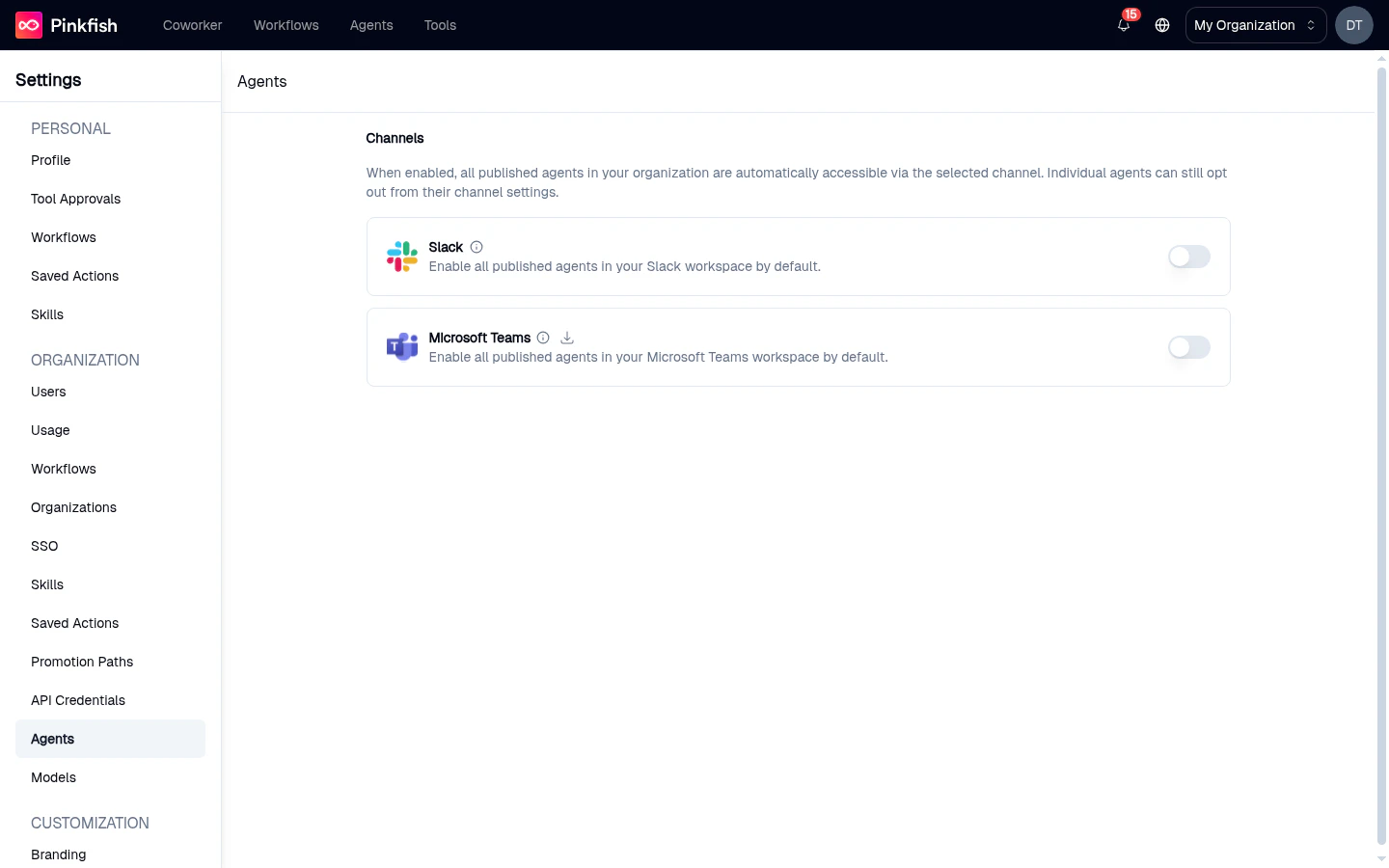
Enable Teams once for the whole organization. Every published agent becomes reachable from Teams automatically, and individual agents can opt out if needed.- In the Pinkfish web app, go to Settings → Channels.
-
In the Channels section, toggle Microsoft Teams on.
Option 2: Per-agent
Enable Teams for each agent individually. Useful when only a subset of agents should appear in Teams.- Open the agent in the agent editor.
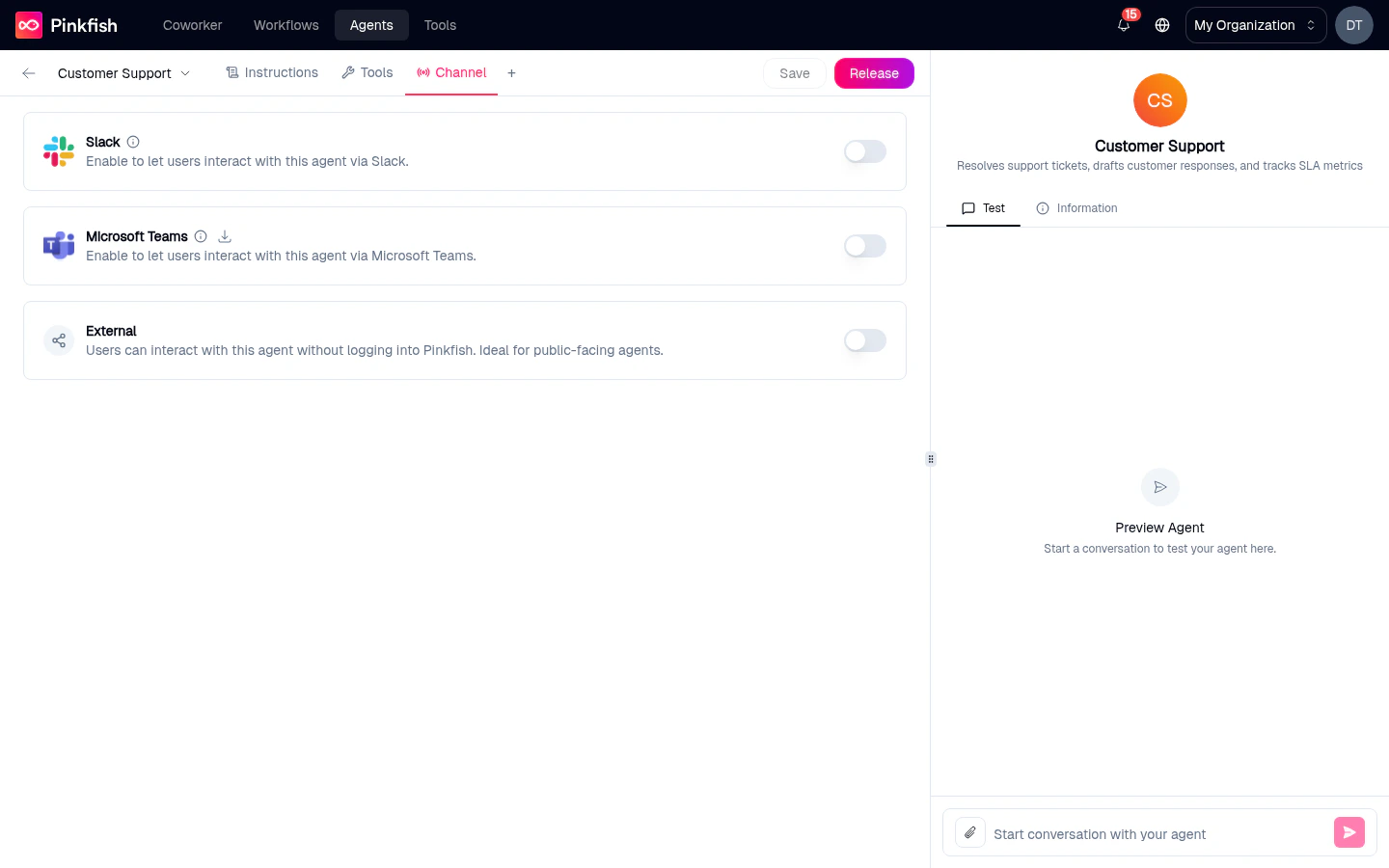
- Open the Channel tab (pin it from the + menu if it isn’t visible yet).
-
Toggle Microsoft Teams on.
- A Microsoft OAuth popup opens. Sign in with the Microsoft account that should host the agent in Teams.
- On success, a toast confirms “Microsoft Teams integration enabled successfully” and the agent becomes reachable from Teams.
If both the org-level toggle and the per-agent toggle are available, org-level takes precedence. The per-agent toggle switches to opt-out behavior as soon as the org-level toggle is enabled.
Using Pinkfish from Teams
Open a direct chat with the Pinkfish for Teams app in Microsoft Teams and send a message. By default, Pinkfish picks the best-matching agent for your message. If it can’t confidently match one, it shows an agent picker as an Adaptive Card.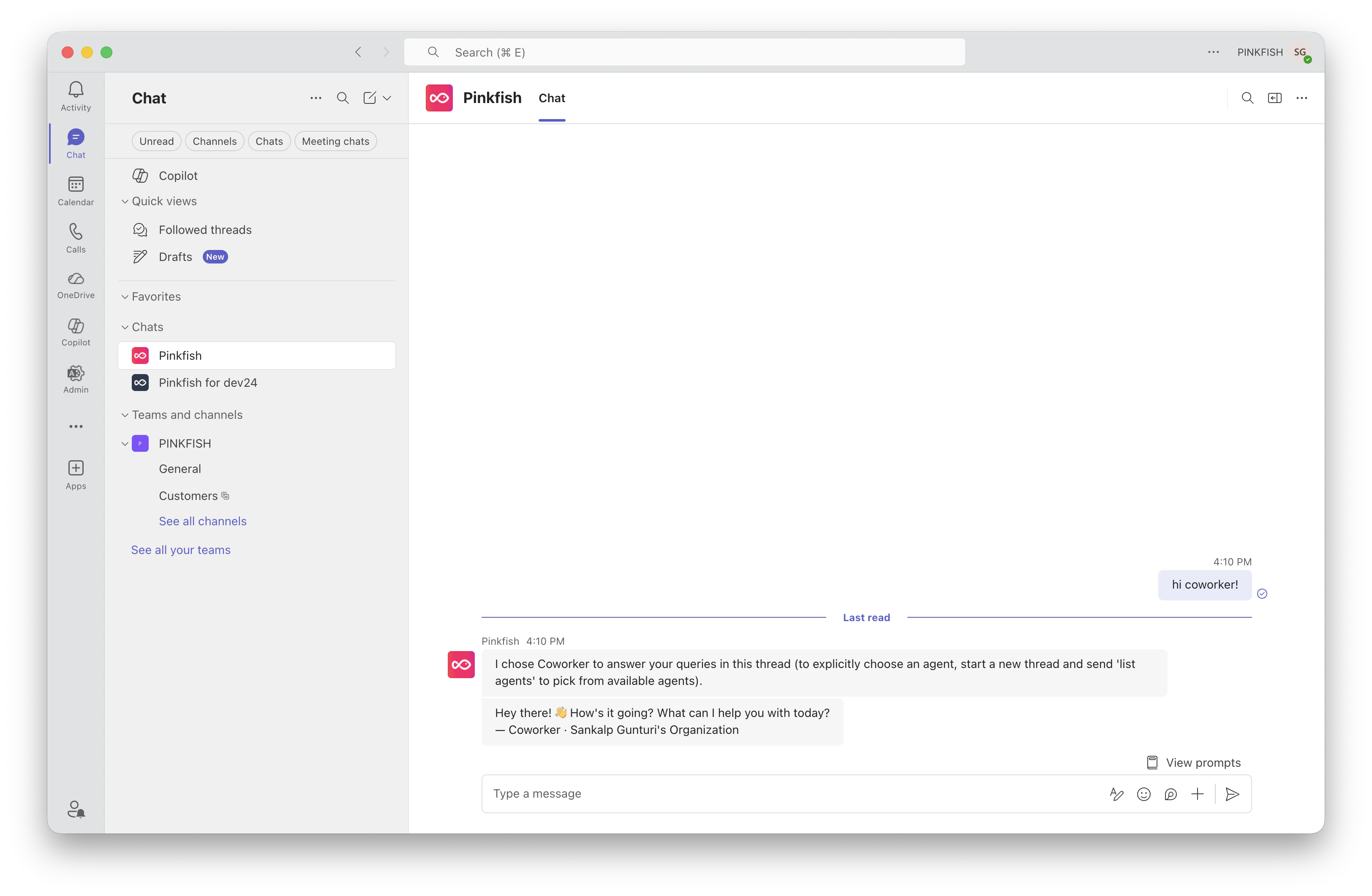
Power commands
Power commands work when you start a fresh conversation (send them as the first message in a new chat, or afterreset chat):
Interactive cards
When Pinkfish needs input — picking an agent, approving a tool action, selecting a connection, or confirming a sign-in — it posts an Adaptive Card in Teams. Tap the buttons or pick from the dropdown in the card, and the bot continues the flow based on your selection.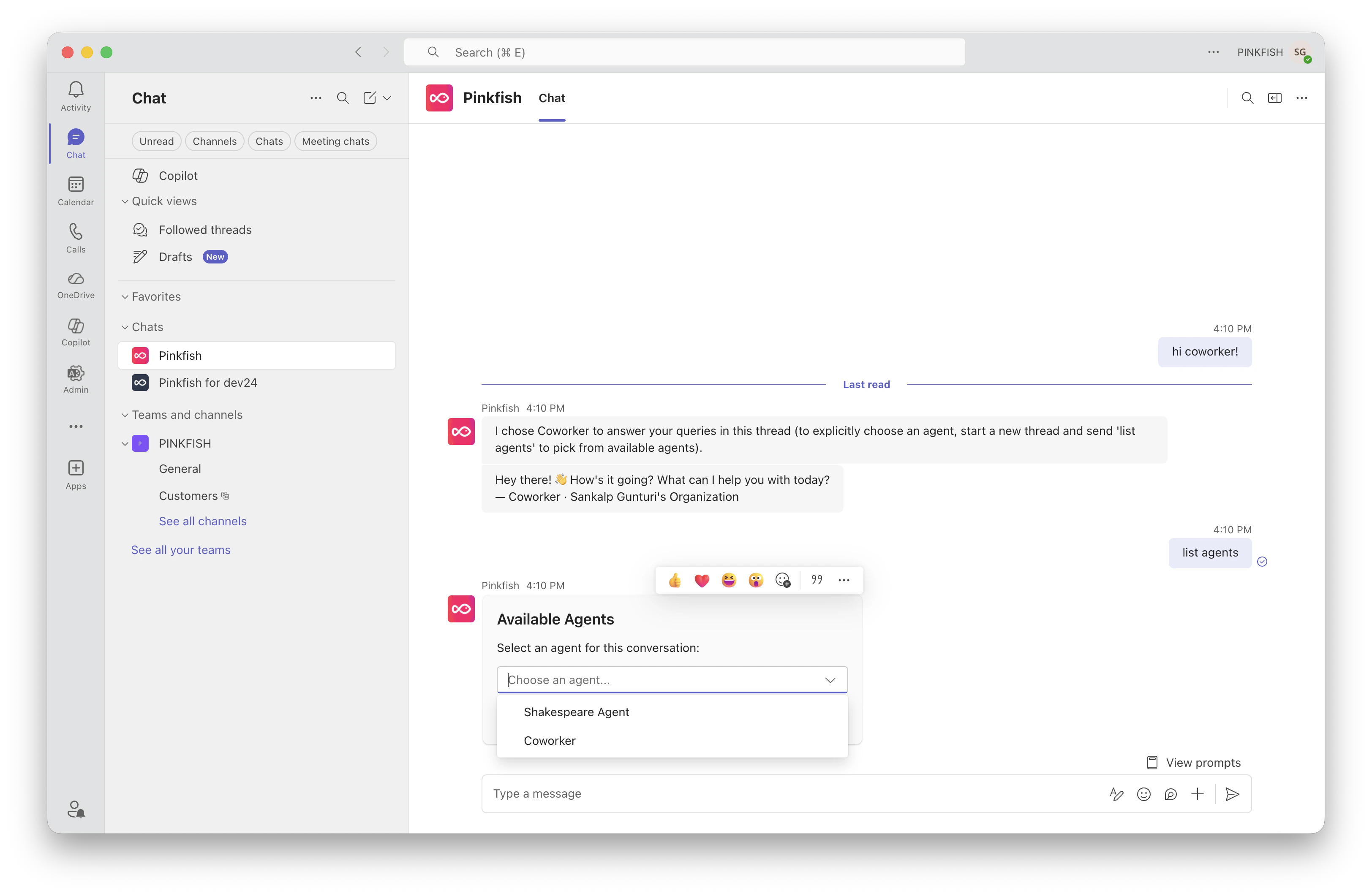
Prompt examples
Agents that define prompt examples surface them directly in Teams. At the start of a new conversation (or afterreset chat) Pinkfish posts an Adaptive Card with a dropdown of the examples and an Ask button. Pick an example and submit, and the suggestion text is sent to the agent as your next message — no copy/paste required.
Prompt examples are edited from the agent in the Pinkfish web app. Changes appear in Teams the next time a user starts a conversation.
File attachments
To send a file to Pinkfish in Teams, paste it into the message box with Cmd+V (macOS) or Ctrl+V (Windows). The standard Teams paperclip / upload button is not supported — only clipboard paste works. Copy a file (or screenshot) to your clipboard, click into the chat with the Pinkfish bot, and paste. Pinkfish ingests the pasted attachment and makes it available to the agent as input, the same way file uploads work in Coworker.Coworker and Teams
Microsoft Teams is one of the channels Coworker can be reached through. The other channels are the Pinkfish web app, Slack, and the embedded Agent web app.- Each Teams conversation shows up as a chat in Coworker in the web app — with the same messages, attachments, and agent responses.
- Chats you’ve shared, or chats belonging to orgs you share with, also appear in your Coworker chat list.
- You can answer a Teams message from the web app and vice versa — the conversation stays in sync.
Administration
Managing the org-level channel setting
The org-level Teams channel is controlled in Settings → Channels → Availability. Only org admins can change it. When the setting changes:- Turning it on makes every published agent in the org reachable from Teams, except agents that have explicitly opted out.
- Turning it off removes every agent from Teams at once. Individual per-agent Teams connections remain in place and can still be used, but the blanket exposure stops.
Removing Teams access for a single agent
- Per-agent mode: open the agent editor, go to Channel, and toggle Microsoft Teams off. A toast confirms “Microsoft Teams integration disabled”.
- Org-level mode: open the agent editor, go to Channel, and toggle Microsoft Teams off. The toggle acts as an opt-out for that agent only; other agents stay reachable.
Multi-environment app IDs
Pinkfish ships separate Teams bot registrations for each environment (production, staging, dev, and white-label deployments). The Download app button in the web app always generates the ZIP that matches the environment you’re currently using, so admins do not have to worry about picking the right app ID manually. If your org uses multiple Pinkfish environments (for example, a staging org and a production org), each environment requires its own Teams app installation.Limitations and Notes
- Teams uses a flat conversation model — there are no threads inside the direct chat. Use
reset chatto start a new conversation. - Power commands (
help,list agents,switch orgs,reset chat) only take effect as the first message in a new conversation. - Channels and group chats are not currently supported — the Pinkfish app is scoped to personal (direct) chats only.
- File attachments must be sent via Cmd+V / Ctrl+V paste. The Teams upload (paperclip) button is not supported.
- Users who are members of multiple Pinkfish organizations can switch between them with
switch orgs. - The integration is OAuth2-based against Azure AD
/commontenant, so it works in multi-tenant Microsoft 365 environments out of the box.
Troubleshooting
The bot doesn’t show up in Teams “Built for your org”. Your administrator has not completed the upload step. Ask them to download the app ZIP from Settings → Channels (or from the Channels tab on any agent) and sideload it into the Teams org catalog. Sign-in fails or never completes. Check that the Pinkfish account email and the Microsoft 365 account email are identical. Pinkfish matches users by email. An agent doesn’t appear when I sendlist agents.
Verify the agent is published and that you have access to it. Unpublished or draft agents are not exposed through Teams.
Teams toggle in the agent editor does nothing visible.
When the org-level Teams channel is on, the agent-level toggle is an opt-out switch rather than an OAuth trigger. Switch it off to exclude the agent from Teams; switch it on to include it again.
I want to start a new conversation but reset chat isn’t working.
reset chat must be sent as the first message in a new Teams exchange with the bot, not as a reply in an existing conversation.