

Key Sections
Users
Invite, edit, and remove organization members.
Usage
Workflow runs, credit burn, and analytics over time.
Workflows
Global log verbosity for dev and production runs.
Billing
Plan details, invoices, and subscription management.
Organizations
Parent and sub-organization hierarchy.
SSO
SAML identity provider configuration.
Skills
Organization-wide skills for all members’ agents.
Saved Actions
Opt out of the cross-organization code cache pool.
Promotion Paths
Ordered stages for promoting workflows across orgs.
API Credentials
OAuth 2.0 client credentials for programmatic access.
Channels
Enable Slack and Microsoft Teams for agents, and auto-onboard teammates by email domain.
Models
Primary and fallback LLM models for the organization.
Users
The Users page is the membership roster. Admins invite new members, change permissions, copy invite links, and remove accounts from here.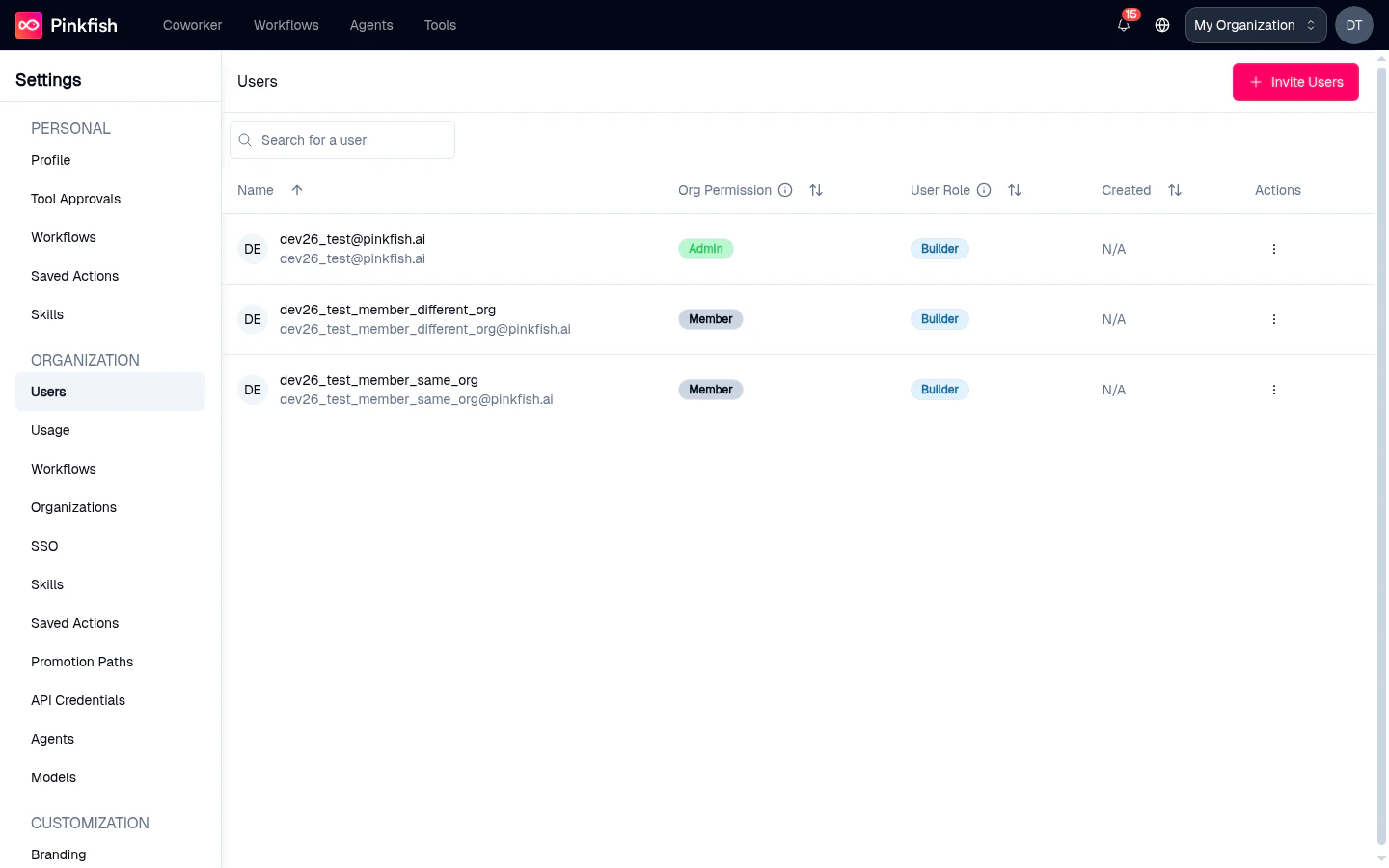
- Name, avatar, and profile image — profile photos uploaded by the member render next to their name so you can identify them at a glance. Members without a photo fall back to an initials avatar.
- Org Permission —
AdminorMember - User Role —
BuilderorEnd User - Created date
- Actions menu — edit, copy invite link, resend invite, revoke invite (for pending invites), or remove user (for accepted members)
Usage
The Usage section is the operational dashboard for the organization — how many runs, how many credits consumed, and who drove the work.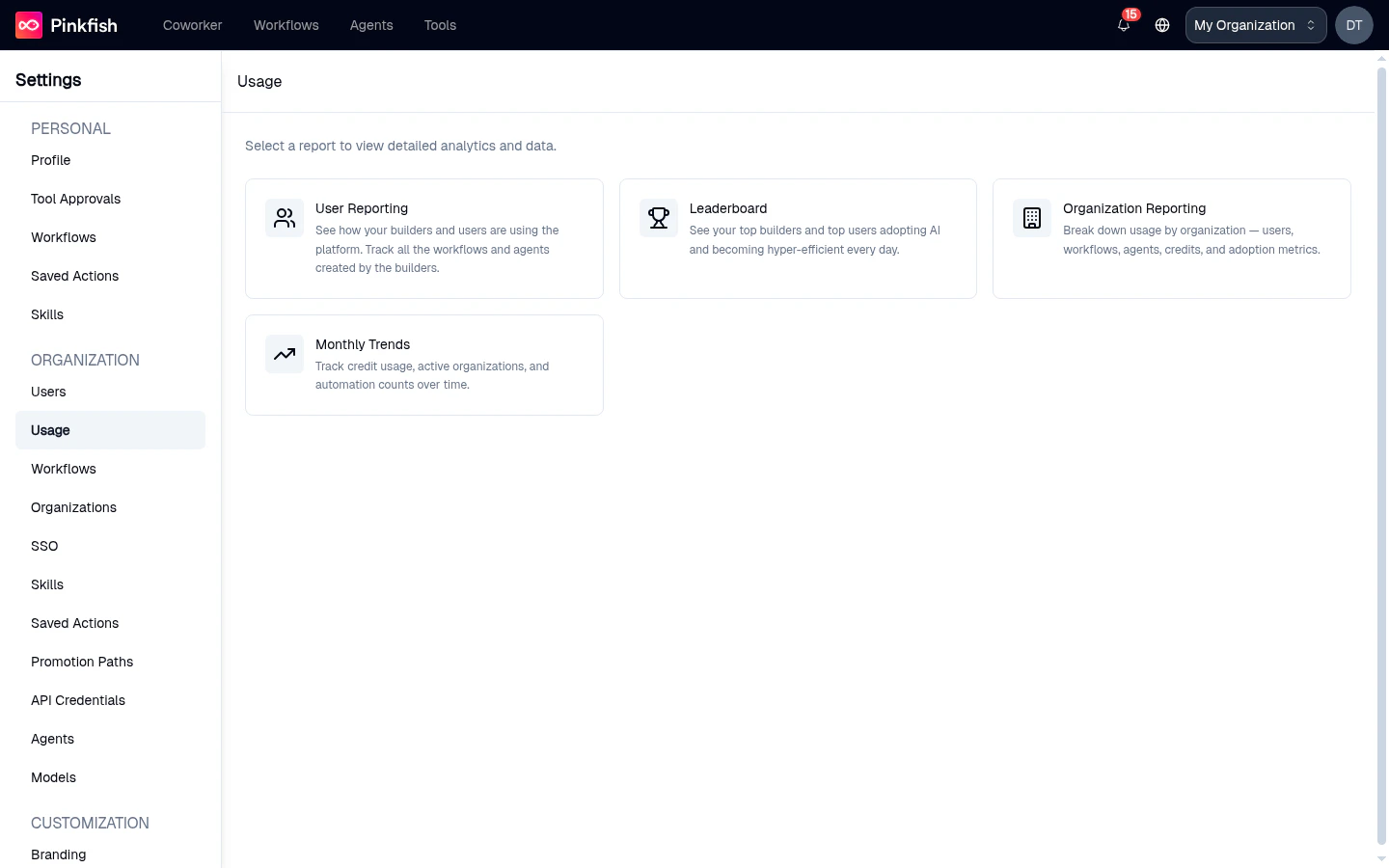
- User Reporting — breakdown of runs and credits per member
- Leaderboard — top users by workflow execution
- Organization Reporting — agent, skill, and session usage at the org level
- Monthly Trends — month-over-month activity chart
Workflows
The organization Workflows page controls log verbosity for every workflow in the org. These settings exist so you can tune how much data Pinkfish retains per run — useful for GDPR/HIPAA compliance.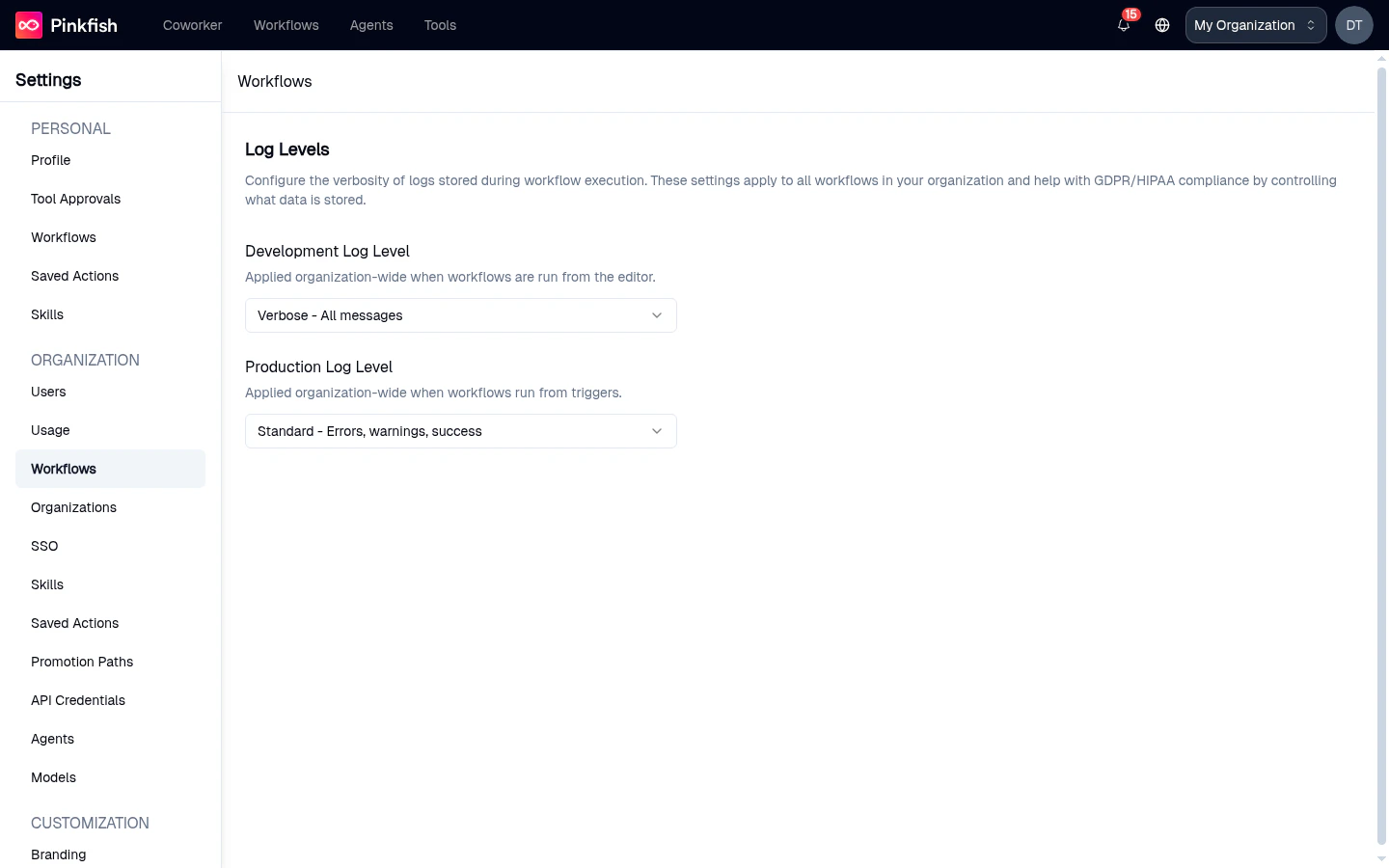
- None — don’t store logs
- Minimal — errors only
- Standard — errors, warnings, and success messages
- Verbose — all messages
Billing
The Billing page shows your current plan, credit consumption, and subscription controls. It’s hidden for enterprise organizations — enterprise billing runs through the dedicated Pinkfish billing process — and only plan modification actions are restricted to admins. Typical elements on this page:- Your Current Plan card with plan name, subscription type (Weekly / Monthly / Annual), included credits, usage cost, credits refresh date, total credits used, and a usage bar chart
- Manage Plan / Upgrade Plan / Reactivate Plan (label depends on status)
- Invoices and Payment and Update Payment Info buttons
- Cancel Subscription link
- Links to learn more about plans and usage pricing
Organizations
The Organizations page shows the organization hierarchy available to your account. For enterprise prime organizations this is where you create and manage sub-organizations.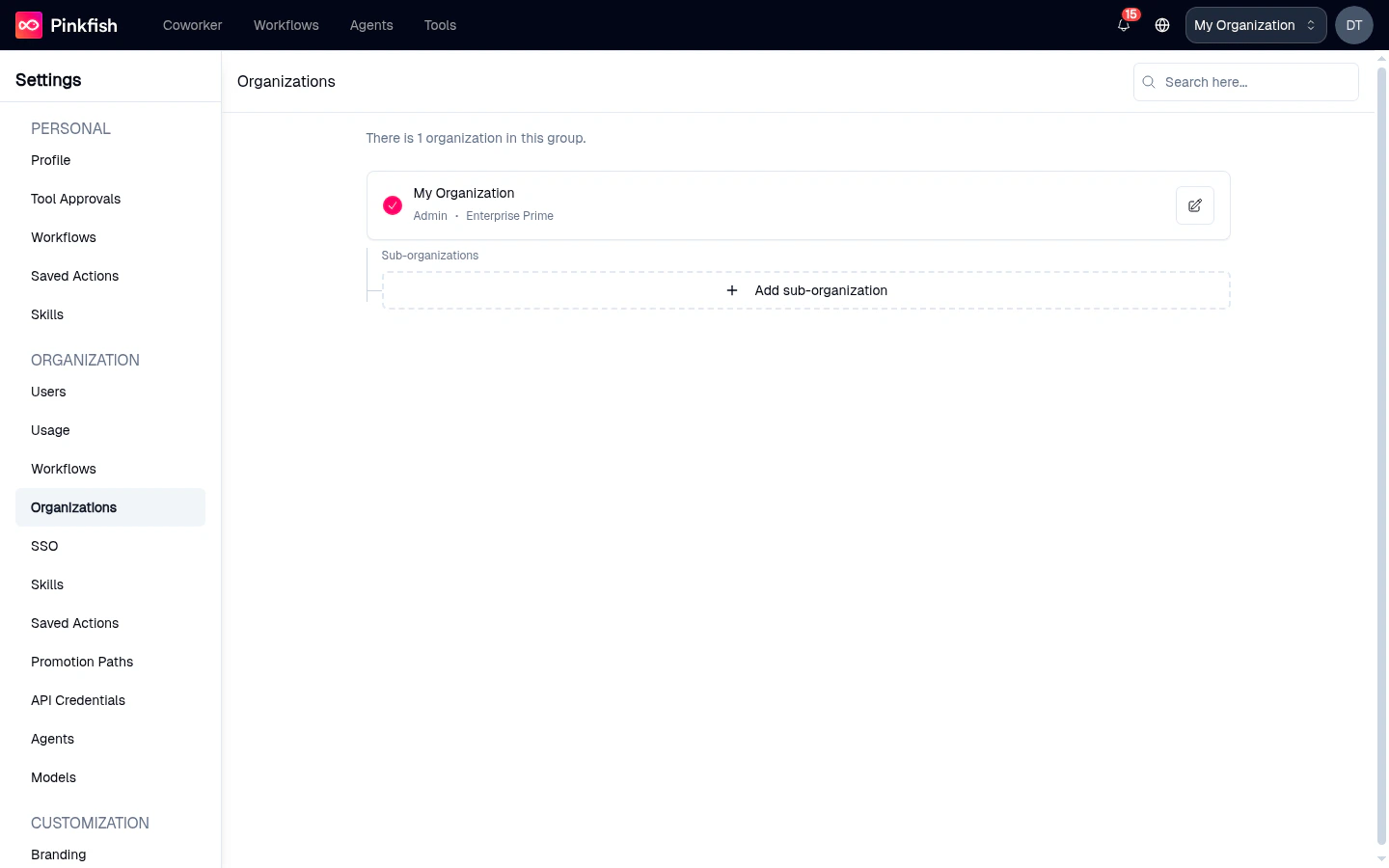
Admin), and the plan (Enterprise Prime, etc.). Click the pencil icon to edit the organization’s details or the card itself to switch into it. The Sub-organizations panel lists children underneath the parent; click + Add sub-organization to spin up a new child org (enterprise prime admins only). The search box filters the list when you have many orgs.
SSO
The SSO page walks you through configuring SAML 2.0 Single Sign-On. It’s an Enterprise-plan feature and is only configurable from the parent organization in a multi-org group.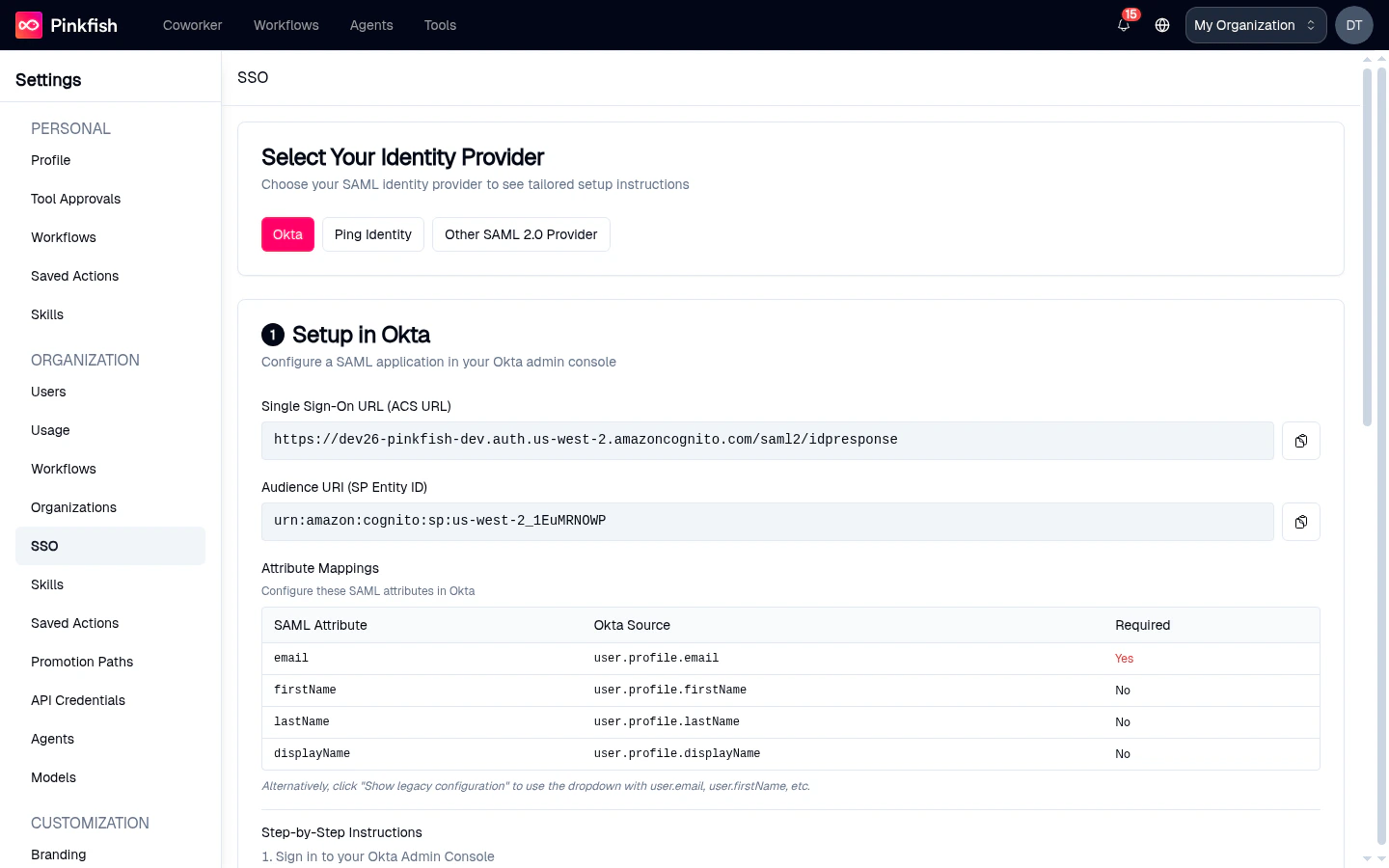
- Select Your Identity Provider — pick a preset (Okta, Google Workspace, Microsoft Entra, Ping Identity, Other SAML 2.0 Provider). The page then shows provider-specific instructions.
- Setup in — the Single Sign-On URL (ACS URL), Audience URI, a table of required SAML attribute mappings (
email,firstName,lastName, and others), and numbered step-by-step instructions for that provider.
Skills (Organization)
Organization-wide skills work like personal skills, but every member’s agents can discover them. Use them to capture house style, compliance rules, or shared domain knowledge.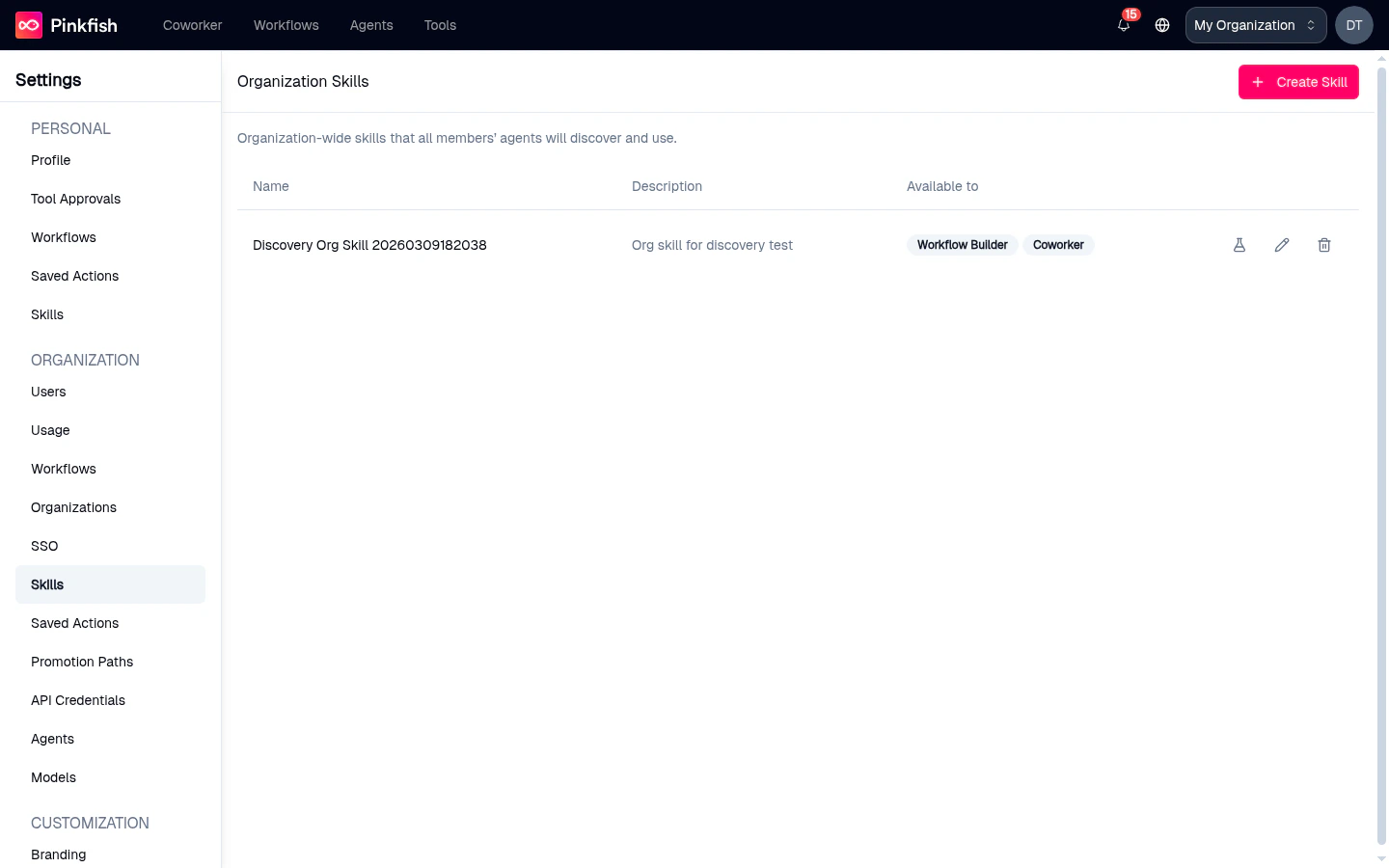
Saved Actions (Organization)
The organization Saved Actions page has a single control: an opt-out toggle for the shared global pool.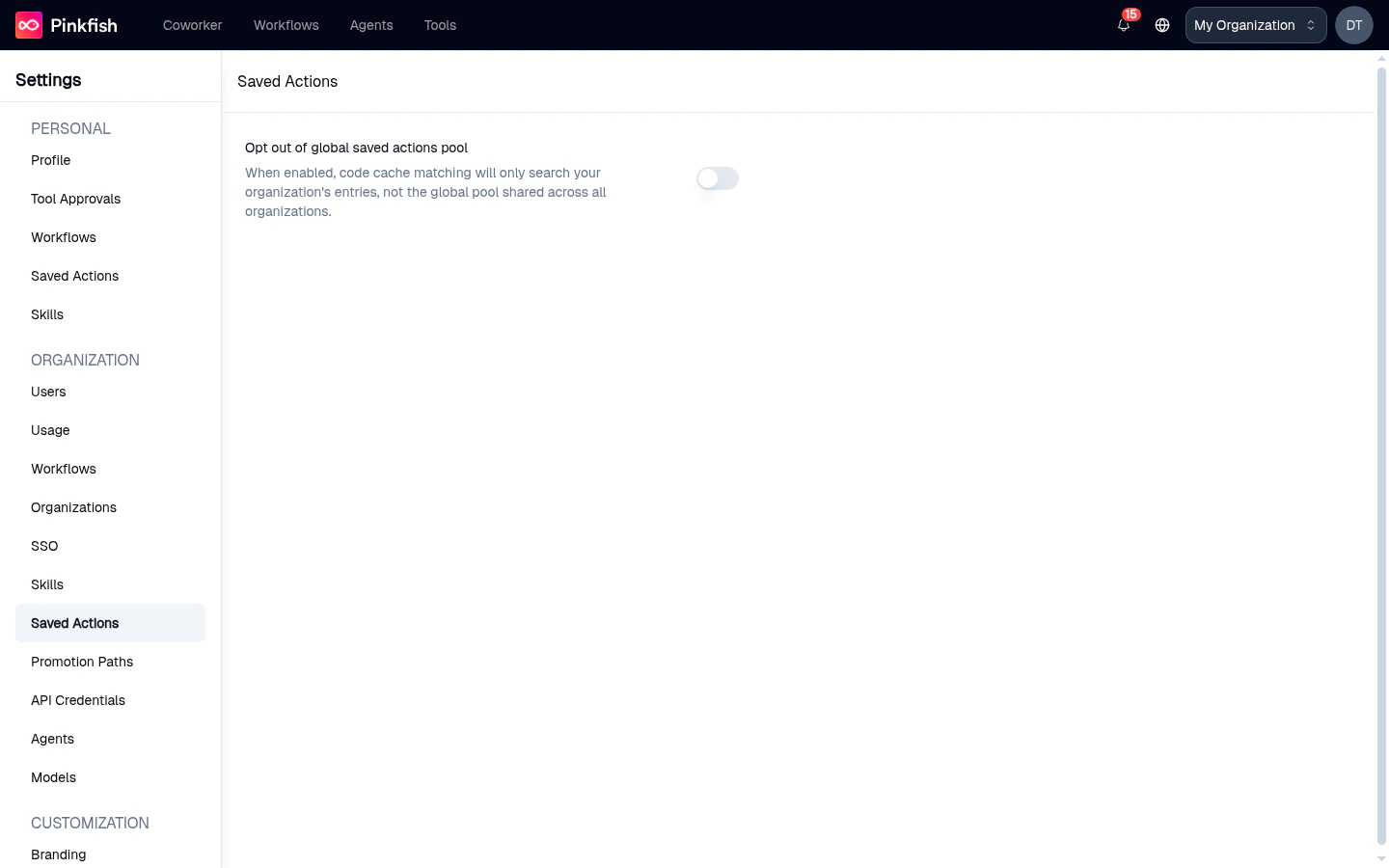
Promotion Paths
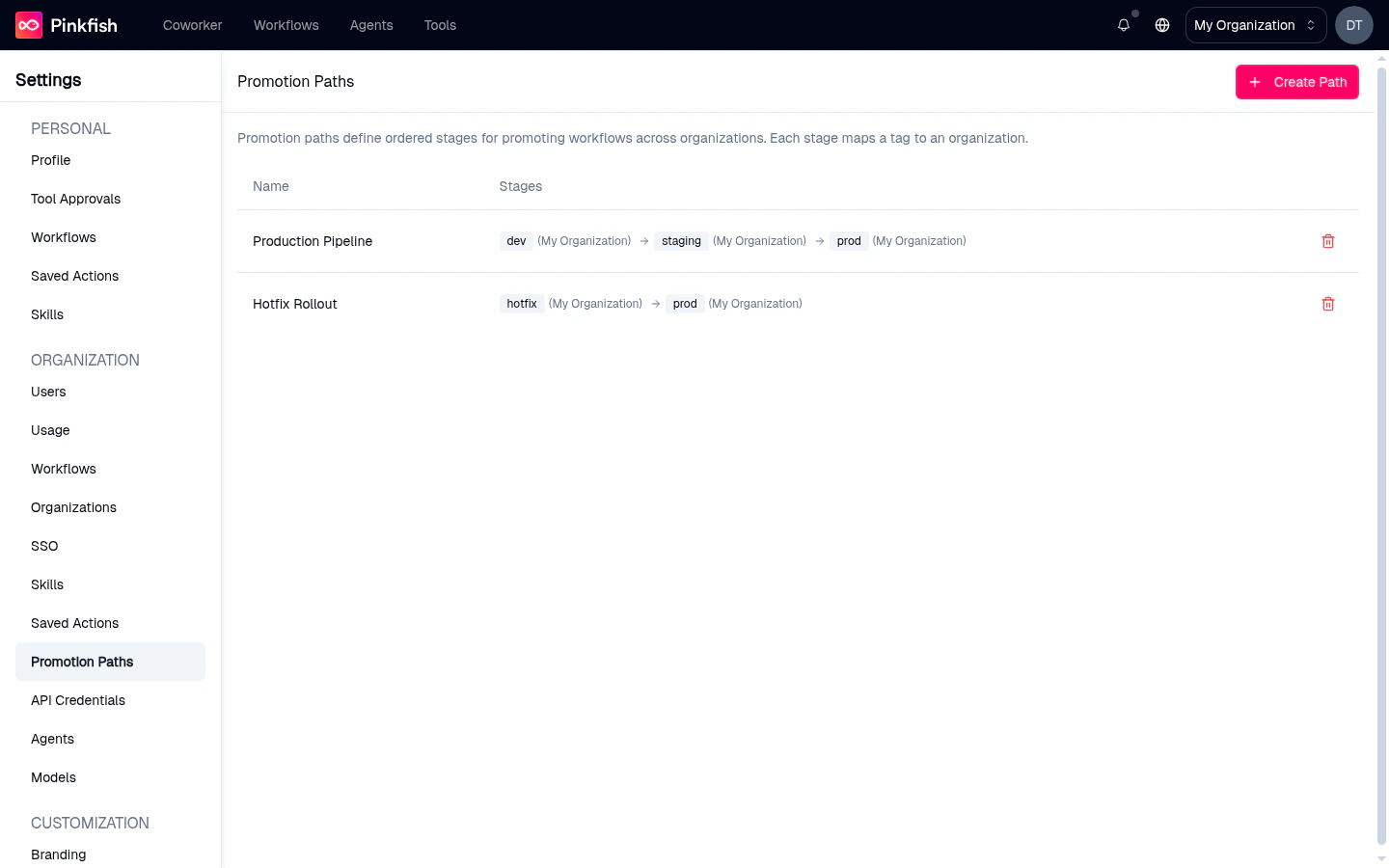
Promotion Paths define ordered pipelines for moving workflows between organizations — a common pattern isdev → staging → prod, where each stage maps a workflow tag to a target org.
No promotion paths yet. Create one to get started.
Click Create Path to open the dialog: give the path a name, then add one stage at a time — each stage pairs a workflow tag (e.g. staging) with a destination organization. Paths must have at least two stages and each stage’s tag must be unique. Once saved, existing paths appear as rows in a table with two columns — Name and Stages — plus a trash icon to delete the path. Each stage is rendered as a small tag chip followed by the target organization name in parentheses, and consecutive stages are joined by → arrows (for example dev (My Organization) → staging (My Organization) → prod (My Organization)).
Promotion Paths is feature-flag gated and may not be enabled for every organization. If you don’t see it in the sidebar, ask your Pinkfish contact to turn it on.
API Credentials
The API Credentials page is where organization admins mint OAuth 2.0 client credentials for programmatic access to Pinkfish APIs.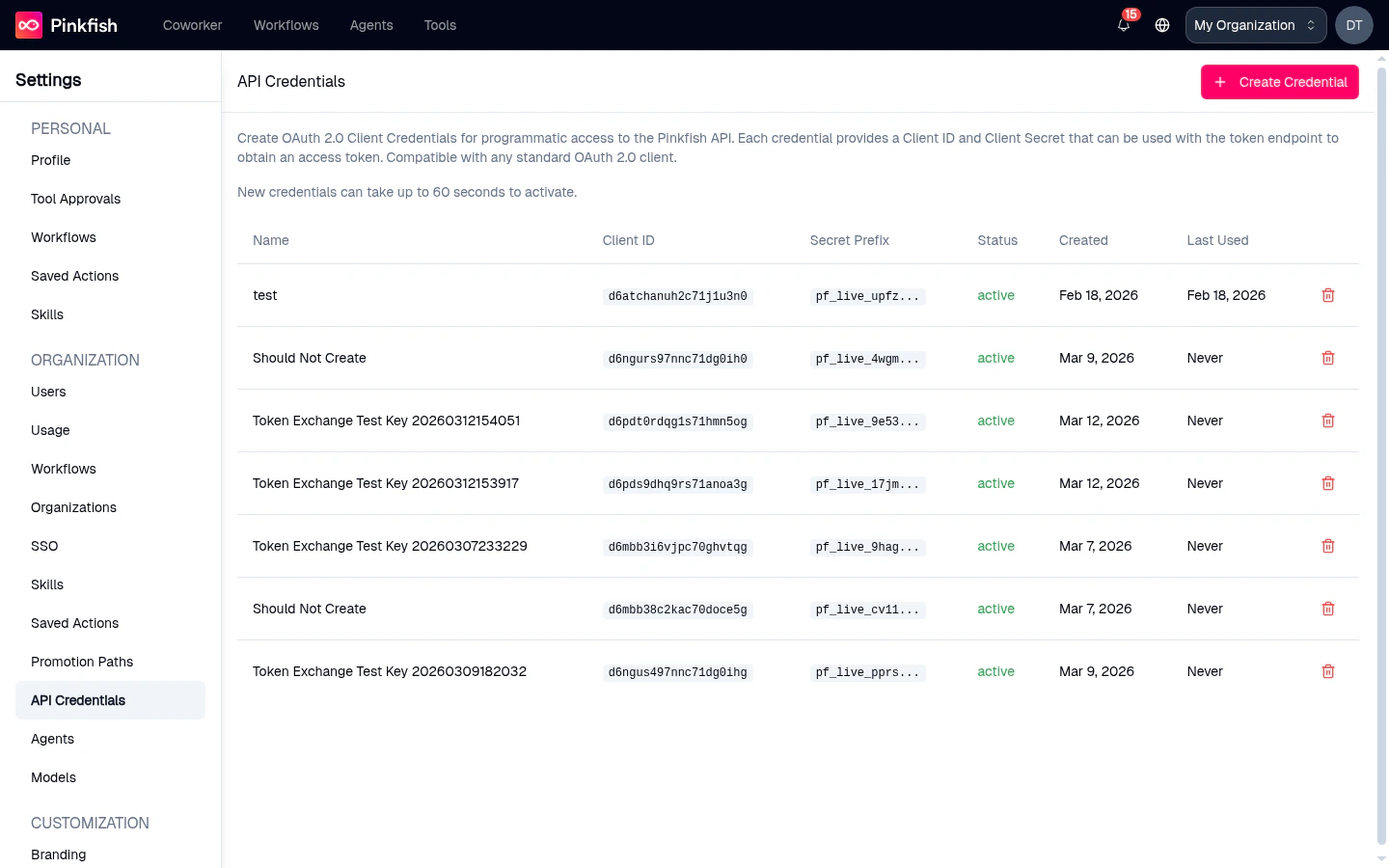
- Name — your label for the credential
- Client ID — copyable
- Secret Prefix — the first few characters of the secret, masked
- Status —
active, etc. - Created date
- Last Used — when the credential last minted a token
- Delete action
Channels
The Channels page is where organization admins manage how Slack and Microsoft Teams work for the organization. It has two sections: Availability (turn the channels on for published agents) and Auto-onboarding (let teammates join automatically by email domain).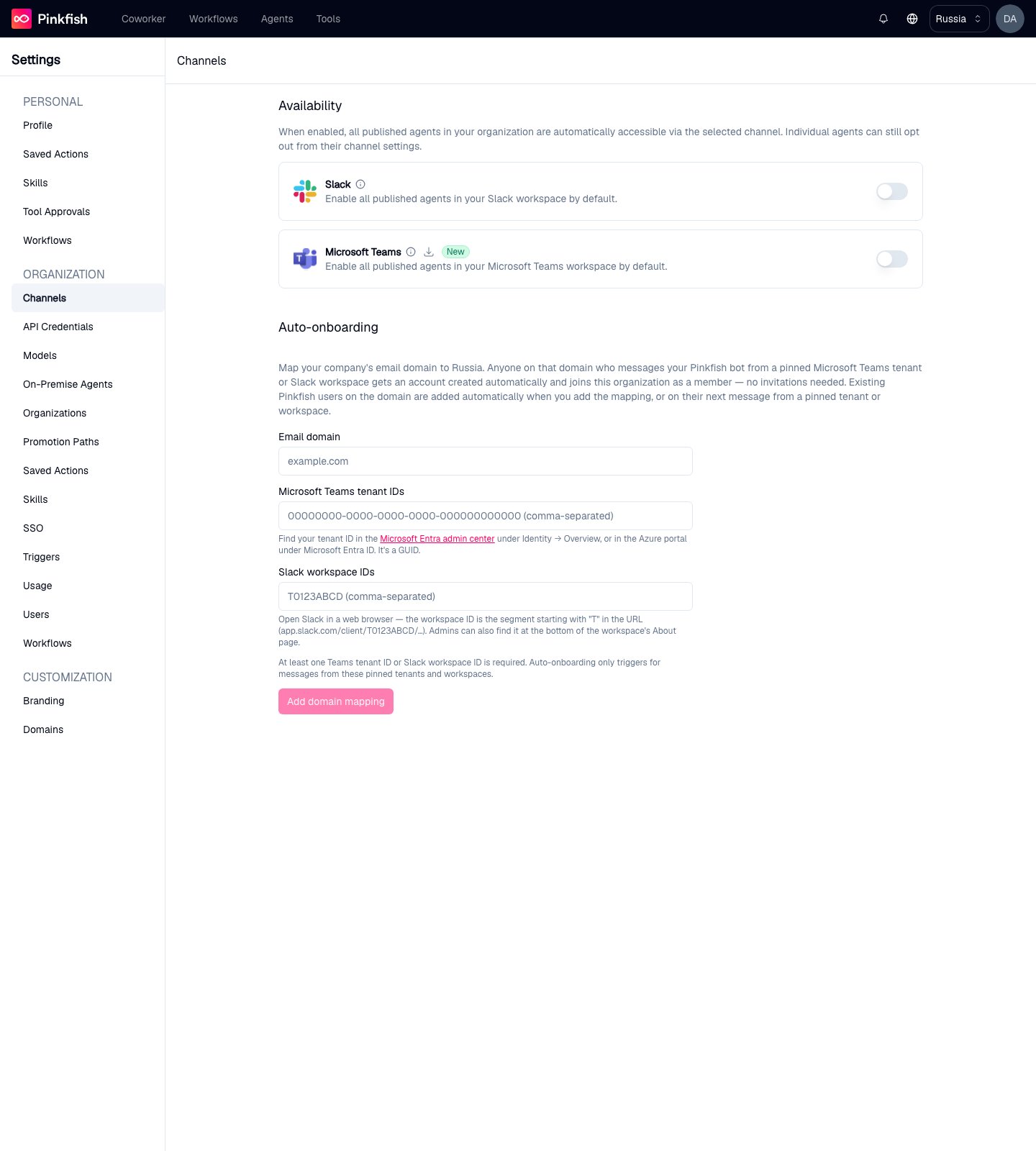
Availability
The Availability section toggles the channel integrations that expose published agents outside the Pinkfish app. The header explains the behavior:When enabled, all published agents in your organization are automatically accessible via the selected channel. Individual agents can still opt out from their channel settings.Each row represents one channel — currently Slack and Microsoft Teams — with its logo, name, a short description, and an enable/disable toggle. Hover the info tooltip next to each channel name for a quick explanation of what turning the channel on does for every published agent in the organization.
Teams setup walkthrough
For Microsoft Teams, clicking the Download App button opens the Set up Pinkfish for Teams guided modal. The modal walks an admin through the full install:- Download the environment-specific ZIP package.
- Upload the ZIP in Teams → Apps → Manage your apps.
- Add the app from Built for your org.
- Confirm the install and open the bot.
Auto-onboarding
The Auto-onboarding section maps your company’s email domain to the organization so teammates join automatically the first time they message a Pinkfish agent from Slack or Microsoft Teams — no invitations and no sign-in card. Like SSO, it’s an Enterprise-plan feature. In a multi-org group, child organizations configure their own mappings rather than inheriting the parent’s. A mapping has three parts:- Email domain — the company domain to claim (for example
acme.com). Public email providers such asgmail.comare rejected. The same domain may be claimed by more than one organization, as long as each claims a different Slack workspace or Teams tenant — it’s the pairing of domain and workspace that must be unique. - Microsoft Teams tenant IDs — the Azure AD tenant(s) whose Teams messages may trigger auto-onboarding. Find your tenant ID in the Microsoft Entra admin center under Identity → Overview (it’s a GUID).
- Slack workspace IDs — the Slack workspace(s) whose messages may trigger auto-onboarding. Open Slack in a web browser: the workspace ID is the segment starting with
Tin the URL (app.slack.com/client/T0123ABCD/…).
- New teammates who message the bot from a pinned tenant or workspace get a Pinkfish account created automatically and join the organization as members (not builders). Their message routes straight to an agent. Admins can promote individual users from the Users page later, and anyone the admin has removed stays removed — auto-onboarding never overrides a role change or removal.
- Existing Pinkfish users on the domain are added as members automatically — a background sweep runs when the mapping is created (it retries itself if interrupted), and anyone it misses is added on their next message from a pinned tenant or workspace.
- Auto-onboarded users don’t get a personal “My Organization” — they belong to the mapped organization only, mirroring how SSO-provisioned users work. They can later sign in on the web with the same email (use Forgot password to set one) and land in the same account.
Models
The Models page is where you configure Bring Your Own Model (BYOM) — connecting your own Anthropic or OpenAI account so your organization’s agents, workflows, and Coworker sessions run on your models (and bill tokens to your provider, not your Pinkfish credits).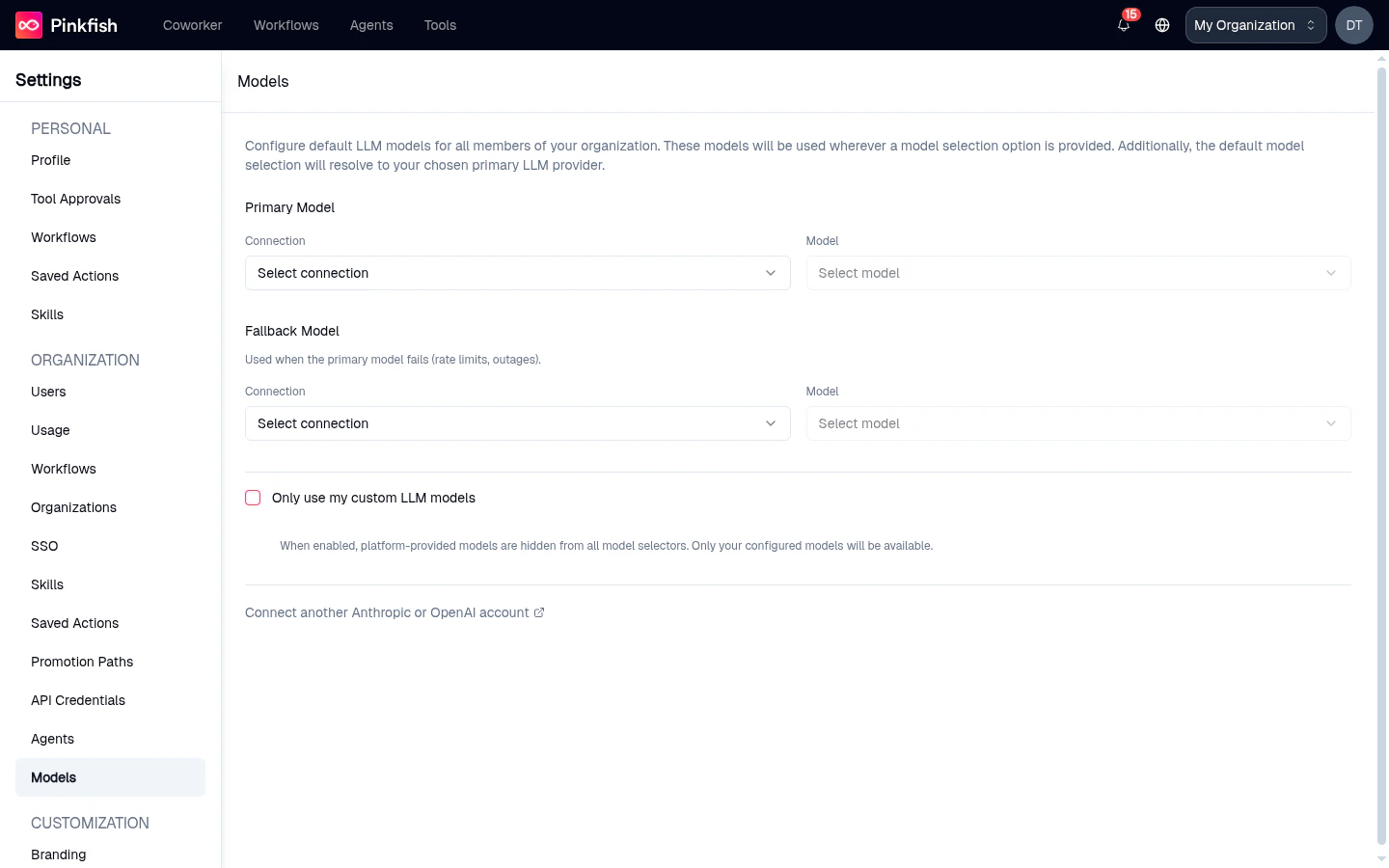
- Primary Model — the default model for the whole organization
- Fallback Model — used automatically when the primary fails
- Only use my custom LLM models — hide Pinkfish’s platform models so members pick exclusively from yours
- Offer same models to sub-organizations — propagate your configuration down the hierarchy