

Who should use BYOM
- Compliance and data residency — you must send prompts to your own LLM account so data never leaves your contracted provider
- Custom enterprise agreements — you have negotiated model pricing or throughput with Anthropic or OpenAI that you want to use
- Provider selection — you want to pin the organization to a specific model version
- Credit-free usage — you would rather pay your LLM provider directly than consume Pinkfish credits on model tokens
Supported providers
More providers are added as they become available — the live list on the Models settings page is always authoritative.
Set up BYOM
BYOM configuration lives in Settings → Organization → Models. Only organization admins see and can edit this page.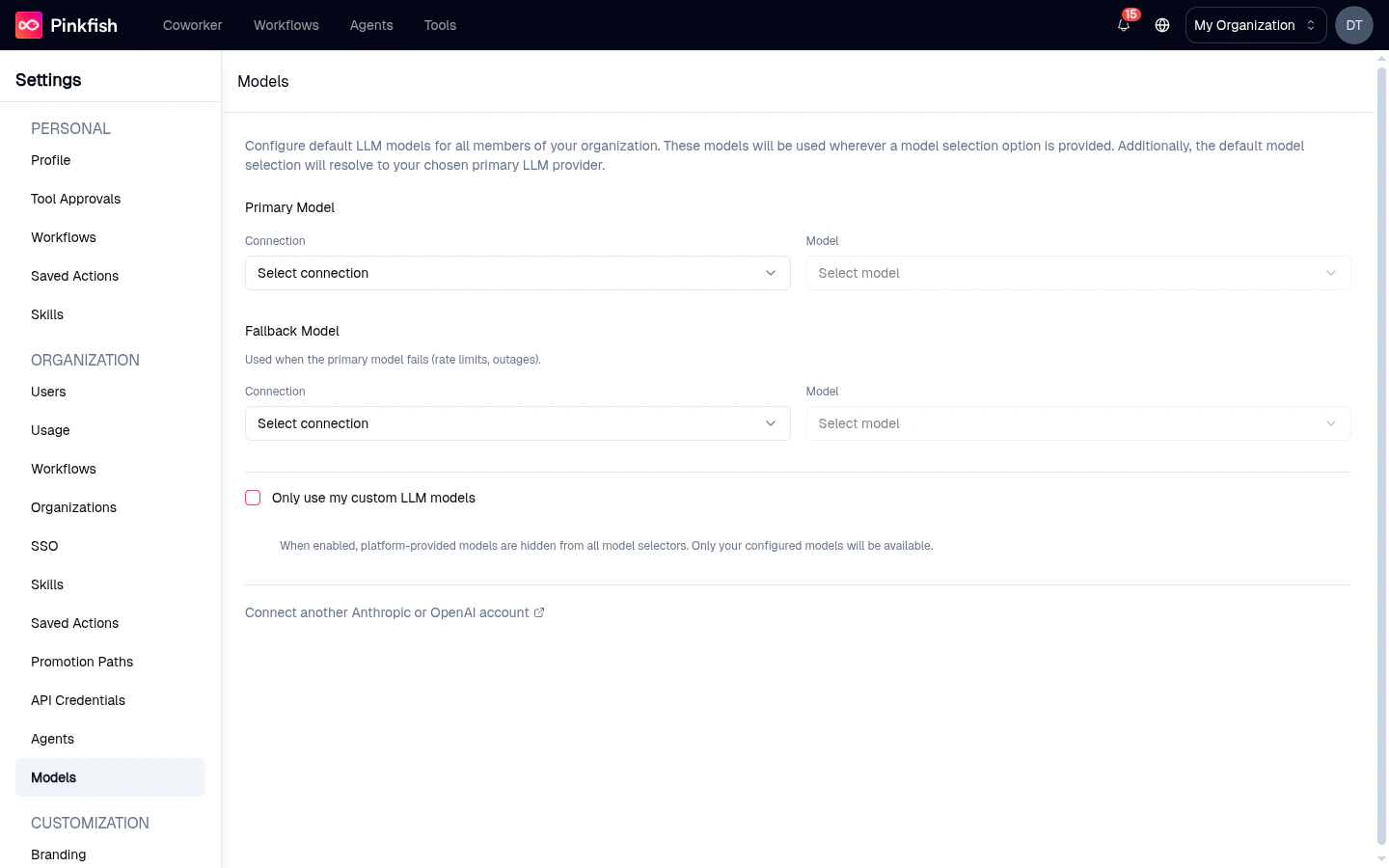
1. Connect your LLM provider
If no provider is connected yet, the Models page shows Connect Anthropic and Connect OpenAI call-to-action buttons.1
Click Connect Anthropic or Connect OpenAI
A PinkConnect modal opens and walks you through creating an organization-level connection to the provider.
2
Paste your API key
Use a key minted from your own Anthropic console or OpenAI dashboard. Pinkfish stores the key encrypted and uses it only for requests made by this organization.
3
Save the connection
The new connection now appears in the Primary / Fallback dropdowns on the Models page.
2. Choose a primary model
1
Pick a Primary Model connection
Select the PinkConnect connection you just created.
2
Pick a specific model
Choose the exact model ID (for example,
claude-sonnet-4-6). Model IDs are pinned — agents configured with the alias sonnet automatically resolve to your selected full ID.3
Save
The primary model is now the default for every new agent and every place a model isn’t explicitly selected.
3. (Optional) Configure a fallback model
The fallback model kicks in automatically when the primary fails — rate-limit errors, provider outages, or unsupported model features. Configure it the same way as the primary, optionally using a different provider so a cross-provider outage still lets your agents run.4. (Optional) Hide platform models
Check Only use my custom LLM models to remove Pinkfish’s platform-provided models from every dropdown in the org. Members will only be able to pick from the models you’ve connected. This is sometimes called “exclusive mode.”5. (Optional, parent orgs only) Propagate to sub-organizations
Parent organizations see an extra toggle: Offer same models to sub-organizations. When enabled, your primary and fallback models are inherited by every sub-org that has not configured BYOM of its own. Sub-orgs that have set their own models keep their override.How agents pick up BYOM models
- New agents are created with the organization’s primary model pre-selected.
- Existing agents continue running on whatever model was pinned at creation. Open the agent’s Instructions tab and pick a new model from the dropdown to switch to a BYOM model.
- Coworker and workflow nodes automatically resolve aliases (
sonnet,haiku,opus) to the matching full model ID from your BYOM configuration. - Per-agent overrides still work — an agent can be pinned to any model the org has connected, so different agents in the same org can use different providers.
Failover behavior
When the primary model request fails with a retriable error (for example, a 429 rate-limit or a 5xx provider error), Pinkfish automatically retries the same request against the fallback model. You see this reflected in the run’s monitor timeline — the step shows the provider that actually succeeded. If both primary and fallback fail, the request surfaces the provider error as normal, and the run is marked failed.Caveats and limits
- Billing flows to your provider account — you’ll see tokens consumed on your Anthropic or OpenAI bill, not on your Pinkfish invoice.
- File uploads — when BYOM is active for Anthropic, file uploads used by Claude go through your API key, so uploaded file IDs resolve under your account.
- All-or-nothing inheritance — a sub-org inheriting from its parent inherits both primary and fallback together. You cannot mix a parent’s primary with a sub-org’s fallback.
- Model compatibility — some tool-use or feature flags require the newest model generation. If you pin an older
haikuornanomodel, a few features may degrade gracefully to a text-only response. - Org-level only — BYOM is configured for the whole organization, not per user.
Related
- Organization Settings — full reference for the Settings → Organization section
- Connections — background on PinkConnect-managed connections