

Key Features
Two agent contexts
Choose whether a skill is available to the Coworker (when executing tasks) or to the Workflow Builder Agent (when creating or editing workflows) — or both.
Personal and Organization scopes
Skills you create are private to you. Admins can also create Organization Skills that every member’s agents automatically discover.
LLM-based discovery
Skills are matched by relevance, not keywords. Write a clear, specific description and agents will pick the right one for the job.
Test discovery before you ship
Built-in discovery tester shows which skills match a sample query, with confidence scores — so you can refine descriptions before agents start using them.
Where to find Skills
Skills are managed in Settings. There are two entry points:- Settings → Skills (under PERSONAL) — your private skills, which only your agents see.
- Settings → Skills (under ORGANIZATION) — organization-wide skills, editable by admins, discovered by every member’s agents.
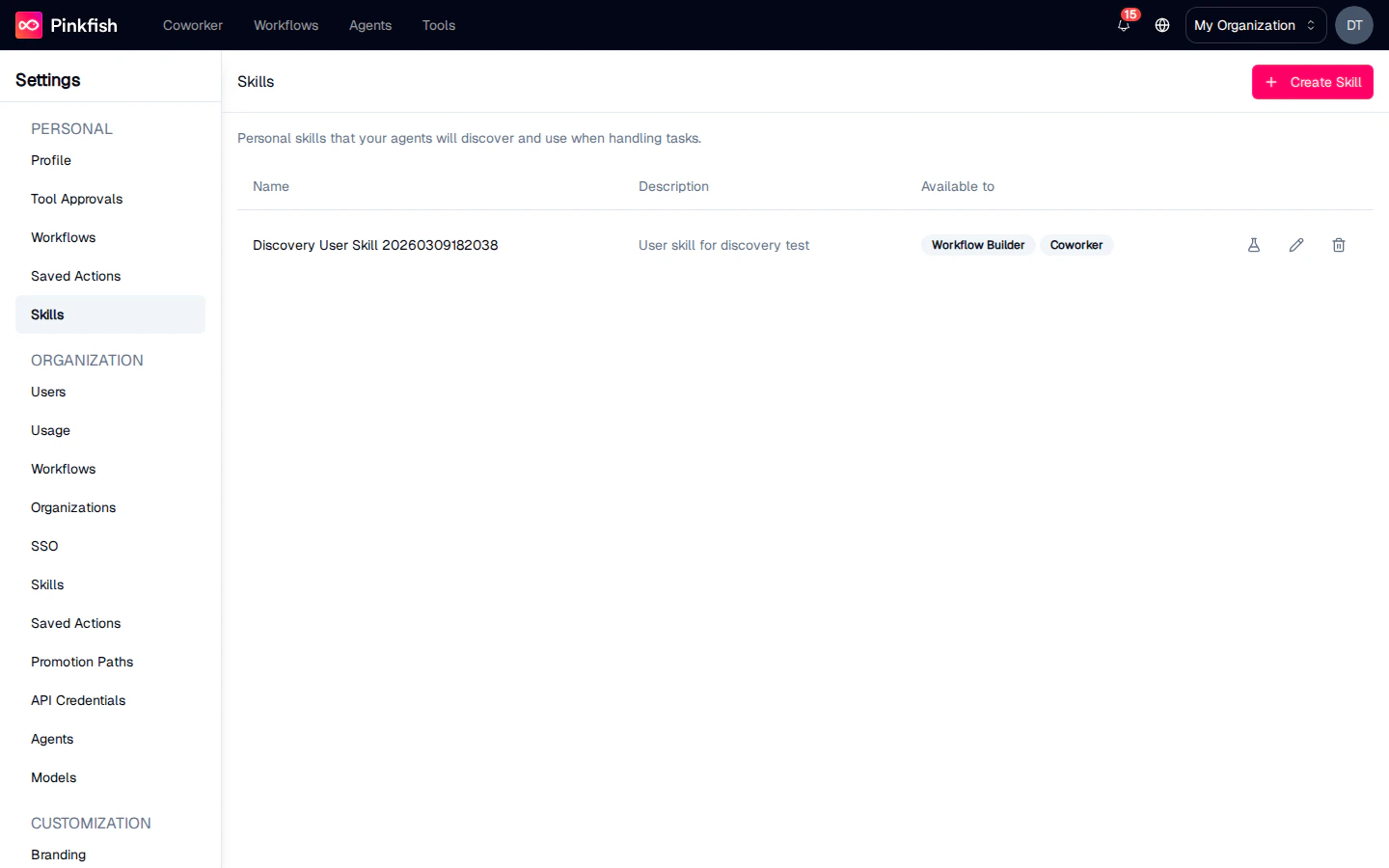
Creating a skill
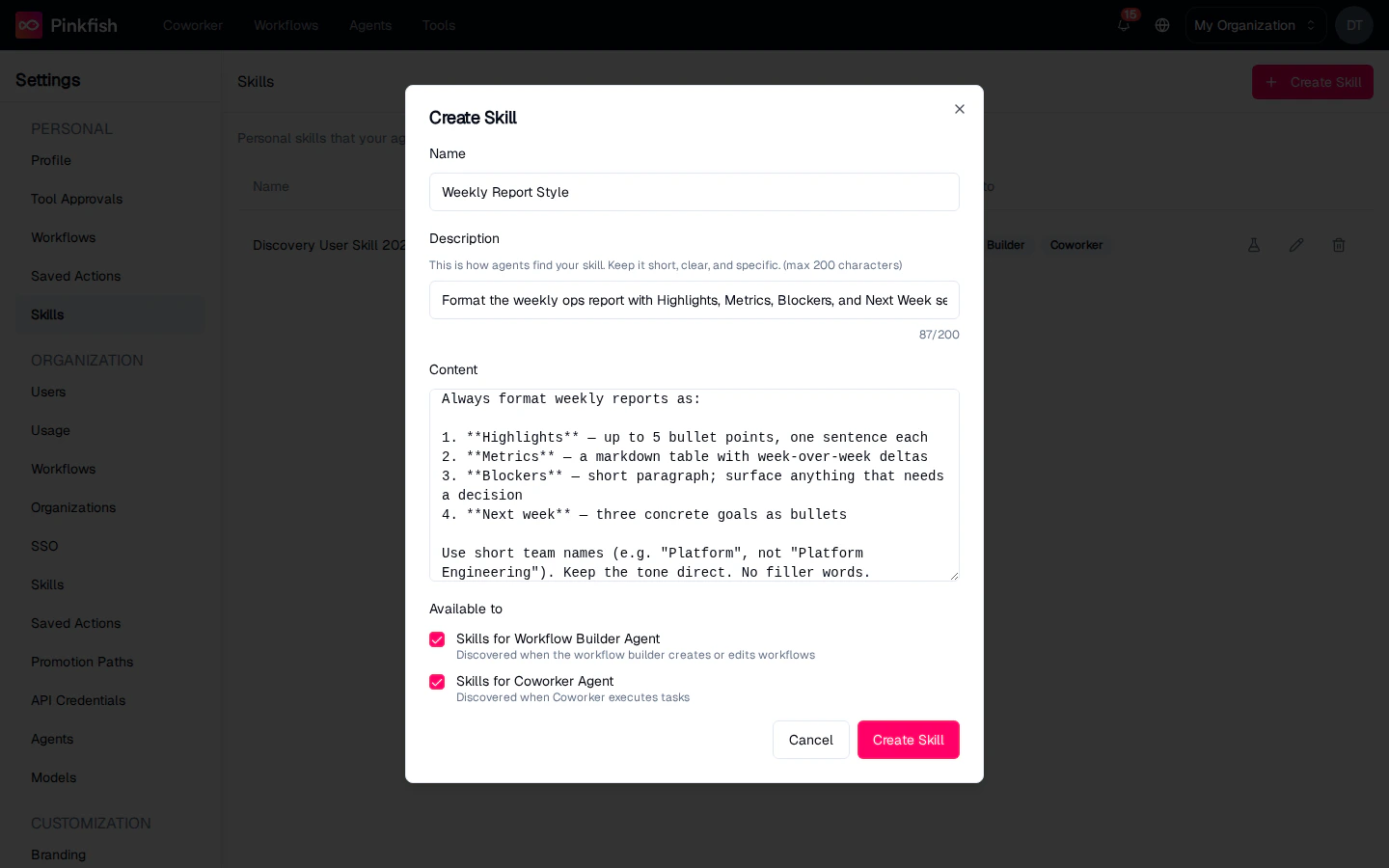
Click Create Skill in the top right. A dialog opens with four things to fill in: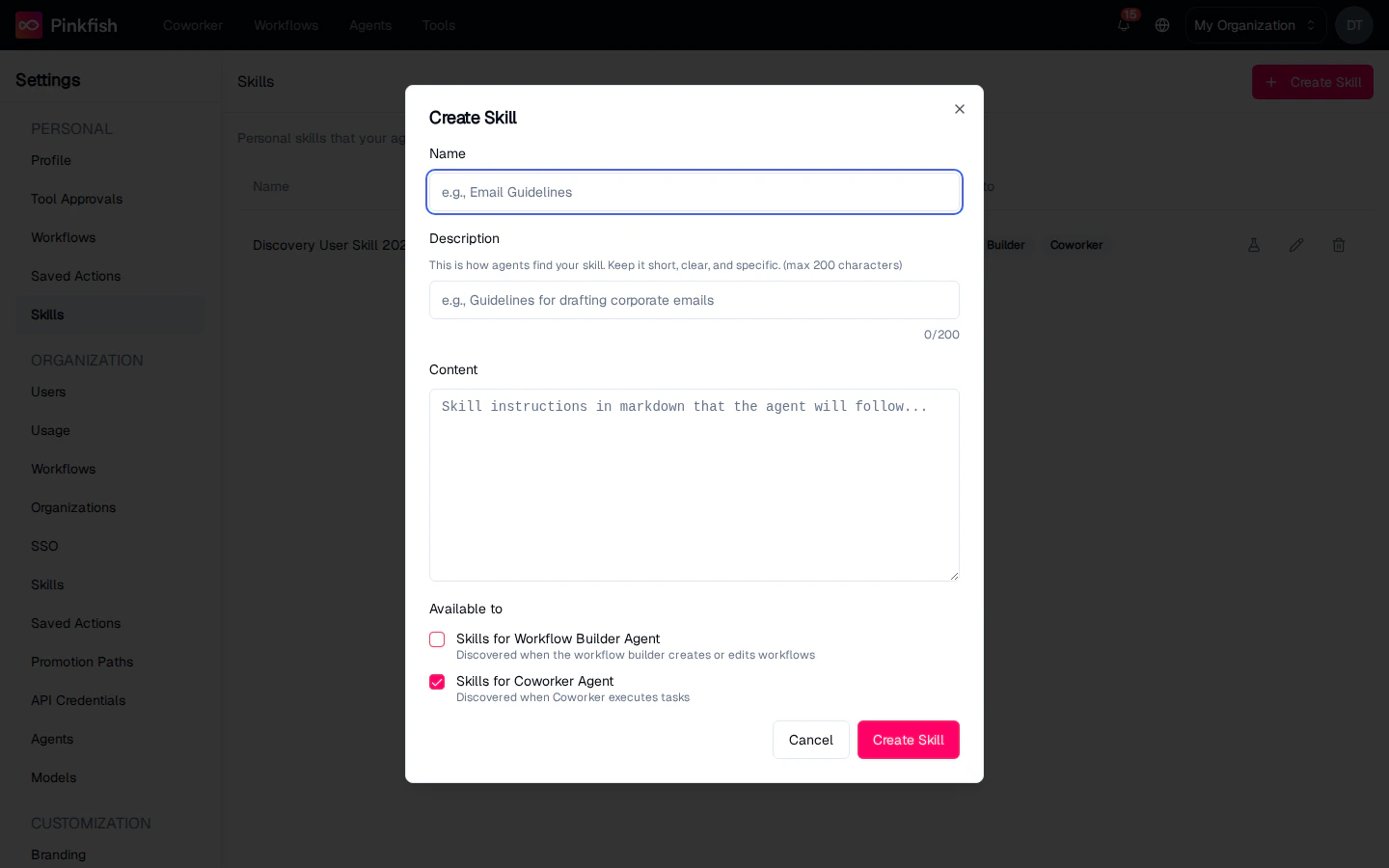
- Name — a short label for humans. Agents don’t match on this, so pick whatever makes sense for your list.
- Description — up to 200 characters. This is how agents find your skill. Be specific about the situation it applies to. “Email Guidelines” is weak; “How to format corporate email replies to external customers” is strong.
- Content — the actual instruction, written in Markdown. This is what the agent reads once the skill is matched. Use headings, bullets, and examples — whatever helps the agent follow the rule.
- Available to — pick one or both of:
- Skills for Workflow Builder Agent — Discovered when the workflow builder creates or edits workflows.
- Skills for Coworker Agent — Discovered when Coworker executes tasks.
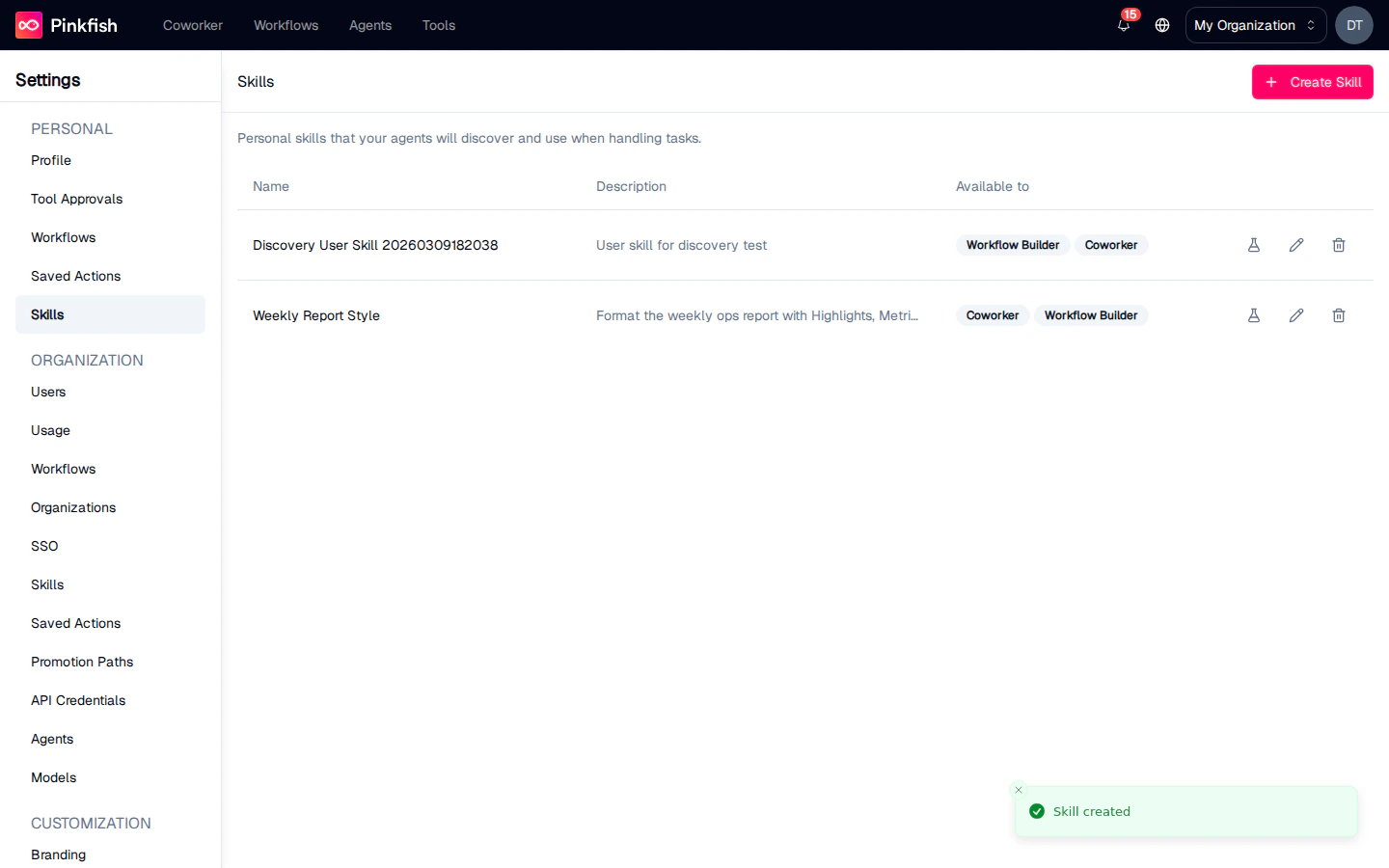
Testing discovery
Before you rely on a skill in a live chat, test it. Click the flask icon on a skill’s row to open Test Discovery.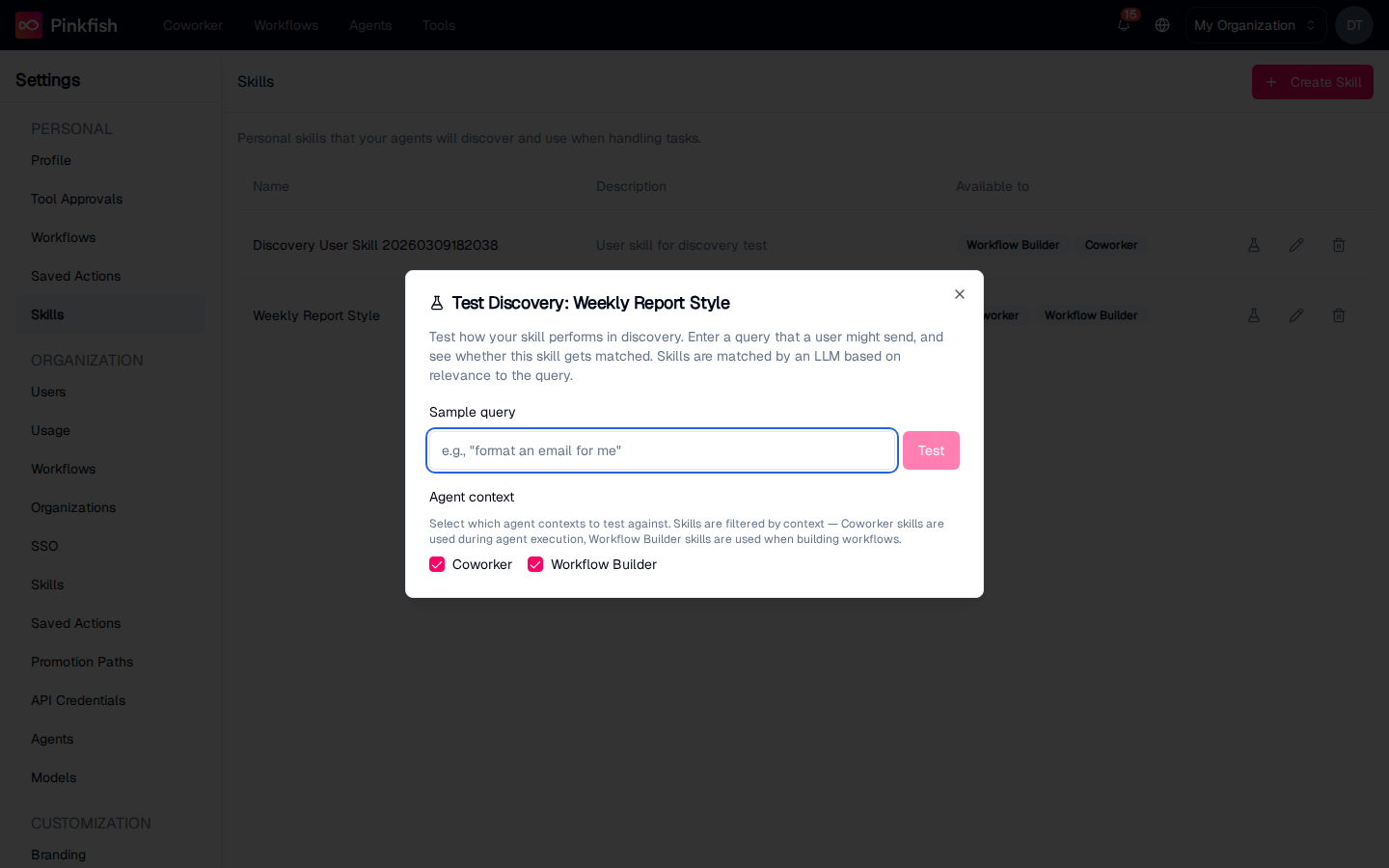
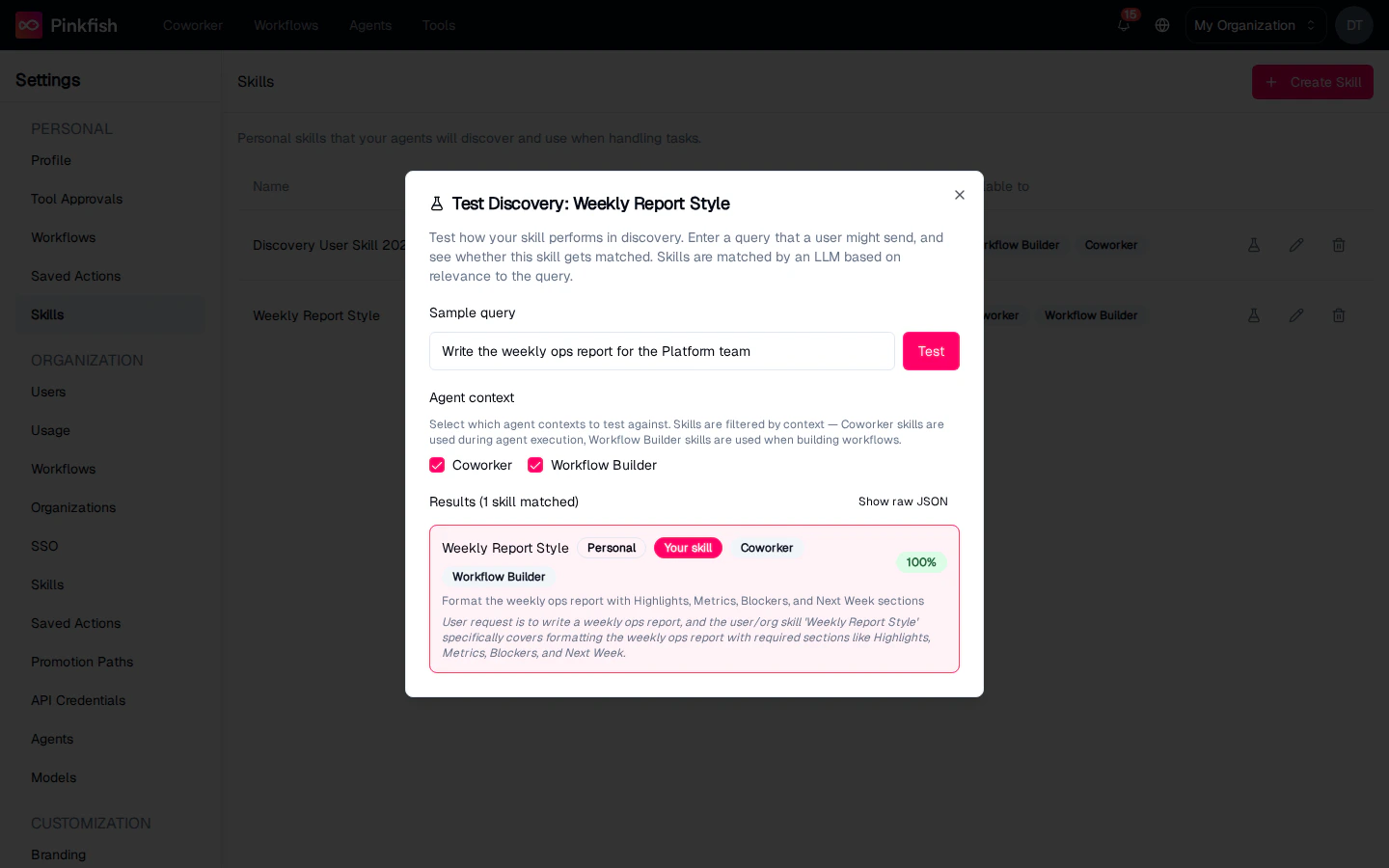
- Green (80%+) — strong match. The agent will almost certainly pick this up.
- Yellow (50–79%) — plausible match. Likely to be loaded alongside others.
- Red (<50%) — weak match. Unlikely to influence the response.
Editing and deleting
Each row has two icons next to the test flask:- Pencil — opens the same dialog, pre-filled with the current values. Change anything and click Save Changes.
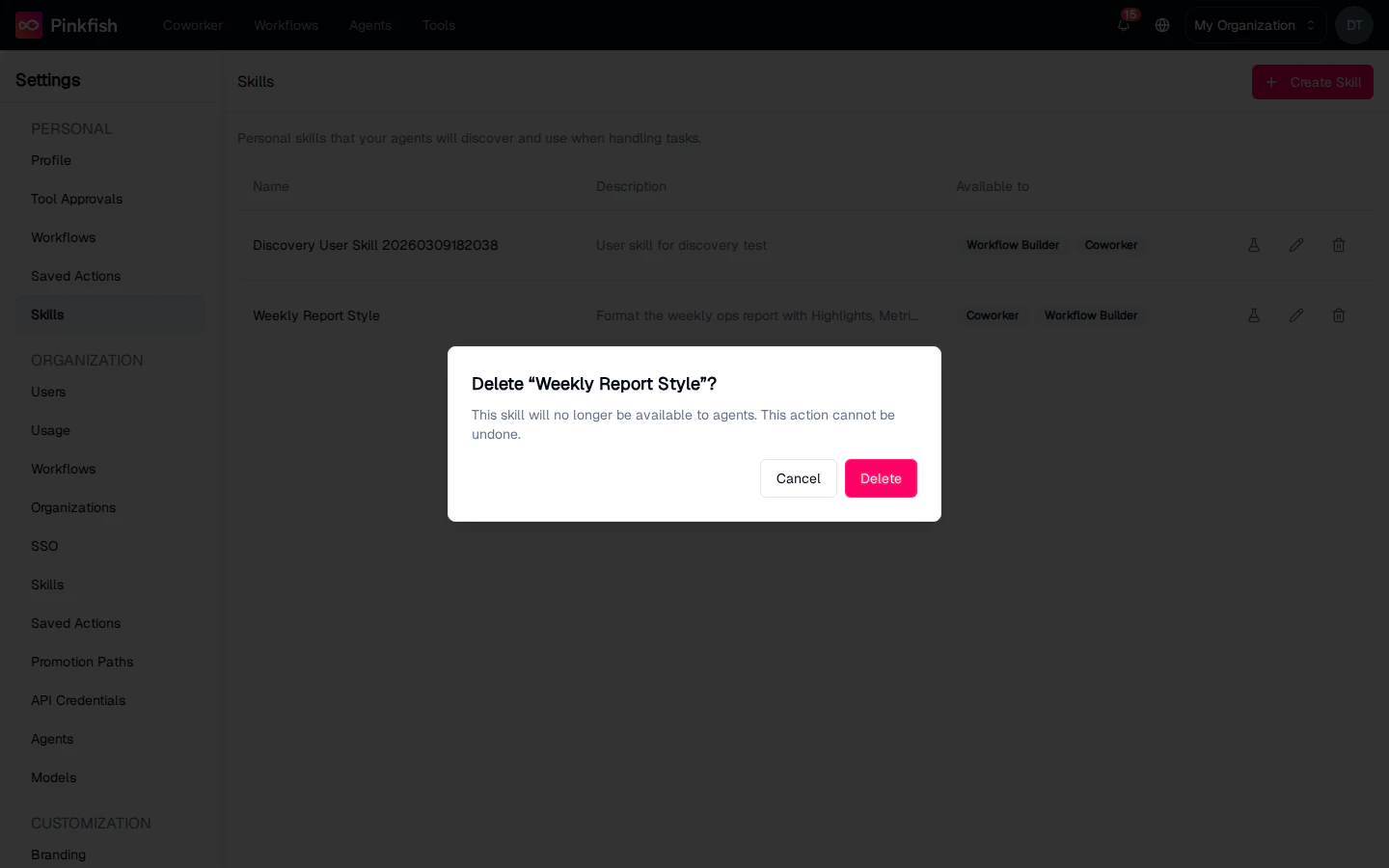
- Trash — deletes the skill after a confirmation.
Using skills with Coworker
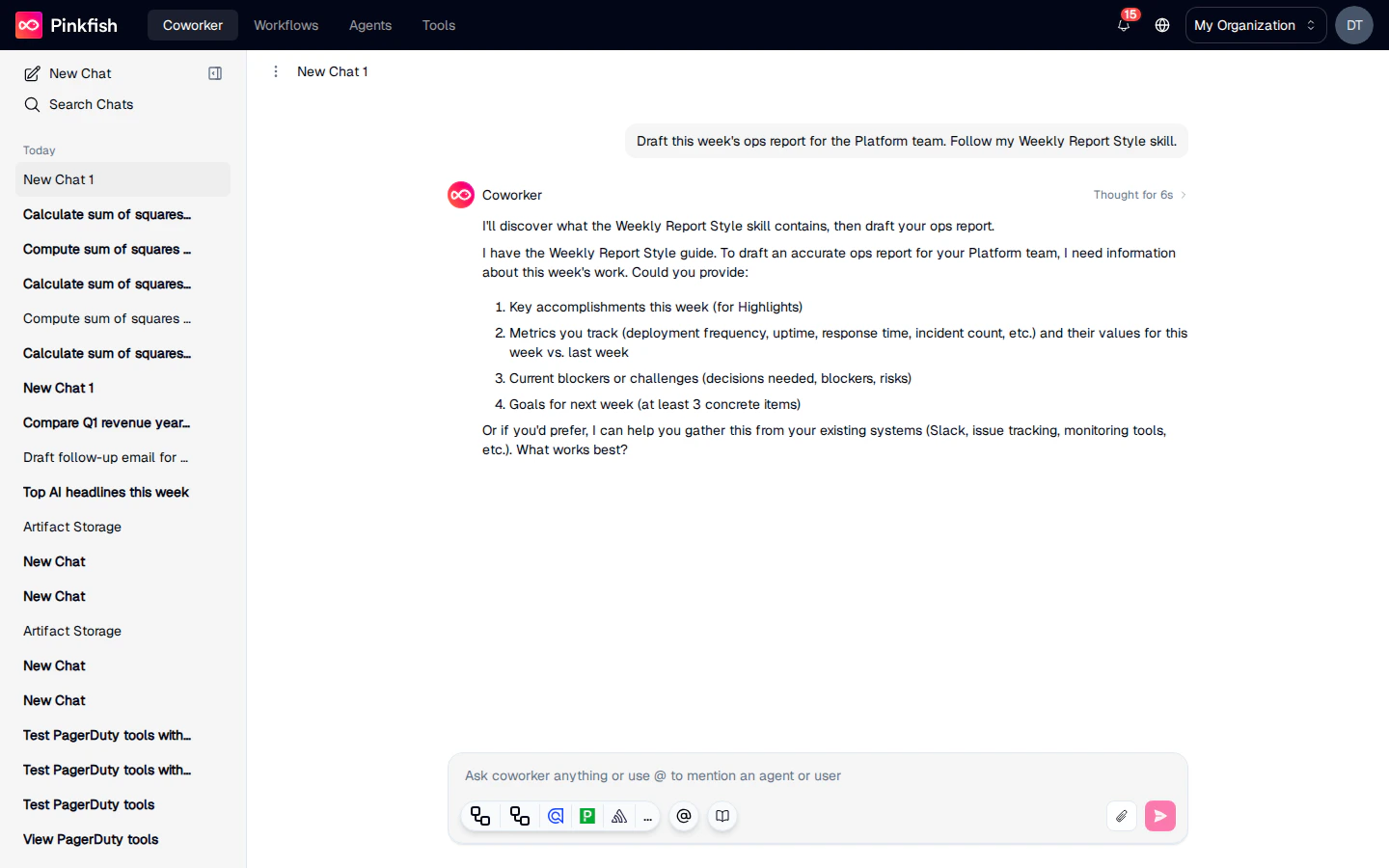
When you send a message to Coworker, the platform runs skill discovery against your message and loads every skill that crosses the confidence threshold into the agent’s context for that turn. You don’t need to mention skills by name, but doing so gives the matcher a huge hint. Here a prompt asks Coworker to draft a report and explicitly names the skill: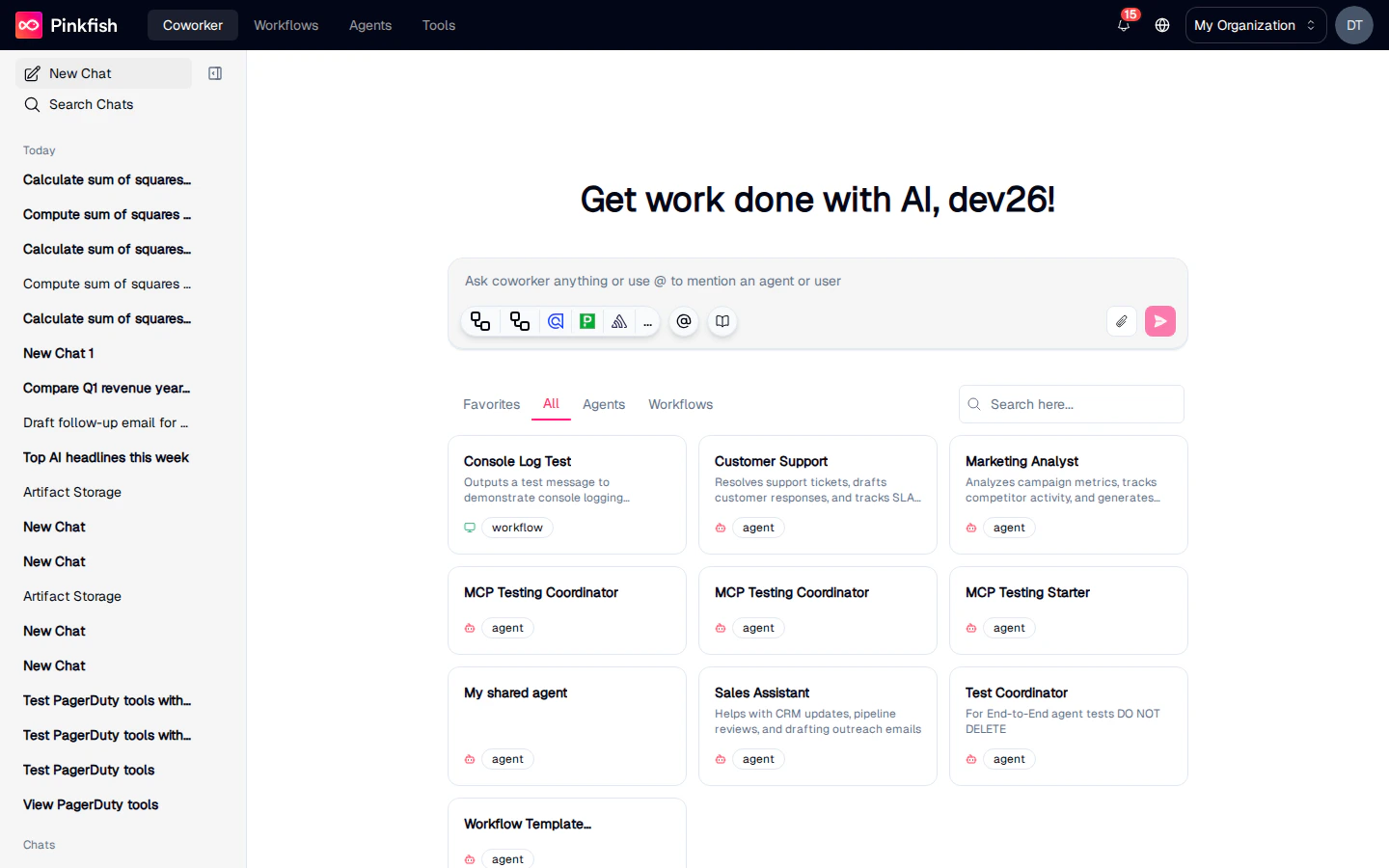
Using skills with the Workflow Builder Agent
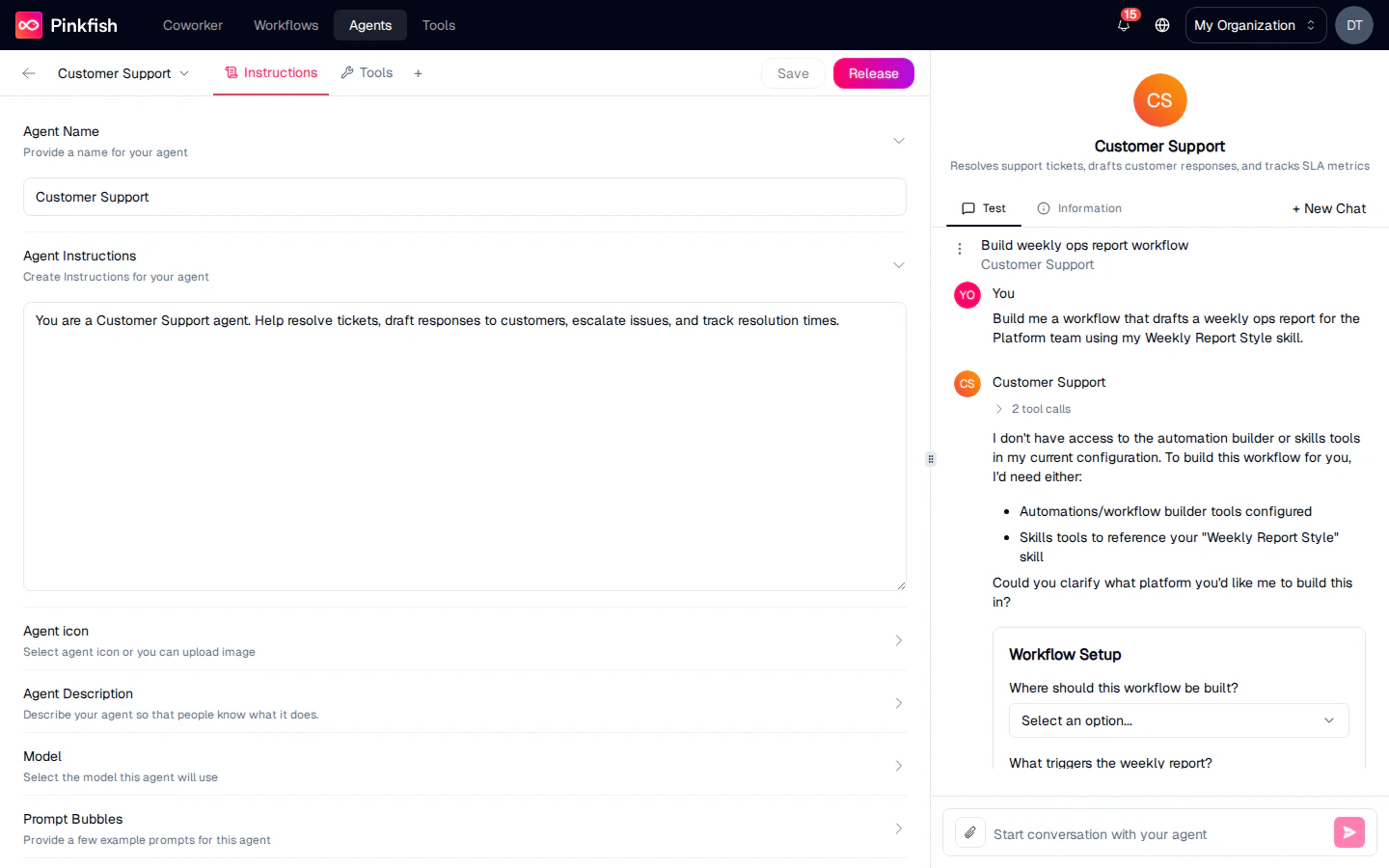
The Workflow Builder Agent is the AI assistant you use inside the agent editor to build and edit workflows. Skills flagged Available to: Skills for Workflow Builder Agent are discovered when you talk to it.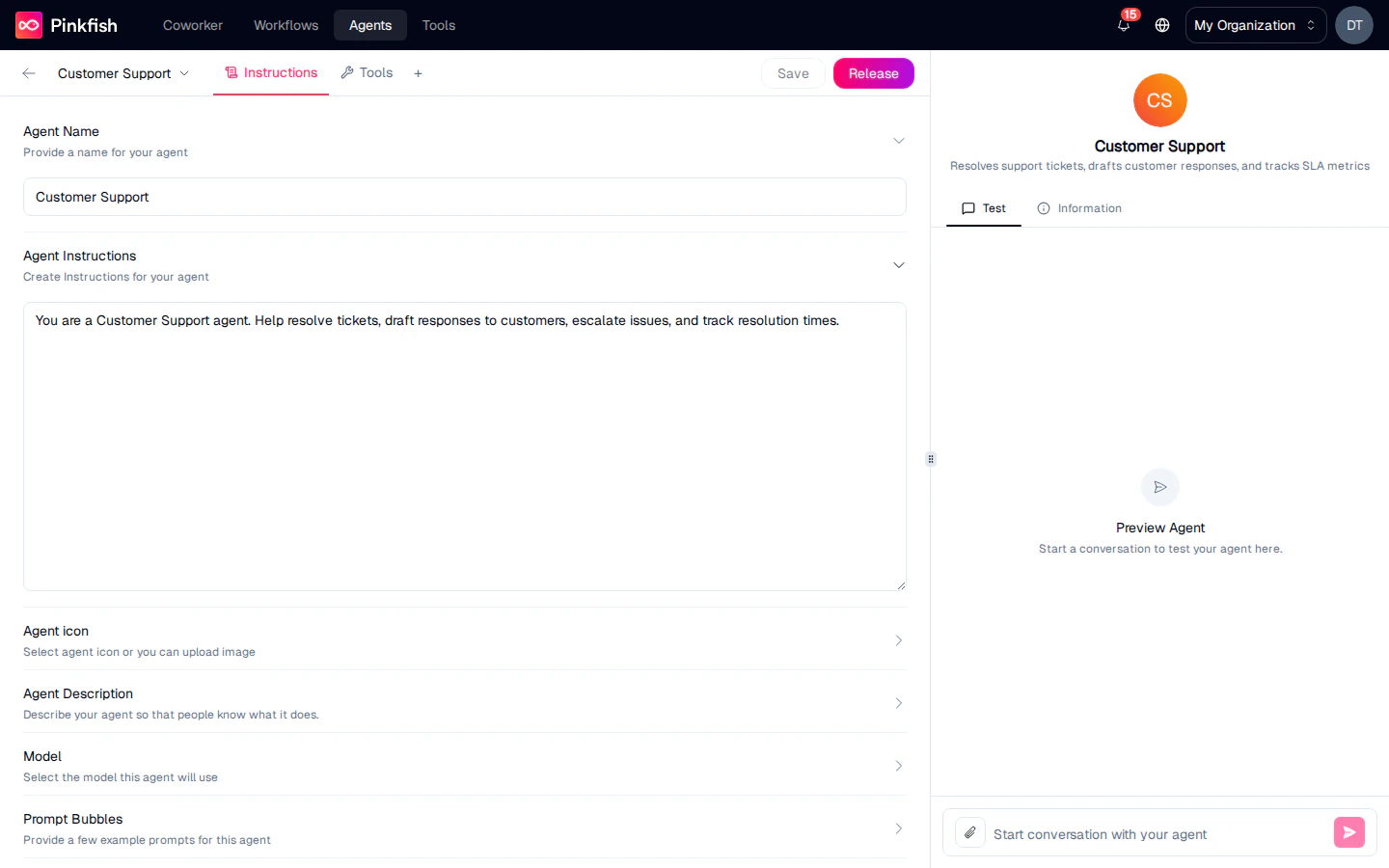
Organization Skills
Organization admins have a second Skills page under Settings → Skills (in the ORGANIZATION section). It looks and behaves like the personal page, but every skill created here is discovered by every member’s agents.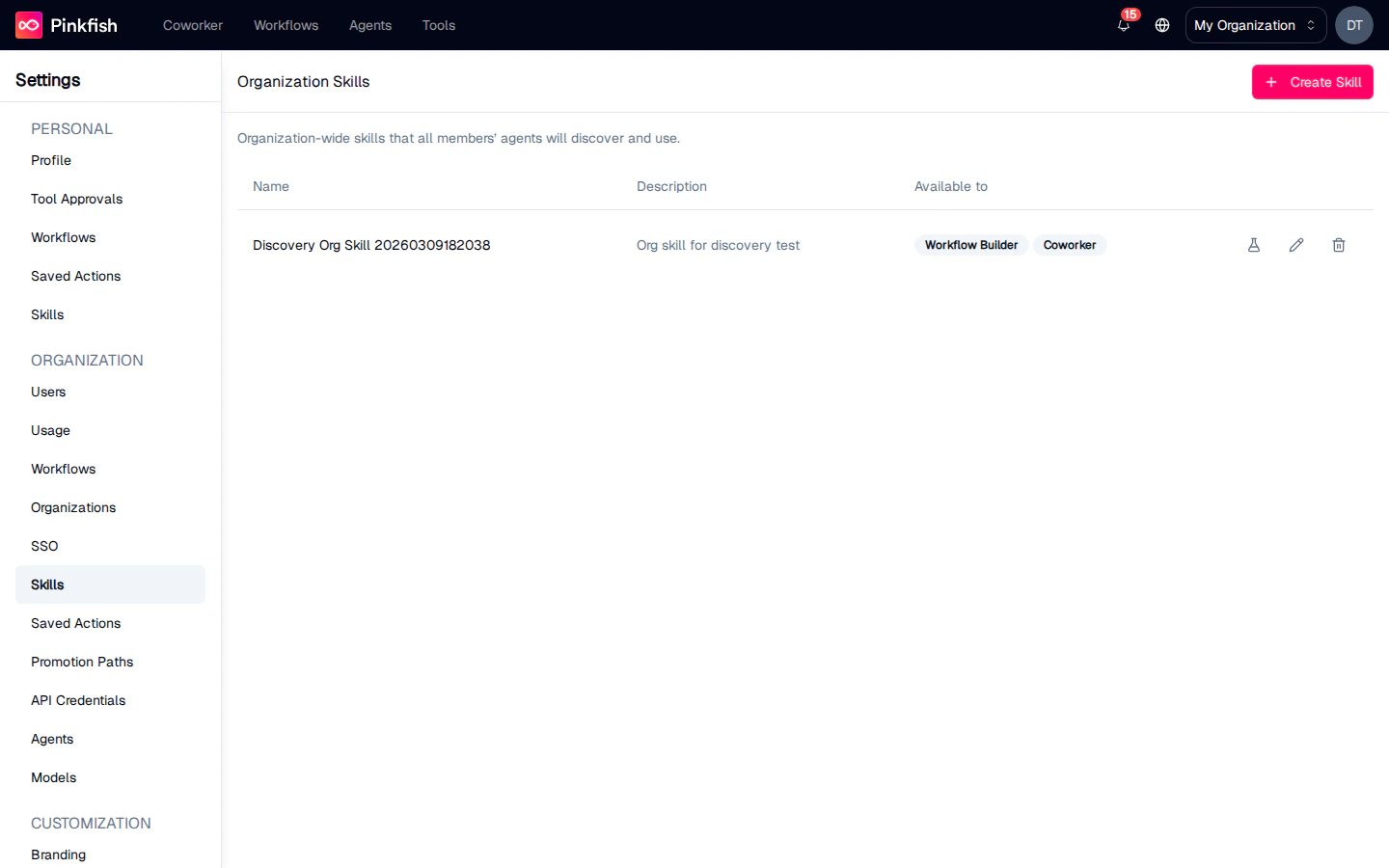
- House style — the voice, tone, and formatting conventions everyone should follow.
- Business rules — approval thresholds, reporting windows, escalation paths.
- Product and domain knowledge — short explainers about internal systems, customers, or terminology that agents need to stay accurate.
- Preferred tools — “when summarizing a customer call, always pull the call record from the Gong integration first.”
Scope and visibility
A skill’s scope is shown as a badge in discovery results (Personal, Organization, or System), so when you’re testing you can see exactly which scope produced the match.
Notes
- Description length is capped at 200 characters. The form enforces it and backend validation rejects anything longer. Tight is good — the matcher prefers specificity.
- At least one availability context is required. If you uncheck both Skills for Workflow Builder Agent and Skills for Coworker Agent, the form will block submission.
- Content is Markdown. Headings, bullets, tables, and code blocks all pass through. Keep skills focused — one skill per rule is usually better than one giant mega-skill.
- Skills are discovered, not assigned. You don’t pick skills per agent — the matcher picks them based on what the user asked. To keep a skill out of an agent’s reach, narrow its description or use a different availability context.
- Discovery is probabilistic. If a skill sometimes matches and sometimes doesn’t, that’s a signal the description needs sharpening. Use Test Discovery to iterate.
- Deleting a skill is immediate and cannot be undone. The confirmation dialog warns you — once a skill is deleted, future chats and workflow builder sessions will no longer see it.