

/scraper and /browser session skills. Because Pinkfish only stores the session (cookies, local storage, etc.) and never your credentials, this works with services that require 2FA, captchas, or other interactive challenges.
Find it under Tools → Browser Login.
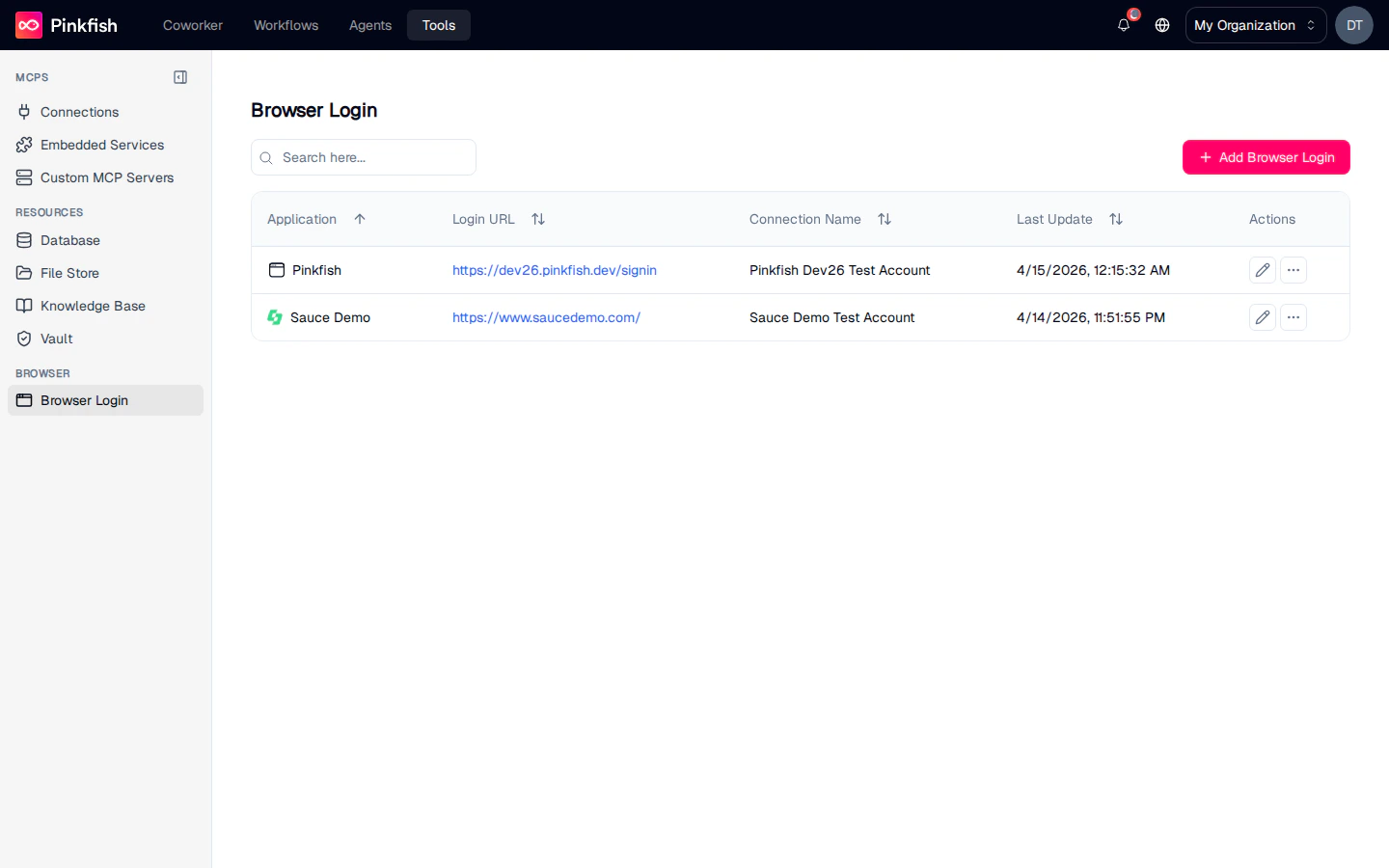
The Browser Login List
Each row is one saved browser session. Columns:Empty state
A brand-new org showsStart by adding a browser operator login — click + Add Browser Login to create your first one.
Creating a Browser Login
Click + Add Browser Login to open the New Browser Operator Login dialog.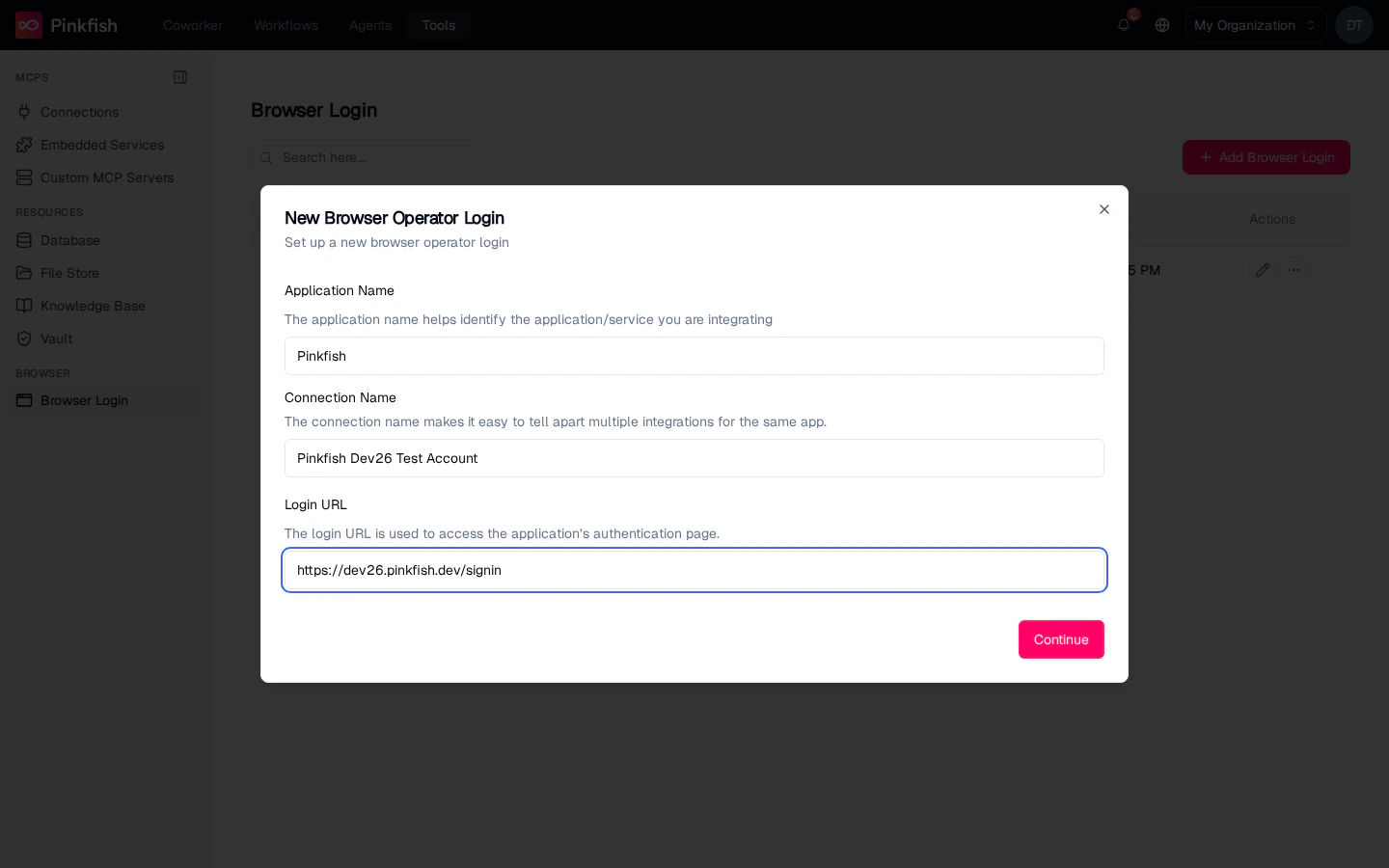
- Application Name — how you’ll identify the service in the slash menu (e.g. “Google Admin”, “SAP”).
- Connection Name — unique label for this session (e.g. “Production Google Admin”, “Staging Google Admin”).
- Login URL — the exact URL to the service’s login page (e.g.
https://www.example.com/login).
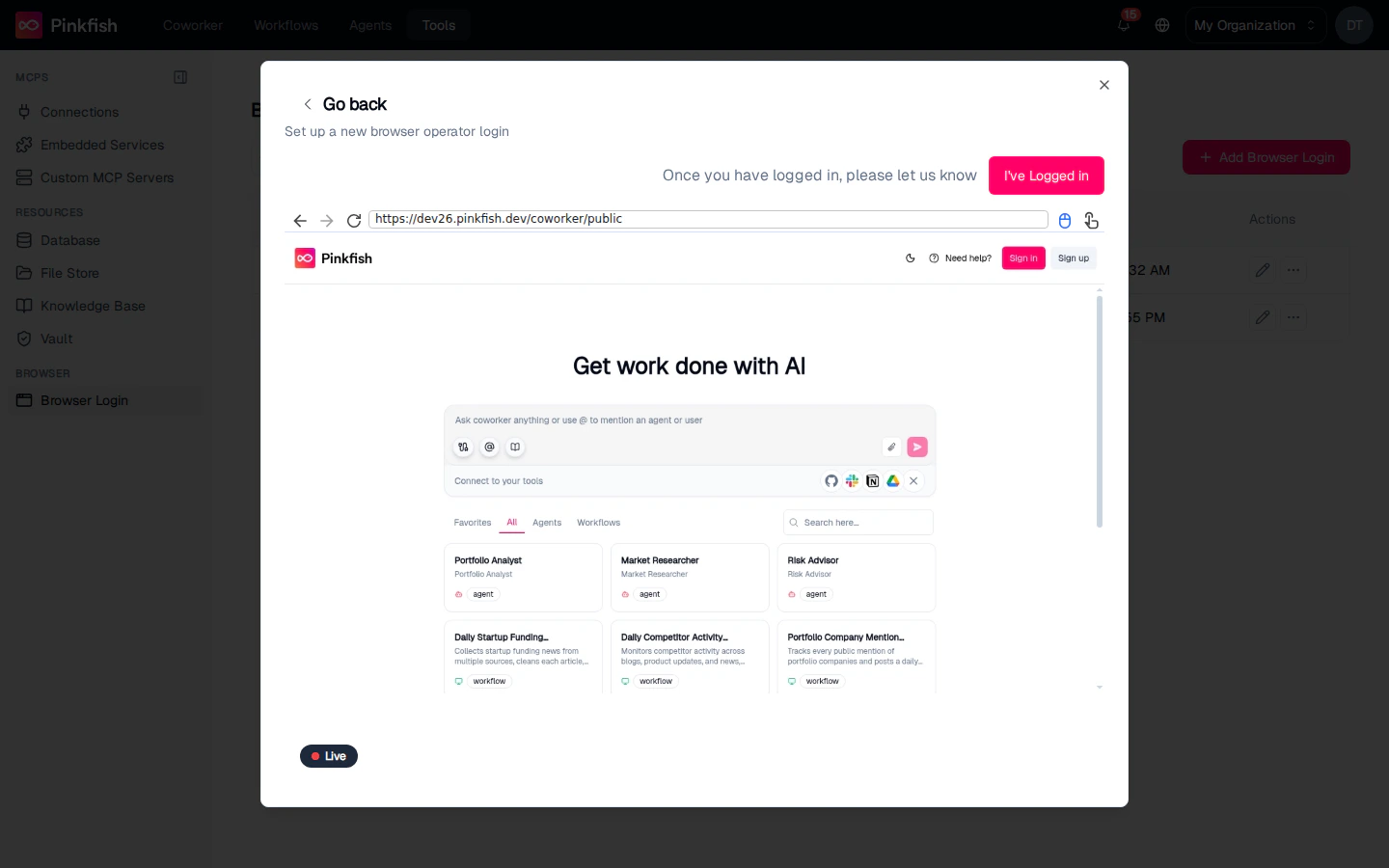
Connection with {service} established. and the new login appears on the Browser Login list.
Using a Browser Login in Workflows
You reference a Browser Login by name in your prompt (see the examples below). The two capabilities that consume them are:Scraper
Navigate to a URL and extract content. Supports LLM Vision scraping — describe what data you want and Pinkfish extracts it in the format you specify.
Browser session
Full browser automation — click, type, navigate, upload, download, fill forms, and drive the service like a user would.
Session Expiry and Re-authentication
Browser sessions expire the same way they would in your own browser — sometimes hours, sometimes weeks, depending on the service. When a session dies, any workflow using it fails with an authentication error and the Status on the Browser Login list goes red. To refresh a session, click the row’s action menu and choose Update Connection. Pinkfish re-opens the managed browser at the Login URL; log in again and the session cookies get refreshed. Workflows that reference the login by name pick up the new session automatically on the next run. If the service offers a “Keep me signed in” / “Remember this device” checkbox, use it when re-authenticating — it extends the session and reduces how often you have to redo this.Sharing
Browser Logins can be shared just like Connections, but think carefully before sharing login sessions:- Read — the recipient can use the session in their workflows.
- Write — the recipient can rename or re-authenticate.
- Admin — the recipient can share further.
Notes
- Browser Login is builder-only.
- The managed browser used for capture runs in Pinkfish’s infrastructure — no local browser or extension needed.
- Session cookies never appear in workflow logs; only the fact that a specific Browser Login was used is recorded.
- For services that do expose an API, prefer a regular Connection — API calls are faster, cheaper, and more reliable than browser automation.