

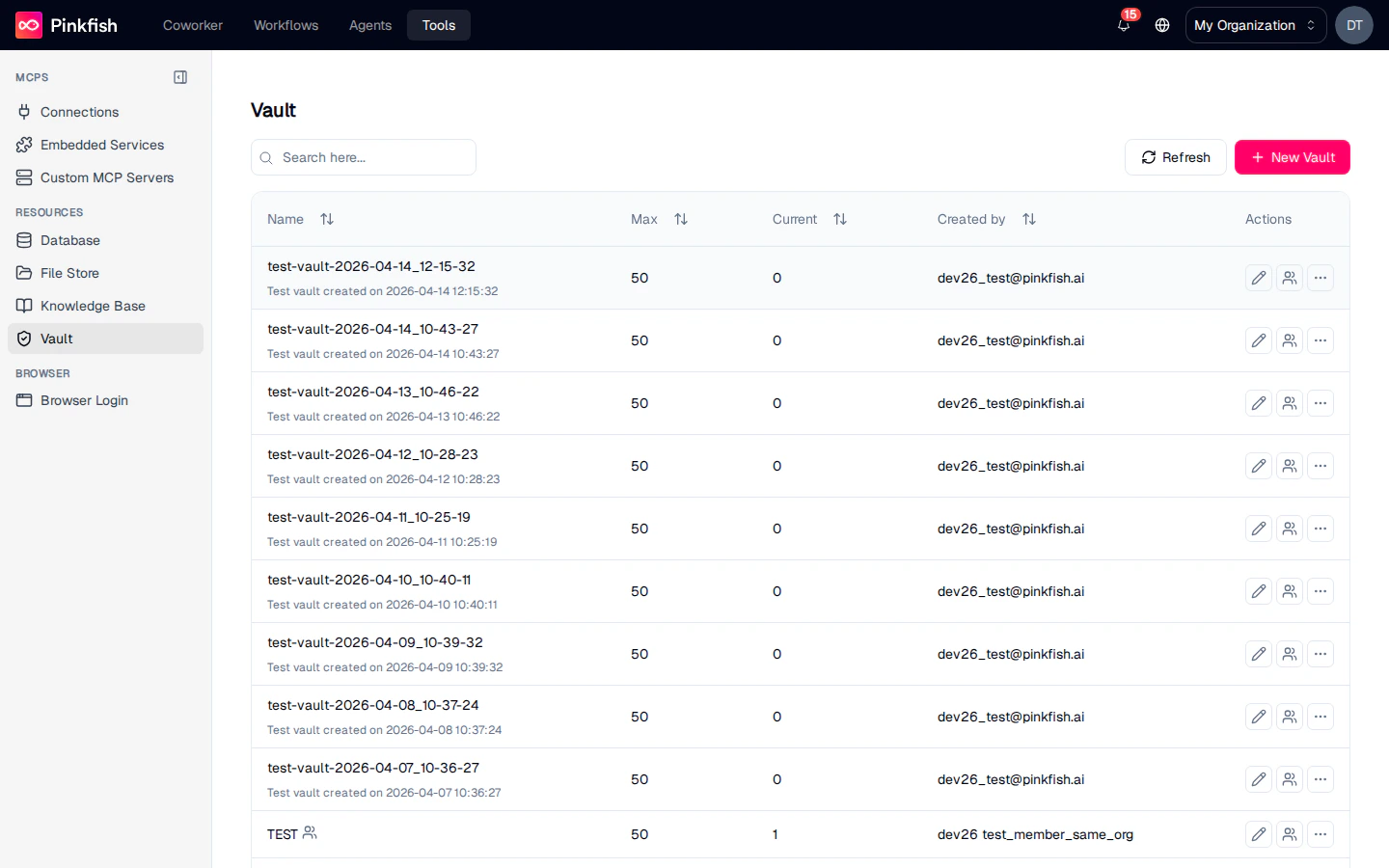
The Vault List
Each row is a vault collection — a logical group of secrets you can share and reference as a unit. Columns mirror the other resource types:
Use the search box to filter. Click + New Vault to create a collection.
Inside a Vault Collection
Clicking a row opens the collection.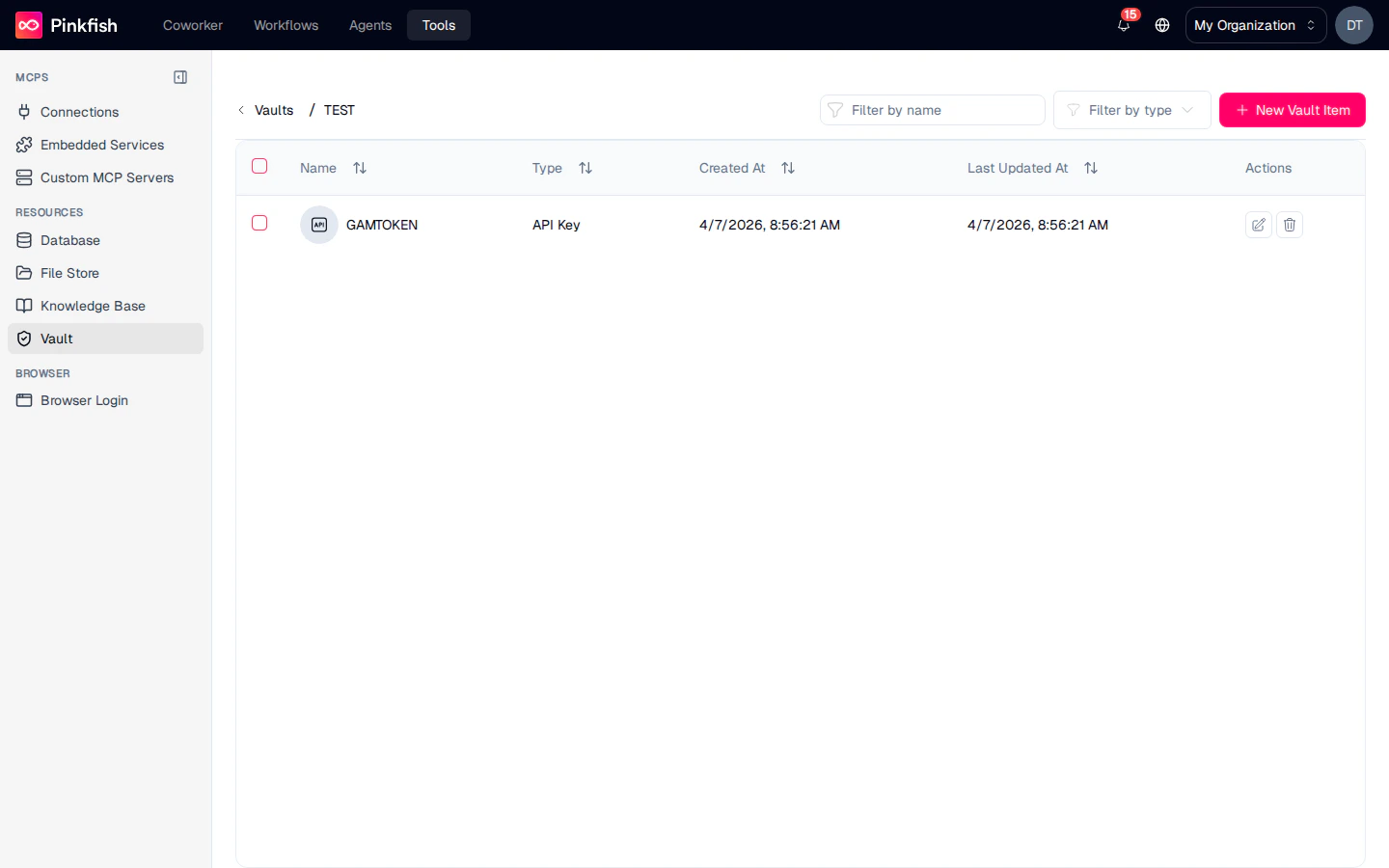
Each secret row shows:
Secret values are never shown in plain text in the list — you have to open the edit dialog to reveal or copy them. The reveal control is only shown to users with Manage permission on the collection; users with read access can reference a secret in a workflow but cannot view its value in the UI.
Adding a Secret
Click + New Vault Item to open the New Item dialog.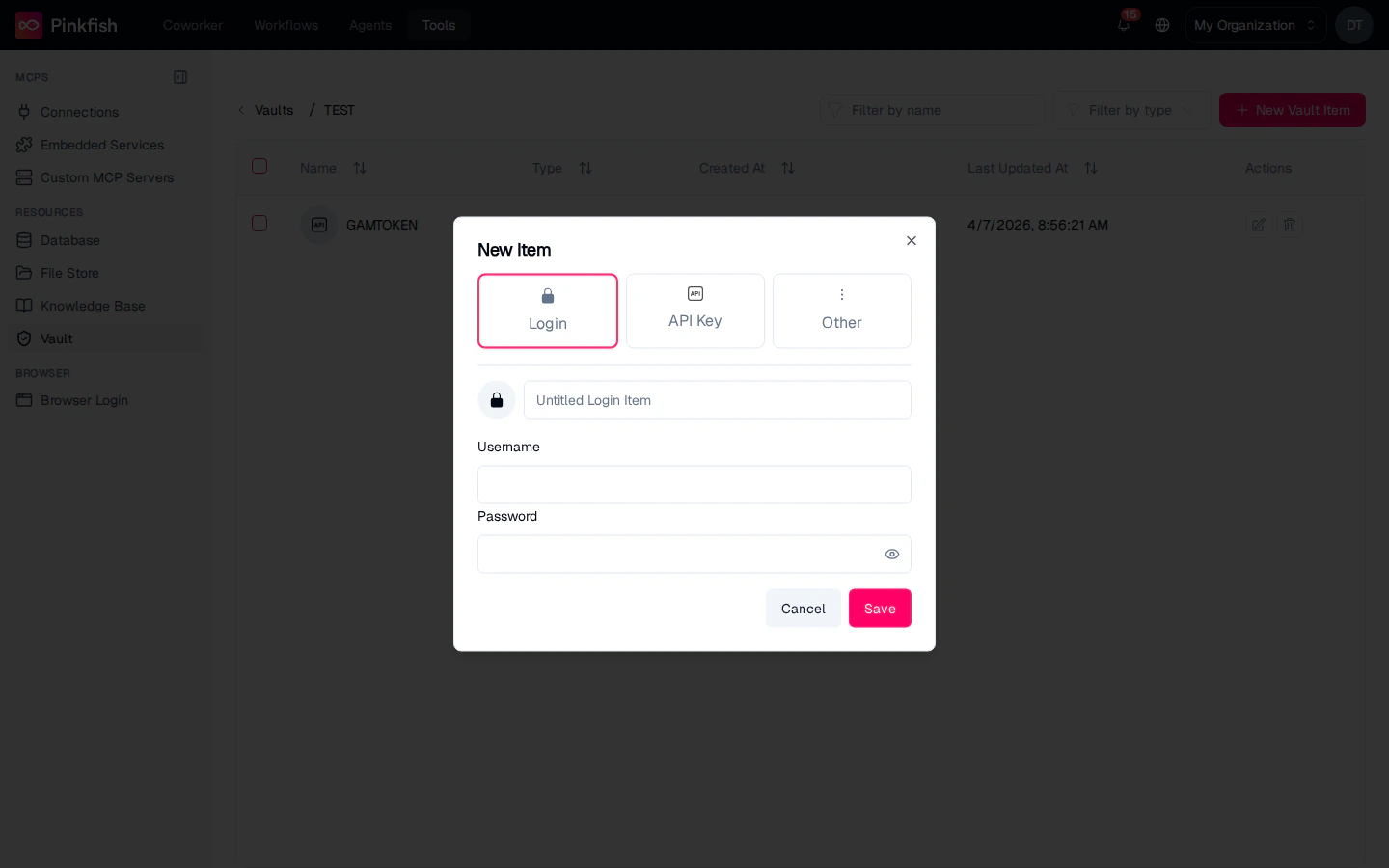
Login
Username + password pairs — for services where your agent signs in as a user.
API Key
Single token or API key — for header-based auth to third-party APIs.
Other
Arbitrary JSON payloads — for multi-field secrets (certificates, connection strings, credential bundles).
Sharing
Vault collections are the most sensitive items on the Tools page, so share them deliberately. The share dialog offers the same ACLs as every other resource:- Read — reference the secret from workflows.
- Write — add, edit, and delete secrets.
- Admin — share with others.
Using Vault Secrets in Workflows
Workflows reference secrets through the built-in Vault MCP server. The pattern:- Fetch the secret from the Vault where you’d otherwise hardcode a credential.
- At run time, Pinkfish decrypts the value on the server and passes it into the downstream call (HTTP request, database query, etc.).
- The decrypted value never appears in logs, chat history, or workflow outputs.
- Store the API key for a custom integration in a vault and reference it from a scraper workflow.
- Keep DB credentials for an internal tool in a shared vault so multiple workflows can connect without each developer knowing the password.
- Rotate the vault value when a secret expires — every workflow that references it picks up the new value on the next run without changes.
Notes
- Vault is builder-only and requires an eligible plan. When plan access is missing, the Vault entry doesn’t appear in the Tools sidebar at all.
- Secrets are encrypted with per-organization keys and decrypted only within the Pinkfish worker that executes a workflow step. Decrypted values are never written to disk.
- There is no “export secrets” action — secrets can’t be bulk-downloaded, by design.
- For non-sensitive configuration values (feature flags, environment names), use a regular Database collection instead of Vault.