

Draft vs. released
Every Agent Mode workflow has two states:- Draft — the live editor state you’re working on. Every edit is auto-saved. Draft API trigger URLs exist so you can test without affecting production.
- Released versions — numbered snapshots (0, 1, 2, …). Live trigger URLs, scheduled runs, and public interface URLs always point at the most recent release.
The release gate
The rule protects against a mocked-only workflow being promoted to production by accident. If the Release button is disabled, hover for a tooltip explaining what’s missing. Typically the fix is:- Toggle off any nodes still in mock mode (use the Mock Mode indicator’s Clear all).
- Click Run Workflow to fire a live run.
- Wait for success.
- Retry the release.
Creating a release
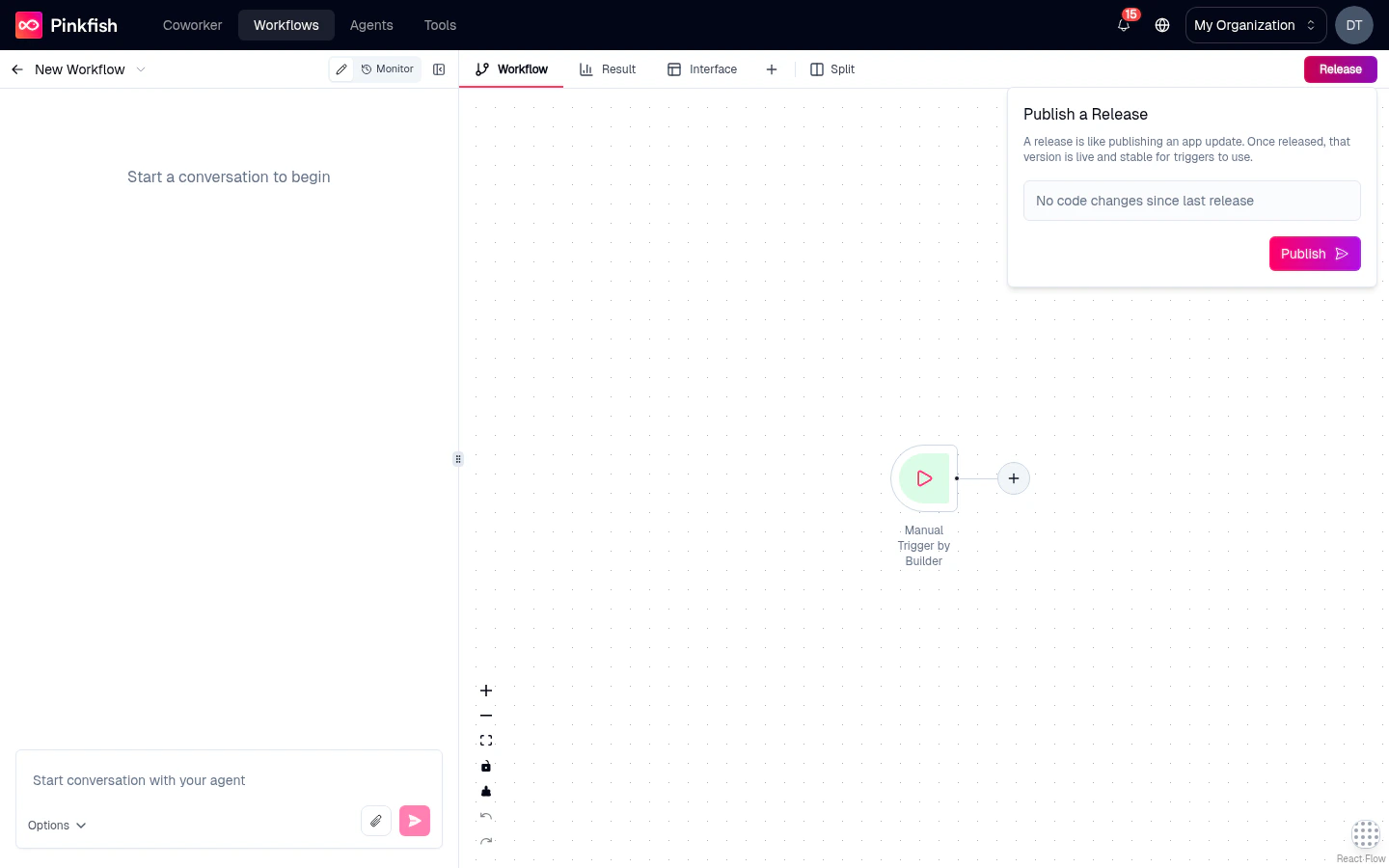
- Click the Release dropdown on the tab bar.
- Pick Release this draft (or the highlighted primary action).
- Optionally add release notes describing what changed.
- Confirm.
Test data warning
If the system detects that your recent runs used test-like inputs, you may see a Test Data Warning Dialog before the release completes. It’s a reminder to sanity-check against realistic data. Dismiss and proceed, or cancel and run with real inputs first.Comparing releases
Before (or after) releasing, click View diff or Compare in the Release dropdown to open the Release Diff Modal. It shows exactly what changed between your draft and the last release:- Added / removed / modified nodes.
- Changed connections.
- Changed node configurations.
Restoring a previous version
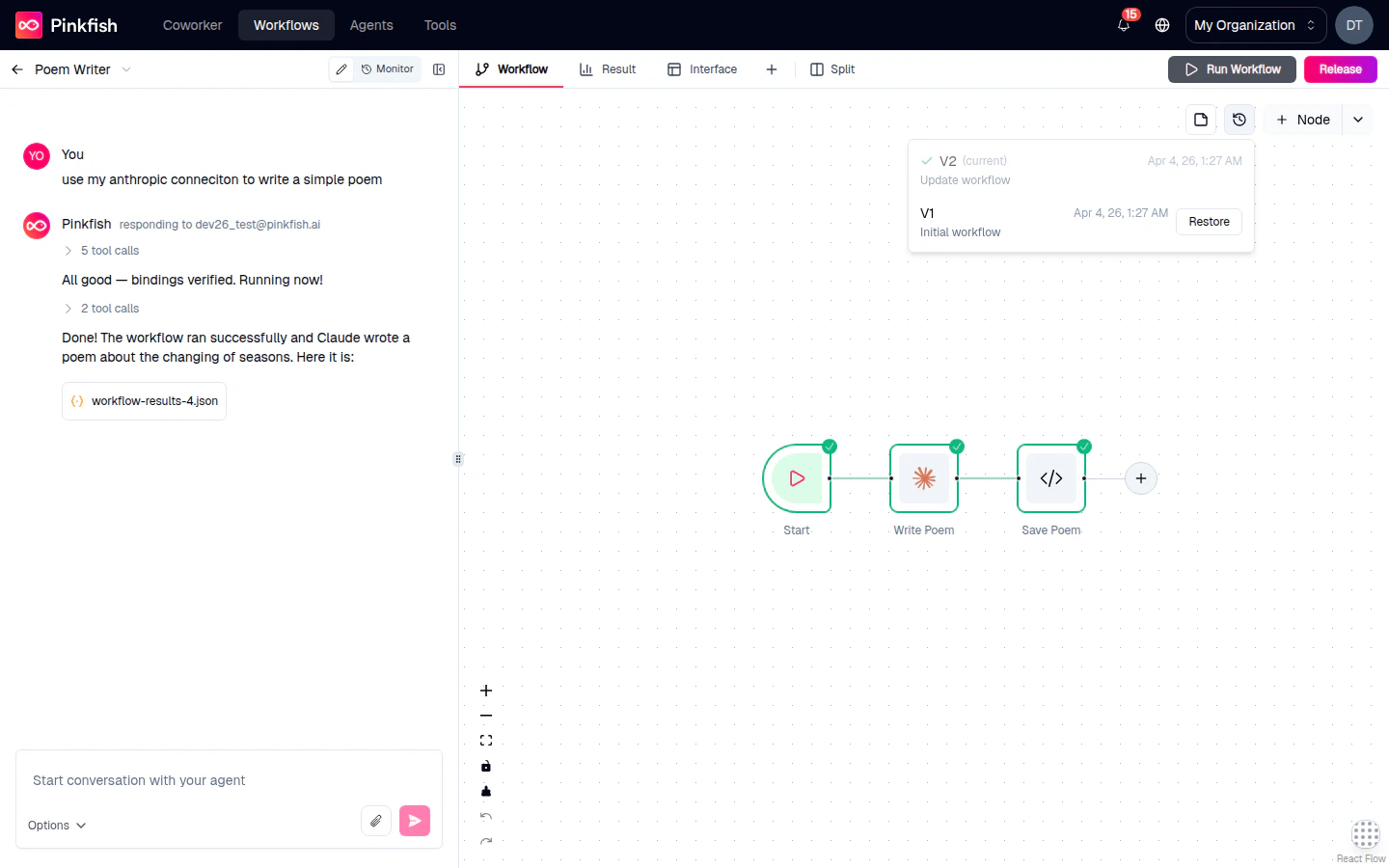
Made a change you want to undo? The Restore Version dropdown (accessible from the canvas toolbar or the Release area) lists every past release with timestamp and version number.- Open the dropdown.
- Pick a past release.
- Preview what restoring would change in the Restore Preview.
- Click Restore to revert the draft to that version’s contents.
Publishing as a public template
Availability (August 2026): the Make Available as Public Template toggle is shown only on select deployments; most users no longer see it. Templates that are already public stay public, and their URLs keep working.
- Sharing a workflow with customers for lead capture or onboarding.
- Publishing reusable automations to your org’s library.
- Marketing use cases — “fill this form, get an AI-generated report”.
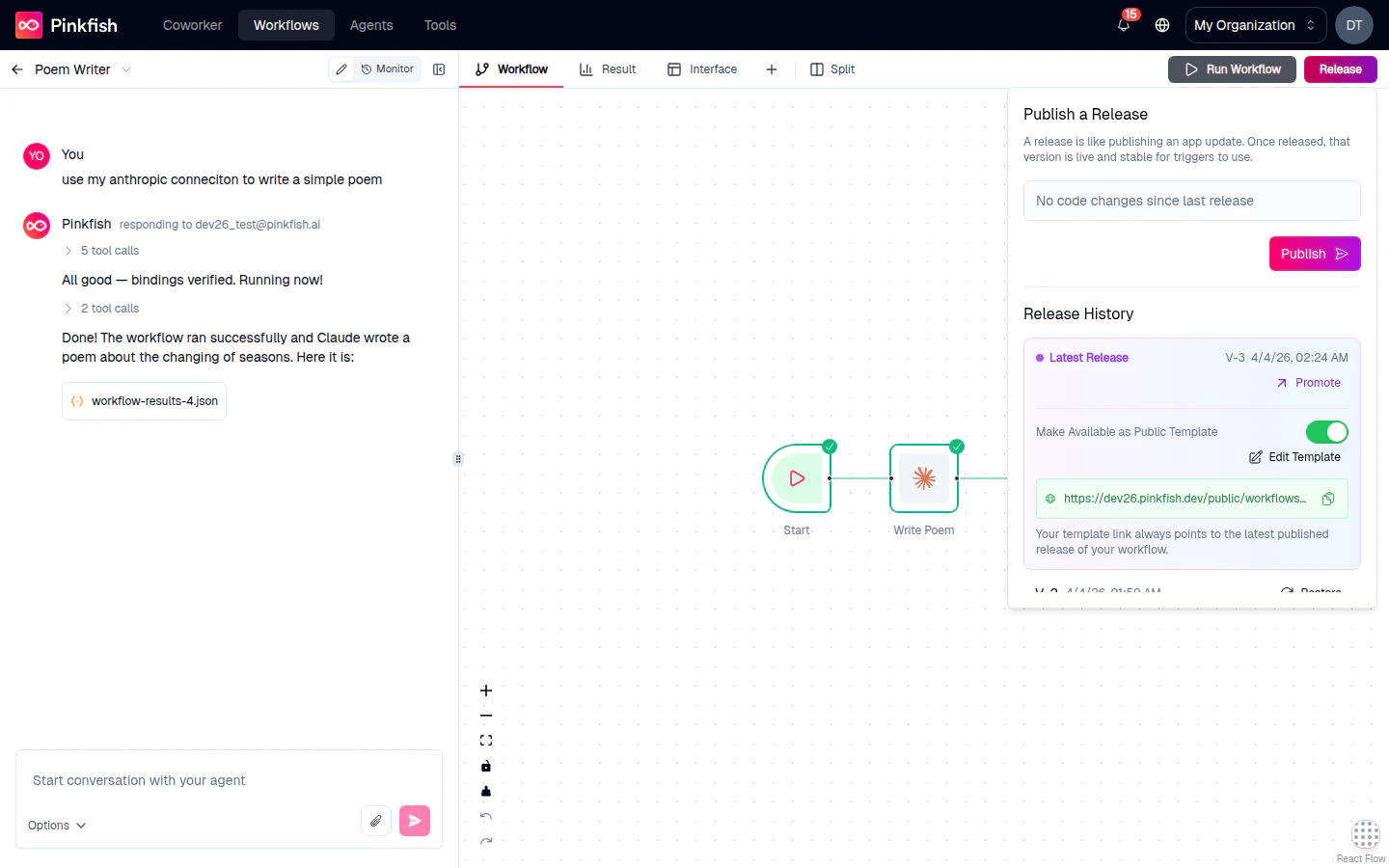
- Open the Release dropdown.
- Toggle Make Available as Public Template.
- The Publish Template Dialog opens to collect the template’s metadata — name, description, icon, category.
- Save. Pinkfish generates a public URL.
Public templates require an Interface or an API trigger — the public URL only makes sense if there’s a way for external users to invoke the workflow. See Templates for template discovery.
Unpublishing
Toggle Make Available as Public Template off to remove the public URL immediately. Existing released versions remain; only the public entry point is removed.Promoting across environments
If your Pinkfish workspace has multiple environments (dev, staging, prod), the Promote section of the Release dropdown lets you push a release from one environment to another without re-running the full setup. See Publishing for environment promotion details.Release history
Every release is preserved. You can:- Restore any past release as the new draft.
- View the diff between any two past releases.
- See which release is currently live (marked in the dropdown).
What’s next
Running a workflow
Trigger the live run that unlocks the release gate.
Mock mode & pinning
Why mocked runs don’t count toward the release gate.
Interface
Define the interface before going public.
Templates
How public templates surface in Pinkfish.