

Sticky notes
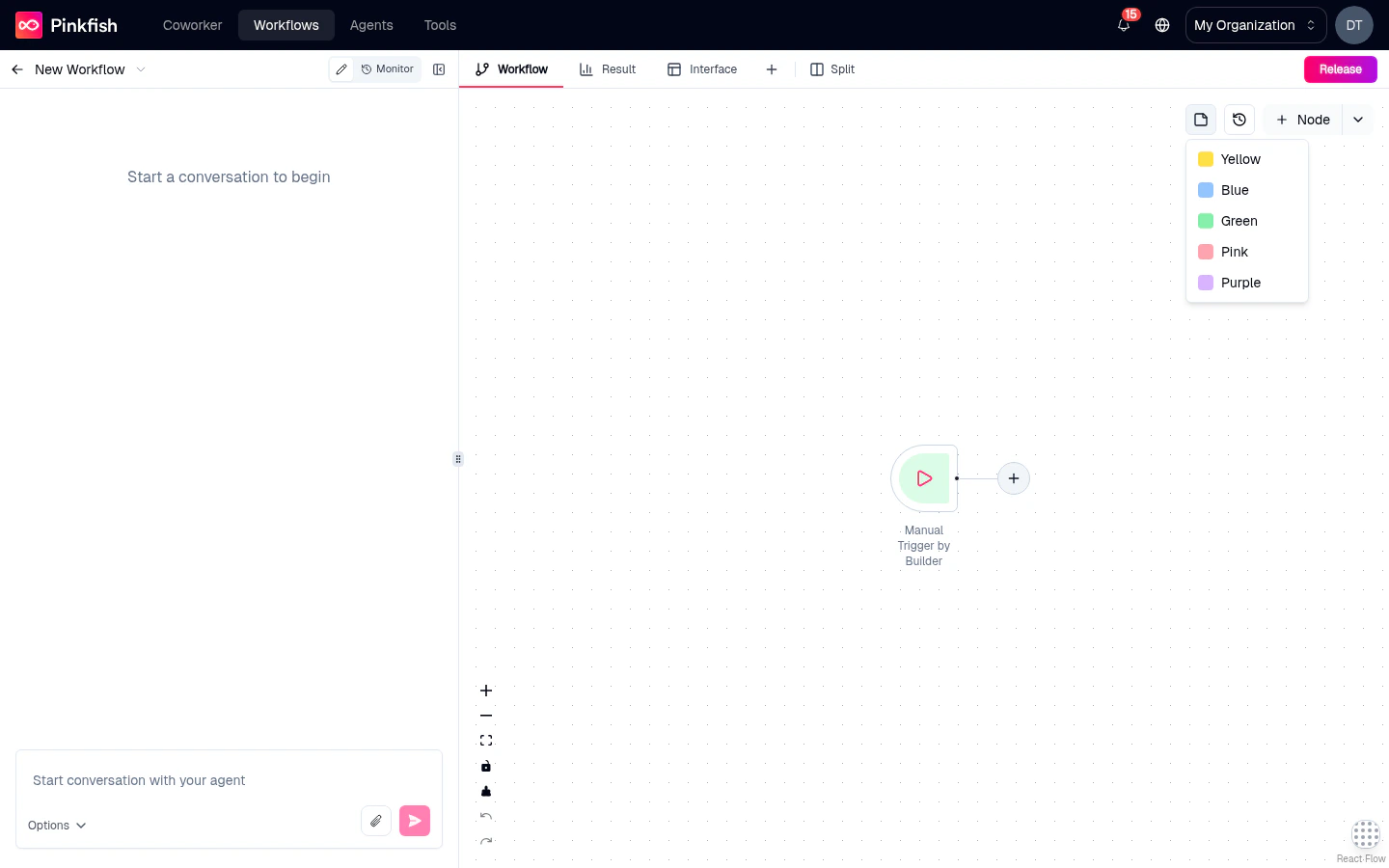
Adding a note
- Click the sticky note button in the canvas toolbar.
- A color picker opens — pick from yellow, blue, green, pink, or purple.
- A sticky note appears at the center of the visible canvas.
Esc) to commit the text.
Editing a note
Double-click any sticky note to edit its text. Notes support plain text — no markdown, no embedded images — just prose for quick annotations.Moving, resizing, deleting
- Move — drag the note like any other canvas element.
- Resize — drag any corner handle.
- Delete — select the note and press
BackspaceorDelete.
When to use them
Explain why
Document the reasoning behind a non-obvious flow-control decision — “this retries 5x because the upstream API is flaky”.
Document handoffs
Leave a note next to a complex section so future editors understand the intent.
TODOs
Use a bright color (yellow) to flag sections that need work before release.
Group nodes visually
Place a large note behind a cluster of related nodes to visually group them.
Note color conventions
The five colors have no enforced meaning, but teams often adopt conventions:
Pick whatever works for your team — just be consistent.
Canvas style
Switching backgrounds
The canvas has a picker for changing its background style. Hover over (or click) the canvas-style toggle in the controls to reveal a popover of options:- Dotted — the default subtle dot grid.
- Several gradient options — soft color blends that personalize the canvas without overpowering the nodes.
Why change the style
- Personalization — different canvas per project so you instantly recognize which workflow you’re in.
- Contrast — certain node colors read better against certain backgrounds.
- Focus — a softer gradient can be easier on the eyes during long authoring sessions.
Dark mode
Pinkfish follows your OS’s dark/light preference automatically. Sticky-note colors and gradients have dark-mode variants that shift into darker, muted hues when dark mode is active. You don’t configure this — it just works.What’s next
Canvas
The core canvas mechanics that sticky notes and colors live on top of.
Actions menu
Describe, tag, and share the workflow from the header.