

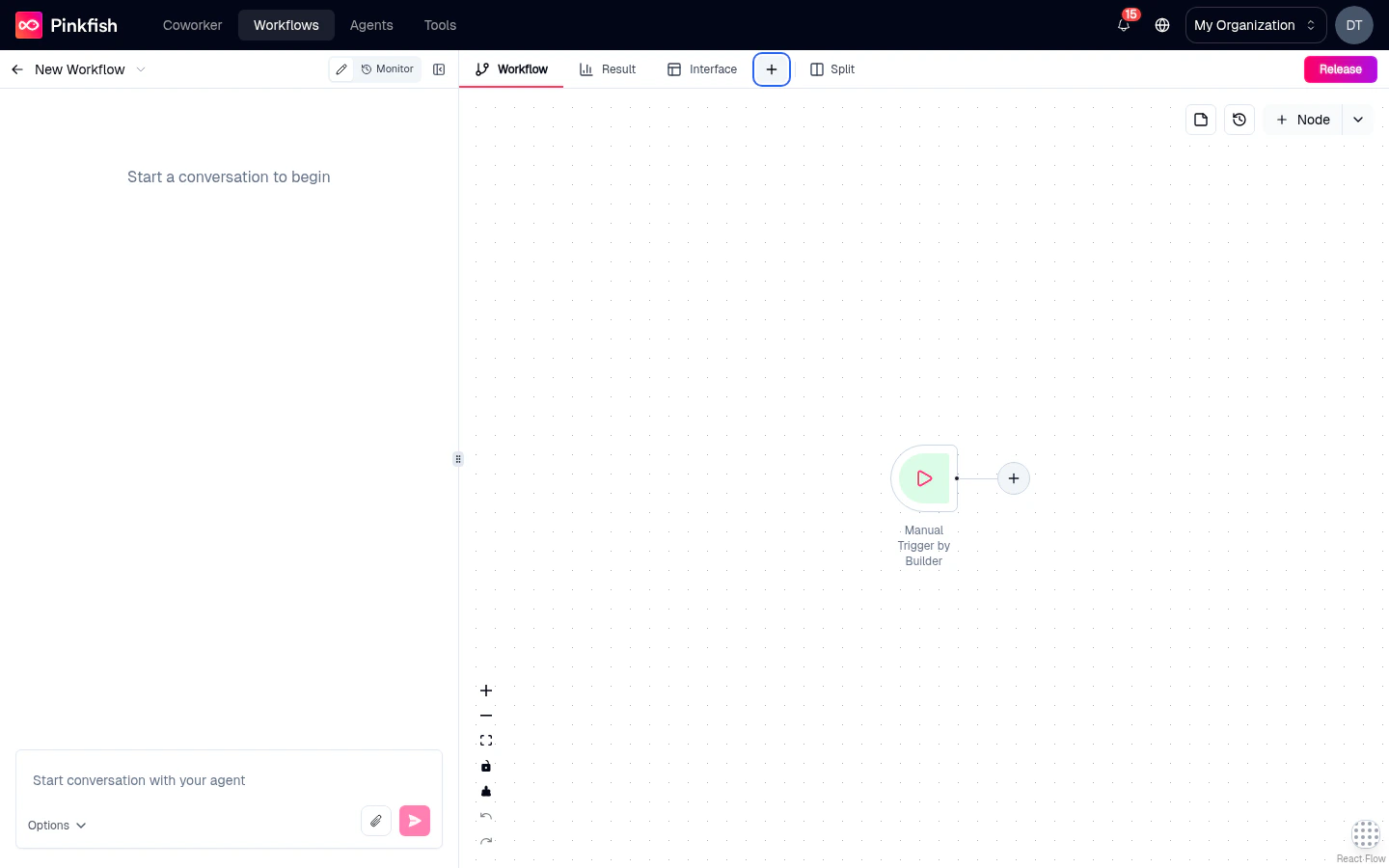
The five tabs
Workflow
The node canvas — always pinned. Your primary working surface.
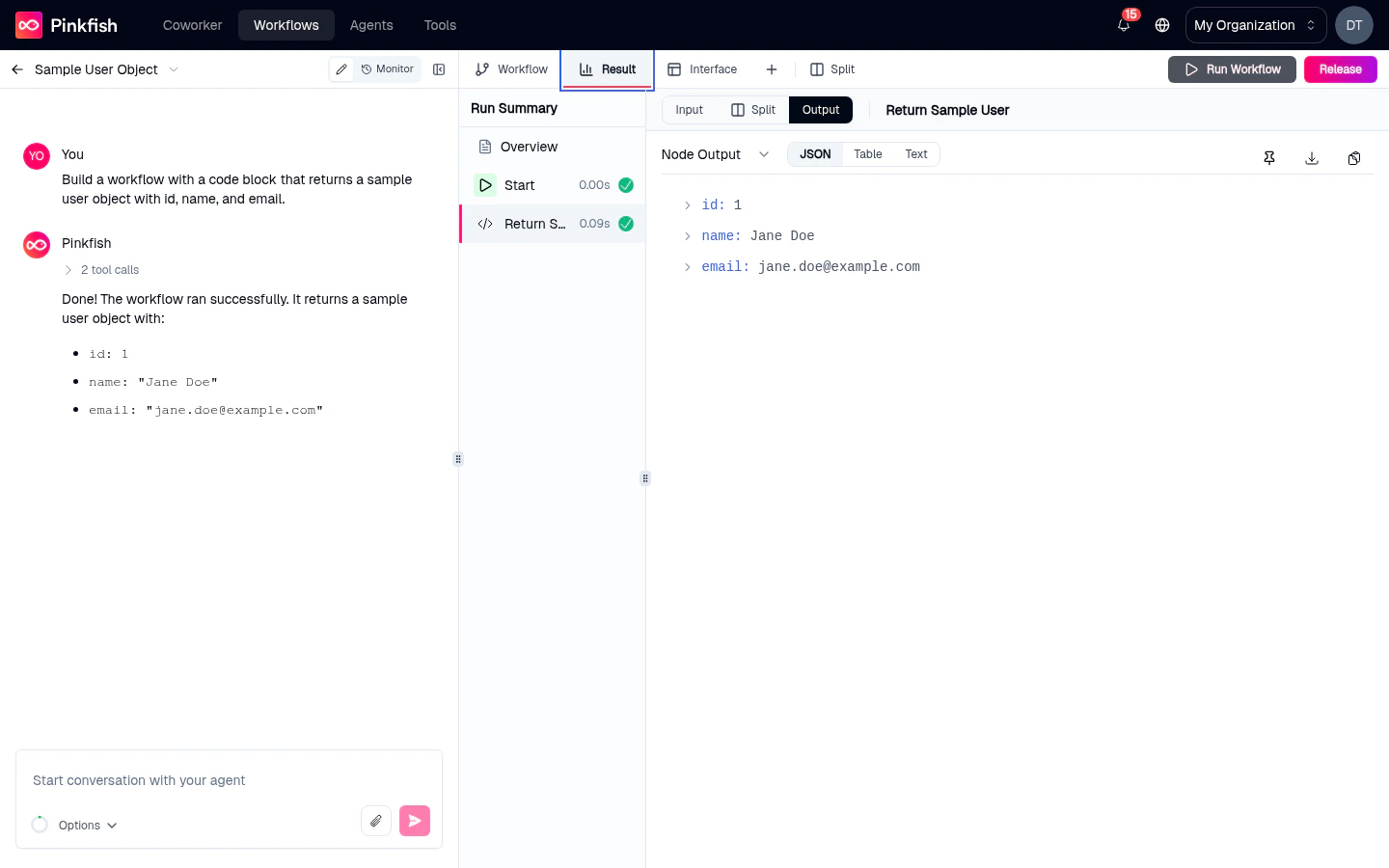
Result
The output of the currently selected node — JSON, table, markdown, HTML, and more.
Interface
The interface builder for your user-facing form and results view.
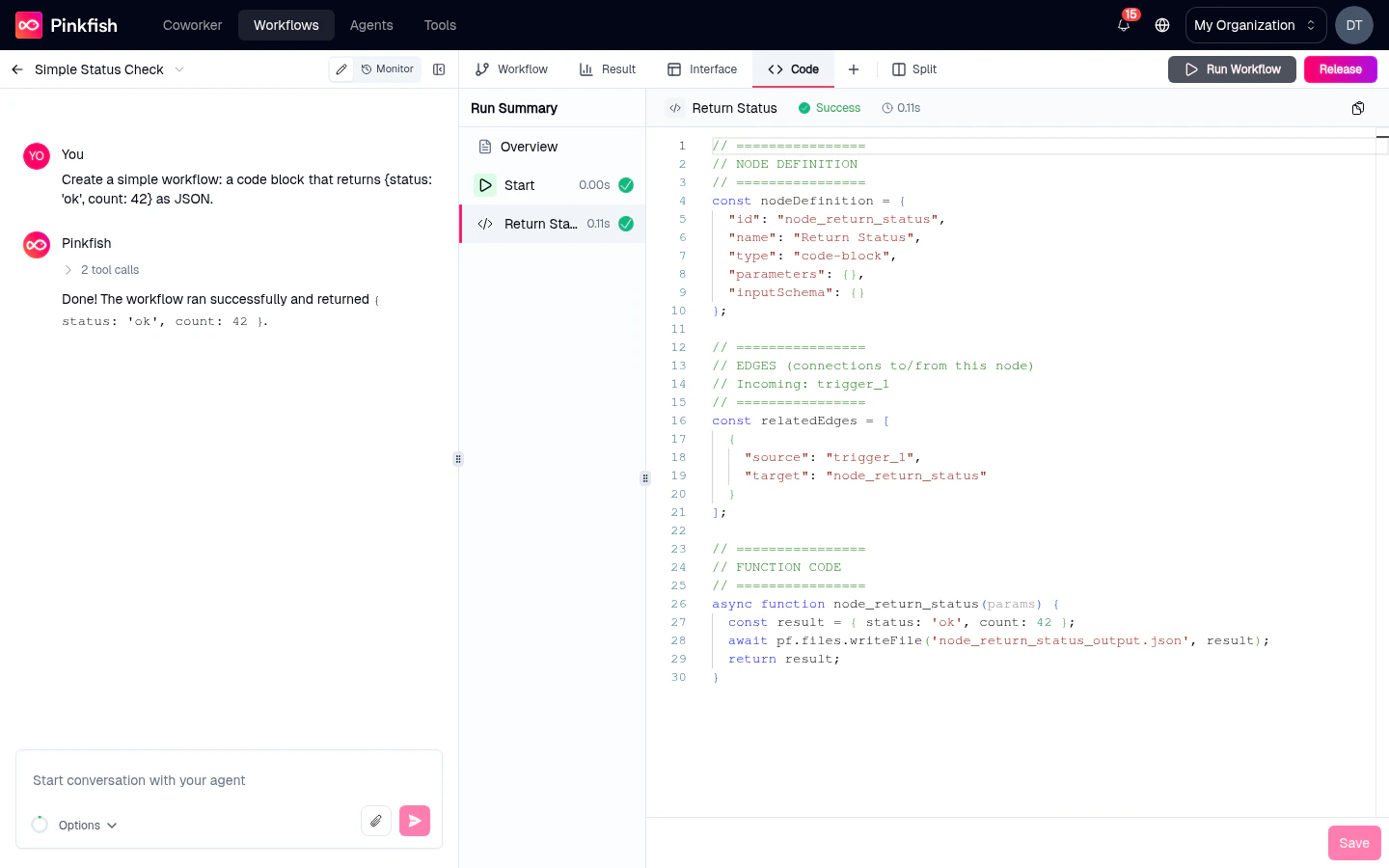
Code
The read-only source of the workflow, with a version selector to browse history.
Log
Live execution logs streamed during a run.
Workflow (permanent)
The canvas where you arrange and connect nodes. See Canvas for the full mechanics. This tab cannot be unpinned or closed — it’s the heart of the editor.Result
Shows the currently selected node’s most recent output. Click a node on the canvas, open the Result tab, and you see exactly what that node produced on the last run. The Result tab includes a view-mode switcher so you can render the same data different ways:- JSON — collapsible tree, default for structured objects.
- Table — for arrays of objects, one row per item.
- Markdown — rendered prose for LLM outputs.
- HTML — rendered web content, e.g. the output of a code block that returns HTML.
- Plain text — raw, unformatted.
Interface
The interface builder for configuring your workflow’s user-facing form, confirmation screen, and results page.Code
A read-only view of the underlying source code of your workflow — typically a JavaScript/TypeScript module the runtime executes. Useful for:- Understanding what the coding agent actually wrote.
- Copy-pasting into external AI tools for debugging.
- Sanity-checking that the generated code matches your mental model.
Log
The real-time execution log for whatever the workflow is doing — stdout from Code Block nodes, MCP tool call results, runtime warnings, and any errors. Logs stream live during a run and remain viewable afterwards. Entries are timestamped and prefixed by log level (info, warn, error). Click an error to jump to the node that produced it on the Workflow tab.
Pinning and unpinning tabs
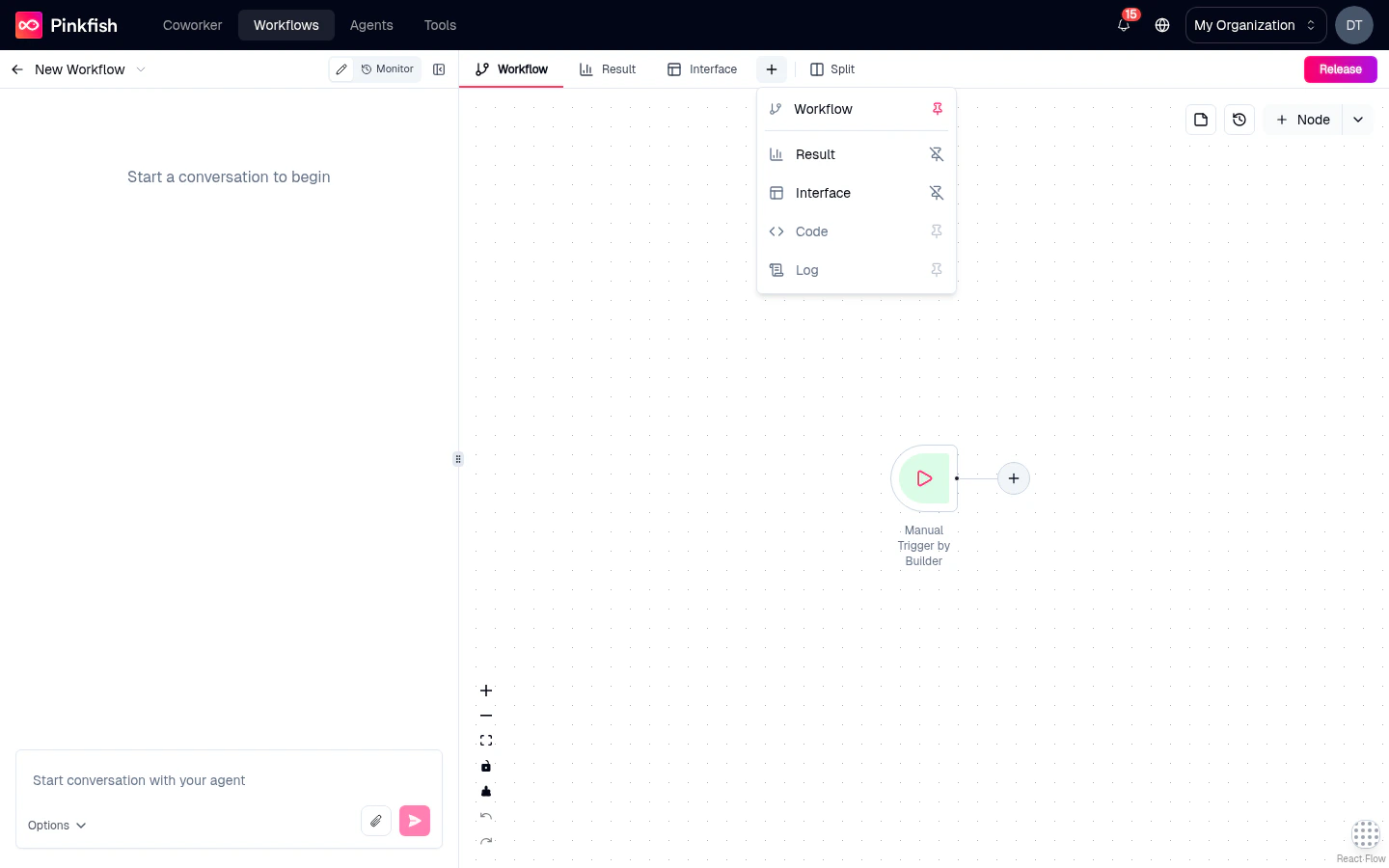
By default, pinned tabs vary depending on what you’ve been doing. To pin or unpin a tab:- Click the + button to the right of the tab bar.
- Pick a tab from the popover to pin it.
- Click a tab that’s already pinned in the popover to unpin.
Reordering tabs
Drag any tab left or right to reorder. The order is saved per-workflow.Switching tabs quickly
- Click a tab to jump to it.
- Use keyboard shortcuts (browser-dependent — typically
Cmd/Ctrl+Opt+ArrowKey). - From the Add Node flow on the Interface tab, clicking the card automatically jumps you to the Interface tab.
Tab behavior during runs
While a workflow is running:- Workflow tab shows live node status (running / success / error).
- Log tab fills with streaming entries.
- Result tab updates as each selected node completes.
- Code and Interface tabs are unchanged — they’re authoring views, not execution views.
What’s next
Split view
Show two tabs side-by-side for faster iteration.
Interface builder
The Interface tab’s authoring experience in depth.
Running a workflow
See how the Log and Result tabs behave during an execution.
Mock mode & pinning
Result pinning explained.