

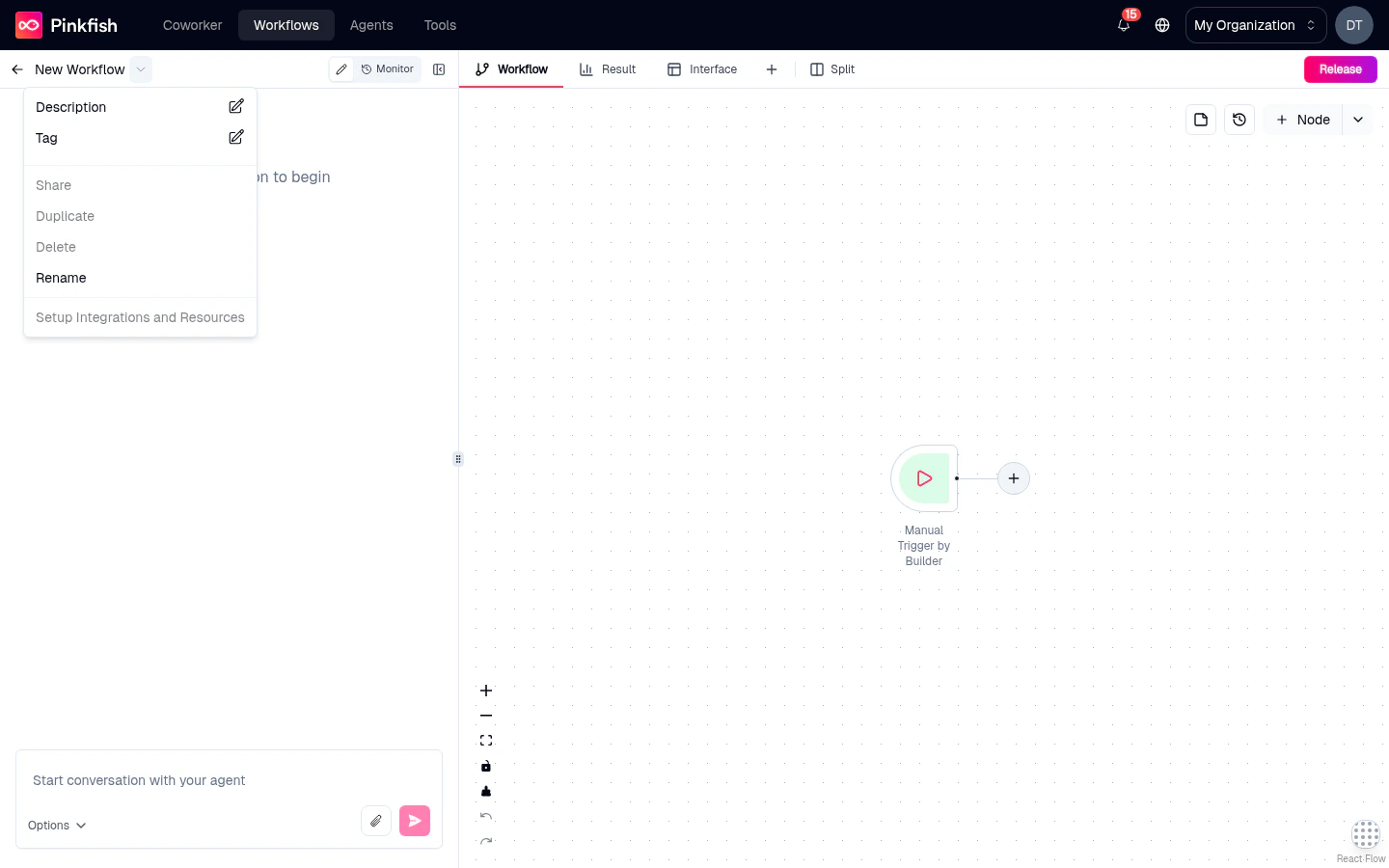
Opening the menu
Click the chevron (⌄) next to the workflow title in the header. A dropdown opens with every action you have permission to perform. If you don’t have edit permissions, the menu is hidden entirely.Actions
Description
Set a free-form description for the workflow — what it does, who it’s for, how to run it. The description appears:- As a preview in the actions dropdown (first 3 lines).
- In the workflow library card.
- When sharing the workflow with teammates.
- In published templates for context.
Tag
Assign tags to the workflow for filtering and organization in the library. One tag can be marked as the primary tag, which displays prominently on the library card. Click Tag to open the Tags modal. Add new tags, remove existing ones, and set the primary. Tags are shared across your organization — consistent tagging makes the library browsable.Share
Open the Share modal to grant other users (or other orgs) access to this workflow. Access levels:- Read — can view the workflow but not edit or run it with their credentials.
- Run — can execute the workflow.
- Edit — can modify the workflow.
- Admin — full control including sharing permissions.
Duplicate
Clone the workflow into a new automation. You can duplicate to:- The current workspace — a copy appears in your library with
(Copy)appended to the name. - Another workspace (if you have permission) — pick the destination from a dropdown.
Rename
Rename the workflow. The name is editable inline in the header, or via the Rename action for a focused input field.Delete
Permanently remove the workflow. Pinkfish shows a confirmation dialog:Delete Workflow Are you sure you want to delete this automation?Confirming deletes the workflow, all its release history, and any in-flight runs. This is irreversible. Triggered runs in progress may still complete; future invocations fail.
Setup Integrations and Resources
Opens the Workflow Resources Modal — a panel that lists every connection, data collection, file, and secret the workflow depends on. Use it to:- Reauthorize expired connections.
- Swap one connection for another of the same type.
- Configure resource sharing so teammates running the workflow have the access they need.
- See resource-sharing issues — the entry has an amber warning dot when Pinkfish detects that referenced resources aren’t properly shared with intended collaborators.
Running the dropdown vs. editor modes
The dropdown’s contents are subtly different depending on what you’re doing:- Editor mode — shows every action.
- Monitor mode — shows the actions but disables editing ones.
- Read-only preview of an older release — only read-friendly actions are available.
What’s next
Sharing
The permission model that governs the Share action.
Connections
How to authorize the integrations the resources modal manages.
Releases
Public template publishing (related but separate from the Share action).
Sticky notes & canvas
Annotate and theme the workflow’s appearance.