

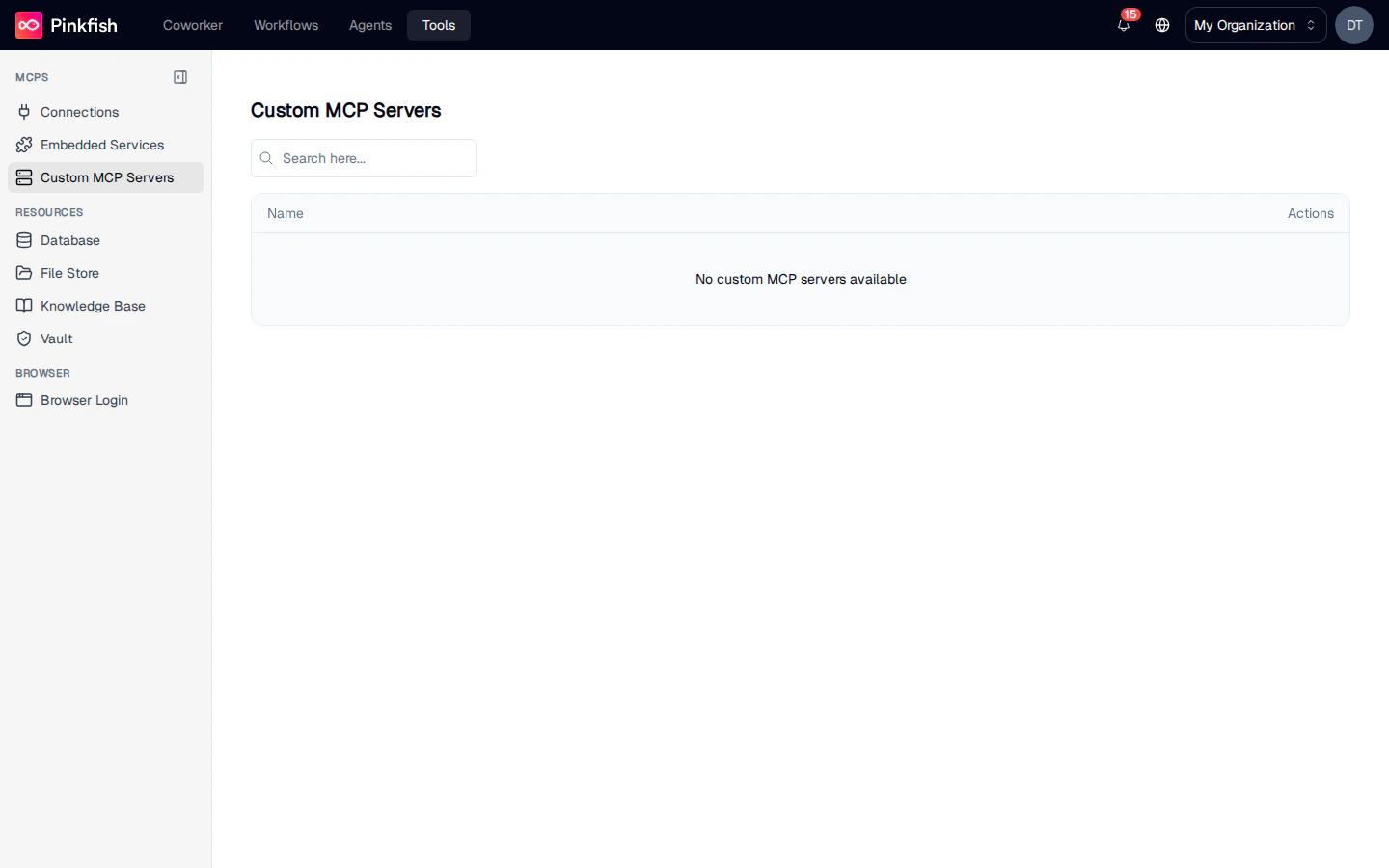
How Servers Get Here
Custom MCP servers are created in two ways:- Generated from a custom integration. When you build a custom integration and upload an OpenAPI spec on Step 3 (MCP Server Setup), Pinkfish generates a new MCP server from the spec. The generated server lands on this page automatically, and the integration is wired up so connections built from it know about the new tools.
- Registered from a remote MCP URL. Click Create on this page and choose Remote to point Pinkfish at a remote MCP server your org operates, or one a vendor ships. Paste its HTTPS Remote MCP URL and Pinkfish discovers the server’s OAuth metadata. If the provider supports dynamic client registration, that’s all you need. If it doesn’t, the form asks you to register Pinkfish as an OAuth client in the provider’s admin portal — allowlisting each Redirect URI it shows you — and paste back the resulting Client ID and Client secret.
A single custom integration can have more than one MCP server attached to it. Connections built from that integration resolve tools across every server sharing its service key, so you can split a large API into several focused servers.
What Each Row Shows
Each row on the list is one registered server. Columns:
The list supports free-text search in the top toolbar.
Empty state
When your org has no custom servers, the list showsNo custom MCP servers available. That’s the expected state for fresh orgs — registering one or generating one from a custom integration will fill it in.
Row Actions
View Details
Opens a side sheet with everything Pinkfish knows about the server:- Server ID — the internal identifier used when tools are called.
- Service Key — the stable key agents and workflows reference (for example
mycompany-ordersorvendor-widgets). - Tools (N) — a count badge plus one card per tool. Each card shows the tool name as a monospace badge and a description pulled from the server’s schema. If a tool has no description, Pinkfish shows
No description availablerather than hiding the row, so you always know what’s registered.
Delete
Also in the More menu. Delete opens a confirmation dialog titled Delete MCP Server with the bodyAre you sure you want to delete "{name}"? This action cannot be undone. Click the destructive Delete button to confirm; on success a toast reads Server "{name}" deleted and the row disappears.
Delete is only shown for users with write permission on the server — regular members see only View Details.
Using Custom MCP Server Tools
Once a server is registered, its tools behave identically to every other tool in Pinkfish:- Agents can be configured to use them in the agent builder’s tool picker.
- Workflows (both guided and agent mode) invoke them through the slash menu.
- Tool names follow the registered service key as a prefix, which keeps names unique across servers and Pinkfish’s own catalog.
Relationship to Connections
It’s worth being explicit about the three things that live on the Tools → MCPs category:Notes
- The list paginates at 50 rows; searching filters by name and description.
- Servers generated from a custom integration inherit the integration’s label and description, but you can rename them from the details panel.
- Tool execution logs for custom MCP servers appear in the standard Monitor view alongside other tool calls.