

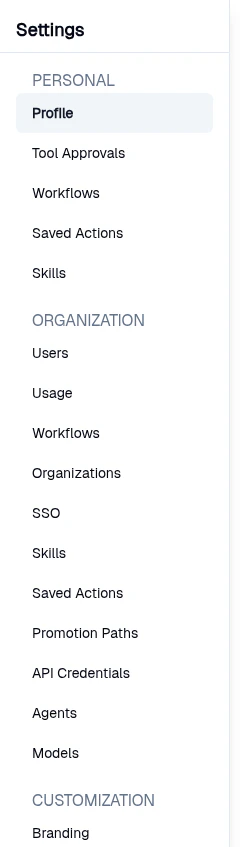
Key Sections
Profile
Your name, avatar, account metadata, and password reset.
Tool Approvals
Tools you’ve approved to run in chat without confirmation.
Workflows
Default auto-pin and auto-mock behavior when building workflows.
Saved Actions
Your personal cache of successful code executions.
Skills
Personal skill library your agents discover and use.
Profile
Profile is the first page you land on when you open Settings. It groups account data into three cards.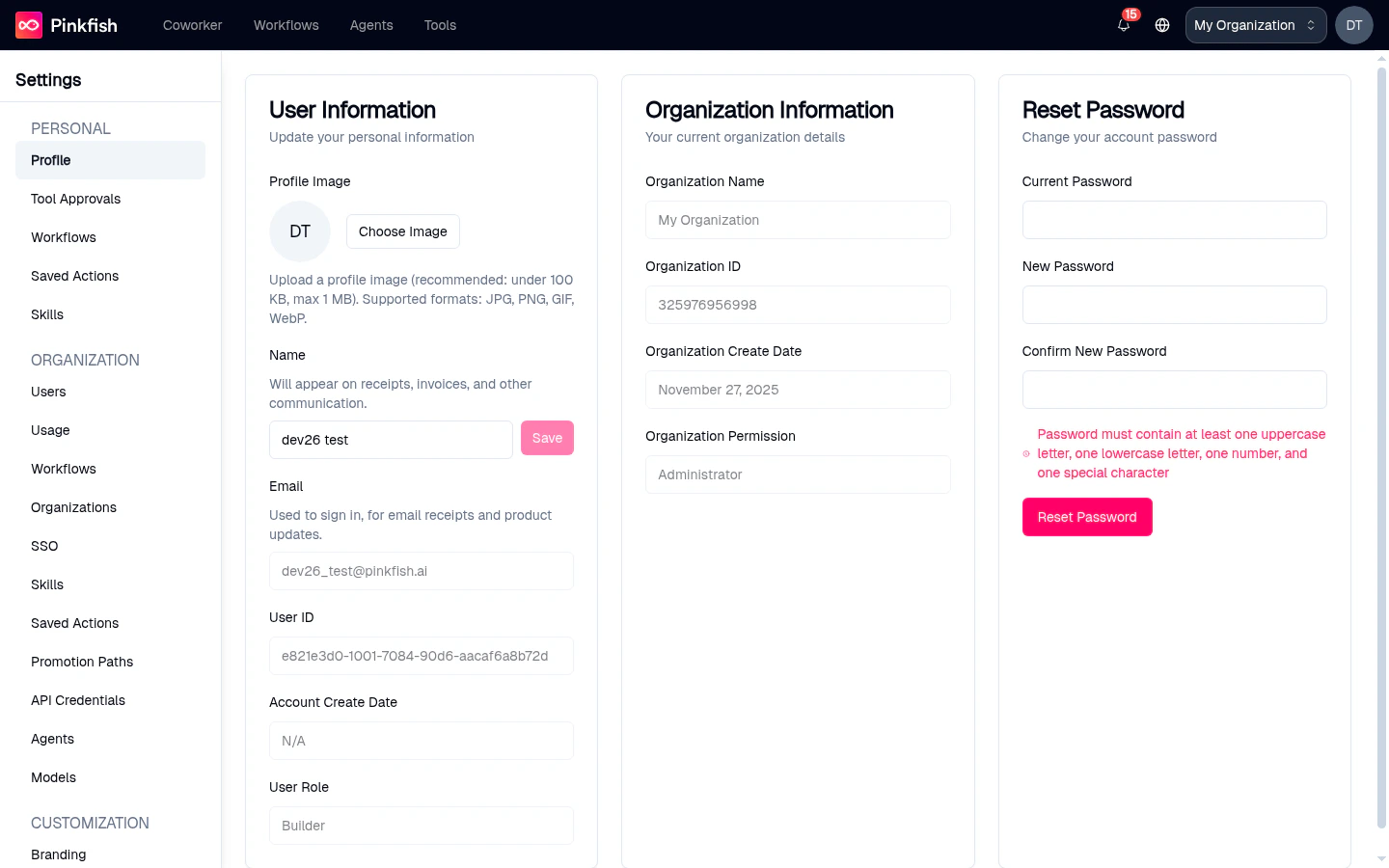
- User Information — upload a profile image, edit your display name, and view read-only fields for your email, User ID, account create date, and user role. The display name is shown on receipts, invoices, and other communication.
- Organization Information — read-only summary of the organization you’re currently signed into: name, ID, create date, and your permission in the org.
- Reset Password — change your password by entering your current password and a new one twice. The form enforces the password policy shown inline (minimum length, uppercase, lowercase, numeric, and special characters).
Tool Approvals
Whenever you pick Approve always for a tool during a chat, that approval is stored here. Tools on this list run without asking for confirmation in any future chat session.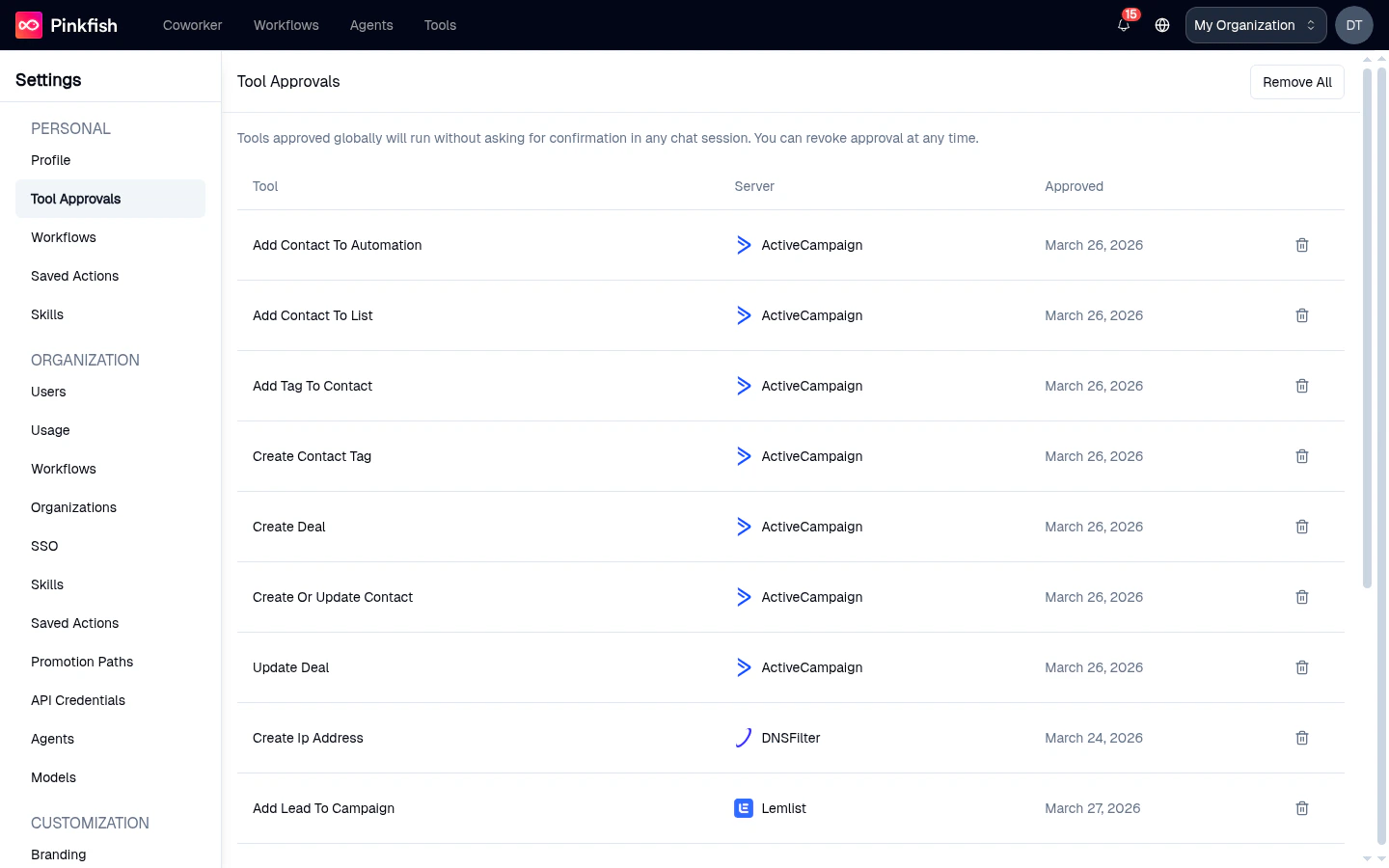
Tools approved globally will run without asking for confirmation in any chat session. You can revoke approval at any time.
Workflows
The personal Workflows page (sometimes called Workflow Preferences) has two toggles that govern how the workflow editor behaves while you’re building automations.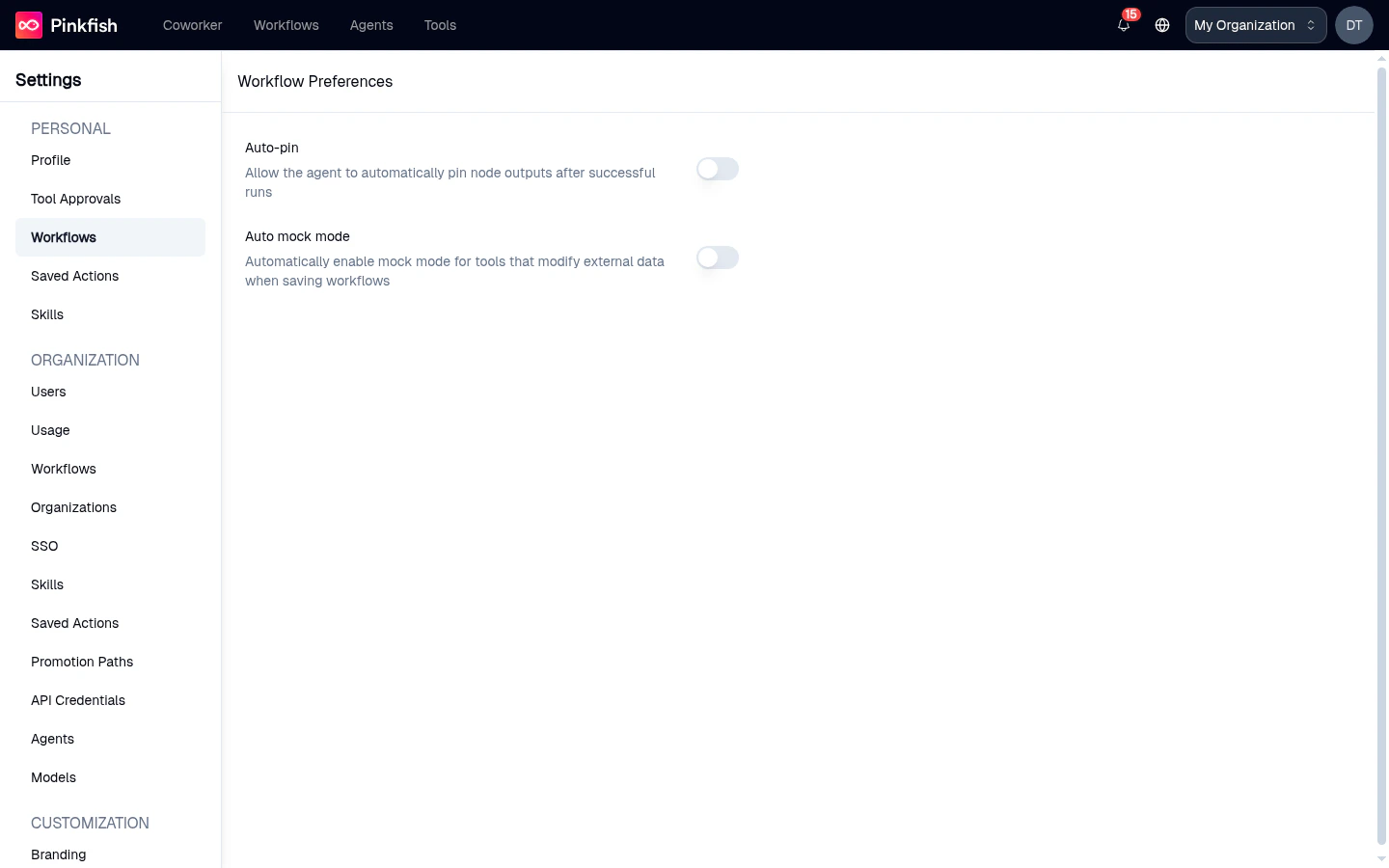
- Auto-pin — when on, the agent automatically pins node outputs after successful runs so you can inspect or reuse them later.
- Auto mock mode — when on, tools that modify external data are automatically put into mock mode when you save a workflow, preventing accidental real-world side effects during iteration.
Saved Actions
Saved Actions is Pinkfish’s code-cache feature for chat: when you give a thumbs-up to a code execution result, that prompt/code pair is saved and can be replayed automatically the next time you send a similar prompt.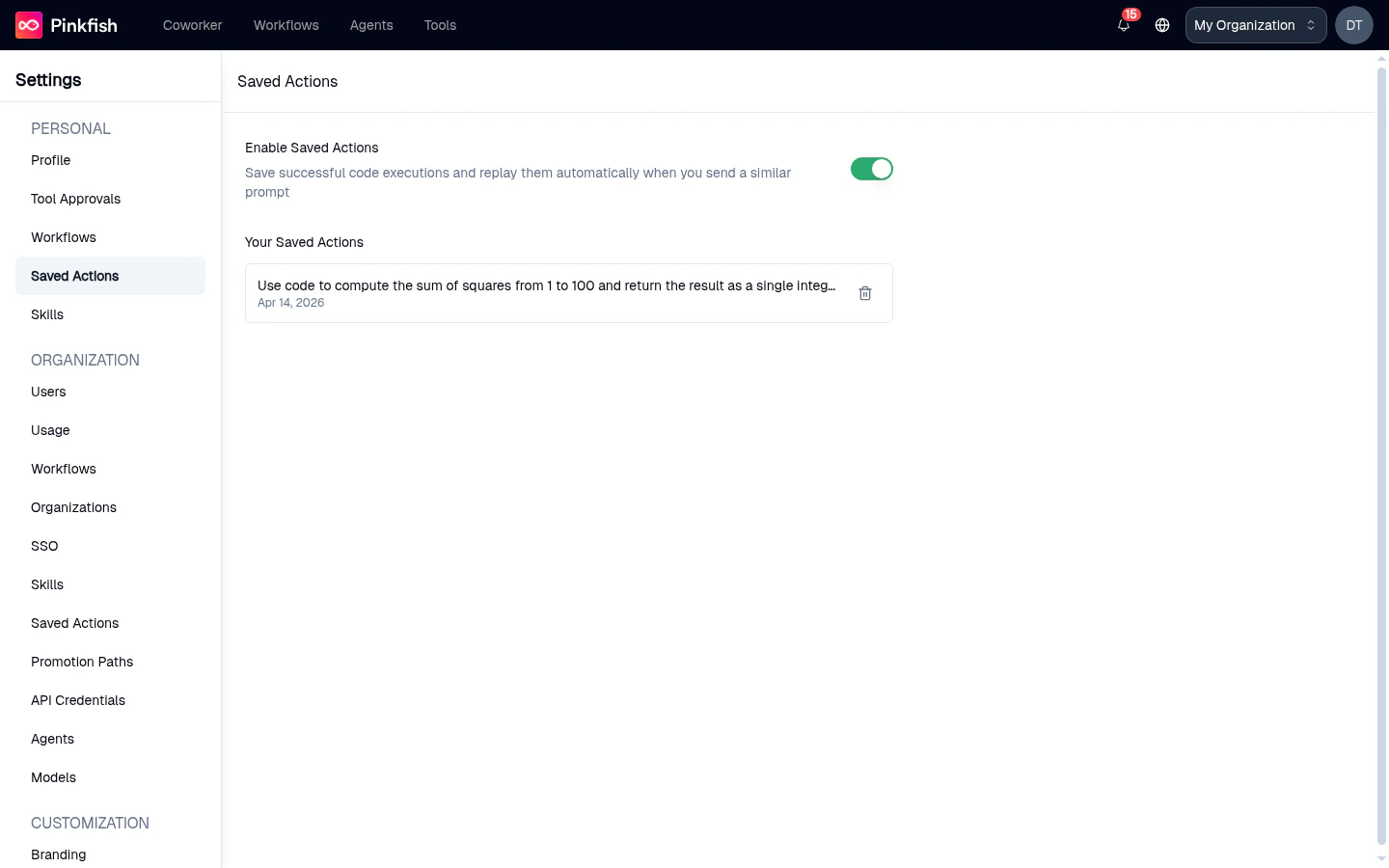
- Enable Saved Actions — a master toggle. Turn it off to stop cache matching entirely for your account.
- Your Saved Actions — the list of prompts you’ve saved, each with its creation date. Hover a row and click the trash icon to delete that entry.
No saved actions yet. Thumbs-up a code execution result to save it.For a deeper tour of the feature, see Saved Actions.
Skills
The personal Skills page is where you manage the skills that are scoped to your account. Skills are short, structured documents that agents automatically discover and apply when handling tasks — you use them to teach domain knowledge, business rules, or formatting preferences.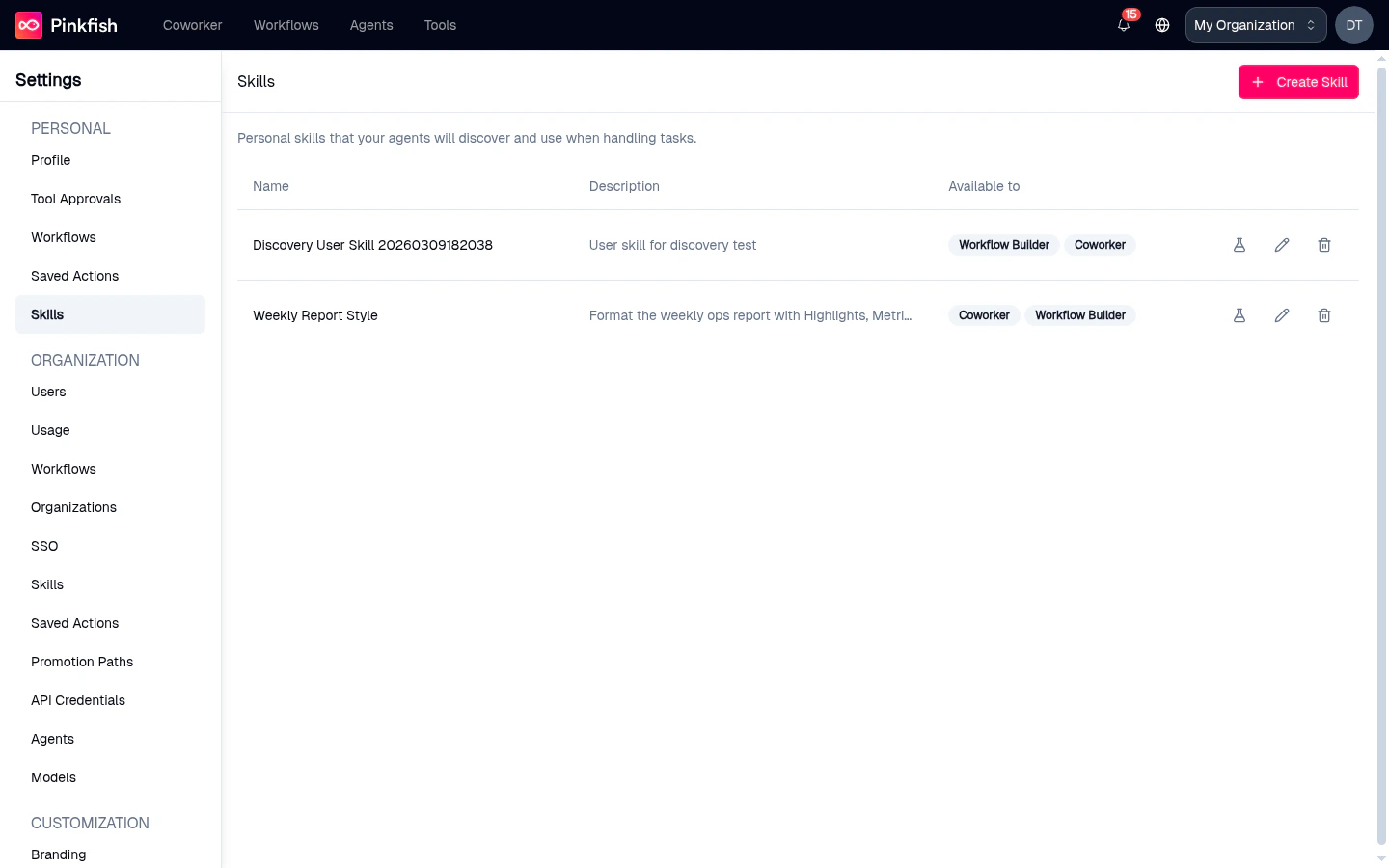
- Name — the skill’s title
- Description — one-line summary of what the skill teaches
- Available to —
Workflow Builderand/orCoworkerbadges indicating where the skill surfaces - Actions — test, edit, and delete icons on the right