

Key Features
Agent Mentions
Use
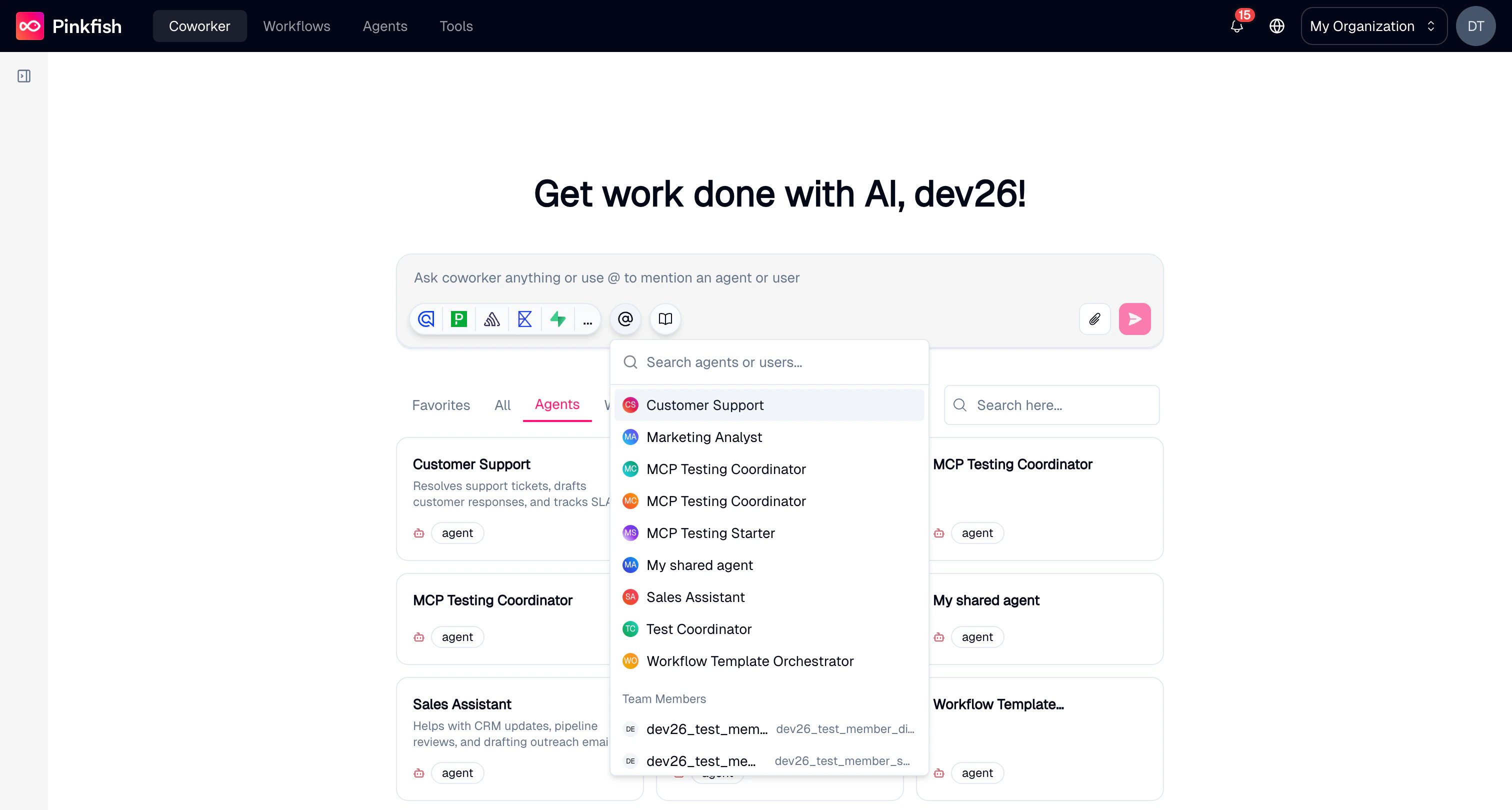
@ to mention and delegate tasks to any agent in your organization directly from the chat.Knowledge Base
Select a knowledge base collection to give Coworker context from your documents and data.
Tool Access
Coworker discovers and uses all connected tools and integrations automatically.
Conversation History
Search, filter, and revisit past conversations organized by time and agent.
Getting Started
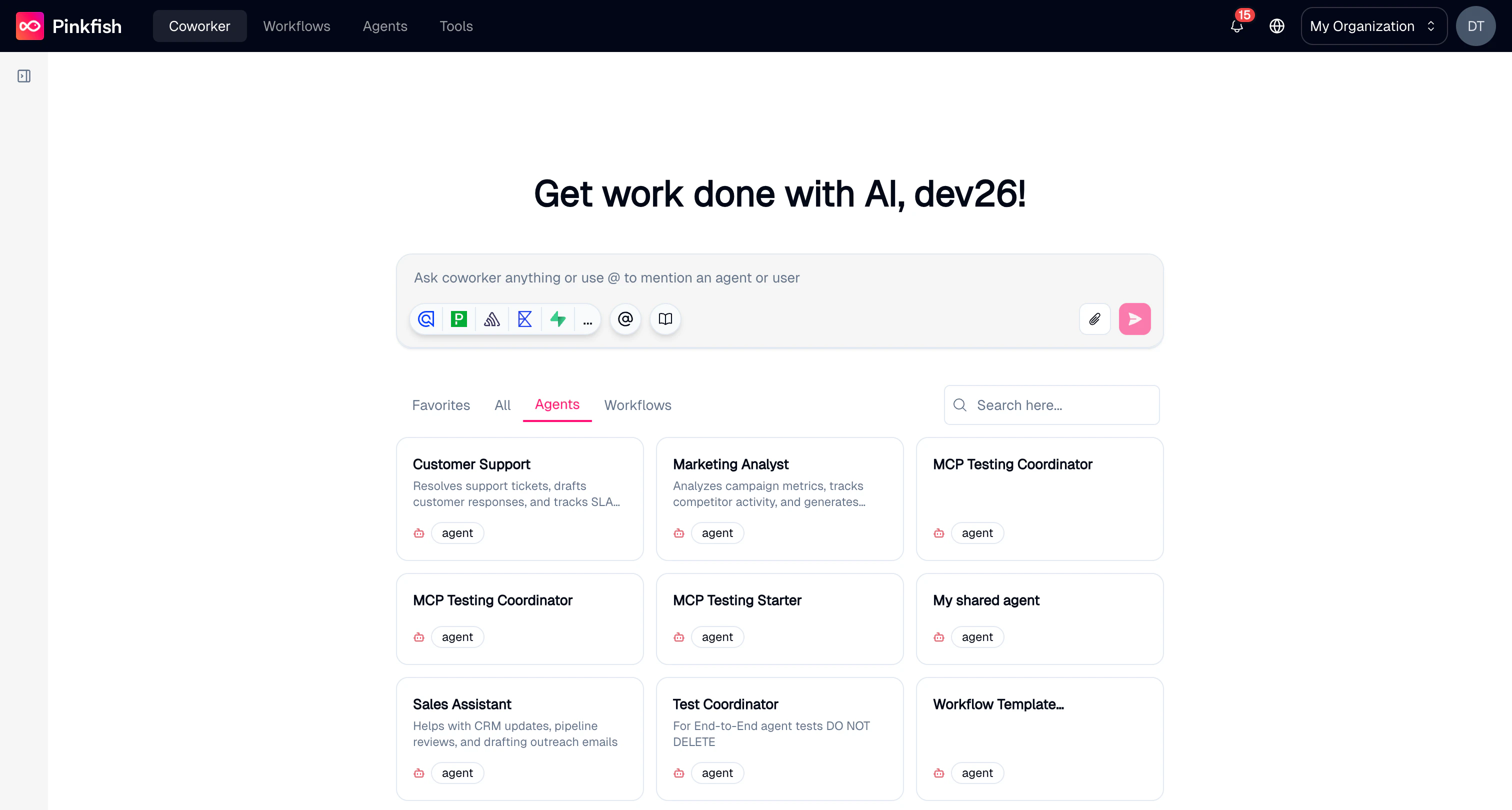
Navigate to Coworker in the sidebar. You’ll see a welcome screen with:- A chat input where you can type your message or use
@to mention an agent - Suggestion cards showing available agents, workflows, and apps you can interact with
- Tabs to filter suggestions by Favorites, All, or Agents
Chatting with Coworker
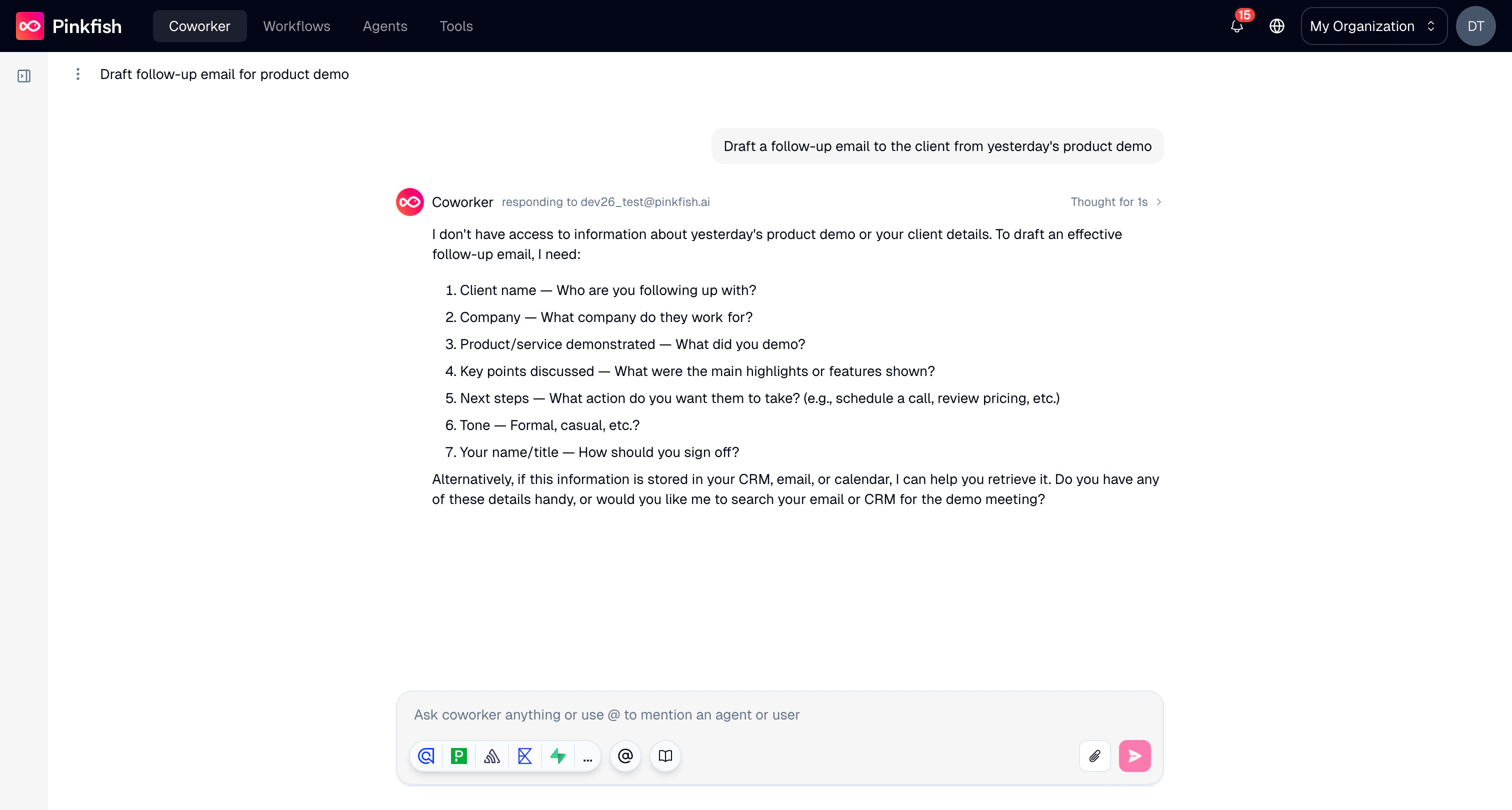
Once in a conversation, you can send messages back and forth with Coworker. The chat interface shows:- Your messages on the right side
- Assistant responses on the left, with the responding agent name and a “Thought for Xs” indicator showing processing time
- An Artifacts button in the header for any generated files or outputs
Mentioning agents
Type@ in the chat input or click the mention button to bring up a list of available agents. Select an agent to delegate a specific task to it within the same conversation.
Attaching files
Click the file attachment button to upload files directly into the conversation. Supported formats include images (JPG, PNG, WEBP), documents (PDF, CSV, TXT, MD, JSON, HTML, XLSX, DOCX, PPTX), and video (MP4, MOV).Using a knowledge base
Click the knowledge base icon in the chat input to select a collection. This gives Coworker access to the documents and data in that collection, so it can reference them when answering your questions.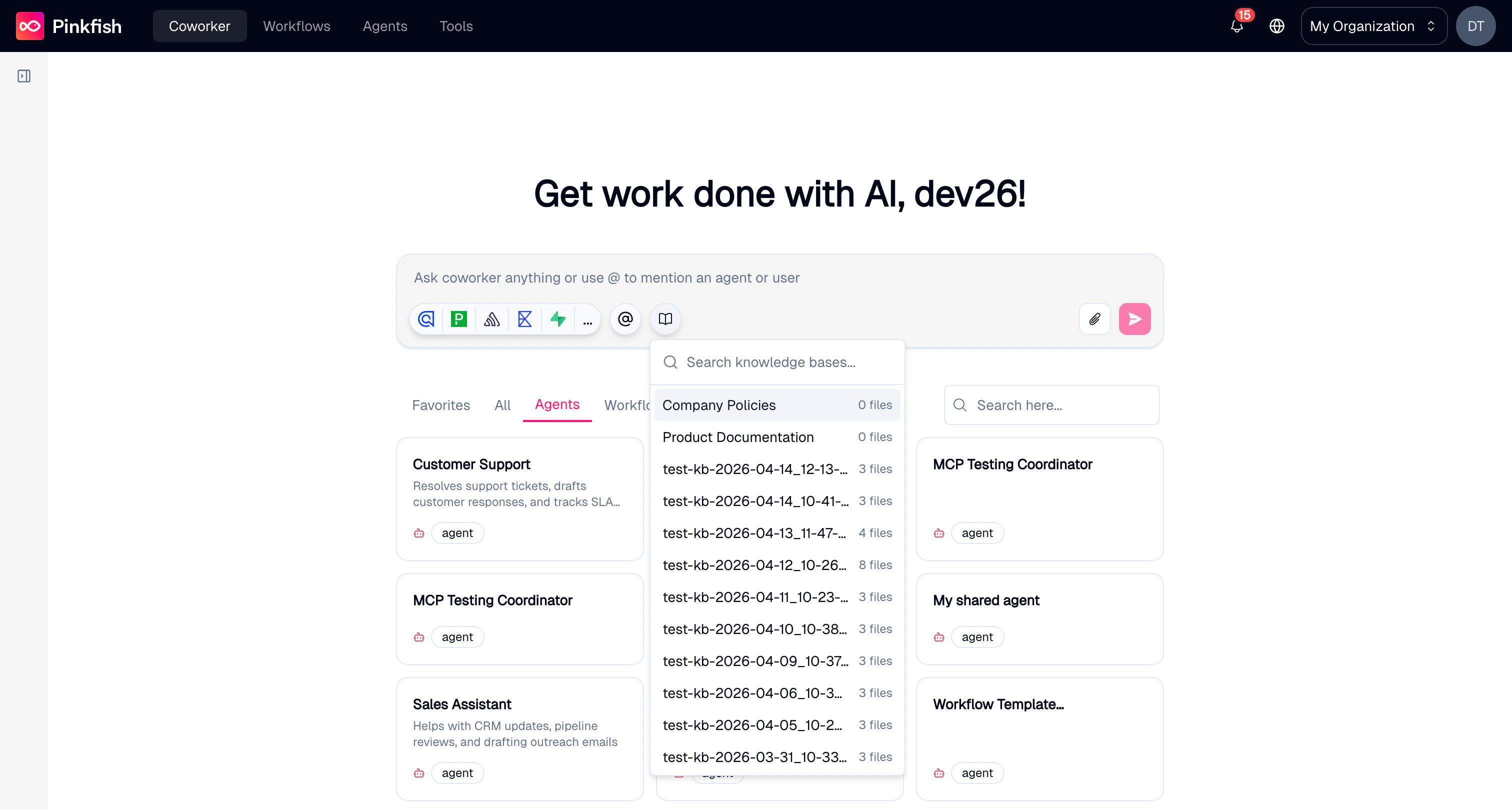
Managing Conversations
Conversation sidebar
The left sidebar lists all your conversations, grouped by Today and older chats. From the sidebar you can:- Click New Chat to start a fresh conversation
- Click any chat to resume it
- Right-click or use the menu on a chat to rename or delete it
- See unread message indicators and New badges on shared chats
Chat history
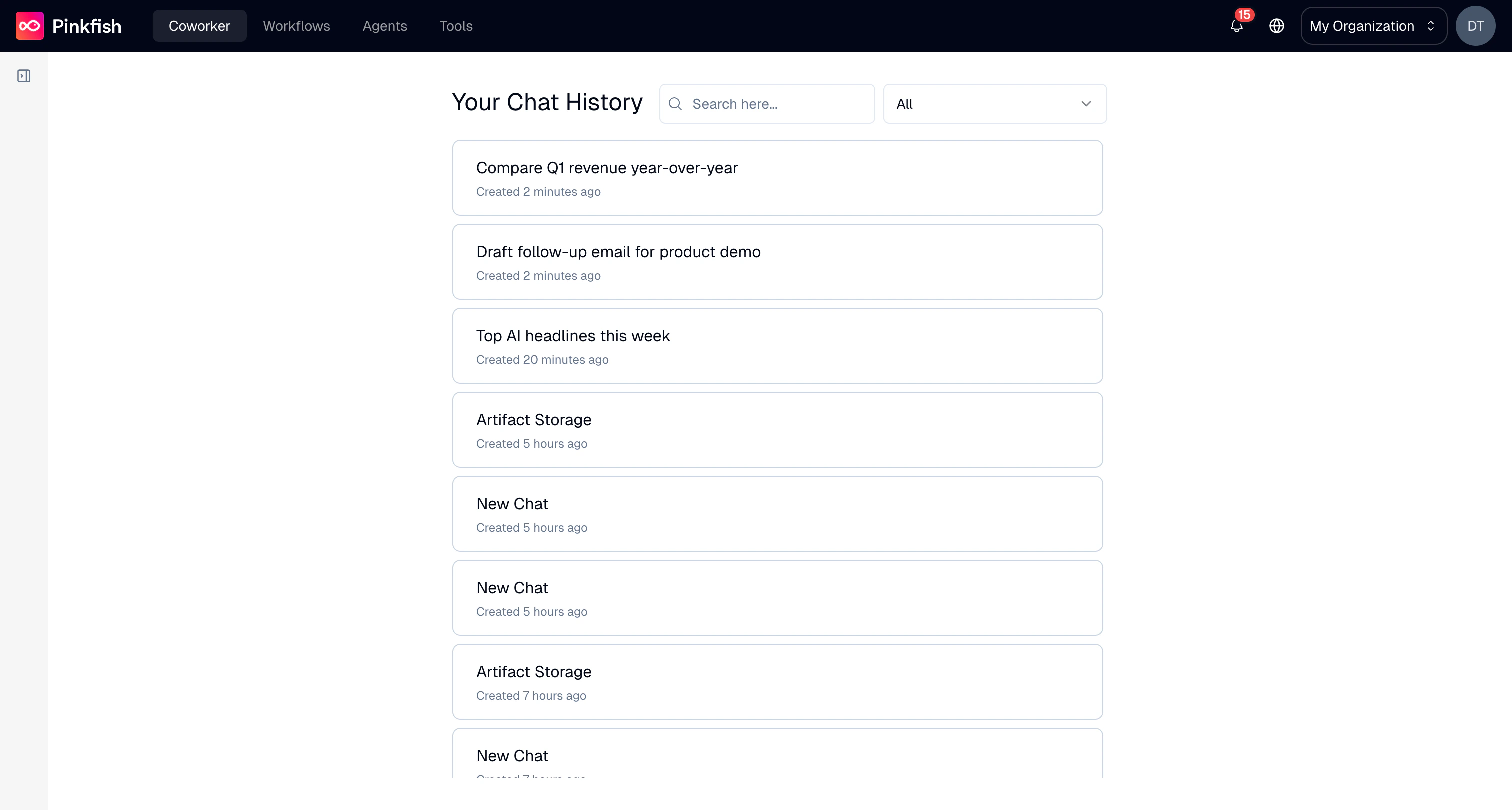
Click Search Chats in the sidebar to open the full chat history view. Here you can:- Search conversations by title
- Filter by agent using the dropdown
- See when each conversation was created with relative timestamps
Suggestions and Discovery
The welcome screen displays suggestion cards for items in your workspace:- Agents — click to mention the agent in your next message
- Workflows — click to view the workflow details
- Apps — click to open the app
Notes
- Knowledge base collection selection is locked after the first message in a chat. Start a new chat to switch collections.
- Coworker can be connected to Slack and Microsoft Teams workspaces for use outside the Pinkfish app.
- Conversations can be shared with other organization members. Shared chats show a badge in the sidebar.