

Branding
The Branding page is split into two panes: the configuration form on the left and a live preview on the right. Edits update the preview as you type, and nothing is persisted until you click Save in the header.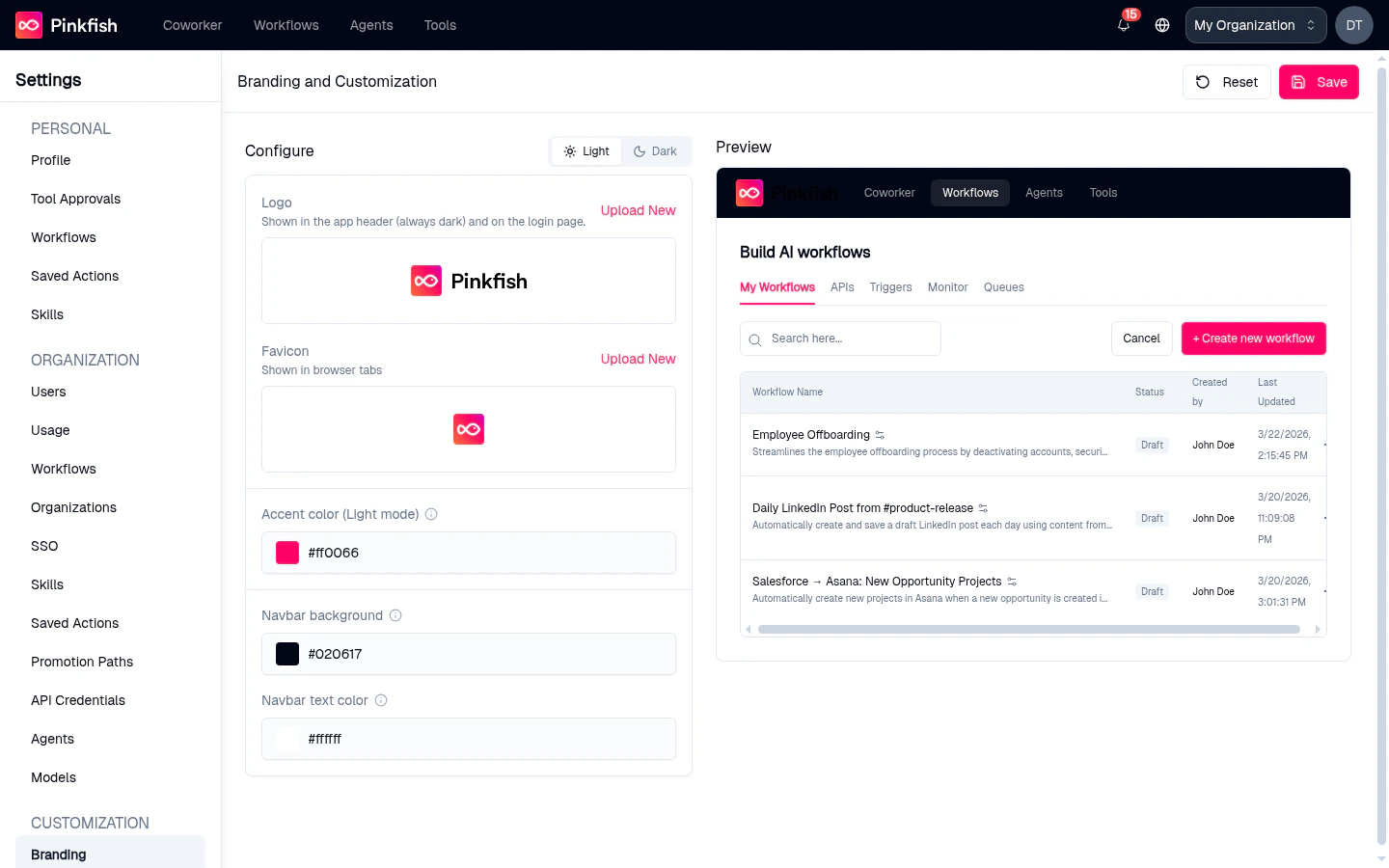
Configure (left pane)
The Configure pane groups branding fields by purpose. Depending on your plan you’ll see some or all of:- Organization Name — display name that appears alongside your logo and in welcome copy
- Welcome Message — short greeting shown on the sign-in and welcome screens
- Logo and Dark Mode Logo — upload PNG or SVG assets; each has a
Choose ImageandUpload Newcontrol and shows the current asset inline - Favicon — the small icon shown in browser tabs
- Accent color (Light Mode) and Navbar background — color pickers that drive primary buttons, links, and top-bar styling
- Sidebar text and other per-surface colors — fine-grained overrides so your theme stays legible in both modes
- Layout — choose between the available app shells (e.g. classic vs. focused)
- Auth settings — control how the sign-in screen is presented to your users
Preview (right pane)
The Preview pane renders a real Pinkfish screen (sign-in page or dashboard, depending on what you’re editing) with your current, unsaved configuration applied. Use the light/dark toggle at the top of the preview to verify your theme works in both modes before saving.Saving and resetting
Two buttons in the page header control the lifecycle of an edit:- Save — commits every change in the Configure pane to the organization
- Reset — reverts every field back to the Pinkfish defaults (a confirmation dialog protects against accidents)
Who Can See What
The Branding item only appears in the sidebar for:- Organization administrators (members with the
Adminorg permission) - Organizations whose plan includes custom branding