

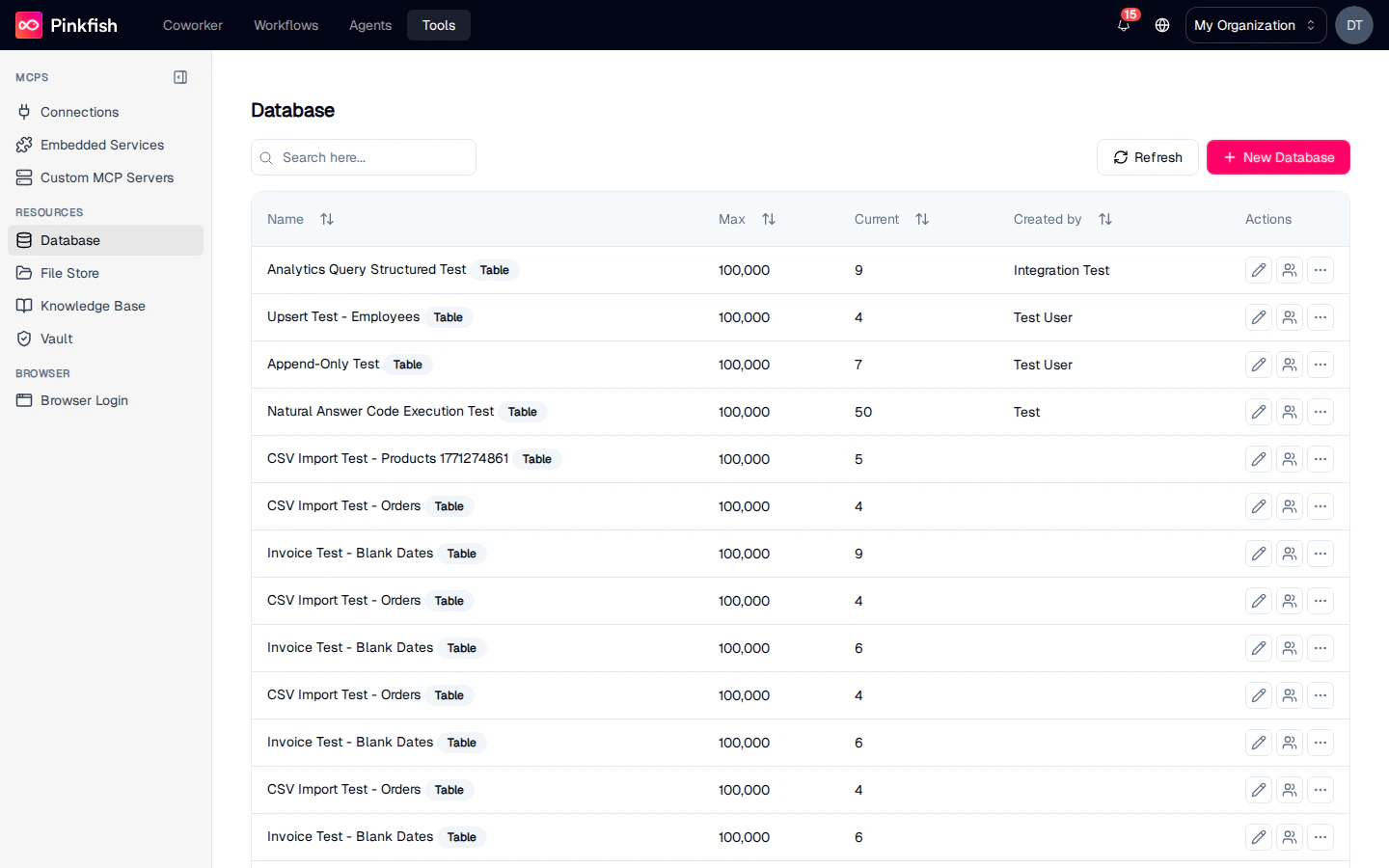
The Database List
Each row is one collection. Columns:| Column | Description |
|---|---|
| Name | Collection name. For structured datasets, a small Table badge is shown. |
| Max | The maximum row count allowed by the collection’s size limit. |
| Current | The actual number of rows currently stored. |
| Created by | The email of the user who created the collection. |
| Actions | Share, Rename, and a More menu with Delete and Export. |
Creating a Collection
Click + New Database to open the creation dialog.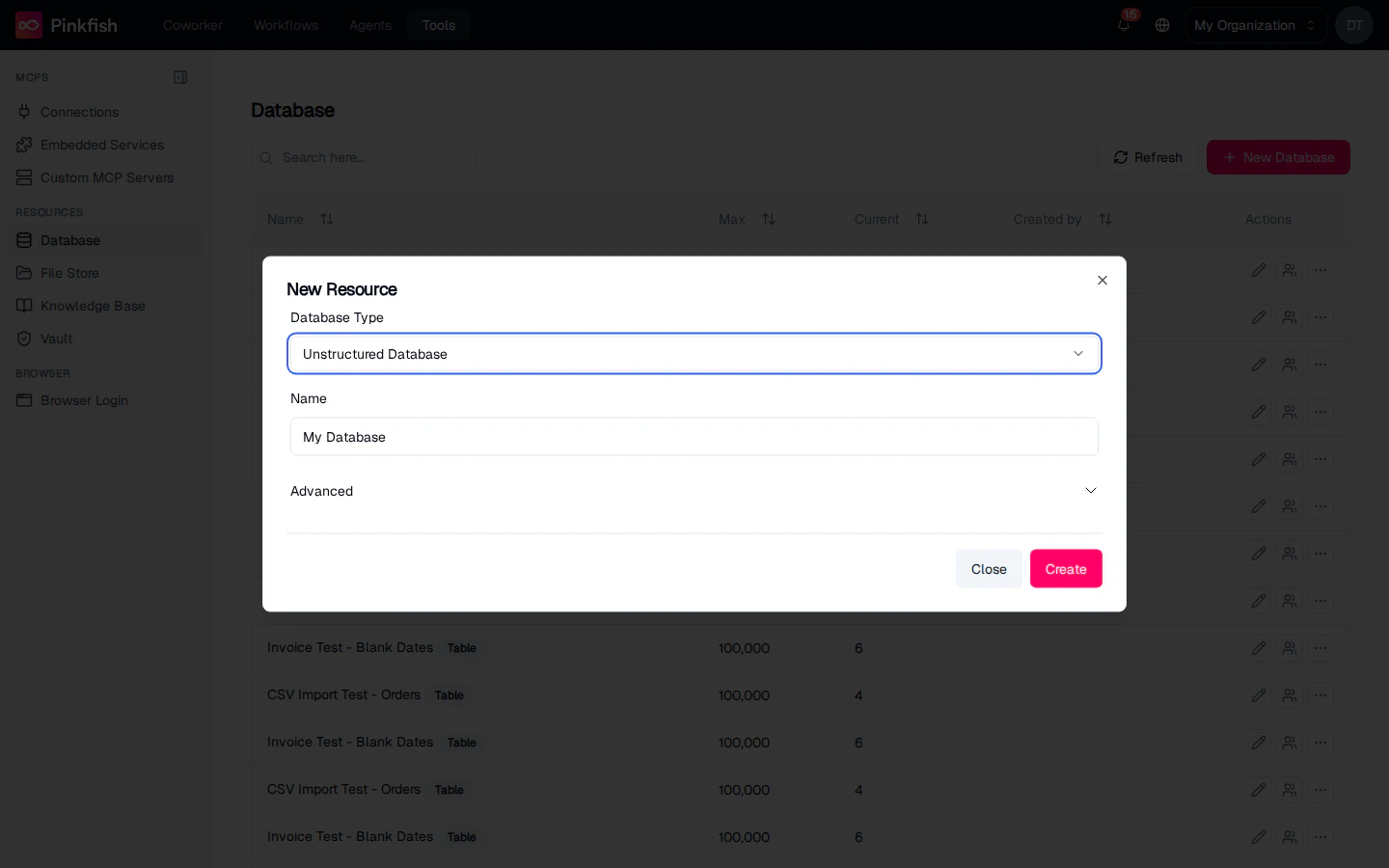
- Unstructured Database — default. Schema-less; rows are JSON-like documents. Best for semi-structured data where fields vary per row.
- Structured Database — define columns with types (string, number, boolean, date, enum) up front. Best for known schemas.
Working Inside a Collection
Clicking a collection navigates into its detail view. The toolbar includes:| Button | Action |
|---|---|
| Schema | Open the schema editor (structured only) — add/remove columns, change types. |
| Import CSV | Bulk import rows from a CSV. |
| Download CSV | Export the whole collection. |
| Refresh | Re-fetch rows from the backend. |
| Wrap | Toggle cell text wrapping. |
get active users and Pinkfish converts the query into a SQL filter (structured) or a semantic search (unstructured). You can also type raw SQL when the search is three characters or longer.
Row actions (right-click or the Actions column): Edit, Duplicate, Delete.
Structured vs unstructured
| Feature | Structured | Unstructured |
|---|---|---|
| Schema | Required, typed columns | None — any JSON shape |
| Search | SQL + natural language | Semantic + text |
| Best for | Reference data, reports | Logs, events, flexible payloads |
| MCP server | datastore-structured | datastore-unstructured |
Sharing
Click Share on any collection row to open the share dialog. ACLs work the same as Connections: Read (use in workflows), Write (add and modify rows), Admin (share further). Shared collections show a small “Shared” indicator next to the name.Using Databases in Agents and Workflows
Agents and workflows reach databases through the Datastore MCP servers. See the embedded reference:Structured Datastore
Tools for querying and mutating rows in structured collections with SQL.
Unstructured Datastore
Tools for searching and writing to schema-less document collections.
Notes
- Database collections are builder-only. Non-builder users can still reference collections shared with them in agent/workflow runs, but they can’t see or manage the list.
- Row counts update asynchronously after bulk imports — the Current column may lag for a minute after a large CSV upload.
- For file uploads (PDFs, images, spreadsheets) use File Store; for indexed retrieval use Knowledge Base.