> ## Documentation Index
> Fetch the complete documentation index at: https://docs.pinkfish.ai/llms.txt
> Use this file to discover all available pages before exploring further.
# Skills
> Teach Coworker and the Workflow Builder your domain knowledge, style, and business rules — then let agents discover and apply those skills automatically
Skills are short, reusable pieces of instruction that your agents pull in at runtime. Write a skill once — a style guide, a set of business rules, a checklist, a preferred way of structuring output — and the Coworker and the Workflow Builder Agent will discover it and apply it when a task matches.
Unlike a system prompt, skills are **discovered on demand**. An LLM matches the user's request against every available skill's description, and the ones that look relevant are loaded into context for that turn. You don't have to attach them to specific agents or remember to mention them — they just show up when they're needed.
## Key Features
Choose whether a skill is available to the **Coworker** (when executing tasks) or to the **Workflow Builder Agent** (when creating or editing workflows) — or both.
Skills you create are private to you. Admins can also create **Organization Skills** that every member's agents automatically discover.
Skills are matched by relevance, not keywords. Write a clear, specific description and agents will pick the right one for the job.
Built-in discovery tester shows which skills match a sample query, with confidence scores — so you can refine descriptions before agents start using them.
## Where to find Skills
Skills are managed in **Settings**. There are two entry points:
* **Settings → Skills** (under **PERSONAL**) — your private skills, which only your agents see.
* **Settings → Skills** (under **ORGANIZATION**) — organization-wide skills, editable by admins, discovered by every member's agents.
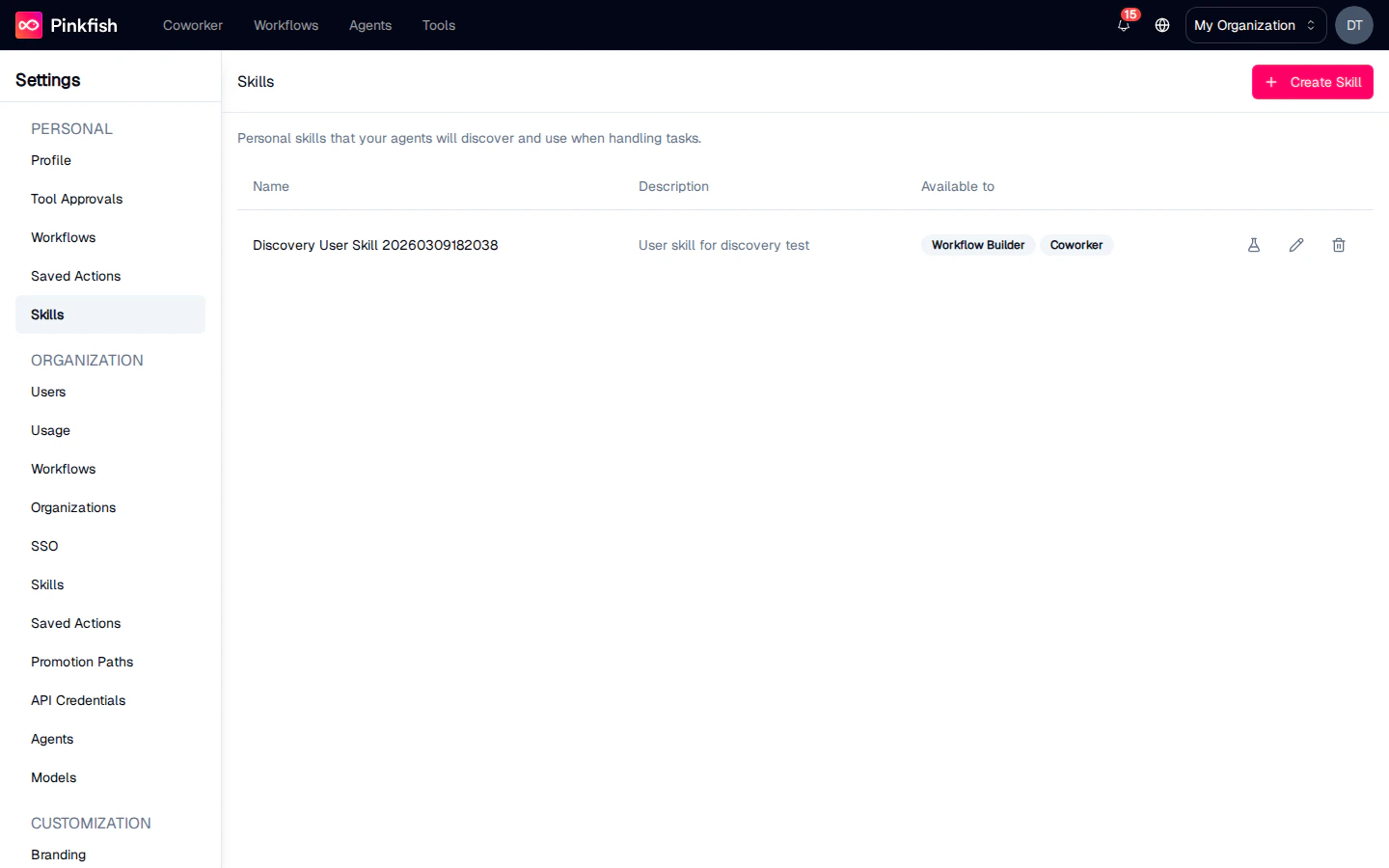 Each row shows the skill name, its description (how agents find it), and which contexts the skill is available to — **Workflow Builder** or **Coworker**.
 ## Creating a skill
Click **Create Skill** in the top right. A dialog opens with four things to fill in:
## Creating a skill
Click **Create Skill** in the top right. A dialog opens with four things to fill in:
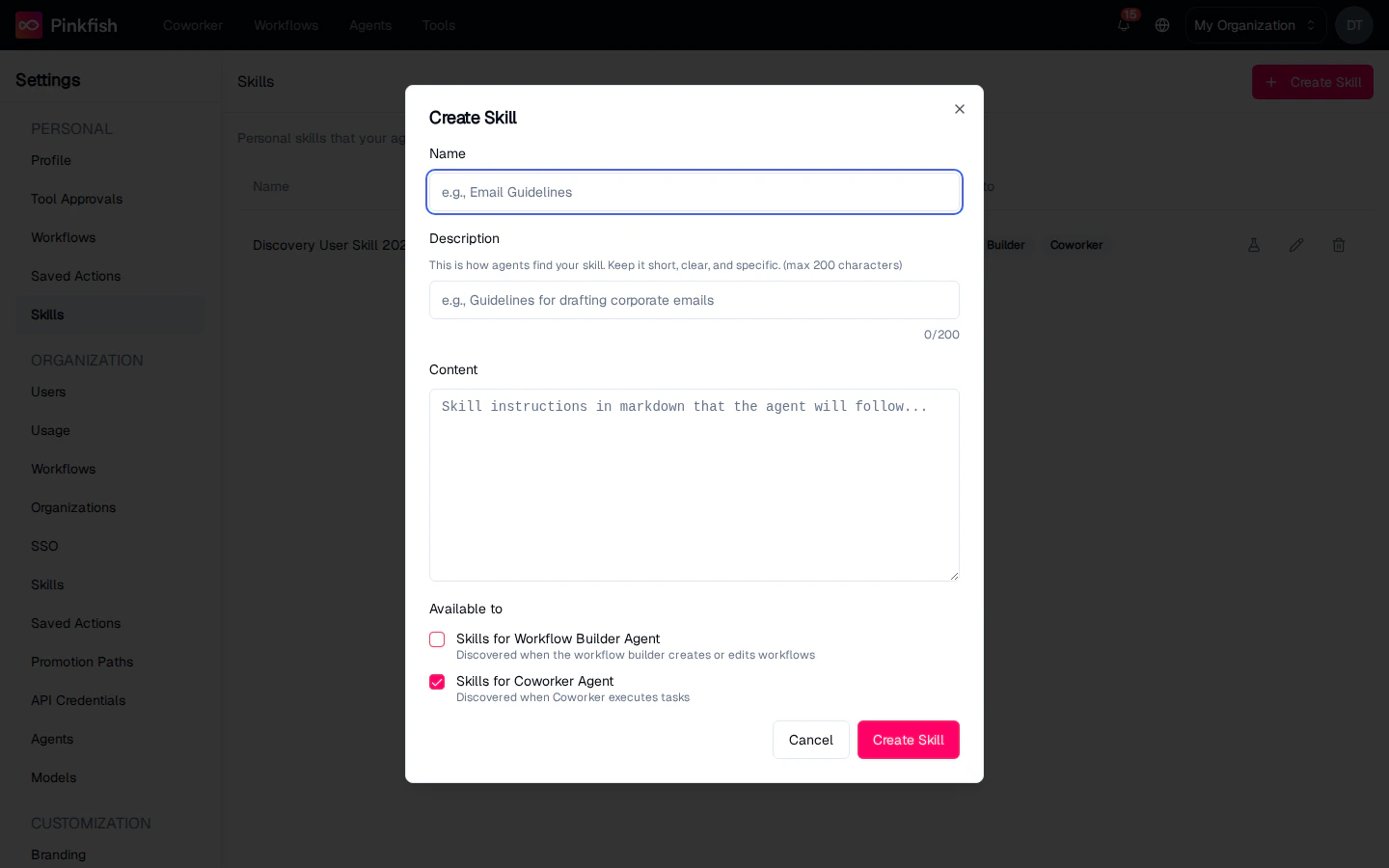 * **Name** — a short label for humans. Agents don't match on this, so pick whatever makes sense for your list.
* **Description** — up to 200 characters. *This is how agents find your skill.* Be specific about the situation it applies to. "Email Guidelines" is weak; "How to format corporate email replies to external customers" is strong.
* **Content** — the actual instruction, written in Markdown. This is what the agent reads once the skill is matched. Use headings, bullets, and examples — whatever helps the agent follow the rule.
* **Available to** — pick one or both of:
* **Skills for Workflow Builder Agent** — *Discovered when the workflow builder creates or edits workflows.*
* **Skills for Coworker Agent** — *Discovered when Coworker executes tasks.*
At least one availability context must be selected. Coworker is pre-checked for new skills.
* **Name** — a short label for humans. Agents don't match on this, so pick whatever makes sense for your list.
* **Description** — up to 200 characters. *This is how agents find your skill.* Be specific about the situation it applies to. "Email Guidelines" is weak; "How to format corporate email replies to external customers" is strong.
* **Content** — the actual instruction, written in Markdown. This is what the agent reads once the skill is matched. Use headings, bullets, and examples — whatever helps the agent follow the rule.
* **Available to** — pick one or both of:
* **Skills for Workflow Builder Agent** — *Discovered when the workflow builder creates or edits workflows.*
* **Skills for Coworker Agent** — *Discovered when Coworker executes tasks.*
At least one availability context must be selected. Coworker is pre-checked for new skills.
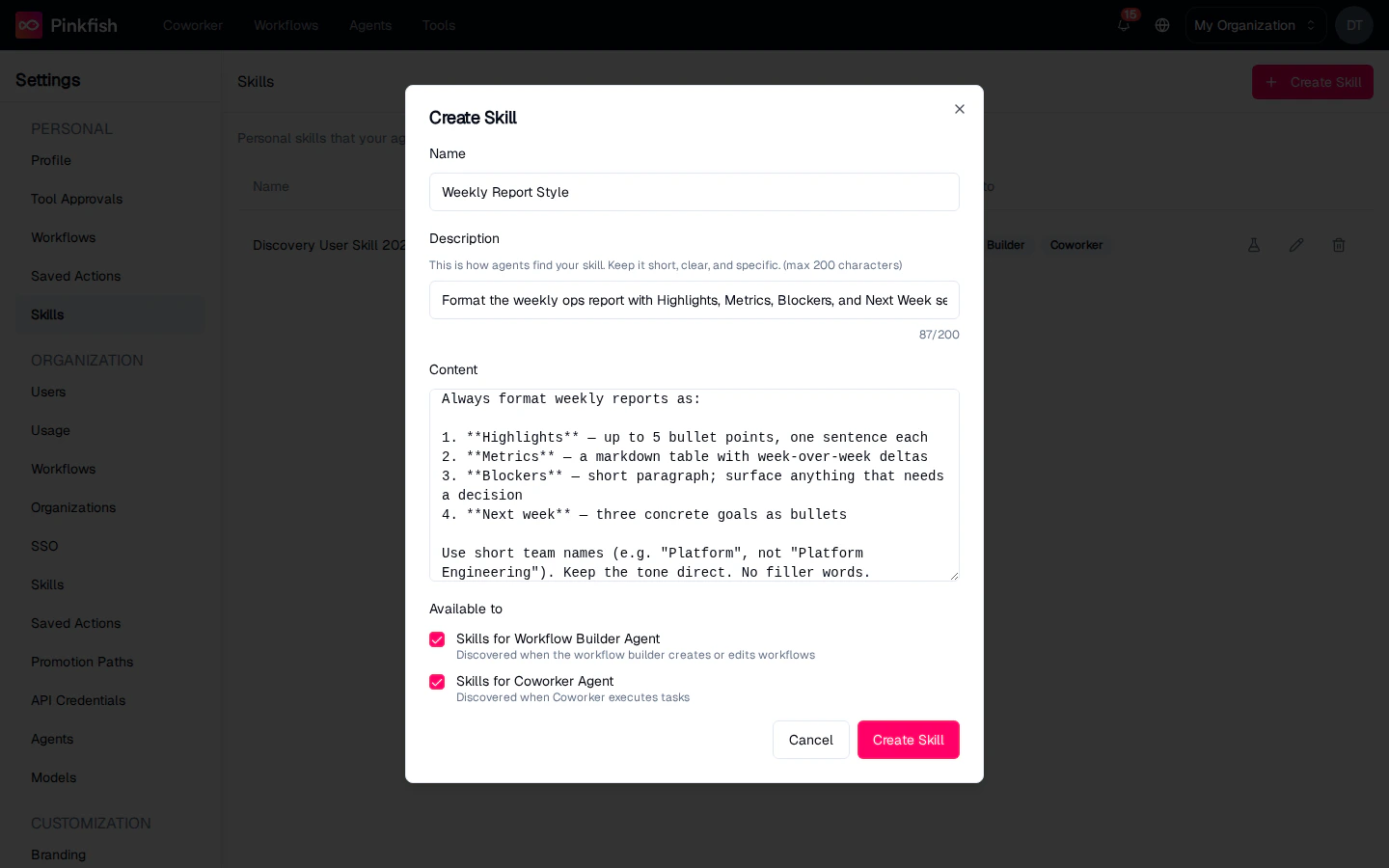 Click **Create Skill** to save. A toast confirms the skill was created and the list updates immediately.
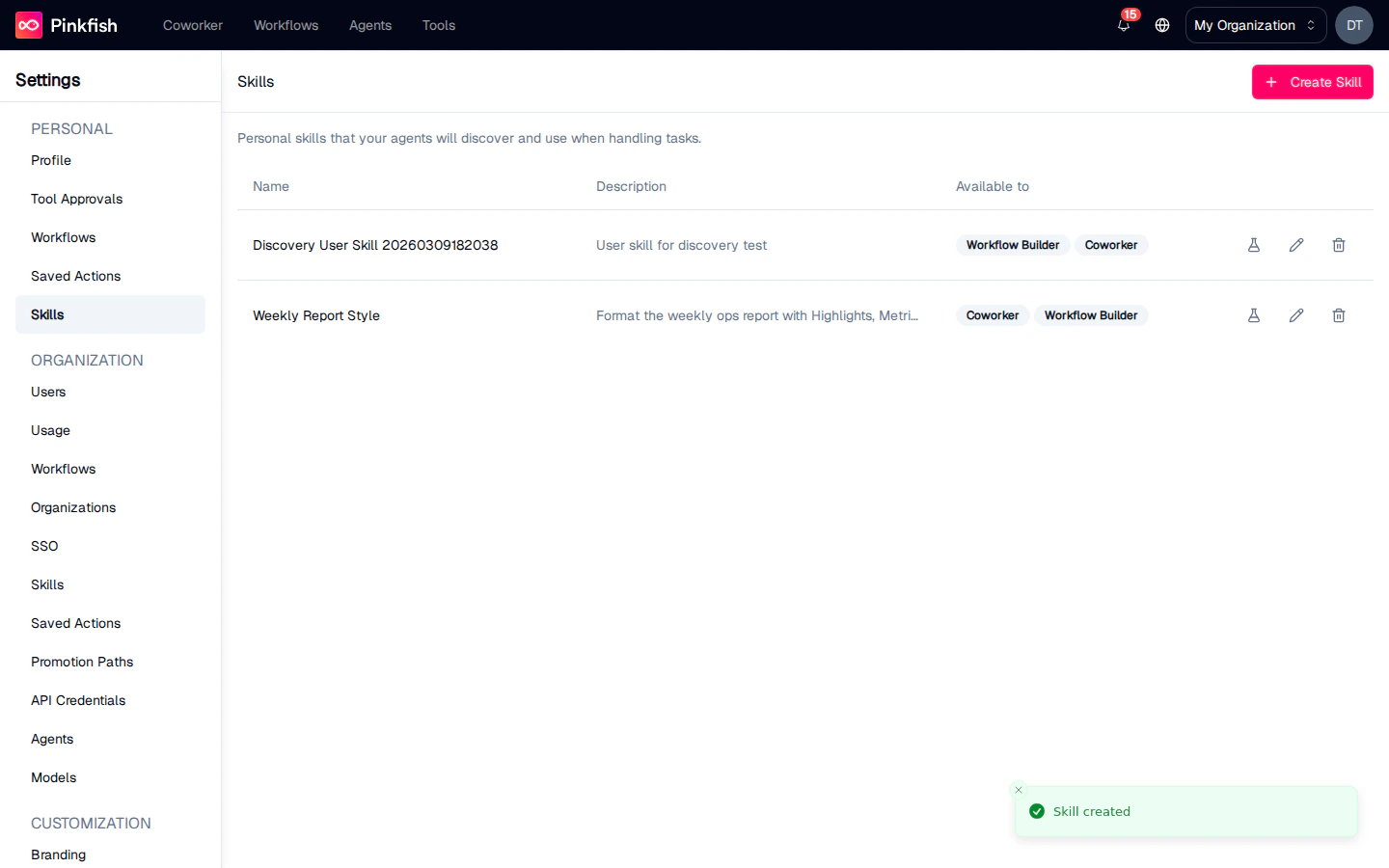 The description is the most important field. Agents decide whether to load your skill based purely on how well the description matches the user's request. Keep it short, state the situation clearly, and name the artifact or task you care about.
## Testing discovery
Before you rely on a skill in a live chat, test it. Click the **flask** icon on a skill's row to open **Test Discovery**.
The description is the most important field. Agents decide whether to load your skill based purely on how well the description matches the user's request. Keep it short, state the situation clearly, and name the artifact or task you care about.
## Testing discovery
Before you rely on a skill in a live chat, test it. Click the **flask** icon on a skill's row to open **Test Discovery**.
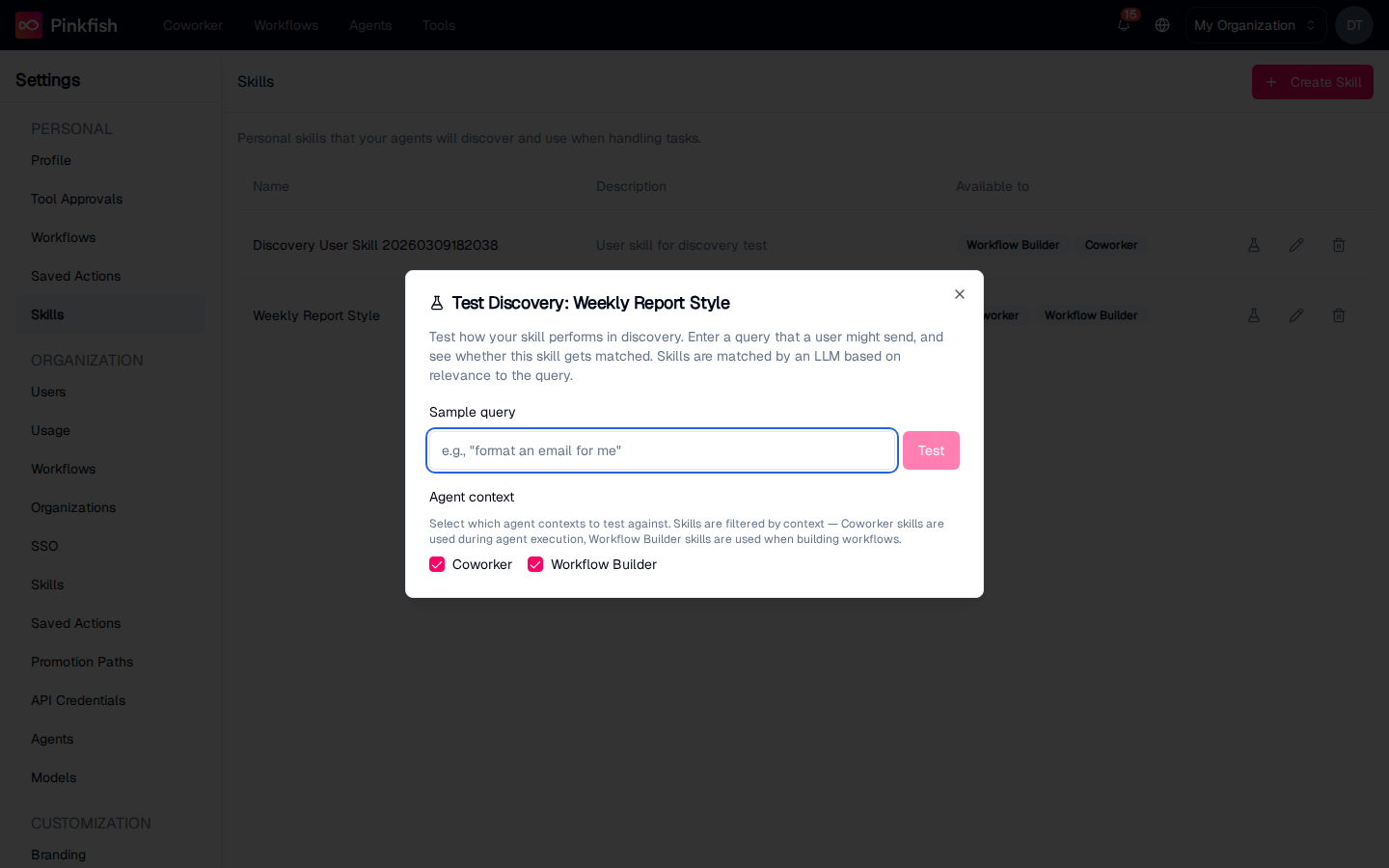 Enter a sample query a user might send — something you'd expect to trigger the skill — and pick which contexts to test against (**Coworker**, **Workflow Builder**, or both). Click **Test**.
The dialog runs the same LLM matching that happens at runtime and shows every skill it found, ranked by confidence.
Enter a sample query a user might send — something you'd expect to trigger the skill — and pick which contexts to test against (**Coworker**, **Workflow Builder**, or both). Click **Test**.
The dialog runs the same LLM matching that happens at runtime and shows every skill it found, ranked by confidence.
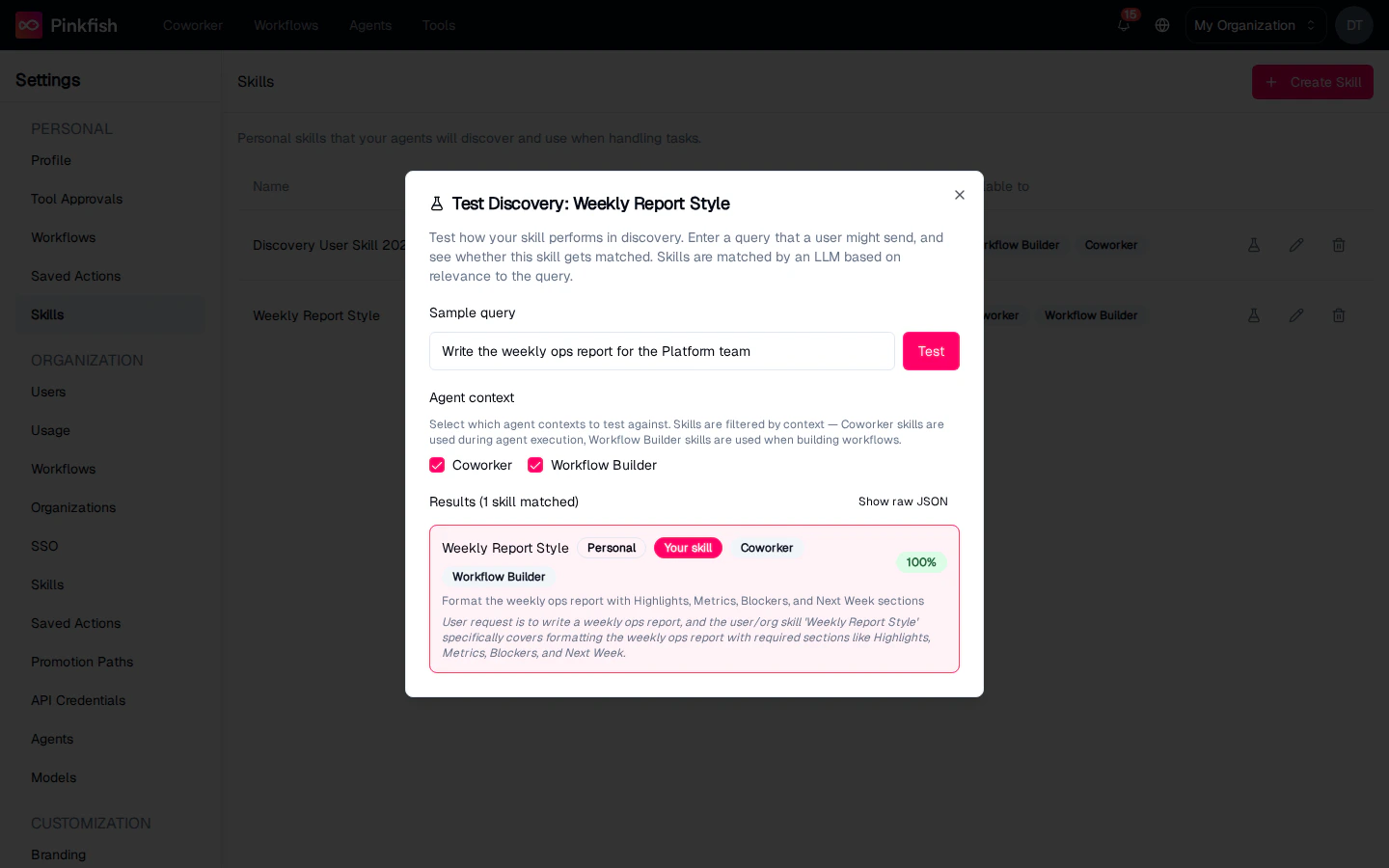 * **Green (80%+)** — strong match. The agent will almost certainly pick this up.
* **Yellow (50–79%)** — plausible match. Likely to be loaded alongside others.
* **Red (\<50%)** — weak match. Unlikely to influence the response.
Each result shows the skill name, its scope badge (**Personal**, **Organization**, or **System**), which contexts it's available in, and a one-line **reason** the LLM gave for the match. The skill you're testing is marked with a **Your skill** badge.
If your skill doesn't appear in the results for a query you expected to match, rewrite the description and test again. Tighten the vocabulary, name the artifact, and drop generic words.
You can toggle **Show raw JSON** to see the full matcher output — useful when you're debugging unexpected misses or wondering why a less-specific skill out-ranked yours.
## Editing and deleting
Each row has two icons next to the test flask:
* **Pencil** — opens the same dialog, pre-filled with the current values. Change anything and click **Save Changes**.
* **Trash** — deletes the skill after a confirmation.
* **Green (80%+)** — strong match. The agent will almost certainly pick this up.
* **Yellow (50–79%)** — plausible match. Likely to be loaded alongside others.
* **Red (\<50%)** — weak match. Unlikely to influence the response.
Each result shows the skill name, its scope badge (**Personal**, **Organization**, or **System**), which contexts it's available in, and a one-line **reason** the LLM gave for the match. The skill you're testing is marked with a **Your skill** badge.
If your skill doesn't appear in the results for a query you expected to match, rewrite the description and test again. Tighten the vocabulary, name the artifact, and drop generic words.
You can toggle **Show raw JSON** to see the full matcher output — useful when you're debugging unexpected misses or wondering why a less-specific skill out-ranked yours.
## Editing and deleting
Each row has two icons next to the test flask:
* **Pencil** — opens the same dialog, pre-filled with the current values. Change anything and click **Save Changes**.
* **Trash** — deletes the skill after a confirmation.
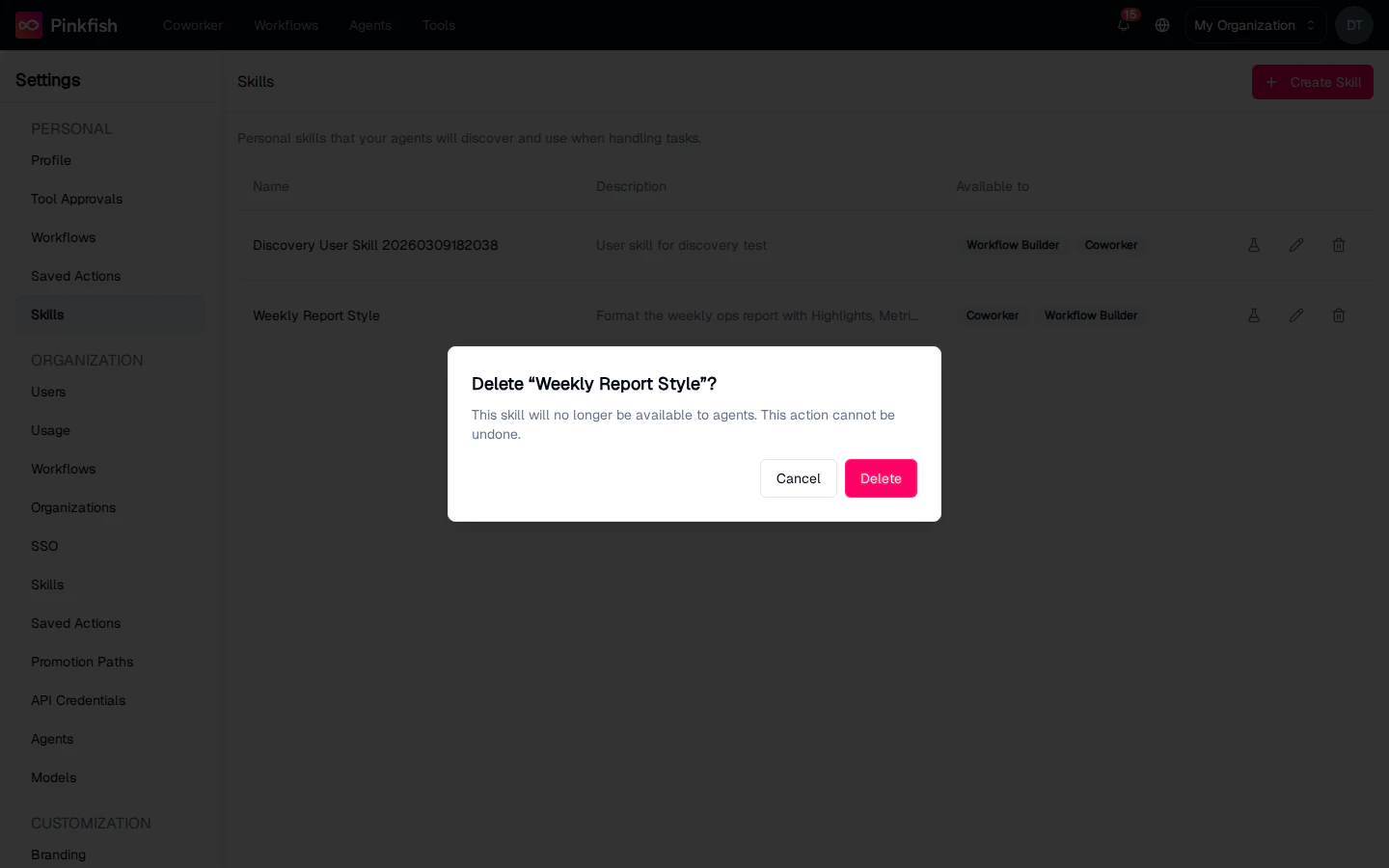 Deleting a skill removes it immediately from every future discovery round. Chats and workflows that already ran with the skill keep their results — only new requests are affected.
## Using skills with Coworker
When you send a message to Coworker, the platform runs skill discovery against your message and loads every skill that crosses the confidence threshold into the agent's context for that turn.
You don't need to mention skills by name, but doing so gives the matcher a huge hint. Here a prompt asks Coworker to draft a report and explicitly names the skill:
Deleting a skill removes it immediately from every future discovery round. Chats and workflows that already ran with the skill keep their results — only new requests are affected.
## Using skills with Coworker
When you send a message to Coworker, the platform runs skill discovery against your message and loads every skill that crosses the confidence threshold into the agent's context for that turn.
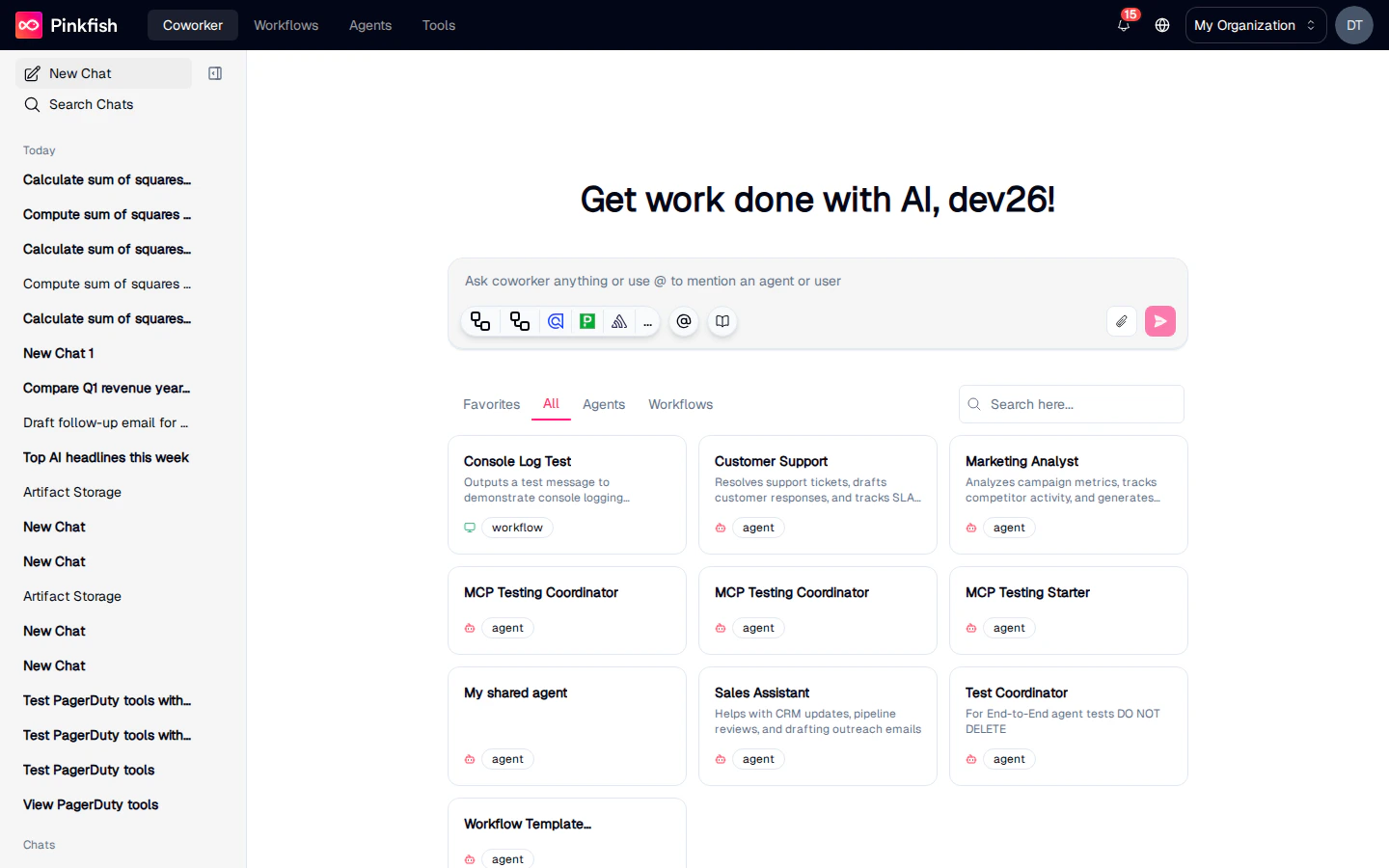
You don't need to mention skills by name, but doing so gives the matcher a huge hint. Here a prompt asks Coworker to draft a report and explicitly names the skill:
 The Coworker picks up the **Weekly Report Style** skill and structures its response around the format defined in the skill's content:
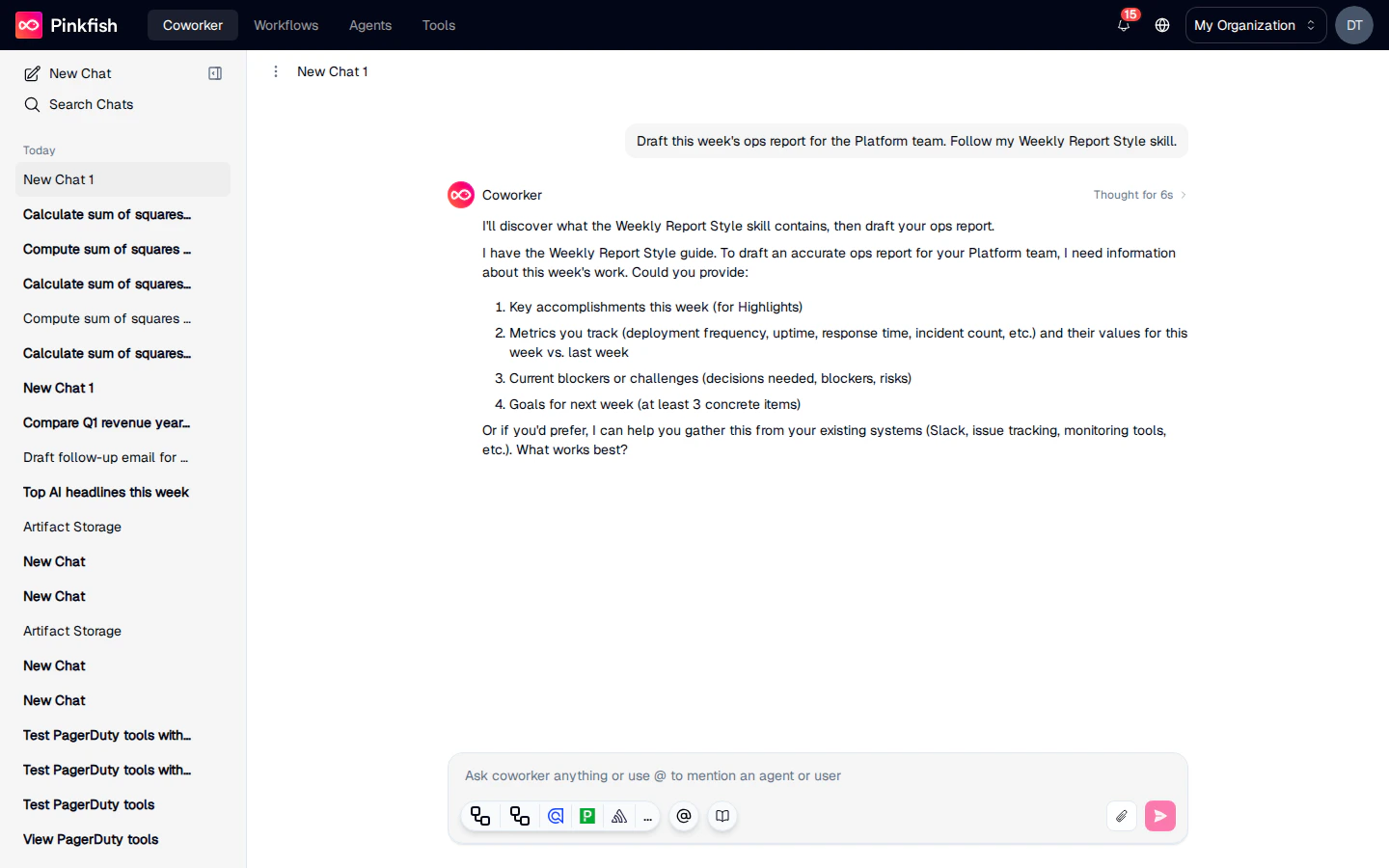 Notice how Coworker states which skill it's applying ("*To draft an accurate ops report for your Platform team, I need information about this week's work...*") and asks for exactly the sections the skill lists — **Highlights**, **Metrics**, **Blockers**, **Next week**. Without the skill, the Coworker would invent its own format; with the skill, it applies yours every time.
## Using skills with the Workflow Builder Agent
The Workflow Builder Agent is the AI assistant you use inside the agent editor to build and edit workflows. Skills flagged **Available to: Skills for Workflow Builder Agent** are discovered when you talk to it.
Notice how Coworker states which skill it's applying ("*To draft an accurate ops report for your Platform team, I need information about this week's work...*") and asks for exactly the sections the skill lists — **Highlights**, **Metrics**, **Blockers**, **Next week**. Without the skill, the Coworker would invent its own format; with the skill, it applies yours every time.
## Using skills with the Workflow Builder Agent
The Workflow Builder Agent is the AI assistant you use inside the agent editor to build and edit workflows. Skills flagged **Available to: Skills for Workflow Builder Agent** are discovered when you talk to it.
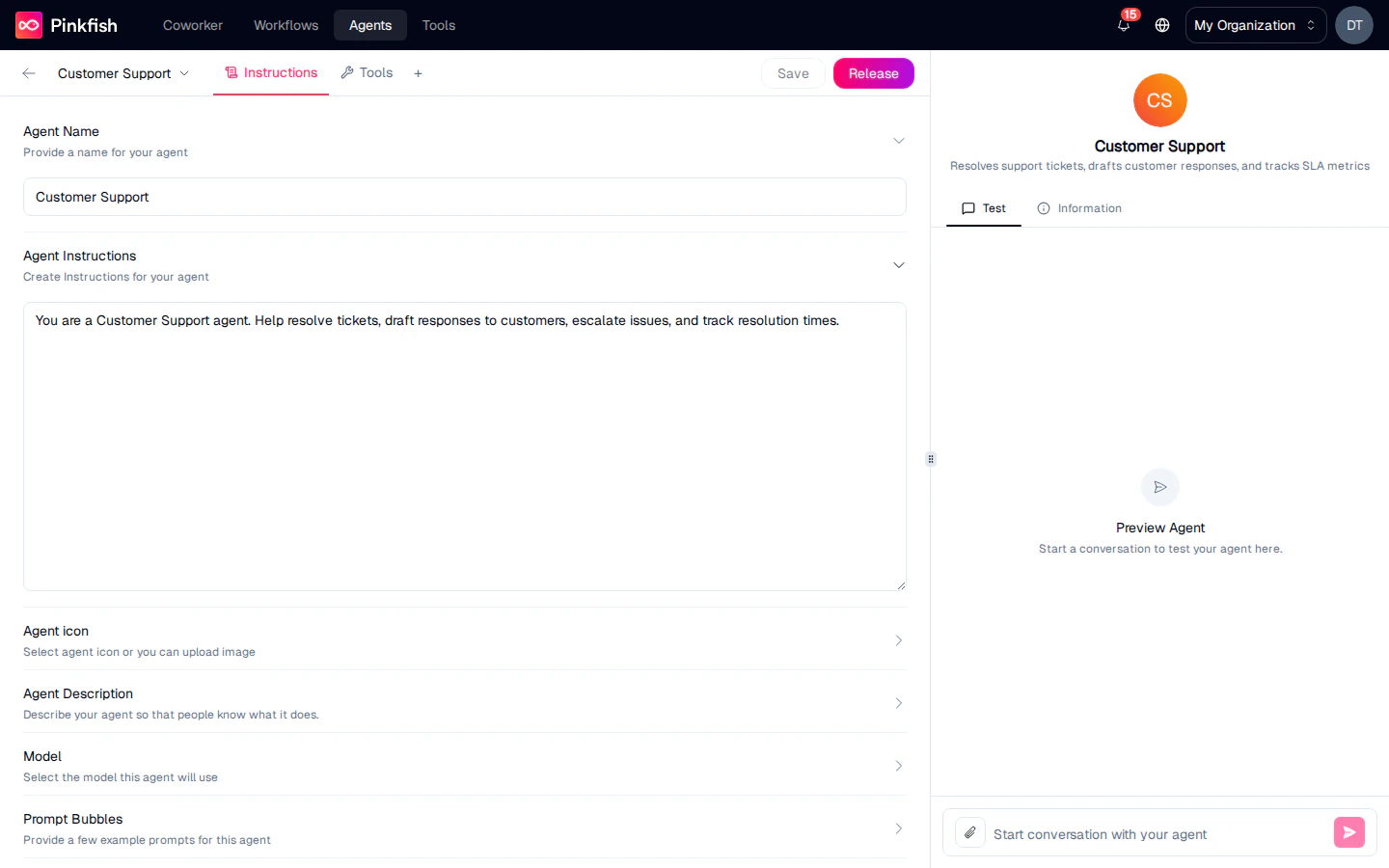 Ask the builder to put together a workflow and your workflow-creation skills come along for the ride:
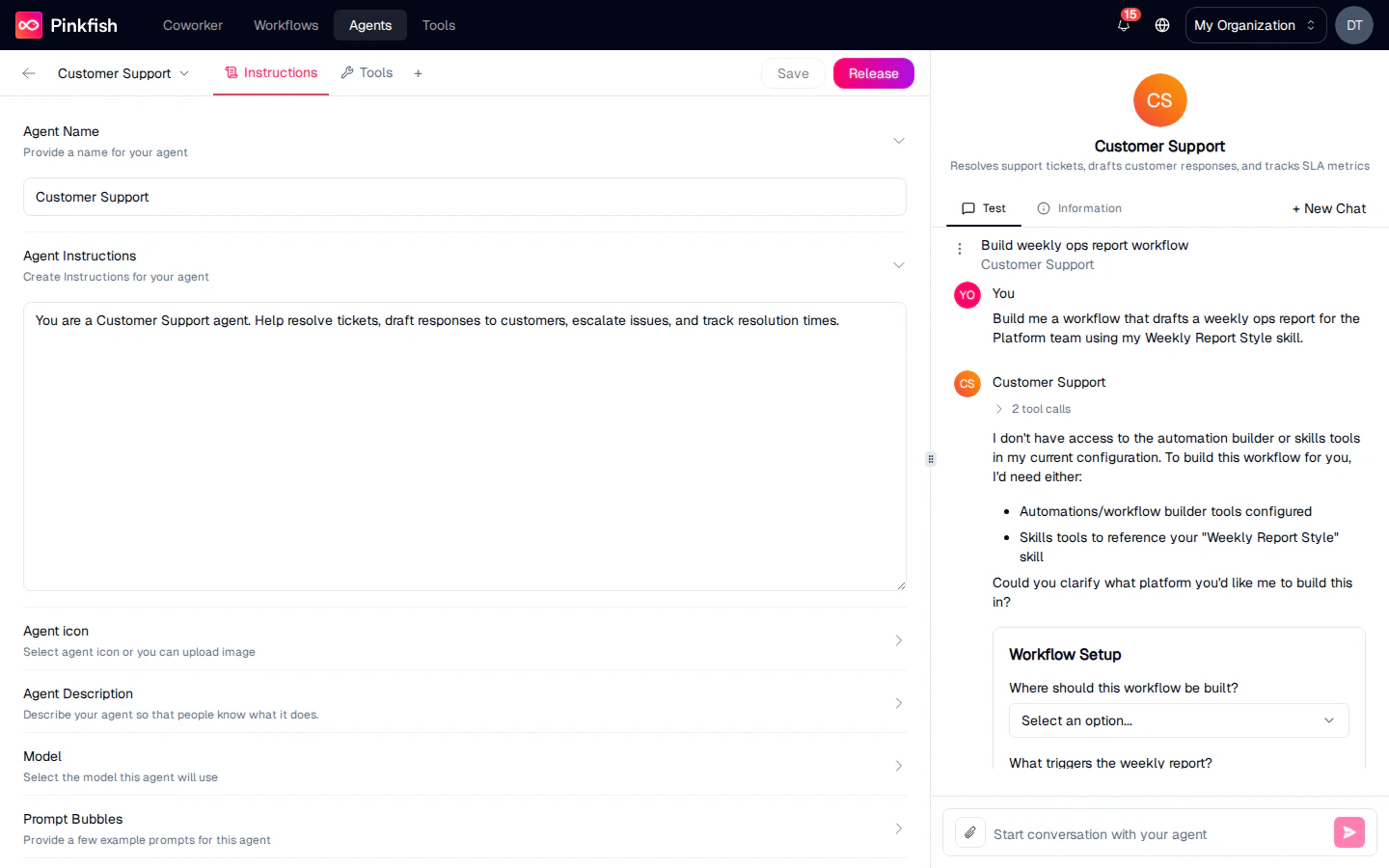 The builder pulls the skill into its plan — here it references the Weekly Report Style skill by name when describing what the workflow will produce — so the resulting workflow is pre-shaped by your standards rather than generated from scratch.
A skill can live in both contexts at once. Turning on both **Skills for Workflow Builder Agent** and **Skills for Coworker Agent** is the right choice for things like style guides, domain vocabulary, and formatting rules — where you want consistency whether you're chatting with the Coworker or building a workflow.
## Organization Skills
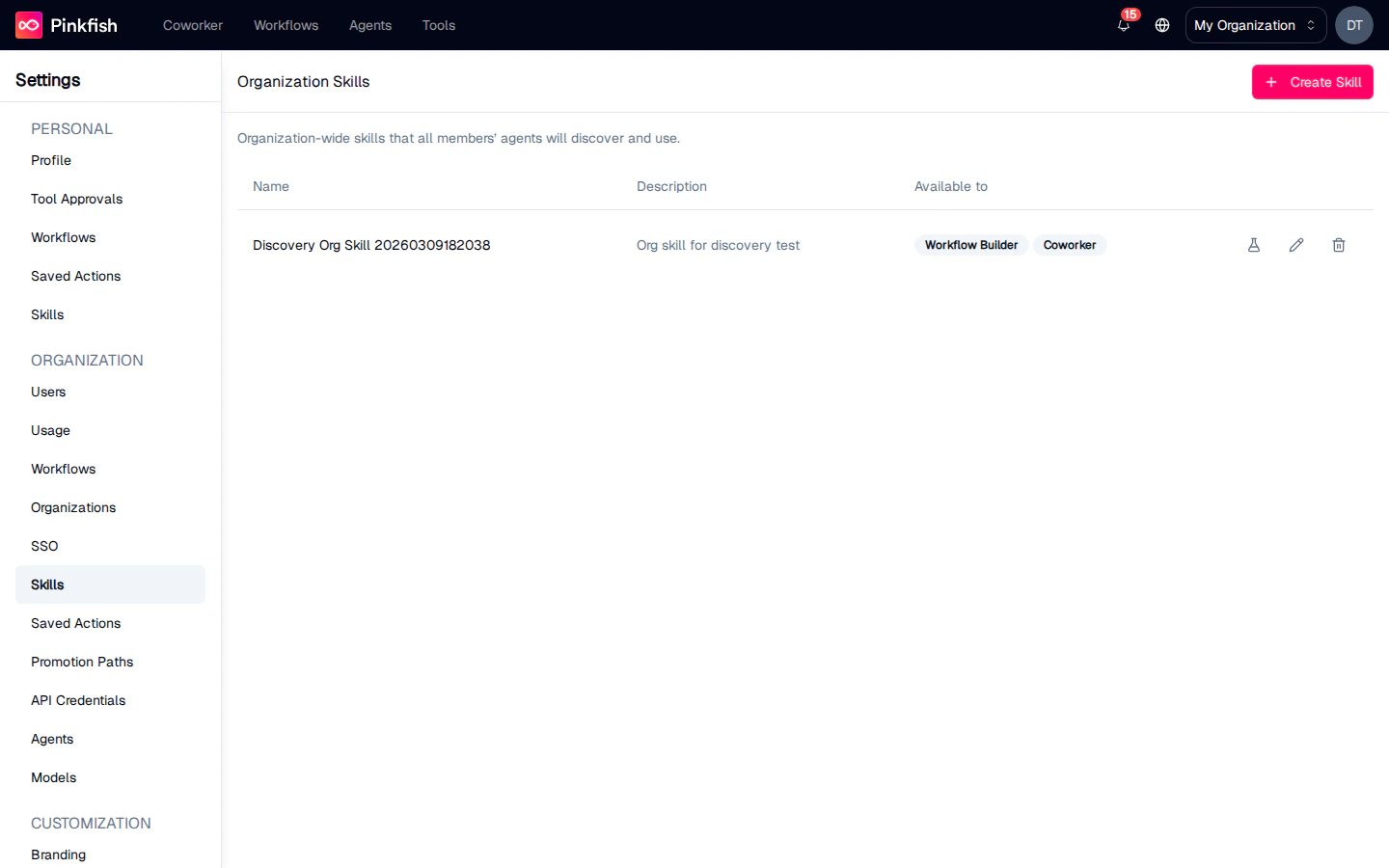
Organization admins have a second Skills page under **Settings → Skills** (in the **ORGANIZATION** section). It looks and behaves like the personal page, but every skill created here is discovered by every member's agents.
The builder pulls the skill into its plan — here it references the Weekly Report Style skill by name when describing what the workflow will produce — so the resulting workflow is pre-shaped by your standards rather than generated from scratch.
A skill can live in both contexts at once. Turning on both **Skills for Workflow Builder Agent** and **Skills for Coworker Agent** is the right choice for things like style guides, domain vocabulary, and formatting rules — where you want consistency whether you're chatting with the Coworker or building a workflow.
## Organization Skills
Organization admins have a second Skills page under **Settings → Skills** (in the **ORGANIZATION** section). It looks and behaves like the personal page, but every skill created here is discovered by every member's agents.
 Use org skills for:
* **House style** — the voice, tone, and formatting conventions everyone should follow.
* **Business rules** — approval thresholds, reporting windows, escalation paths.
* **Product and domain knowledge** — short explainers about internal systems, customers, or terminology that agents need to stay accurate.
* **Preferred tools** — "when summarizing a customer call, always pull the call record from the Gong integration first."
Personal and organization skills are both evaluated during discovery. A tight personal description still wins over a looser org one, so members can customize their own experience without losing org-wide defaults.
## Scope and visibility
| Scope | Who can create | Who discovers it | Who can edit |
| ---------------- | -------------- | ------------------------- | ----------------------- |
| **Personal** | Any user | Only that user's agents | The user who created it |
| **Organization** | Org admins | Every org member's agents | Org admins |
| **System** | Pinkfish | Every agent | Not editable in the UI |
A skill's scope is shown as a badge in discovery results (**Personal**, **Organization**, or **System**), so when you're testing you can see exactly which scope produced the match.
## Notes
* **Description length is capped at 200 characters.** The form enforces it and backend validation rejects anything longer. Tight is good — the matcher prefers specificity.
* **At least one availability context is required.** If you uncheck both **Skills for Workflow Builder Agent** and **Skills for Coworker Agent**, the form will block submission.
* **Content is Markdown.** Headings, bullets, tables, and code blocks all pass through. Keep skills focused — one skill per rule is usually better than one giant mega-skill.
* **Skills are discovered, not assigned.** You don't pick skills per agent — the matcher picks them based on what the user asked. To keep a skill out of an agent's reach, narrow its description or use a different availability context.
* **Discovery is probabilistic.** If a skill sometimes matches and sometimes doesn't, that's a signal the description needs sharpening. Use **Test Discovery** to iterate.
* **Deleting a skill is immediate and cannot be undone.** The confirmation dialog warns you — once a skill is deleted, future chats and workflow builder sessions will no longer see it.
Use org skills for:
* **House style** — the voice, tone, and formatting conventions everyone should follow.
* **Business rules** — approval thresholds, reporting windows, escalation paths.
* **Product and domain knowledge** — short explainers about internal systems, customers, or terminology that agents need to stay accurate.
* **Preferred tools** — "when summarizing a customer call, always pull the call record from the Gong integration first."
Personal and organization skills are both evaluated during discovery. A tight personal description still wins over a looser org one, so members can customize their own experience without losing org-wide defaults.
## Scope and visibility
| Scope | Who can create | Who discovers it | Who can edit |
| ---------------- | -------------- | ------------------------- | ----------------------- |
| **Personal** | Any user | Only that user's agents | The user who created it |
| **Organization** | Org admins | Every org member's agents | Org admins |
| **System** | Pinkfish | Every agent | Not editable in the UI |
A skill's scope is shown as a badge in discovery results (**Personal**, **Organization**, or **System**), so when you're testing you can see exactly which scope produced the match.
## Notes
* **Description length is capped at 200 characters.** The form enforces it and backend validation rejects anything longer. Tight is good — the matcher prefers specificity.
* **At least one availability context is required.** If you uncheck both **Skills for Workflow Builder Agent** and **Skills for Coworker Agent**, the form will block submission.
* **Content is Markdown.** Headings, bullets, tables, and code blocks all pass through. Keep skills focused — one skill per rule is usually better than one giant mega-skill.
* **Skills are discovered, not assigned.** You don't pick skills per agent — the matcher picks them based on what the user asked. To keep a skill out of an agent's reach, narrow its description or use a different availability context.
* **Discovery is probabilistic.** If a skill sometimes matches and sometimes doesn't, that's a signal the description needs sharpening. Use **Test Discovery** to iterate.
* **Deleting a skill is immediate and cannot be undone.** The confirmation dialog warns you — once a skill is deleted, future chats and workflow builder sessions will no longer see it.