> ## Documentation Index
> Fetch the complete documentation index at: https://docs.pinkfish.ai/llms.txt
> Use this file to discover all available pages before exploring further.
# Custom MCP Servers
> Register and manage remote MCP servers generated from your custom integrations or provided by third parties
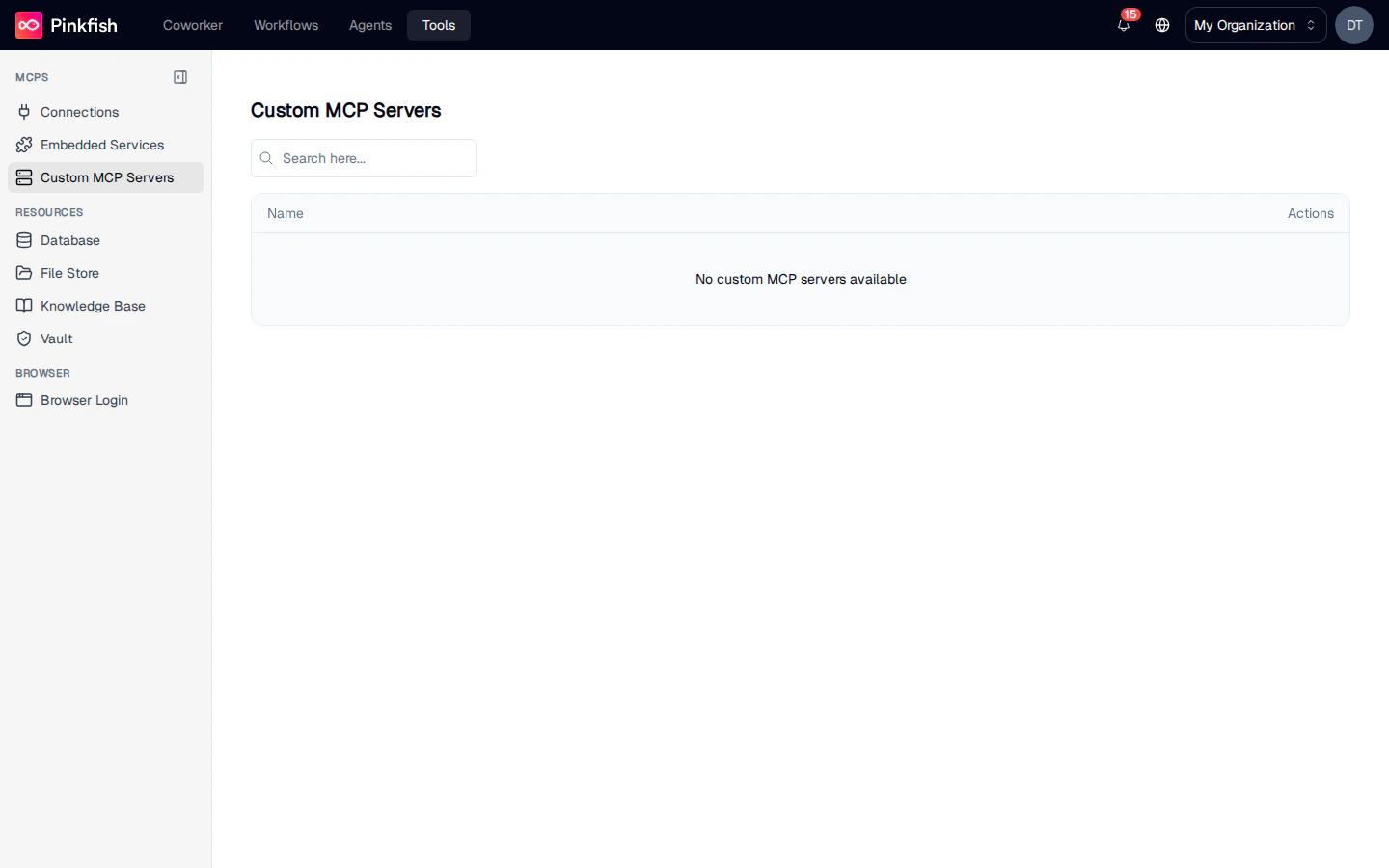
**Custom MCP Servers** is where every MCP server your organization has registered or generated shows up. Once a server is here, every tool it exposes is available in the agent catalog and the workflow builder's slash menu — right alongside Pinkfish's [embedded services](/tools/embedded-services) and third-party [connections](/tools/connections).
Find it under **Tools → Custom MCP Servers**.
 ## How Servers Get Here
Custom MCP servers are created in two ways:
1. **Generated from a custom integration.** When you build a [custom integration](/tools/connections#building-a-custom-integration) and upload an OpenAPI spec on Step 3 (MCP Server Setup), Pinkfish generates a new MCP server from the spec. The generated server lands on this page automatically, and the integration is wired up so connections built from it know about the new tools.
2. **Registered from a remote MCP URL.** Click **Create** on this page and choose **Remote** to point Pinkfish at a remote MCP server your org operates, or one a vendor ships. Paste its HTTPS **Remote MCP URL** and Pinkfish discovers the server's OAuth metadata.
If the provider supports dynamic client registration, that's all you need. If it doesn't, the form asks you to register Pinkfish as an OAuth client in the provider's admin portal — allowlisting each **Redirect URI** it shows you — and paste back the resulting **Client ID** and **Client secret**.
Both paths produce the same record: a server with an ID, a service key, a description, and a set of tools.
A single custom integration can have more than one MCP server attached to it. Connections built from that integration resolve tools across every server sharing its service key, so you can split a large API into several focused servers.
## What Each Row Shows
Each row on the list is one registered server. Columns:
| Column | Description |
| ----------- | ---------------------------------------------------------------------------------------------------------- |
| **Name** | Display label (falls back to the raw server name if no label was set) with a short description underneath. |
| **Actions** | A More menu (⋯) with **View Details** and **Delete** options. |
The list supports free-text search in the top toolbar.
### Empty state
When your org has no custom servers, the list shows `No custom MCP servers available`. That's the expected state for fresh orgs — registering one or generating one from a custom integration will fill it in.
## Row Actions
### View Details
Opens a side sheet with everything Pinkfish knows about the server:
* **Server ID** — the internal identifier used when tools are called.
* **Service Key** — the stable key agents and workflows reference (for example `mycompany-orders` or `vendor-widgets`).
* **Tools (N)** — a count badge plus one card per tool. Each card shows the tool name as a monospace badge and a description pulled from the server's schema. If a tool has no description, Pinkfish shows `No description available` rather than hiding the row, so you always know what's registered.
Use the details panel to audit what an agent can actually do with a server before you reference it in a workflow.
### Delete
Also in the More menu. Delete opens a confirmation dialog titled **Delete MCP Server** with the body `Are you sure you want to delete "{name}"? This action cannot be undone.` Click the destructive **Delete** button to confirm; on success a toast reads `Server "{name}" deleted` and the row disappears.
Delete is only shown for users with write permission on the server — regular members see only **View Details**.
Deleting a custom MCP server doesn't remove references to its tools from existing agents or workflows. Those references will start failing at call time. Audit usage before removing a server that's in active production use.
## Using Custom MCP Server Tools
Once a server is registered, its tools behave identically to every other tool in Pinkfish:
* **Agents** can be configured to use them in the agent builder's tool picker.
* **Workflows** (both guided and agent mode) invoke them through the slash menu.
* **Tool names** follow the registered service key as a prefix, which keeps names unique across servers and Pinkfish's own catalog.
To test a tool, the easiest path today is to use the connection test modal on any [Connection](/tools/connections) linked to the server — that exposes the same parameter form and response viewer.
## Relationship to Connections
It's worth being explicit about the three things that live on the Tools → MCPs category:
| Surface | What it is | When to use |
| --------------------------------------------- | -------------------------------------------------------------------------------------------------------------------------------------------------------- | ------------------------------------------------------------------------------------------------------------------------ |
| [Connections](/tools/connections) | An established link to one *instance* of an app (one Salesforce org, one Slack workspace) with its credentials. Each connection points at an MCP server. | Whenever an agent needs to *act on* a specific account. |
| [Embedded Services](/tools/embedded-services) | Pinkfish's built-in MCP servers (web search, code exec, etc.). Always available; no connection needed. | Whenever you need a generic capability that doesn't tie to a customer's account. |
| **Custom MCP Servers** (this page) | The *definitions* of MCP servers your org has generated or registered. One row here can back many connections. | Whenever you add new tools to your org — either by generating from an OpenAPI spec or by registering an external server. |
## Notes
* The list paginates at 50 rows; searching filters by name and description.
* Servers generated from a custom integration inherit the integration's label and description, but you can rename them from the details panel.
* Tool execution logs for custom MCP servers appear in the standard Monitor view alongside other tool calls.
## How Servers Get Here
Custom MCP servers are created in two ways:
1. **Generated from a custom integration.** When you build a [custom integration](/tools/connections#building-a-custom-integration) and upload an OpenAPI spec on Step 3 (MCP Server Setup), Pinkfish generates a new MCP server from the spec. The generated server lands on this page automatically, and the integration is wired up so connections built from it know about the new tools.
2. **Registered from a remote MCP URL.** Click **Create** on this page and choose **Remote** to point Pinkfish at a remote MCP server your org operates, or one a vendor ships. Paste its HTTPS **Remote MCP URL** and Pinkfish discovers the server's OAuth metadata.
If the provider supports dynamic client registration, that's all you need. If it doesn't, the form asks you to register Pinkfish as an OAuth client in the provider's admin portal — allowlisting each **Redirect URI** it shows you — and paste back the resulting **Client ID** and **Client secret**.
Both paths produce the same record: a server with an ID, a service key, a description, and a set of tools.
A single custom integration can have more than one MCP server attached to it. Connections built from that integration resolve tools across every server sharing its service key, so you can split a large API into several focused servers.
## What Each Row Shows
Each row on the list is one registered server. Columns:
| Column | Description |
| ----------- | ---------------------------------------------------------------------------------------------------------- |
| **Name** | Display label (falls back to the raw server name if no label was set) with a short description underneath. |
| **Actions** | A More menu (⋯) with **View Details** and **Delete** options. |
The list supports free-text search in the top toolbar.
### Empty state
When your org has no custom servers, the list shows `No custom MCP servers available`. That's the expected state for fresh orgs — registering one or generating one from a custom integration will fill it in.
## Row Actions
### View Details
Opens a side sheet with everything Pinkfish knows about the server:
* **Server ID** — the internal identifier used when tools are called.
* **Service Key** — the stable key agents and workflows reference (for example `mycompany-orders` or `vendor-widgets`).
* **Tools (N)** — a count badge plus one card per tool. Each card shows the tool name as a monospace badge and a description pulled from the server's schema. If a tool has no description, Pinkfish shows `No description available` rather than hiding the row, so you always know what's registered.
Use the details panel to audit what an agent can actually do with a server before you reference it in a workflow.
### Delete
Also in the More menu. Delete opens a confirmation dialog titled **Delete MCP Server** with the body `Are you sure you want to delete "{name}"? This action cannot be undone.` Click the destructive **Delete** button to confirm; on success a toast reads `Server "{name}" deleted` and the row disappears.
Delete is only shown for users with write permission on the server — regular members see only **View Details**.
Deleting a custom MCP server doesn't remove references to its tools from existing agents or workflows. Those references will start failing at call time. Audit usage before removing a server that's in active production use.
## Using Custom MCP Server Tools
Once a server is registered, its tools behave identically to every other tool in Pinkfish:
* **Agents** can be configured to use them in the agent builder's tool picker.
* **Workflows** (both guided and agent mode) invoke them through the slash menu.
* **Tool names** follow the registered service key as a prefix, which keeps names unique across servers and Pinkfish's own catalog.
To test a tool, the easiest path today is to use the connection test modal on any [Connection](/tools/connections) linked to the server — that exposes the same parameter form and response viewer.
## Relationship to Connections
It's worth being explicit about the three things that live on the Tools → MCPs category:
| Surface | What it is | When to use |
| --------------------------------------------- | -------------------------------------------------------------------------------------------------------------------------------------------------------- | ------------------------------------------------------------------------------------------------------------------------ |
| [Connections](/tools/connections) | An established link to one *instance* of an app (one Salesforce org, one Slack workspace) with its credentials. Each connection points at an MCP server. | Whenever an agent needs to *act on* a specific account. |
| [Embedded Services](/tools/embedded-services) | Pinkfish's built-in MCP servers (web search, code exec, etc.). Always available; no connection needed. | Whenever you need a generic capability that doesn't tie to a customer's account. |
| **Custom MCP Servers** (this page) | The *definitions* of MCP servers your org has generated or registered. One row here can back many connections. | Whenever you add new tools to your org — either by generating from an OpenAPI spec or by registering an external server. |
## Notes
* The list paginates at 50 rows; searching filters by name and description.
* Servers generated from a custom integration inherit the integration's label and description, but you can rename them from the details panel.
* Tool execution logs for custom MCP servers appear in the standard Monitor view alongside other tool calls.