> ## Documentation Index
> Fetch the complete documentation index at: https://docs.pinkfish.ai/llms.txt
> Use this file to discover all available pages before exploring further.
# Browser Login
> Saved authenticated browser sessions for services that don't expose an API
**Browser Login** is how Pinkfish talks to services that don't have an API — or where the API doesn't expose the data you need. You log into the service through a managed browser once, Pinkfish saves the session, and workflows reuse that session with the `/scraper` and `/browser session` skills. Because Pinkfish only stores the session (cookies, local storage, etc.) and never your credentials, this works with services that require 2FA, captchas, or other interactive challenges.
Find it under **Tools → Browser Login**.
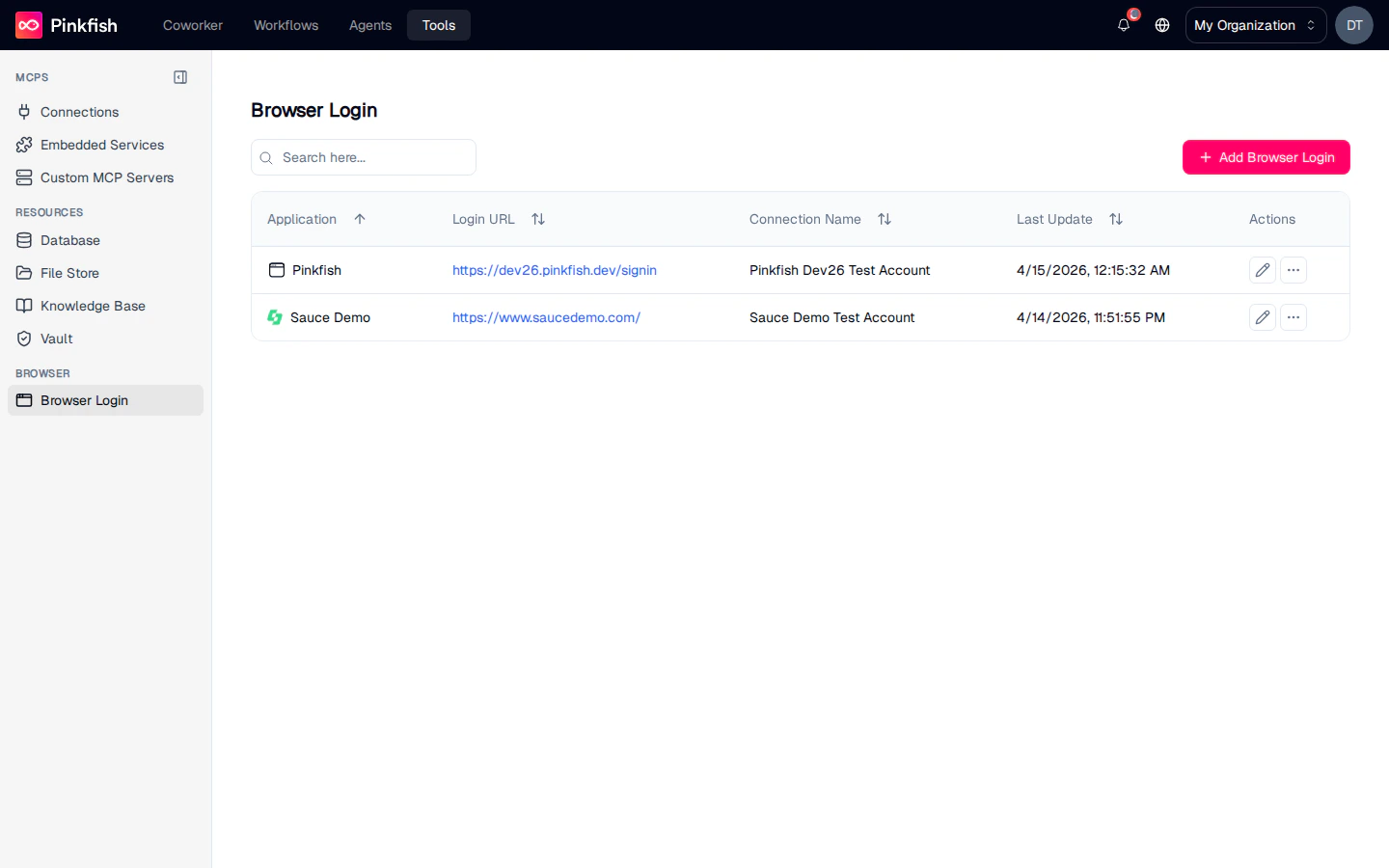 ## The Browser Login List
Each row is one saved browser session. Columns:
| Column | Description |
| ------------------- | --------------------------------------------------------------------------------- |
| **Application** | Friendly name of the service you logged into. |
| **Login URL** | The URL Pinkfish will return to when you reconnect. |
| **Connection Name** | Your label for this session (e.g. "Production Zendesk", "Sales Shared LinkedIn"). |
| **Last Update** | When the session was last refreshed. |
| **Actions** | Edit, Share, Update Connection (re-authenticate), Delete. |
### Empty state
A brand-new org shows `Start by adding a browser operator login` — click **+ Add Browser Login** to create your first one.
## Creating a Browser Login
Click **+ Add Browser Login** to open the New Browser Operator Login dialog.
## The Browser Login List
Each row is one saved browser session. Columns:
| Column | Description |
| ------------------- | --------------------------------------------------------------------------------- |
| **Application** | Friendly name of the service you logged into. |
| **Login URL** | The URL Pinkfish will return to when you reconnect. |
| **Connection Name** | Your label for this session (e.g. "Production Zendesk", "Sales Shared LinkedIn"). |
| **Last Update** | When the session was last refreshed. |
| **Actions** | Edit, Share, Update Connection (re-authenticate), Delete. |
### Empty state
A brand-new org shows `Start by adding a browser operator login` — click **+ Add Browser Login** to create your first one.
## Creating a Browser Login
Click **+ Add Browser Login** to open the New Browser Operator Login dialog.
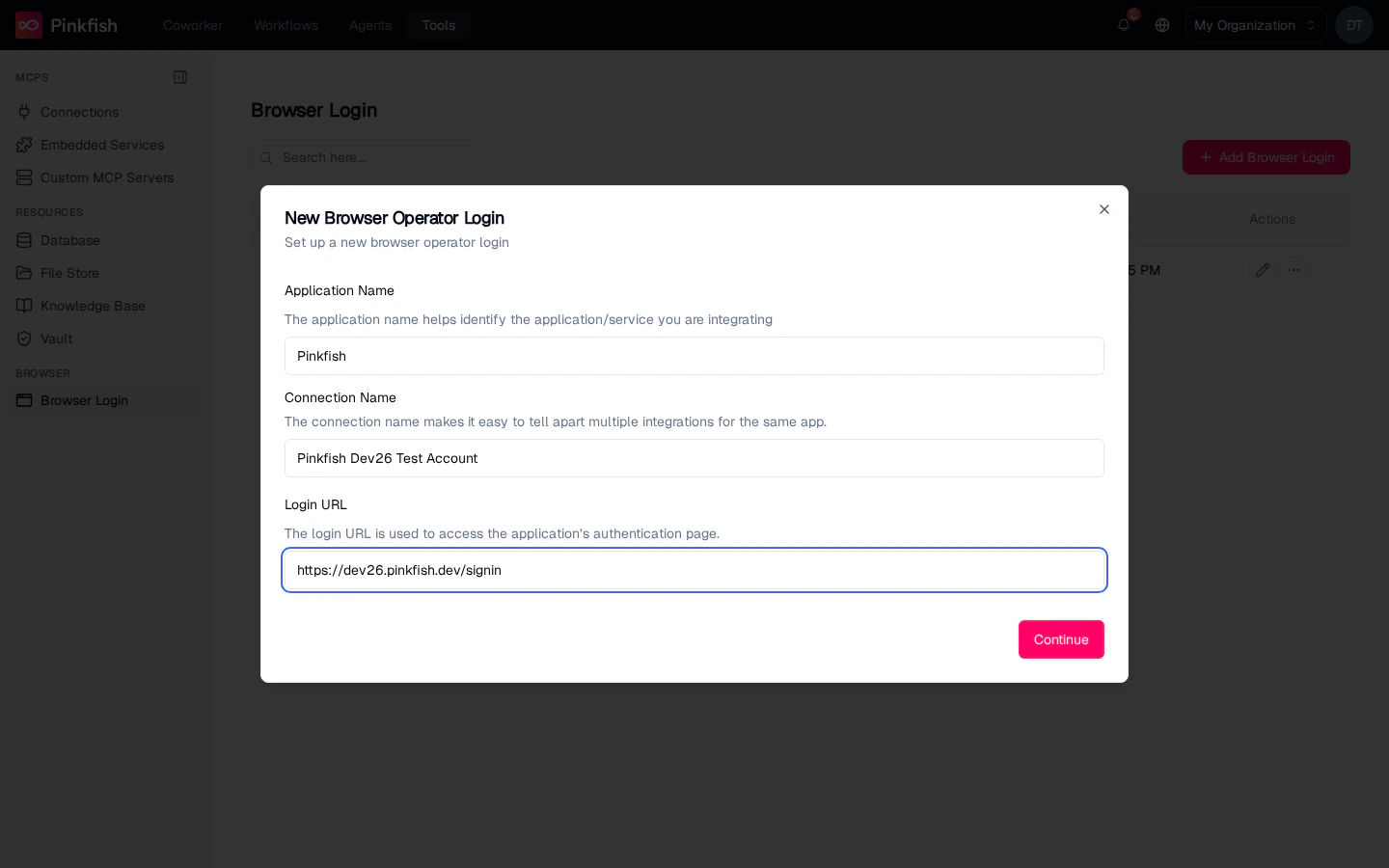 Fill in three fields:
* **Application Name** — how you'll identify the service in the slash menu (e.g. "Google Admin", "SAP").
* **Connection Name** — unique label for this session (e.g. "Production Google Admin", "Staging Google Admin").
* **Login URL** — the exact URL to the service's login page (e.g. `https://www.example.com/login`).
Click **Continue** and Pinkfish spins up a managed browser, navigates it to the Login URL, and streams the live session into the dialog.
Fill in three fields:
* **Application Name** — how you'll identify the service in the slash menu (e.g. "Google Admin", "SAP").
* **Connection Name** — unique label for this session (e.g. "Production Google Admin", "Staging Google Admin").
* **Login URL** — the exact URL to the service's login page (e.g. `https://www.example.com/login`).
Click **Continue** and Pinkfish spins up a managed browser, navigates it to the Login URL, and streams the live session into the dialog.
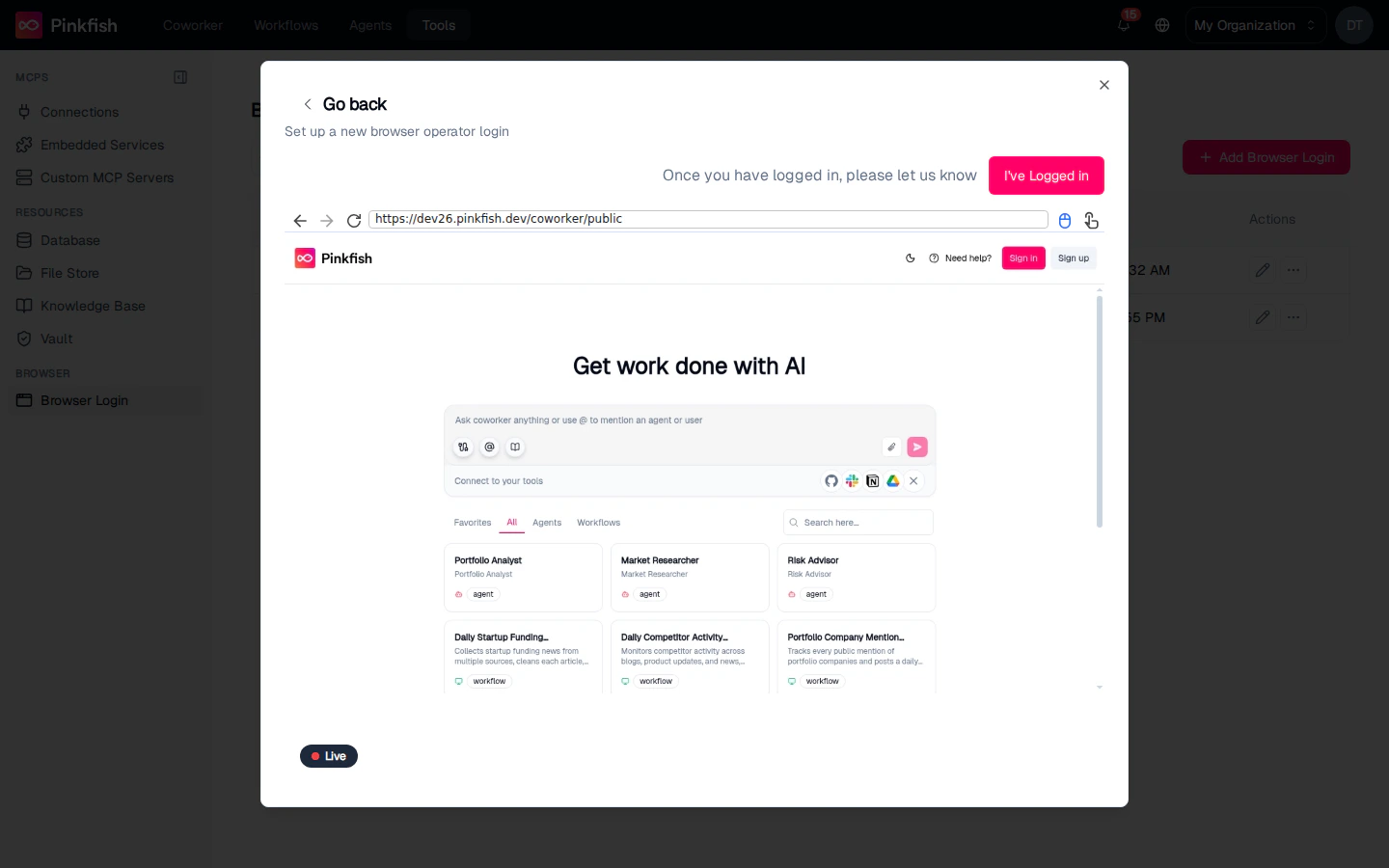 **You drive the login yourself** right inside that embedded browser — enter credentials, solve captchas, complete MFA, anything the service requires. A red **Live** indicator in the corner shows that the session is active. When you reach an authenticated page, click **I've Logged in** in the top right. Pinkfish captures the session cookies and closes the window. On success a toast reads `Connection with {service} established.` and the new login appears on the Browser Login list.
Pinkfish never stores your password. What it stores is the authenticated session (cookies, local storage, etc.) — the same thing a browser keeps after you click "Remember me". That session is valid until the service's own expiration policy kicks in.
## Using a Browser Login in Workflows
You reference a Browser Login by name in your prompt (see the examples below). The two capabilities that consume them are:
Navigate to a URL and extract content. Supports LLM Vision scraping — describe what data you want and Pinkfish extracts it in the format you specify.
Full browser automation — click, type, navigate, upload, download, fill forms, and drive the service like a user would.
Typical prompt in an agent mode workflow:
```
Browser connection - Sales Shared LinkedIn
Scrape web page(s) https://www.linkedin.com/search/results/people/?keywords=CTO
```
Or in a Browser Session step:
```
Using the Sales Shared LinkedIn browser connection,
navigate to https://www.linkedin.com/messaging,
find the unread thread from "Jamie Li",
and reply with the draft message below.
```
## Session Expiry and Re-authentication
Browser sessions expire the same way they would in your own browser — sometimes hours, sometimes weeks, depending on the service. When a session dies, any workflow using it fails with an authentication error and the **Status** on the Browser Login list goes red.
To refresh a session, click the row's action menu and choose **Update Connection**. Pinkfish re-opens the managed browser at the Login URL; log in again and the session cookies get refreshed. Workflows that reference the login by name pick up the new session automatically on the next run.
If the service offers a "Keep me signed in" / "Remember this device" checkbox, use it when re-authenticating — it extends the session and reduces how often you have to redo this.
## Sharing
Browser Logins can be shared just like Connections, but think carefully before sharing login sessions:
* **Read** — the recipient can use the session in their workflows.
* **Write** — the recipient can rename or re-authenticate.
* **Admin** — the recipient can share further.
Sharing a Browser Login effectively gives the other user the same permissions as whoever logged in. For services that support SSO or per-user accounts, prefer giving each teammate their own login over sharing one.
## Notes
* Browser Login is builder-only.
* The managed browser used for capture runs in Pinkfish's infrastructure — no local browser or extension needed.
* Session cookies never appear in workflow logs; only the fact that a specific Browser Login was used is recorded.
* For services that *do* expose an API, prefer a regular [Connection](/tools/connections) — API calls are faster, cheaper, and more reliable than browser automation.
**You drive the login yourself** right inside that embedded browser — enter credentials, solve captchas, complete MFA, anything the service requires. A red **Live** indicator in the corner shows that the session is active. When you reach an authenticated page, click **I've Logged in** in the top right. Pinkfish captures the session cookies and closes the window. On success a toast reads `Connection with {service} established.` and the new login appears on the Browser Login list.
Pinkfish never stores your password. What it stores is the authenticated session (cookies, local storage, etc.) — the same thing a browser keeps after you click "Remember me". That session is valid until the service's own expiration policy kicks in.
## Using a Browser Login in Workflows
You reference a Browser Login by name in your prompt (see the examples below). The two capabilities that consume them are:
Navigate to a URL and extract content. Supports LLM Vision scraping — describe what data you want and Pinkfish extracts it in the format you specify.
Full browser automation — click, type, navigate, upload, download, fill forms, and drive the service like a user would.
Typical prompt in an agent mode workflow:
```
Browser connection - Sales Shared LinkedIn
Scrape web page(s) https://www.linkedin.com/search/results/people/?keywords=CTO
```
Or in a Browser Session step:
```
Using the Sales Shared LinkedIn browser connection,
navigate to https://www.linkedin.com/messaging,
find the unread thread from "Jamie Li",
and reply with the draft message below.
```
## Session Expiry and Re-authentication
Browser sessions expire the same way they would in your own browser — sometimes hours, sometimes weeks, depending on the service. When a session dies, any workflow using it fails with an authentication error and the **Status** on the Browser Login list goes red.
To refresh a session, click the row's action menu and choose **Update Connection**. Pinkfish re-opens the managed browser at the Login URL; log in again and the session cookies get refreshed. Workflows that reference the login by name pick up the new session automatically on the next run.
If the service offers a "Keep me signed in" / "Remember this device" checkbox, use it when re-authenticating — it extends the session and reduces how often you have to redo this.
## Sharing
Browser Logins can be shared just like Connections, but think carefully before sharing login sessions:
* **Read** — the recipient can use the session in their workflows.
* **Write** — the recipient can rename or re-authenticate.
* **Admin** — the recipient can share further.
Sharing a Browser Login effectively gives the other user the same permissions as whoever logged in. For services that support SSO or per-user accounts, prefer giving each teammate their own login over sharing one.
## Notes
* Browser Login is builder-only.
* The managed browser used for capture runs in Pinkfish's infrastructure — no local browser or extension needed.
* Session cookies never appear in workflow logs; only the fact that a specific Browser Login was used is recorded.
* For services that *do* expose an API, prefer a regular [Connection](/tools/connections) — API calls are faster, cheaper, and more reliable than browser automation.