> ## Documentation Index
> Fetch the complete documentation index at: https://docs.pinkfish.ai/llms.txt
> Use this file to discover all available pages before exploring further.
# Vault
> Encrypted storage for API keys, passwords, and other secrets used across agents and workflows
**Vault** is Pinkfish's encrypted secret store. It's where you keep API keys, passwords, tokens, and any other sensitive value that needs to be used from a workflow without being exposed in code or shared via chat. Secrets are encrypted at rest, referenced by ID, and never decrypted client-side.
Find it under **Tools → Vault**.
 ## The Vault List
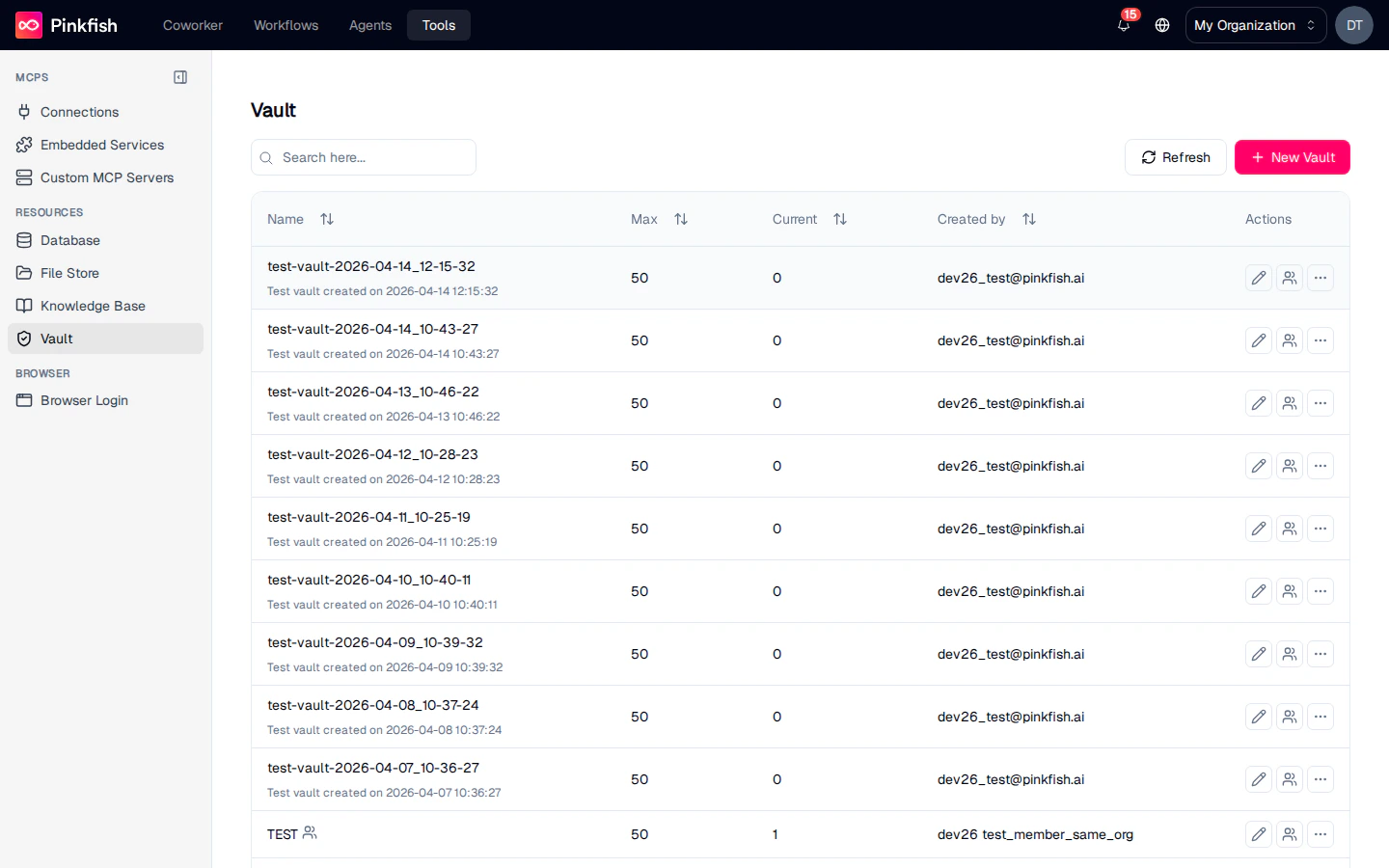
Each row is a **vault collection** — a logical group of secrets you can share and reference as a unit. Columns mirror the other resource types:
| Column | Description |
| -------------- | -------------------------------------- |
| **Name** | Vault collection name. |
| **Max** | Max secrets allowed in the collection. |
| **Current** | Current secret count. |
| **Created by** | Email of the creator. |
| **Actions** | Share, Rename, More (Delete, Export). |
Use the search box to filter. Click **+ New Vault** to create a collection.
## Inside a Vault Collection
Clicking a row opens the collection.
## The Vault List
Each row is a **vault collection** — a logical group of secrets you can share and reference as a unit. Columns mirror the other resource types:
| Column | Description |
| -------------- | -------------------------------------- |
| **Name** | Vault collection name. |
| **Max** | Max secrets allowed in the collection. |
| **Current** | Current secret count. |
| **Created by** | Email of the creator. |
| **Actions** | Share, Rename, More (Delete, Export). |
Use the search box to filter. Click **+ New Vault** to create a collection.
## Inside a Vault Collection
Clicking a row opens the collection.
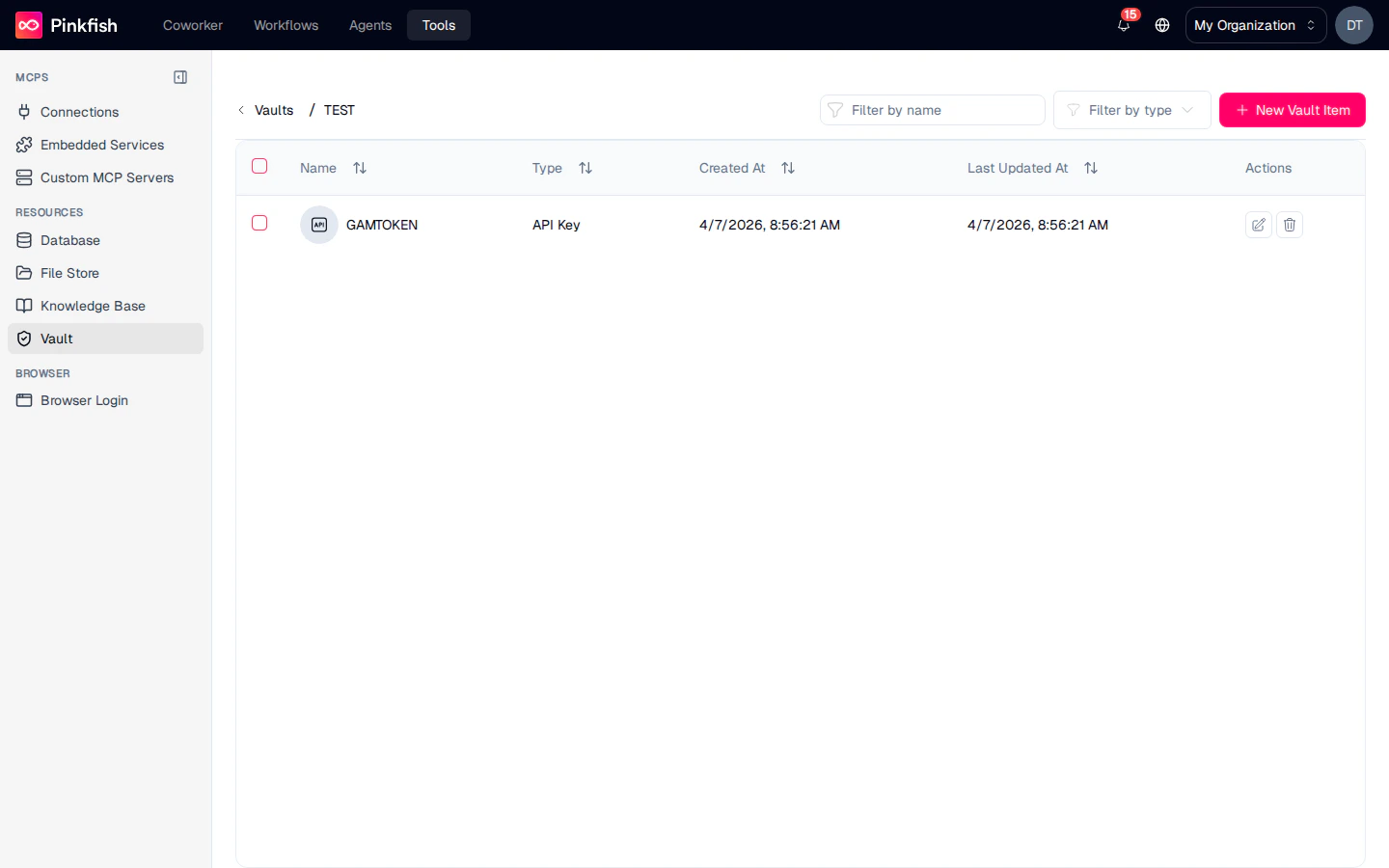 Toolbar:
| Button | Action |
| -------------------- | ---------------------------------- |
| **Filter by name** | Search by secret name. |
| **Filter by type** | Filter by Login / API Key / Other. |
| **+ New Vault Item** | Add a new secret. |
Each secret row shows:
| Column | Description |
| -------------------------------- | -------------------------------------------------------------------- |
| **Name** | Display name (e.g. `Stripe Secret Key`, `GitHub Token`, `DB Admin`). |
| **Type** | One of **Login**, **API Key**, or **Other**. |
| **Created At / Last Updated At** | Timestamps. |
| **Actions** | Edit, Delete. |
Secret values are never shown in plain text in the list — you have to open the edit dialog to reveal or copy them. The reveal control is only shown to users with **Manage** permission on the collection; users with read access can reference a secret in a workflow but cannot view its value in the UI.
## Adding a Secret
Click **+ New Vault Item** to open the New Item dialog.
Toolbar:
| Button | Action |
| -------------------- | ---------------------------------- |
| **Filter by name** | Search by secret name. |
| **Filter by type** | Filter by Login / API Key / Other. |
| **+ New Vault Item** | Add a new secret. |
Each secret row shows:
| Column | Description |
| -------------------------------- | -------------------------------------------------------------------- |
| **Name** | Display name (e.g. `Stripe Secret Key`, `GitHub Token`, `DB Admin`). |
| **Type** | One of **Login**, **API Key**, or **Other**. |
| **Created At / Last Updated At** | Timestamps. |
| **Actions** | Edit, Delete. |
Secret values are never shown in plain text in the list — you have to open the edit dialog to reveal or copy them. The reveal control is only shown to users with **Manage** permission on the collection; users with read access can reference a secret in a workflow but cannot view its value in the UI.
## Adding a Secret
Click **+ New Vault Item** to open the New Item dialog.
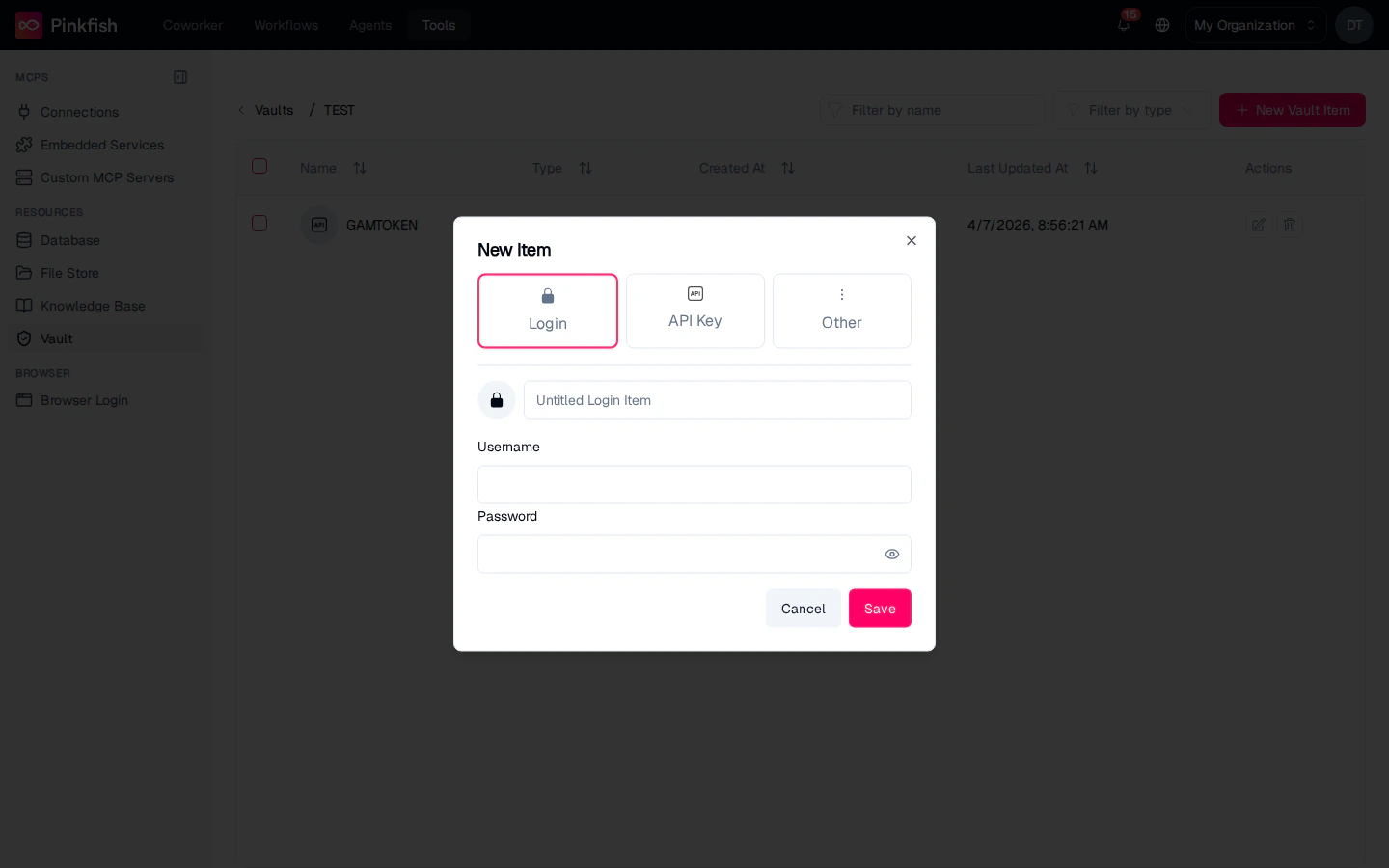 Pick a type:
Username + password pairs — for services where your agent signs in as a user.
Single token or API key — for header-based auth to third-party APIs.
Arbitrary JSON payloads — for multi-field secrets (certificates, connection strings, credential bundles).
Give the secret a **Name**, fill in the type-specific fields (username/password, key value, or a JSON blob), and click **Save**. The value is encrypted immediately and never leaves the server in plaintext again.
## Sharing
Vault collections are the most sensitive items on the Tools page, so share them deliberately.
Only share vault collections with trusted team members who actually need access. Apply the principle of least privilege — prefer **Read** over **Write** unless the recipient needs to rotate secrets. Avoid org-wide sharing except for genuinely org-wide credentials (like a shared support account).
The share dialog offers the same ACLs as every other resource:
* **Read** — reference the secret from workflows.
* **Write** — add, edit, and delete secrets.
* **Admin** — share with others.
## Using Vault Secrets in Workflows
Workflows reference secrets through the built-in [Vault MCP server](/api-reference/mcp-servers/embedded/vault). The pattern:
1. Fetch the secret from the Vault where you'd otherwise hardcode a credential.
2. At run time, Pinkfish decrypts the value on the server and passes it into the downstream call (HTTP request, database query, etc.).
3. The decrypted value never appears in logs, chat history, or workflow outputs.
Common recipes:
* Store the API key for a custom integration in a vault and reference it from a scraper workflow.
* Keep DB credentials for an internal tool in a shared vault so multiple workflows can connect without each developer knowing the password.
* Rotate the vault value when a secret expires — every workflow that references it picks up the new value on the next run without changes.
## Notes
* Vault is builder-only **and** requires an eligible plan. When plan access is missing, the Vault entry doesn't appear in the Tools sidebar at all.
* Secrets are encrypted with per-organization keys and decrypted only within the Pinkfish worker that executes a workflow step. Decrypted values are never written to disk.
* There is no "export secrets" action — secrets can't be bulk-downloaded, by design.
* For non-sensitive configuration values (feature flags, environment names), use a regular [Database](/resources/database) collection instead of Vault.
Pick a type:
Username + password pairs — for services where your agent signs in as a user.
Single token or API key — for header-based auth to third-party APIs.
Arbitrary JSON payloads — for multi-field secrets (certificates, connection strings, credential bundles).
Give the secret a **Name**, fill in the type-specific fields (username/password, key value, or a JSON blob), and click **Save**. The value is encrypted immediately and never leaves the server in plaintext again.
## Sharing
Vault collections are the most sensitive items on the Tools page, so share them deliberately.
Only share vault collections with trusted team members who actually need access. Apply the principle of least privilege — prefer **Read** over **Write** unless the recipient needs to rotate secrets. Avoid org-wide sharing except for genuinely org-wide credentials (like a shared support account).
The share dialog offers the same ACLs as every other resource:
* **Read** — reference the secret from workflows.
* **Write** — add, edit, and delete secrets.
* **Admin** — share with others.
## Using Vault Secrets in Workflows
Workflows reference secrets through the built-in [Vault MCP server](/api-reference/mcp-servers/embedded/vault). The pattern:
1. Fetch the secret from the Vault where you'd otherwise hardcode a credential.
2. At run time, Pinkfish decrypts the value on the server and passes it into the downstream call (HTTP request, database query, etc.).
3. The decrypted value never appears in logs, chat history, or workflow outputs.
Common recipes:
* Store the API key for a custom integration in a vault and reference it from a scraper workflow.
* Keep DB credentials for an internal tool in a shared vault so multiple workflows can connect without each developer knowing the password.
* Rotate the vault value when a secret expires — every workflow that references it picks up the new value on the next run without changes.
## Notes
* Vault is builder-only **and** requires an eligible plan. When plan access is missing, the Vault entry doesn't appear in the Tools sidebar at all.
* Secrets are encrypted with per-organization keys and decrypted only within the Pinkfish worker that executes a workflow step. Decrypted values are never written to disk.
* There is no "export secrets" action — secrets can't be bulk-downloaded, by design.
* For non-sensitive configuration values (feature flags, environment names), use a regular [Database](/resources/database) collection instead of Vault.