> ## Documentation Index
> Fetch the complete documentation index at: https://docs.pinkfish.ai/llms.txt
> Use this file to discover all available pages before exploring further.
# Database
> Structured and unstructured data collections your agents can read from and write to
**Database** is the resource type for tabular data — customers, orders, inventory, lookup tables, conversation logs, anything you'd keep in rows. Collections come in two flavors: **Structured** (with a schema and typed columns) and **Unstructured** (schema-less, JSON-like documents). Both are readable and writable from agents, workflows, and the built-in [Datastore embedded services](/api-reference/mcp-servers/embedded/datastore-structured).
Find it under **Tools → Database**.
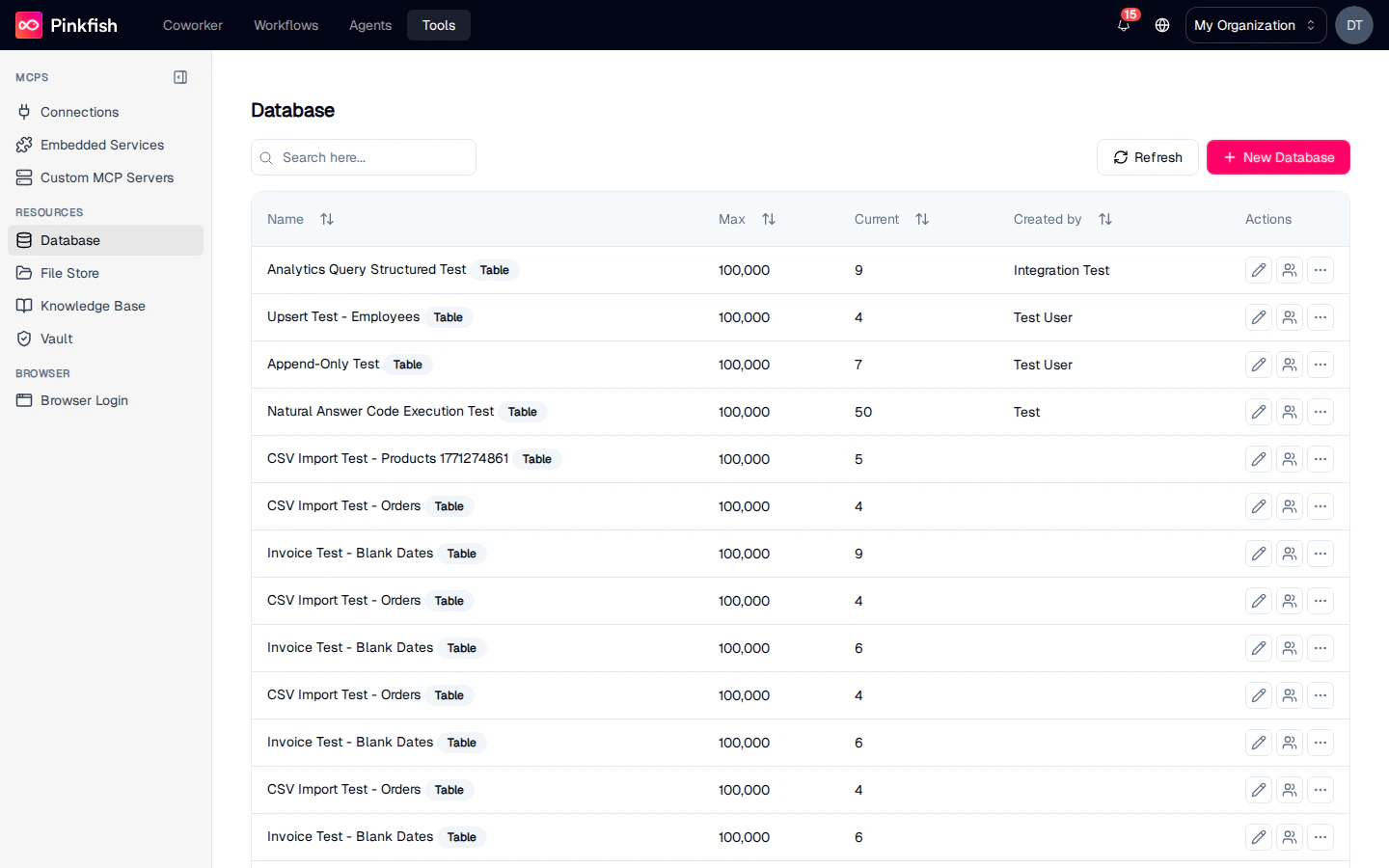 ## The Database List
Each row is one collection. Columns:
| Column | Description |
| -------------- | ------------------------------------------------------------------------- |
| **Name** | Collection name. For structured datasets, a small `Table` badge is shown. |
| **Max** | The maximum row count allowed by the collection's size limit. |
| **Current** | The actual number of rows currently stored. |
| **Created by** | The email of the user who created the collection. |
| **Actions** | Share, Rename, and a More menu with Delete and Export. |
Use the search box to filter by name. Click **Refresh** to re-fetch counts.
## Creating a Collection
Click **+ New Database** to open the creation dialog.
## The Database List
Each row is one collection. Columns:
| Column | Description |
| -------------- | ------------------------------------------------------------------------- |
| **Name** | Collection name. For structured datasets, a small `Table` badge is shown. |
| **Max** | The maximum row count allowed by the collection's size limit. |
| **Current** | The actual number of rows currently stored. |
| **Created by** | The email of the user who created the collection. |
| **Actions** | Share, Rename, and a More menu with Delete and Export. |
Use the search box to filter by name. Click **Refresh** to re-fetch counts.
## Creating a Collection
Click **+ New Database** to open the creation dialog.
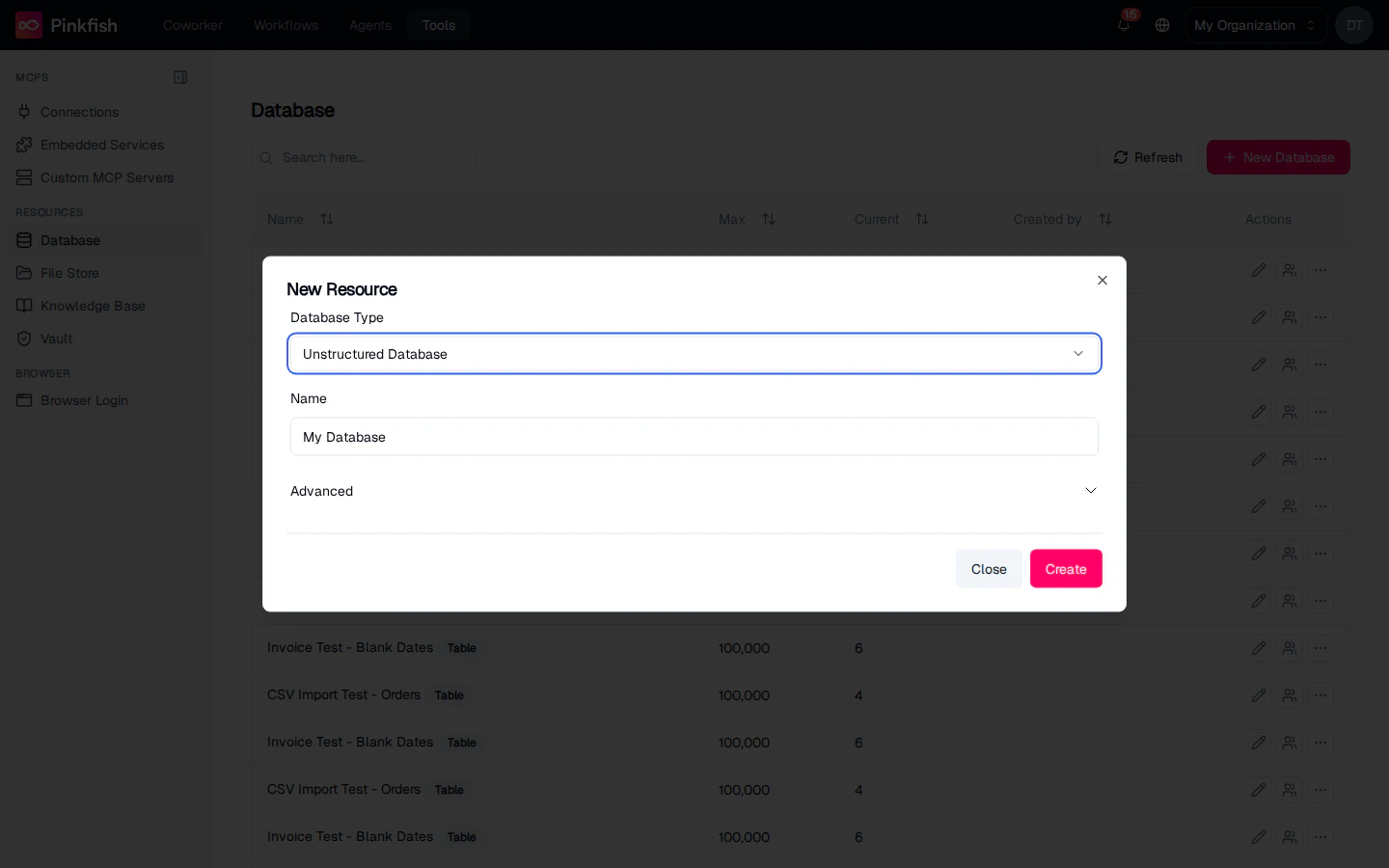 Pick a **Database Type**:
* **Unstructured Database** — default. Schema-less; rows are JSON-like documents. Best for semi-structured data where fields vary per row.
* **Structured Database** — define columns with types (string, number, boolean, date, enum) up front. Best for known schemas.
Give the collection a **Name** and, under **Advanced**, optionally set a row-count ceiling. Click **Create**.
## Working Inside a Collection
Clicking a collection navigates into its detail view. The toolbar includes:
| Button | Action |
| ---------------- | ---------------------------------------------------------------------------- |
| **Schema** | Open the schema editor (structured only) — add/remove columns, change types. |
| **Import CSV** | Bulk import rows from a CSV. |
| **Download CSV** | Export the whole collection. |
| **Refresh** | Re-fetch rows from the backend. |
| **Wrap** | Toggle cell text wrapping. |
A natural-language search bar sits above the rows: type something like `get active users` and Pinkfish converts the query into a SQL filter (structured) or a semantic search (unstructured). You can also type raw SQL when the search is three characters or longer.
Row actions (right-click or the Actions column): **Edit**, **Duplicate**, **Delete**.
### Structured vs unstructured
| Feature | Structured | Unstructured |
| ---------- | ----------------------- | ------------------------------- |
| Schema | Required, typed columns | None — any JSON shape |
| Search | SQL + natural language | Semantic + text |
| Best for | Reference data, reports | Logs, events, flexible payloads |
| MCP server | `datastore-structured` | `datastore-unstructured` |
## Sharing
Click **Share** on any collection row to open the share dialog. ACLs work the same as Connections: **Read** (use in workflows), **Write** (add and modify rows), **Admin** (share further). Shared collections show a small "Shared" indicator next to the name.
## Using Databases in Agents and Workflows
Agents and workflows reach databases through the Datastore MCP servers. See the embedded reference:
Tools for querying and mutating rows in structured collections with SQL.
Tools for searching and writing to schema-less document collections.
Both servers pick up every collection your user can read. Reference a collection by its ID in the tool input.
## Notes
* Database collections are builder-only. Non-builder users can still reference collections shared with them in agent/workflow runs, but they can't see or manage the list.
* Row counts update asynchronously after bulk imports — the **Current** column may lag for a minute after a large CSV upload.
* For file uploads (PDFs, images, spreadsheets) use [File Store](/resources/file-store); for indexed retrieval use [Knowledge Base](/resources/knowledge-base).
Pick a **Database Type**:
* **Unstructured Database** — default. Schema-less; rows are JSON-like documents. Best for semi-structured data where fields vary per row.
* **Structured Database** — define columns with types (string, number, boolean, date, enum) up front. Best for known schemas.
Give the collection a **Name** and, under **Advanced**, optionally set a row-count ceiling. Click **Create**.
## Working Inside a Collection
Clicking a collection navigates into its detail view. The toolbar includes:
| Button | Action |
| ---------------- | ---------------------------------------------------------------------------- |
| **Schema** | Open the schema editor (structured only) — add/remove columns, change types. |
| **Import CSV** | Bulk import rows from a CSV. |
| **Download CSV** | Export the whole collection. |
| **Refresh** | Re-fetch rows from the backend. |
| **Wrap** | Toggle cell text wrapping. |
A natural-language search bar sits above the rows: type something like `get active users` and Pinkfish converts the query into a SQL filter (structured) or a semantic search (unstructured). You can also type raw SQL when the search is three characters or longer.
Row actions (right-click or the Actions column): **Edit**, **Duplicate**, **Delete**.
### Structured vs unstructured
| Feature | Structured | Unstructured |
| ---------- | ----------------------- | ------------------------------- |
| Schema | Required, typed columns | None — any JSON shape |
| Search | SQL + natural language | Semantic + text |
| Best for | Reference data, reports | Logs, events, flexible payloads |
| MCP server | `datastore-structured` | `datastore-unstructured` |
## Sharing
Click **Share** on any collection row to open the share dialog. ACLs work the same as Connections: **Read** (use in workflows), **Write** (add and modify rows), **Admin** (share further). Shared collections show a small "Shared" indicator next to the name.
## Using Databases in Agents and Workflows
Agents and workflows reach databases through the Datastore MCP servers. See the embedded reference:
Tools for querying and mutating rows in structured collections with SQL.
Tools for searching and writing to schema-less document collections.
Both servers pick up every collection your user can read. Reference a collection by its ID in the tool input.
## Notes
* Database collections are builder-only. Non-builder users can still reference collections shared with them in agent/workflow runs, but they can't see or manage the list.
* Row counts update asynchronously after bulk imports — the **Current** column may lag for a minute after a large CSV upload.
* For file uploads (PDFs, images, spreadsheets) use [File Store](/resources/file-store); for indexed retrieval use [Knowledge Base](/resources/knowledge-base).