> ## Documentation Index
> Fetch the complete documentation index at: https://docs.pinkfish.ai/llms.txt
> Use this file to discover all available pages before exploring further.
# Getting Started with Coworker
> Chat with an AI assistant that connects to all your tools, agents, and knowledge bases
Coworker is your AI-powered assistant inside Pinkfish. Ask questions, delegate tasks to specialized agents, pull context from your knowledge bases, and interact with connected tools — all within a single chat interface. Coworker automatically has access to all the tools and integrations configured in your workspace.
## Key Features
Use `@` to mention and delegate tasks to any agent in your organization directly from the chat.
Select a knowledge base collection to give Coworker context from your documents and data.
Coworker discovers and uses all connected tools and integrations automatically.
Search, filter, and revisit past conversations organized by time and agent.
## Getting Started
Navigate to **Coworker** in the sidebar. You'll see a welcome screen with:
* A chat input where you can type your message or use `@` to mention an agent
* **Suggestion cards** showing available agents, workflows, and apps you can interact with
* Tabs to filter suggestions by **Favorites**, **All**, or **Agents**
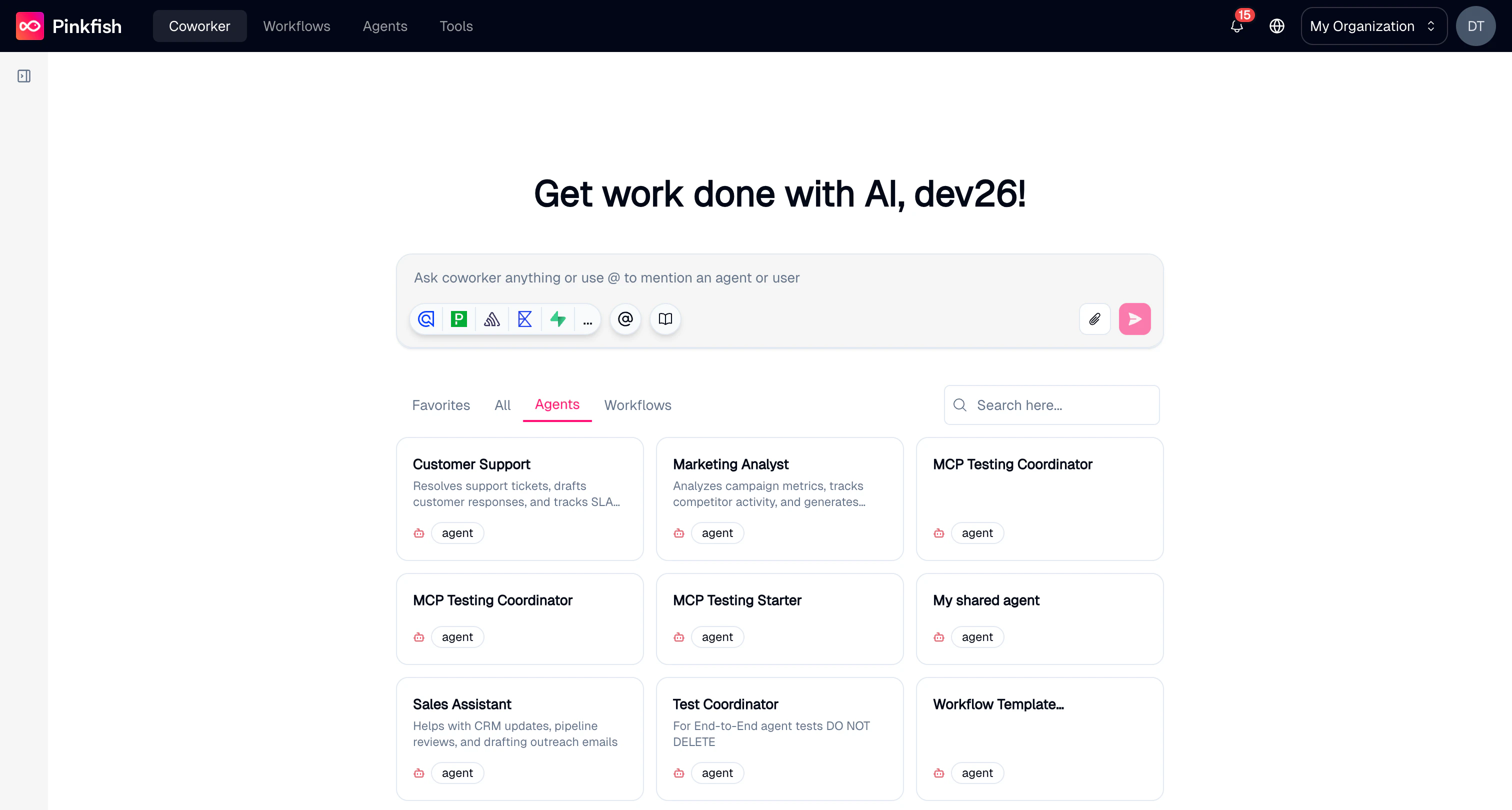 Type your message and press **Enter** or click the send button to start a conversation. Coworker creates a new chat automatically and streams its response in real time.
## Chatting with Coworker
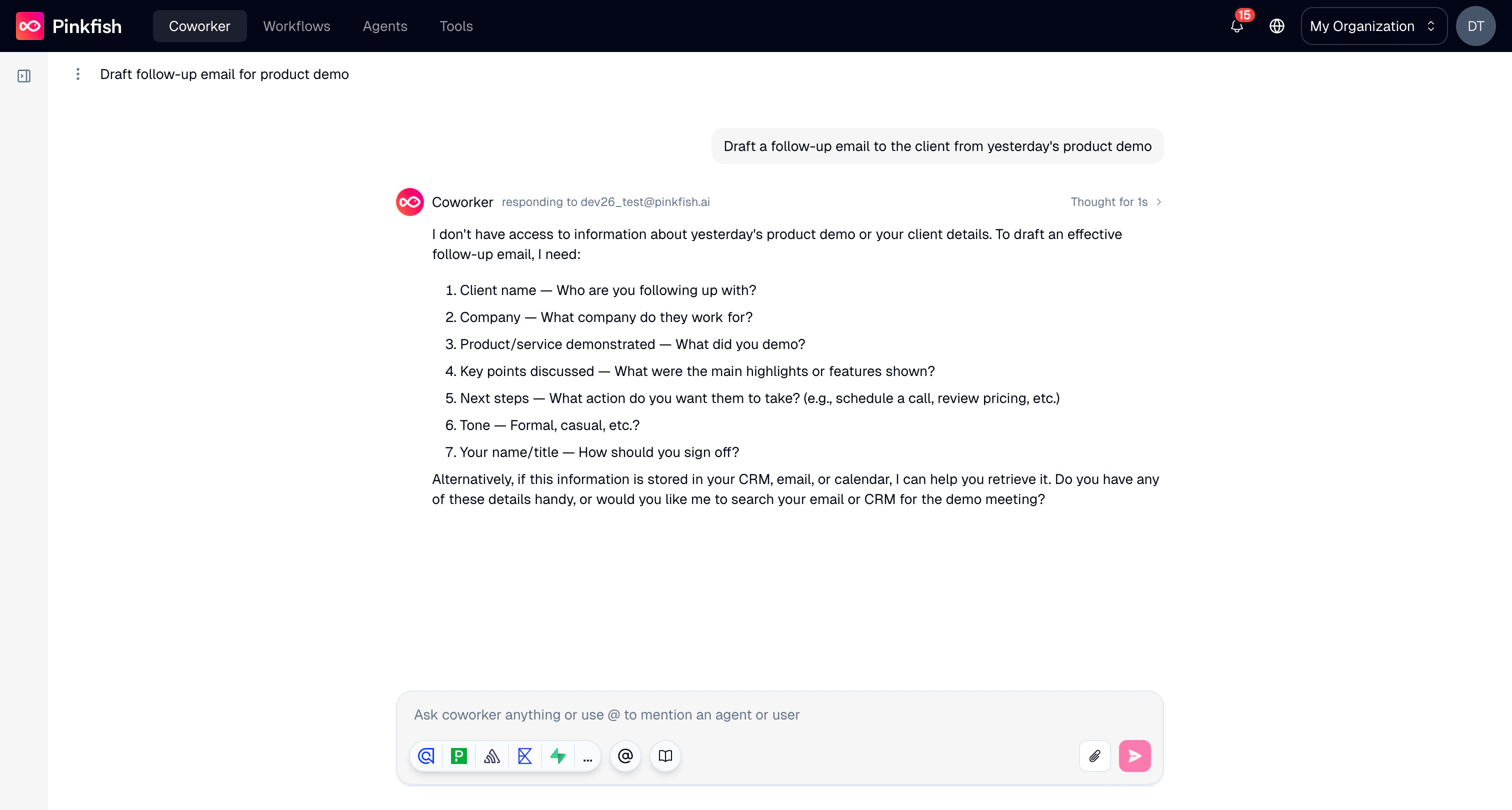
Once in a conversation, you can send messages back and forth with Coworker. The chat interface shows:
* **Your messages** on the right side
* **Assistant responses** on the left, with the responding agent name and a "Thought for Xs" indicator showing processing time
* An **Artifacts** button in the header for any generated files or outputs
Type your message and press **Enter** or click the send button to start a conversation. Coworker creates a new chat automatically and streams its response in real time.
## Chatting with Coworker
Once in a conversation, you can send messages back and forth with Coworker. The chat interface shows:
* **Your messages** on the right side
* **Assistant responses** on the left, with the responding agent name and a "Thought for Xs" indicator showing processing time
* An **Artifacts** button in the header for any generated files or outputs
 ### Mentioning agents
Type `@` in the chat input or click the mention button to bring up a list of available agents. Select an agent to delegate a specific task to it within the same conversation.
### Mentioning agents
Type `@` in the chat input or click the mention button to bring up a list of available agents. Select an agent to delegate a specific task to it within the same conversation.
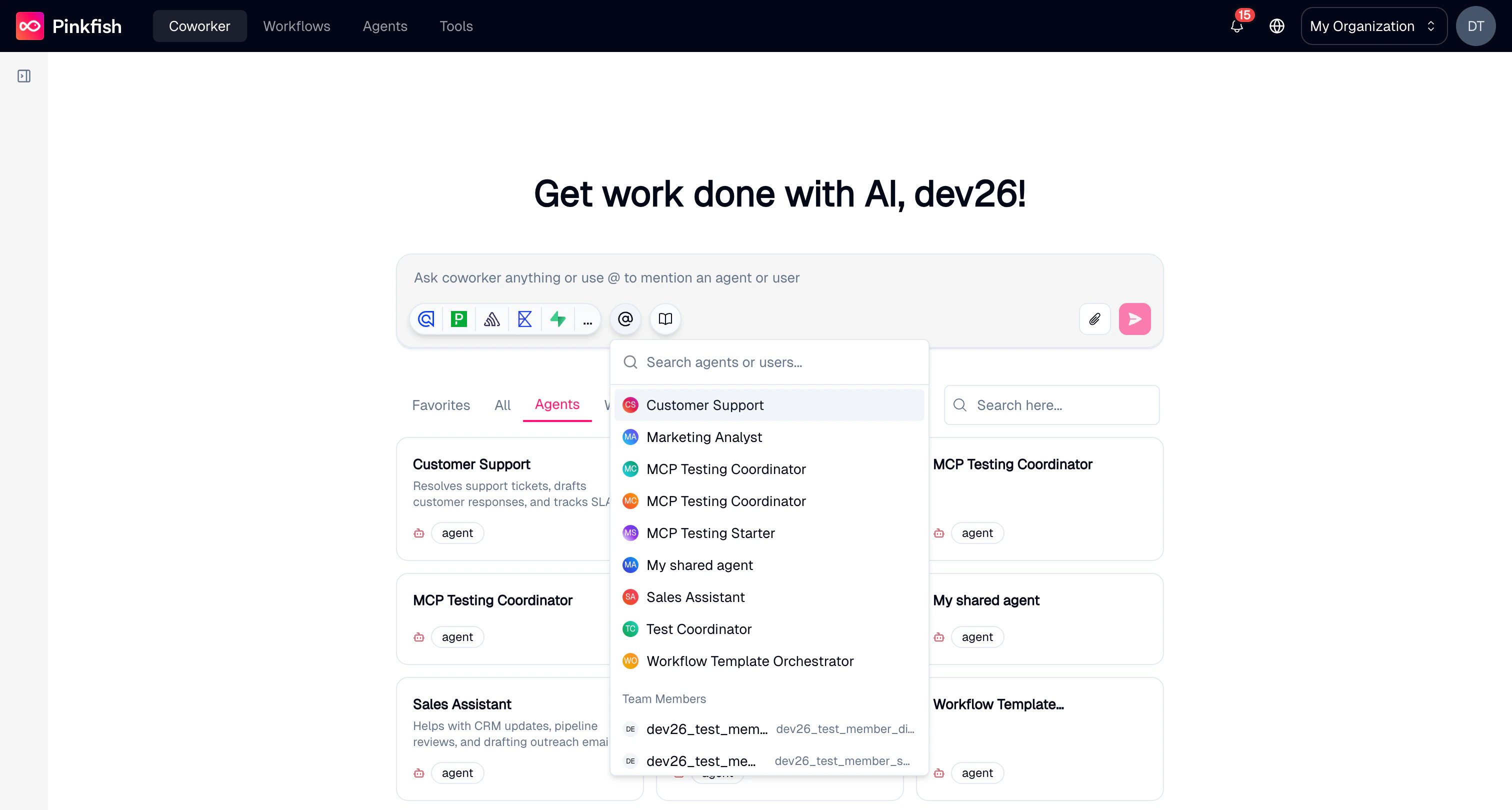 Coworker routes your message to the mentioned agent and returns its response inline. This lets you orchestrate work across multiple specialized agents without leaving the chat.
### Attaching files
Click the file attachment button to upload files directly into the conversation. Supported formats include images (JPG, PNG, WEBP), documents (PDF, CSV, TXT, MD, JSON, HTML, XLSX, DOCX, PPTX), and video (MP4, MOV).
### Using a knowledge base
Click the knowledge base icon in the chat input to select a collection. This gives Coworker access to the documents and data in that collection, so it can reference them when answering your questions.
Coworker routes your message to the mentioned agent and returns its response inline. This lets you orchestrate work across multiple specialized agents without leaving the chat.
### Attaching files
Click the file attachment button to upload files directly into the conversation. Supported formats include images (JPG, PNG, WEBP), documents (PDF, CSV, TXT, MD, JSON, HTML, XLSX, DOCX, PPTX), and video (MP4, MOV).
### Using a knowledge base
Click the knowledge base icon in the chat input to select a collection. This gives Coworker access to the documents and data in that collection, so it can reference them when answering your questions.
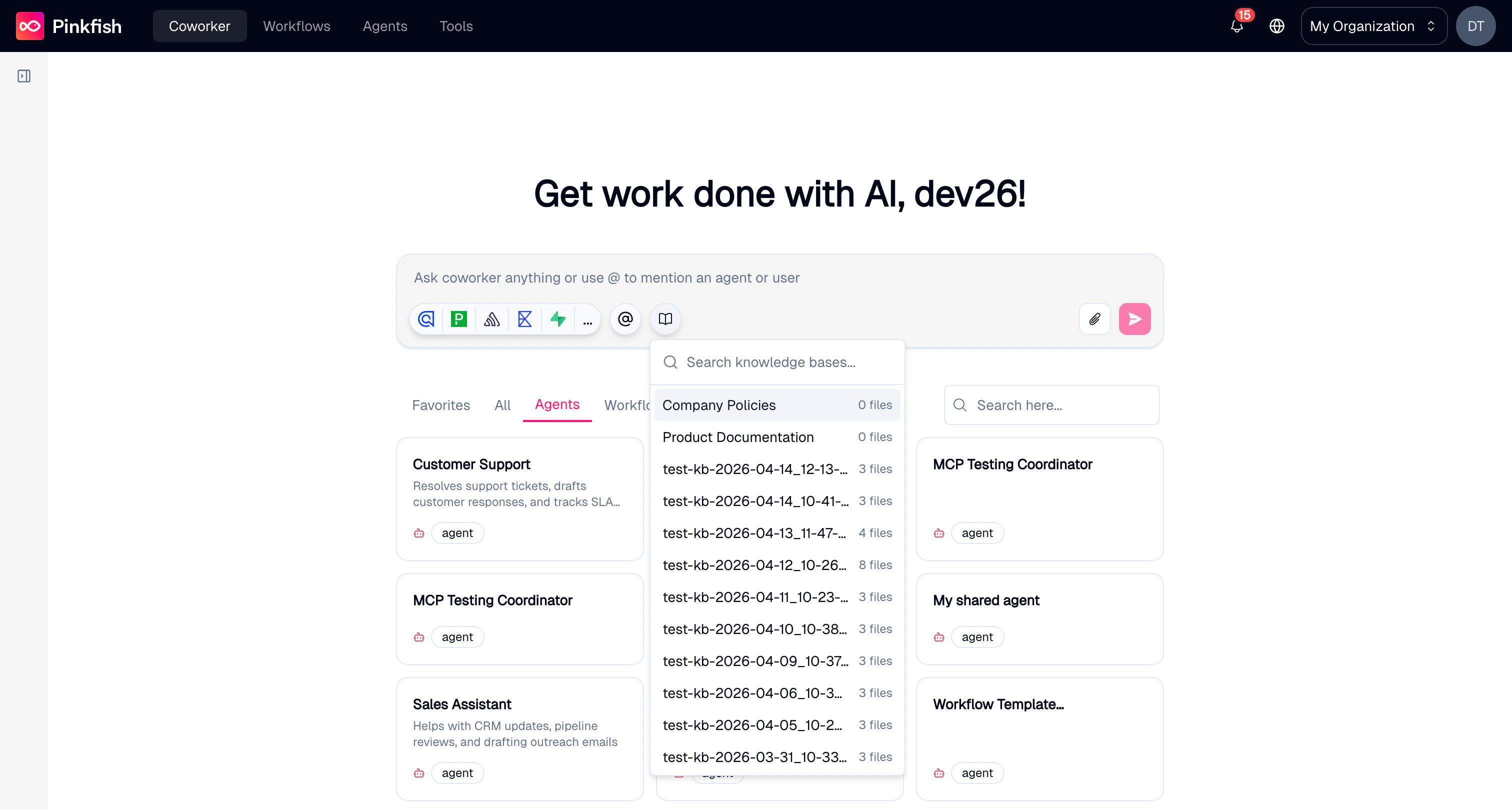 Once selected, knowledge base results appear as tiles in the chat alongside Coworker's response. For more on creating and managing collections, see [Datastore](/resources/database).
## Managing Conversations
### Conversation sidebar
The left sidebar lists all your conversations, grouped by **Today** and older chats. From the sidebar you can:
* Click **New Chat** to start a fresh conversation
* Click any chat to resume it
* Right-click or use the menu on a chat to **rename** or **delete** it
* See unread message indicators and **New** badges on shared chats
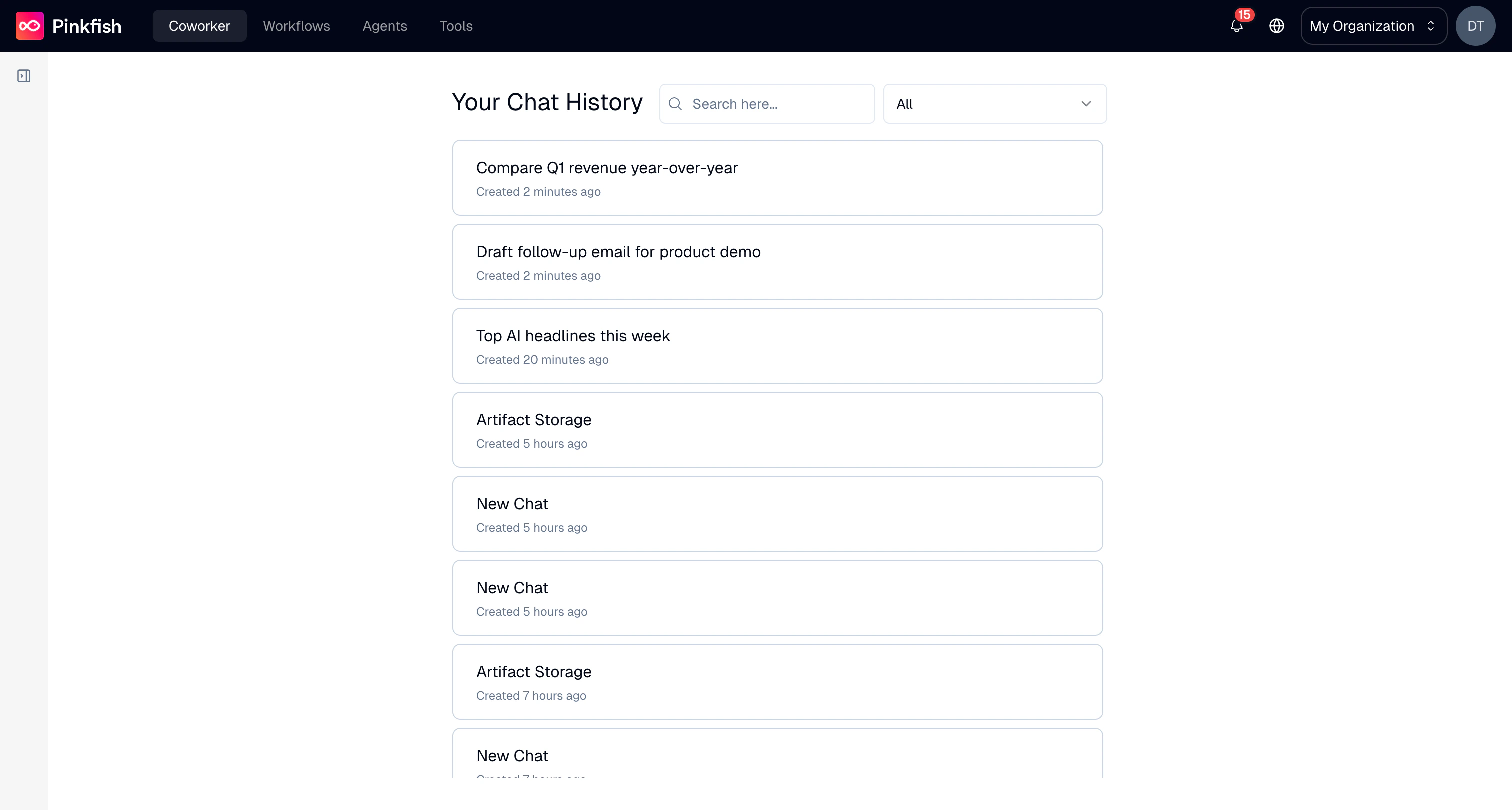
### Chat history
Click **Search Chats** in the sidebar to open the full chat history view. Here you can:
* Search conversations by title
* Filter by agent using the dropdown
* See when each conversation was created with relative timestamps
Once selected, knowledge base results appear as tiles in the chat alongside Coworker's response. For more on creating and managing collections, see [Datastore](/resources/database).
## Managing Conversations
### Conversation sidebar
The left sidebar lists all your conversations, grouped by **Today** and older chats. From the sidebar you can:
* Click **New Chat** to start a fresh conversation
* Click any chat to resume it
* Right-click or use the menu on a chat to **rename** or **delete** it
* See unread message indicators and **New** badges on shared chats
### Chat history
Click **Search Chats** in the sidebar to open the full chat history view. Here you can:
* Search conversations by title
* Filter by agent using the dropdown
* See when each conversation was created with relative timestamps
 ## Suggestions and Discovery
The welcome screen displays suggestion cards for items in your workspace:
* **Agents** — click to mention the agent in your next message
* **Workflows** — click to view the workflow details
* **Apps** — click to open the app
Use the search bar to filter suggestions by name, or click the star icon on any card to add it to your **Favorites** tab for quick access.
## Notes
* Knowledge base collection selection is locked after the first message in a chat. Start a new chat to switch collections.
* Coworker can be connected to Slack and Microsoft Teams workspaces for use outside the Pinkfish app. See the [Slack Channel](/channels/slack) guide for details.
* Conversations can be shared with other organization members. Shared chats show a badge in the sidebar.
## Suggestions and Discovery
The welcome screen displays suggestion cards for items in your workspace:
* **Agents** — click to mention the agent in your next message
* **Workflows** — click to view the workflow details
* **Apps** — click to open the app
Use the search bar to filter suggestions by name, or click the star icon on any card to add it to your **Favorites** tab for quick access.
## Notes
* Knowledge base collection selection is locked after the first message in a chat. Start a new chat to switch collections.
* Coworker can be connected to Slack and Microsoft Teams workspaces for use outside the Pinkfish app. See the [Slack Channel](/channels/slack) guide for details.
* Conversations can be shared with other organization members. Shared chats show a badge in the sidebar.