> ## Documentation Index
> Fetch the complete documentation index at: https://docs.pinkfish.ai/llms.txt
> Use this file to discover all available pages before exploring further.
# Slack
> Talk to your Pinkfish agents and Coworker directly from Slack — on desktop, web, or mobile
Connect your agents and Coworker to Slack so your team can get work done from the tool they already use. DM the Pinkfish app from your laptop or phone, drop in files or questions, and an agent replies in the thread — with a written answer, any files it produced, and links to rendered web-app visualizations for data that deserves more than text.
## Key Features
Reach your agents from the Slack desktop, web, or mobile client. Great for quick requests while you're away from the Pinkfish app.
Enable Slack on one agent at a time, or turn it on for the whole organization and opt individual agents out.
Drop images, PDFs, CSVs, or documents into the thread and the agent can read and act on them.
Agents post answers in-thread, upload generated files, and share rendered web apps as links you can open in a browser.
## How It Works
1. **Install the Pinkfish Slack app** into your workspace via OAuth. You can connect one agent at a time, or enable Slack for the entire organization.
2. **Open a DM** with the Pinkfish app in Slack.
3. **Send a message.** Pinkfish identifies you by the email on your Slack profile and matches it to your Pinkfish account. On your first message, the app walks you through any account, organization, or agent selection it needs. If your organization has [Auto-Onboarding](/organization/settings-organization#auto-onboarding) configured for your email domain and Slack workspace, you don't need a Pinkfish account first — one is created automatically and you join the organization as a member.
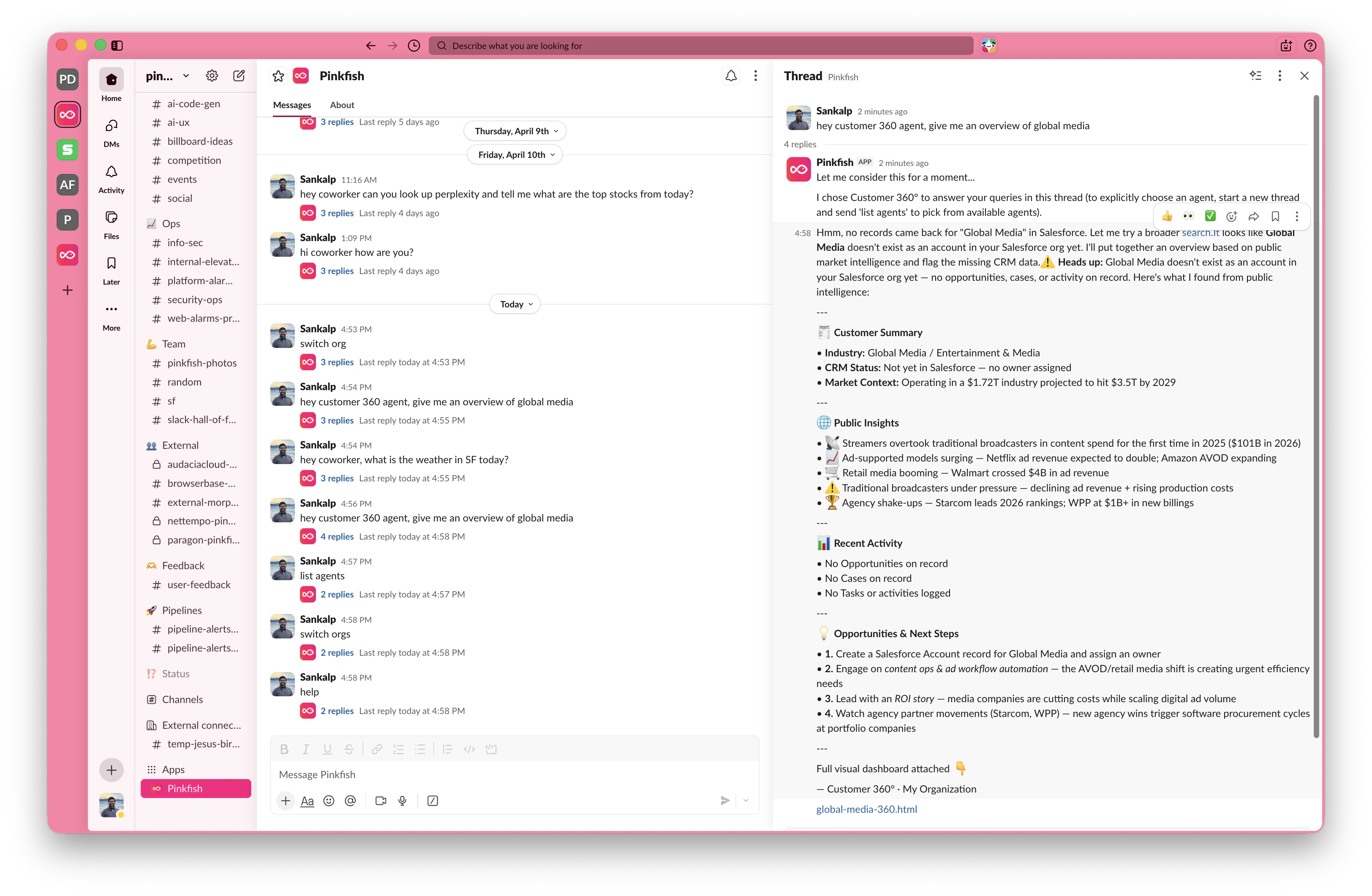
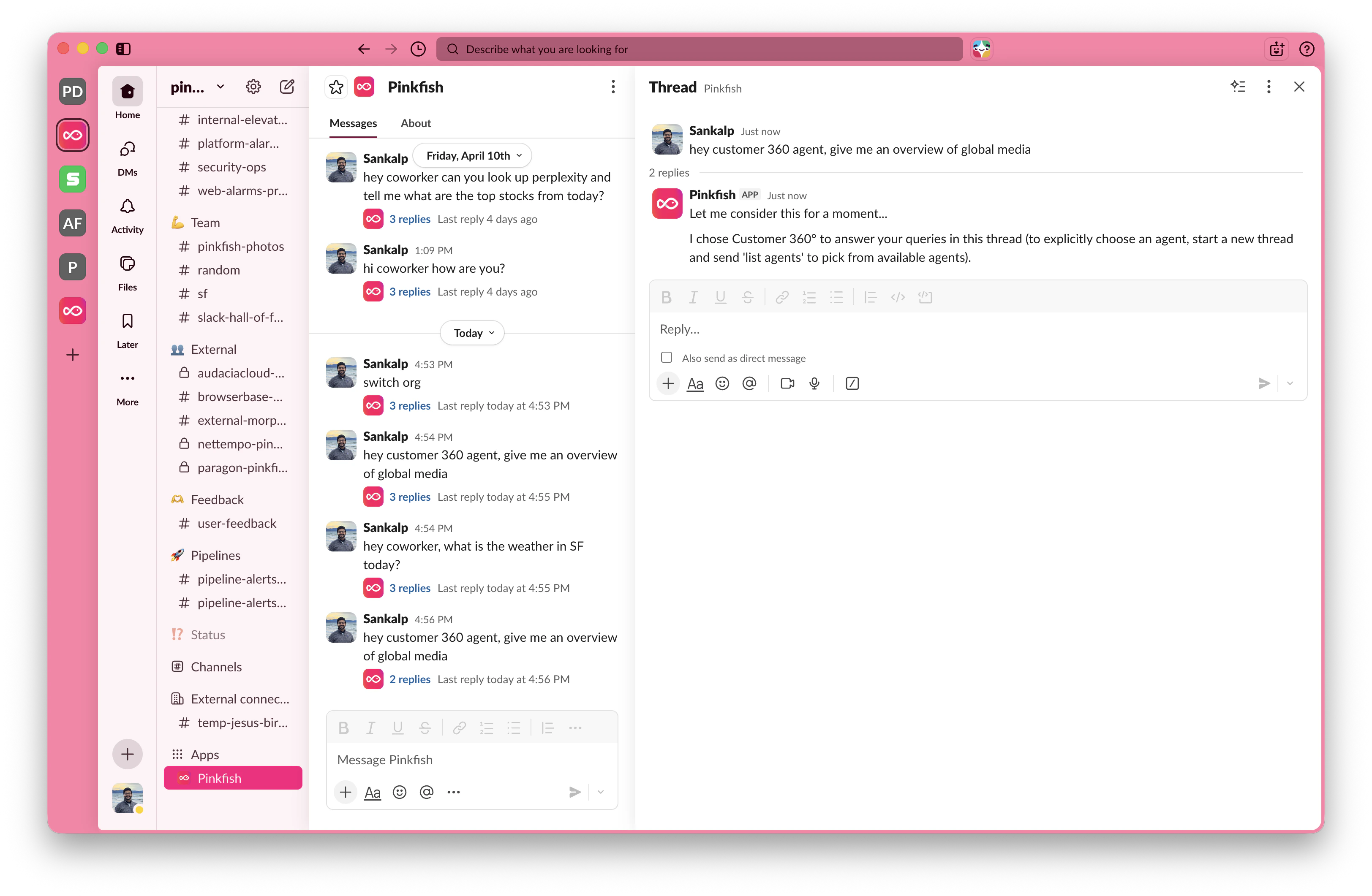
4. **The agent runs.** Pinkfish posts a short "thinking" note in the thread so you know the request was received, then replies with the full answer once the agent is done.
5. **Outputs flow back.** Short text answers appear as Slack messages, generated files upload to the thread, and rendered HTML artifacts come through as shareable links that open the web app in your browser.
**In a shared channel, a thread runs as whoever started it.** Pinkfish binds an identity to the thread on its first message. If a colleague replies in your thread, their message executes under **your** account and **your** connections. In a direct message the identity is simply you. With a dedicated bot it is always the agent's owner. See [Tool Sharing and Identity](/tools/sharing-and-identity#identity-reference-what-does-each-surface-run-as).
The "thinking" message posts within a second or two of your request, so you always know your message was received:
## Enabling Slack for an Agent
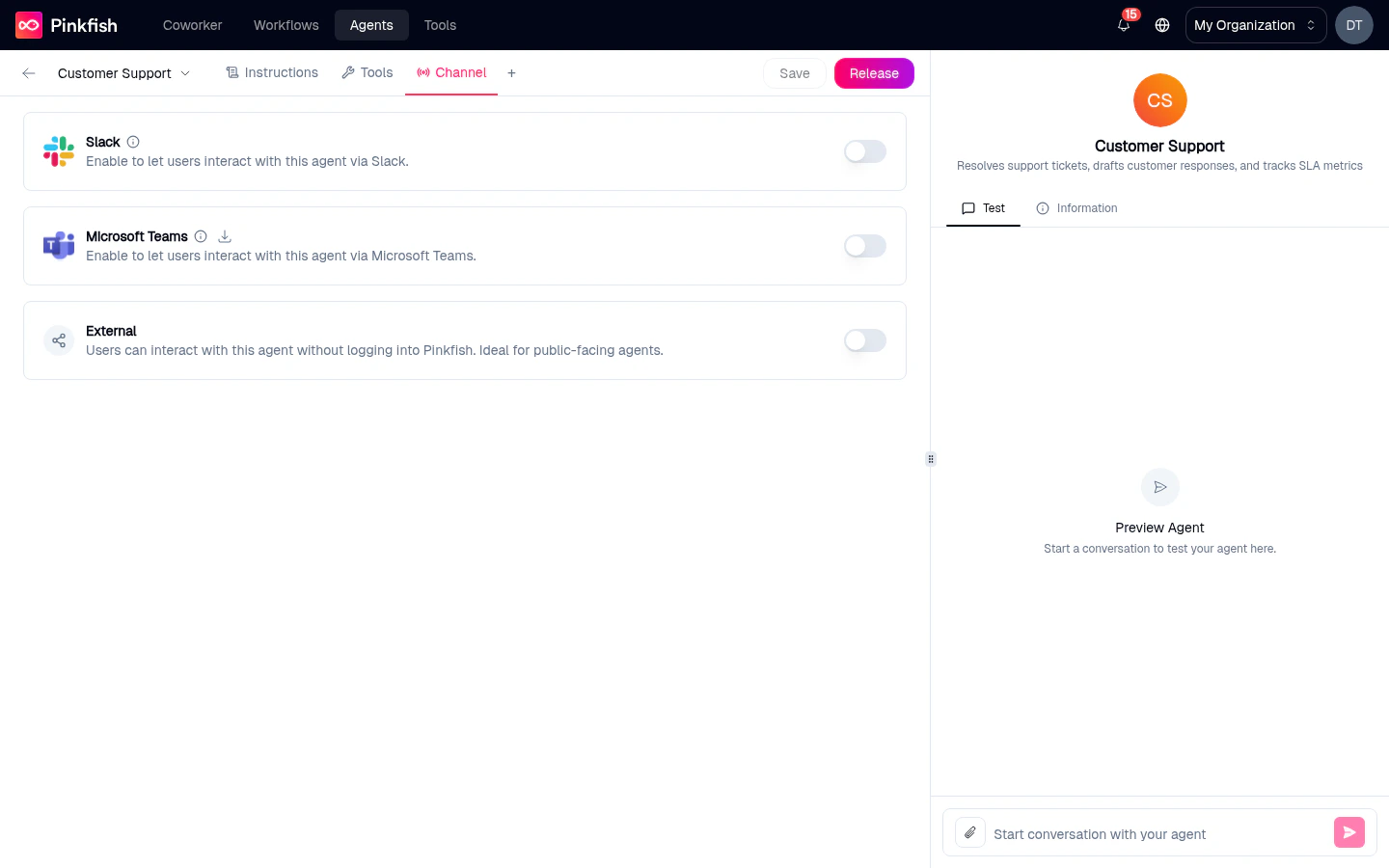
Open the agent you want to reach from Slack and go to the **Channel** section of the agent editor.
1. Toggle **Slack** on.
2. A browser popup redirects you to Slack to authorize the Pinkfish app in your workspace.
3. Approve the requested permissions. Slack returns you to Pinkfish, and the agent is now reachable from a DM in that workspace.
4. The Pinkfish app sends you a welcome DM confirming the connection.
To disconnect, toggle **Slack** off on the same card. This removes the channel binding for the agent; it does not uninstall the Slack app from the workspace.
### Organization-wide Slack
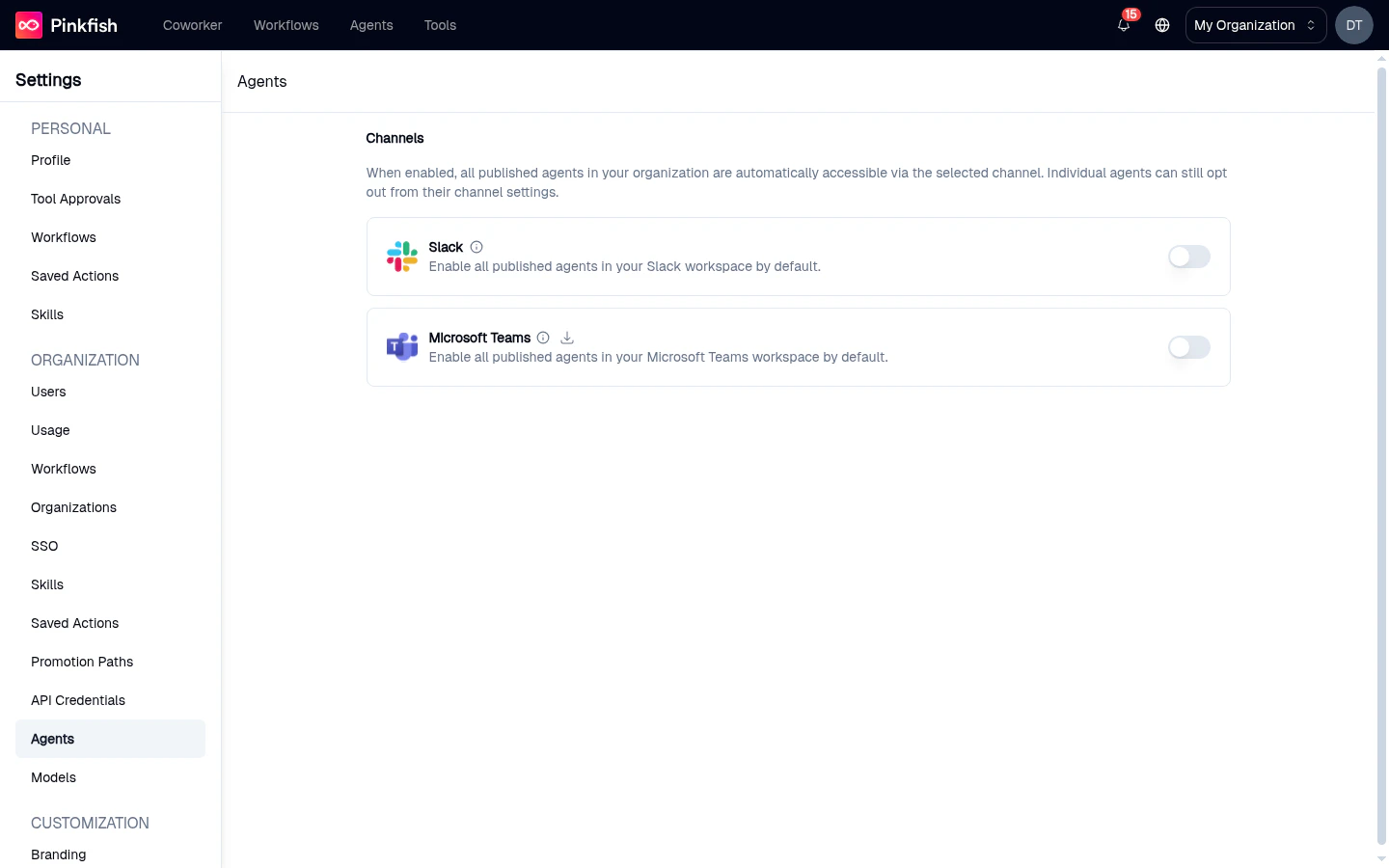
If your organization has Slack enabled globally, every published agent is reachable from Slack by default. The per-agent Slack toggle flips to an **opt-out** control: leave it on to keep the agent available in Slack, or turn it off to hide just that agent.
Admins turn this on under **Settings → Channels → Availability**. It's useful when most of your team works from Slack and you'd rather whitelist exceptions than opt each agent in one by one.
## Threads and Conversations
Pinkfish treats Slack threads as chats.
* **Start a new conversation** by sending a new top-level message in the DM. Each new thread starts a fresh chat with a clean context.
* **Continue a conversation** by replying inside an existing thread. The same agent keeps the context of everything that was said.
* **Switch agents** by starting a new thread. You can't swap agents inside an existing thread.
## Picking an Agent
When you send a new message, Pinkfish routes it one of two ways:
* If the DM is wired to a specific agent, that agent answers.
* Otherwise, Pinkfish picks the best match from the agents available in your organization and runs it.
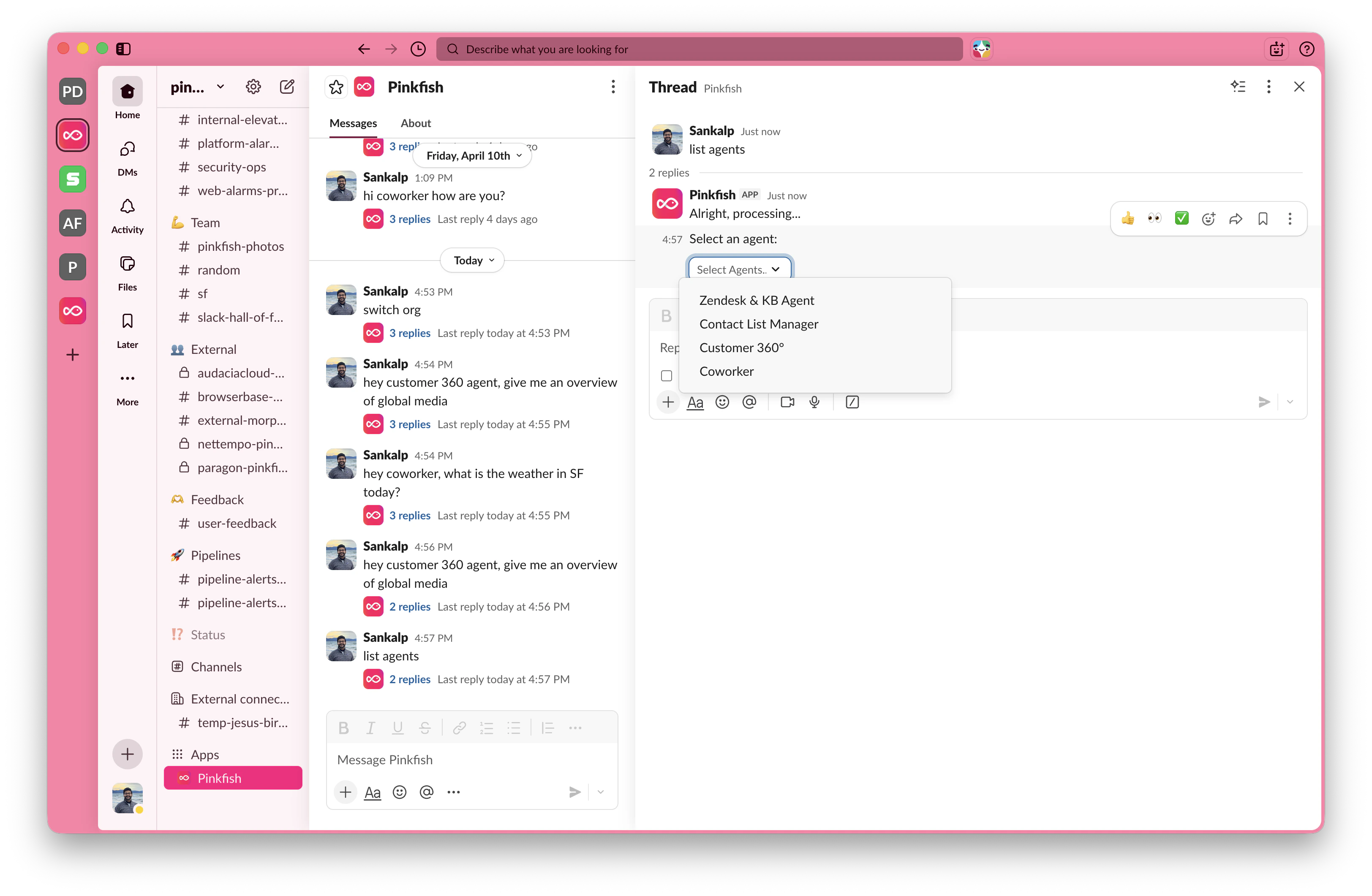
If you want to choose the agent yourself, start a new thread and send `list agents`. Pinkfish replies with a dropdown labeled **Select Agents…** listing every agent you have access to; pick one and it handles the thread.
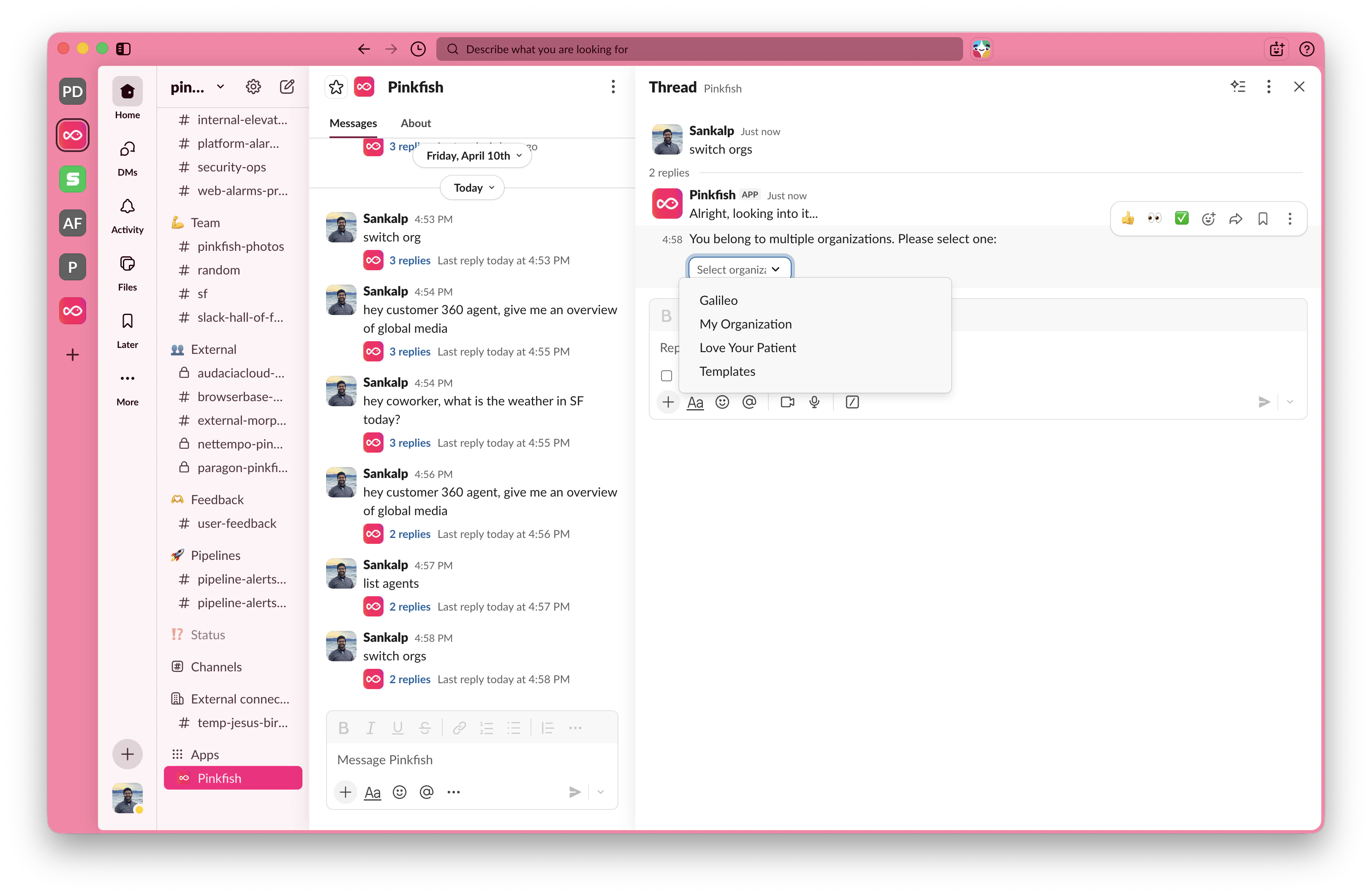
If you belong to multiple Pinkfish organizations, the app asks which one you want to use on your first message — you'll see a dropdown labeled **Select organization**. To change it later, start a new thread and send `switch orgs`.
## Built-in Commands
Pinkfish recognizes a few plain-text phrases as commands when they're the first message in a new thread:
| Command | What it does |
| ------------- | -------------------------------------------------------------------------- |
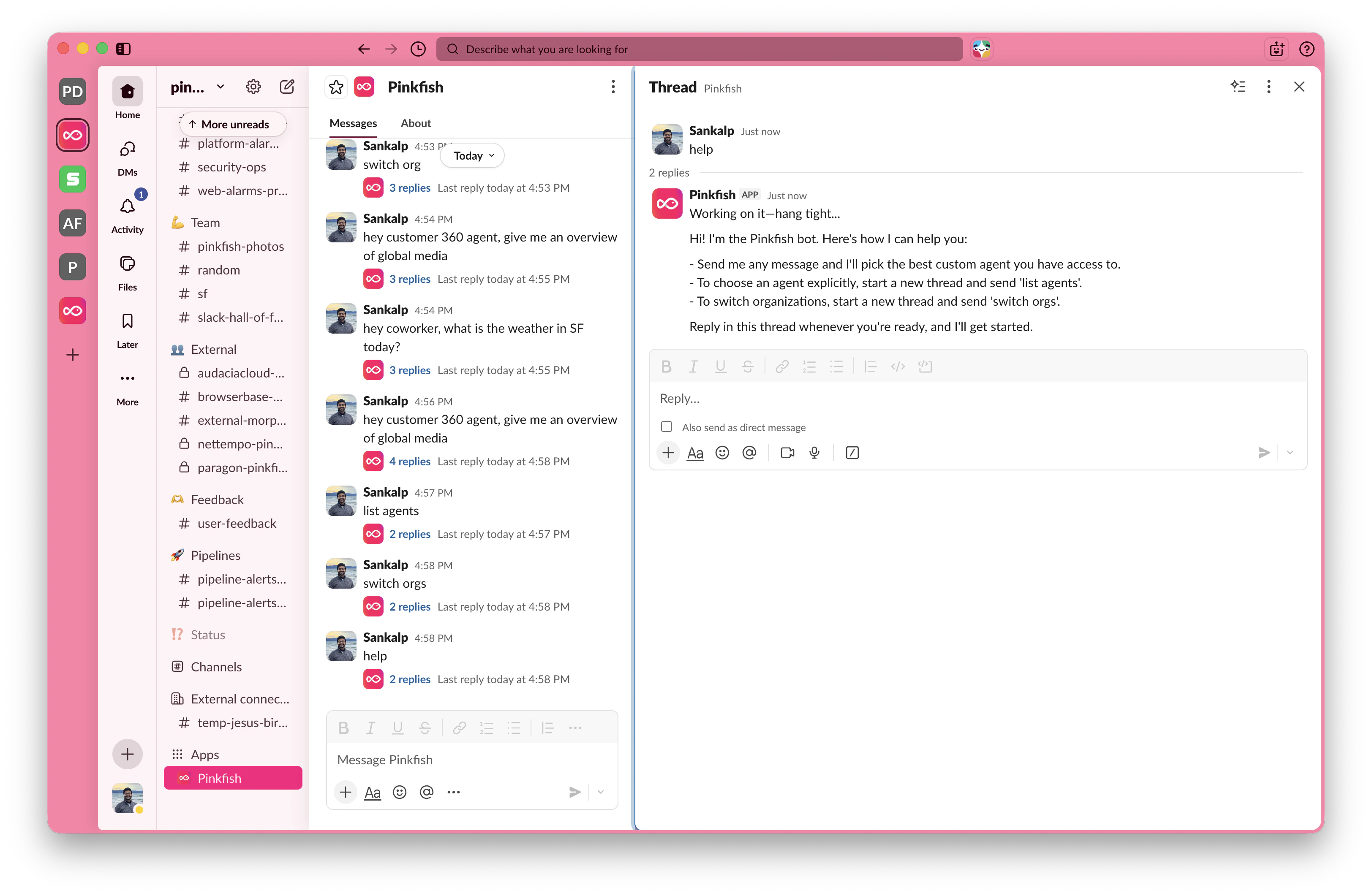
| `help` | Posts a short help message with tips on picking agents and switching orgs. |
| `list agents` | Shows a dropdown of agents you can route the thread to. |
| `switch orgs` | Lets you switch the Pinkfish organization this thread is associated with. |
These aren't Slack slash commands — just type them as a normal message.
## Uploading Files Into the Chat
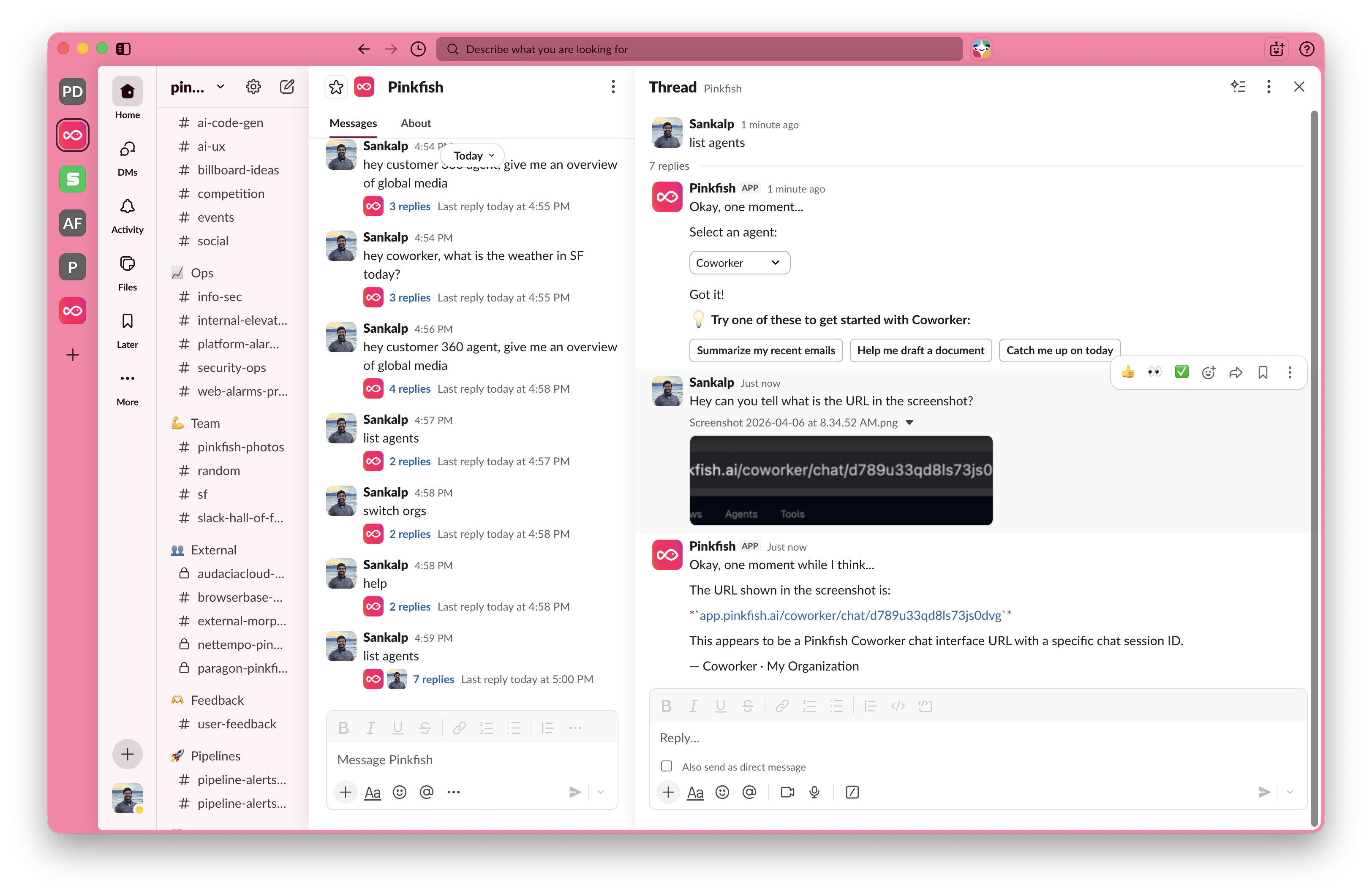
Drop files into the Slack DM the same way you'd share them with a teammate — drag them in, paste an image, or use Slack's **+** attachment button — and send a message alongside. Pinkfish downloads the attachments and hands them to the agent, so you can ask things like *"Summarize this contract"* or *"Extract the line items from this invoice."*
Common file types work: images (PNG, JPG), PDFs, CSVs, spreadsheets, and text documents. Individual files up to **50 MB** are supported.
## Prompt Examples
Agents that ship with [prompt examples](/agentic-editor/chat#examples-button) expose them inside the Slack conversation. When you first DM an agent — or start a new thread with `switch orgs` / `list agents` — Pinkfish posts a short greeting followed by a **Select a prompt...** dropdown listing every example. Pick one and Slack sends the prompt text back to the agent as if you had typed it yourself, so you don't have to copy/paste a suggested query or remember the exact phrasing.
Prompt examples are managed from the agent's editor in the Pinkfish web app (see [Agent Mode — Chat](/agentic-editor/chat#examples-button)). Any changes there are reflected in Slack and Microsoft Teams automatically the next time a new conversation starts.
## Rich Responses
### Formatting
Agents write in Markdown, and Pinkfish renders responses using Slack's native formatting:
* **Bold** and links show up as Slack-formatted text.
* Headings become bold section labels.
* Code blocks and inline code are preserved as monospace.
* Markdown tables are rendered inside code blocks so columns stay aligned in Slack.
### Files and artifacts
| Output | How it appears in Slack |
| -------------------------------------------------------- | ---------------------------------------------------------------- |
| Short text | Posted as a regular Slack message in the thread. |
| Generated files (images, PDFs, CSVs, spreadsheets, etc.) | Uploaded to the thread as Slack file attachments. |
| Rendered HTML web apps | Posted as shareable links that open the web app in your browser. |
Web-app artifacts stay interactive — they aren't flattened to images — so charts, filters, and other controls still work when you open the link.
## Approving Tools
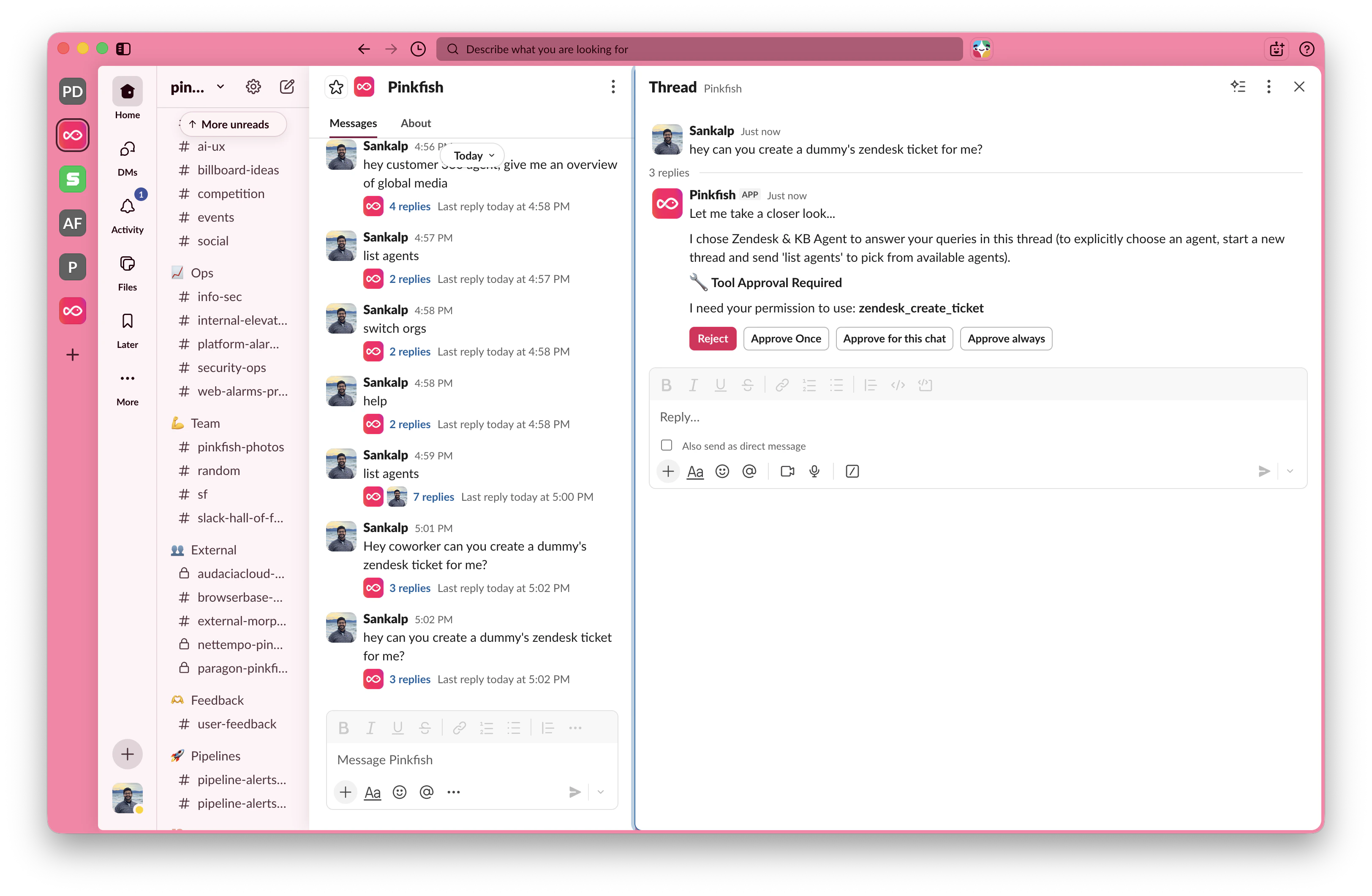
When an agent needs to use a tool for the first time, Pinkfish asks for approval right in the thread. You'll see a prompt like **🔧 Tool Approval Required** along with four buttons:
* **Reject** — cancel the tool call
* **Approve Once** — allow just this call
* **Approve for this chat** — allow this tool for the rest of the thread
* **Approve always** — allow this tool in any future Slack conversation
If a tool needs to be linked to a specific connection (for example, which Google account to use), Pinkfish shows a dropdown to pick the connection. If the right connection isn't set up yet, you'll be pointed back to the Pinkfish web app to complete the setup and then return to Slack.
## Inviting the Bot to a Channel
When you invite the Pinkfish app to a Slack channel, it immediately posts a short welcome at the channel root introducing itself and showing how to interact with it. The welcome works the same way in public and private channels.
*Inviting the Pinkfish app to a public channel — the welcome posts at the channel root.*
*The same welcome shows up when the bot is invited to a private channel.*
Most conversations with an agent still happen in direct messages — inviting the bot to a channel is primarily for discoverability.
## Notes
* The Pinkfish Slack app authenticates you using the email on your Slack profile. Make sure that email matches the one on your Pinkfish account.
* Each agent connects to a single Slack workspace per organization.
* The Slack Channel is a separate feature from the [Slack MCP server](/api-reference/mcp-servers/application/slack), which lets agents act on Slack as a tool (posting to channels, reading messages, and so on). The two can be used together.
* If your team uses Microsoft Teams instead, see [Microsoft Teams](/channels/microsoft-teams) for the equivalent integration.
* For other ways to start a workflow or agent, see [Triggers](/triggers/event-triggers). For Coworker inside the Pinkfish app, see [Coworker](/coworker/overview).
 The "thinking" message posts within a second or two of your request, so you always know your message was received:
 ## Enabling Slack for an Agent
Open the agent you want to reach from Slack and go to the **Channel** section of the agent editor.
## Enabling Slack for an Agent
Open the agent you want to reach from Slack and go to the **Channel** section of the agent editor.
 1. Toggle **Slack** on.
2. A browser popup redirects you to Slack to authorize the Pinkfish app in your workspace.
3. Approve the requested permissions. Slack returns you to Pinkfish, and the agent is now reachable from a DM in that workspace.
4. The Pinkfish app sends you a welcome DM confirming the connection.
To disconnect, toggle **Slack** off on the same card. This removes the channel binding for the agent; it does not uninstall the Slack app from the workspace.
### Organization-wide Slack
If your organization has Slack enabled globally, every published agent is reachable from Slack by default. The per-agent Slack toggle flips to an **opt-out** control: leave it on to keep the agent available in Slack, or turn it off to hide just that agent.
1. Toggle **Slack** on.
2. A browser popup redirects you to Slack to authorize the Pinkfish app in your workspace.
3. Approve the requested permissions. Slack returns you to Pinkfish, and the agent is now reachable from a DM in that workspace.
4. The Pinkfish app sends you a welcome DM confirming the connection.
To disconnect, toggle **Slack** off on the same card. This removes the channel binding for the agent; it does not uninstall the Slack app from the workspace.
### Organization-wide Slack
If your organization has Slack enabled globally, every published agent is reachable from Slack by default. The per-agent Slack toggle flips to an **opt-out** control: leave it on to keep the agent available in Slack, or turn it off to hide just that agent.
 Admins turn this on under **Settings → Channels → Availability**. It's useful when most of your team works from Slack and you'd rather whitelist exceptions than opt each agent in one by one.
## Threads and Conversations
Pinkfish treats Slack threads as chats.
* **Start a new conversation** by sending a new top-level message in the DM. Each new thread starts a fresh chat with a clean context.
* **Continue a conversation** by replying inside an existing thread. The same agent keeps the context of everything that was said.
* **Switch agents** by starting a new thread. You can't swap agents inside an existing thread.
## Picking an Agent
When you send a new message, Pinkfish routes it one of two ways:
* If the DM is wired to a specific agent, that agent answers.
* Otherwise, Pinkfish picks the best match from the agents available in your organization and runs it.
If you want to choose the agent yourself, start a new thread and send `list agents`. Pinkfish replies with a dropdown labeled **Select Agents…** listing every agent you have access to; pick one and it handles the thread.
Admins turn this on under **Settings → Channels → Availability**. It's useful when most of your team works from Slack and you'd rather whitelist exceptions than opt each agent in one by one.
## Threads and Conversations
Pinkfish treats Slack threads as chats.
* **Start a new conversation** by sending a new top-level message in the DM. Each new thread starts a fresh chat with a clean context.
* **Continue a conversation** by replying inside an existing thread. The same agent keeps the context of everything that was said.
* **Switch agents** by starting a new thread. You can't swap agents inside an existing thread.
## Picking an Agent
When you send a new message, Pinkfish routes it one of two ways:
* If the DM is wired to a specific agent, that agent answers.
* Otherwise, Pinkfish picks the best match from the agents available in your organization and runs it.
If you want to choose the agent yourself, start a new thread and send `list agents`. Pinkfish replies with a dropdown labeled **Select Agents…** listing every agent you have access to; pick one and it handles the thread.
 If you belong to multiple Pinkfish organizations, the app asks which one you want to use on your first message — you'll see a dropdown labeled **Select organization**. To change it later, start a new thread and send `switch orgs`.
 ## Built-in Commands
Pinkfish recognizes a few plain-text phrases as commands when they're the first message in a new thread:
| Command | What it does |
| ------------- | -------------------------------------------------------------------------- |
| `help` | Posts a short help message with tips on picking agents and switching orgs. |
| `list agents` | Shows a dropdown of agents you can route the thread to. |
| `switch orgs` | Lets you switch the Pinkfish organization this thread is associated with. |
These aren't Slack slash commands — just type them as a normal message.
## Built-in Commands
Pinkfish recognizes a few plain-text phrases as commands when they're the first message in a new thread:
| Command | What it does |
| ------------- | -------------------------------------------------------------------------- |
| `help` | Posts a short help message with tips on picking agents and switching orgs. |
| `list agents` | Shows a dropdown of agents you can route the thread to. |
| `switch orgs` | Lets you switch the Pinkfish organization this thread is associated with. |
These aren't Slack slash commands — just type them as a normal message.
 ## Uploading Files Into the Chat
Drop files into the Slack DM the same way you'd share them with a teammate — drag them in, paste an image, or use Slack's **+** attachment button — and send a message alongside. Pinkfish downloads the attachments and hands them to the agent, so you can ask things like *"Summarize this contract"* or *"Extract the line items from this invoice."*
Common file types work: images (PNG, JPG), PDFs, CSVs, spreadsheets, and text documents. Individual files up to **50 MB** are supported.
## Uploading Files Into the Chat
Drop files into the Slack DM the same way you'd share them with a teammate — drag them in, paste an image, or use Slack's **+** attachment button — and send a message alongside. Pinkfish downloads the attachments and hands them to the agent, so you can ask things like *"Summarize this contract"* or *"Extract the line items from this invoice."*
Common file types work: images (PNG, JPG), PDFs, CSVs, spreadsheets, and text documents. Individual files up to **50 MB** are supported.
 ## Prompt Examples
Agents that ship with [prompt examples](/agentic-editor/chat#examples-button) expose them inside the Slack conversation. When you first DM an agent — or start a new thread with `switch orgs` / `list agents` — Pinkfish posts a short greeting followed by a **Select a prompt...** dropdown listing every example. Pick one and Slack sends the prompt text back to the agent as if you had typed it yourself, so you don't have to copy/paste a suggested query or remember the exact phrasing.
Prompt examples are managed from the agent's editor in the Pinkfish web app (see [Agent Mode — Chat](/agentic-editor/chat#examples-button)). Any changes there are reflected in Slack and Microsoft Teams automatically the next time a new conversation starts.
## Rich Responses
### Formatting
Agents write in Markdown, and Pinkfish renders responses using Slack's native formatting:
* **Bold** and links show up as Slack-formatted text.
* Headings become bold section labels.
* Code blocks and inline code are preserved as monospace.
* Markdown tables are rendered inside code blocks so columns stay aligned in Slack.
### Files and artifacts
| Output | How it appears in Slack |
| -------------------------------------------------------- | ---------------------------------------------------------------- |
| Short text | Posted as a regular Slack message in the thread. |
| Generated files (images, PDFs, CSVs, spreadsheets, etc.) | Uploaded to the thread as Slack file attachments. |
| Rendered HTML web apps | Posted as shareable links that open the web app in your browser. |
## Prompt Examples
Agents that ship with [prompt examples](/agentic-editor/chat#examples-button) expose them inside the Slack conversation. When you first DM an agent — or start a new thread with `switch orgs` / `list agents` — Pinkfish posts a short greeting followed by a **Select a prompt...** dropdown listing every example. Pick one and Slack sends the prompt text back to the agent as if you had typed it yourself, so you don't have to copy/paste a suggested query or remember the exact phrasing.
Prompt examples are managed from the agent's editor in the Pinkfish web app (see [Agent Mode — Chat](/agentic-editor/chat#examples-button)). Any changes there are reflected in Slack and Microsoft Teams automatically the next time a new conversation starts.
## Rich Responses
### Formatting
Agents write in Markdown, and Pinkfish renders responses using Slack's native formatting:
* **Bold** and links show up as Slack-formatted text.
* Headings become bold section labels.
* Code blocks and inline code are preserved as monospace.
* Markdown tables are rendered inside code blocks so columns stay aligned in Slack.
### Files and artifacts
| Output | How it appears in Slack |
| -------------------------------------------------------- | ---------------------------------------------------------------- |
| Short text | Posted as a regular Slack message in the thread. |
| Generated files (images, PDFs, CSVs, spreadsheets, etc.) | Uploaded to the thread as Slack file attachments. |
| Rendered HTML web apps | Posted as shareable links that open the web app in your browser. |
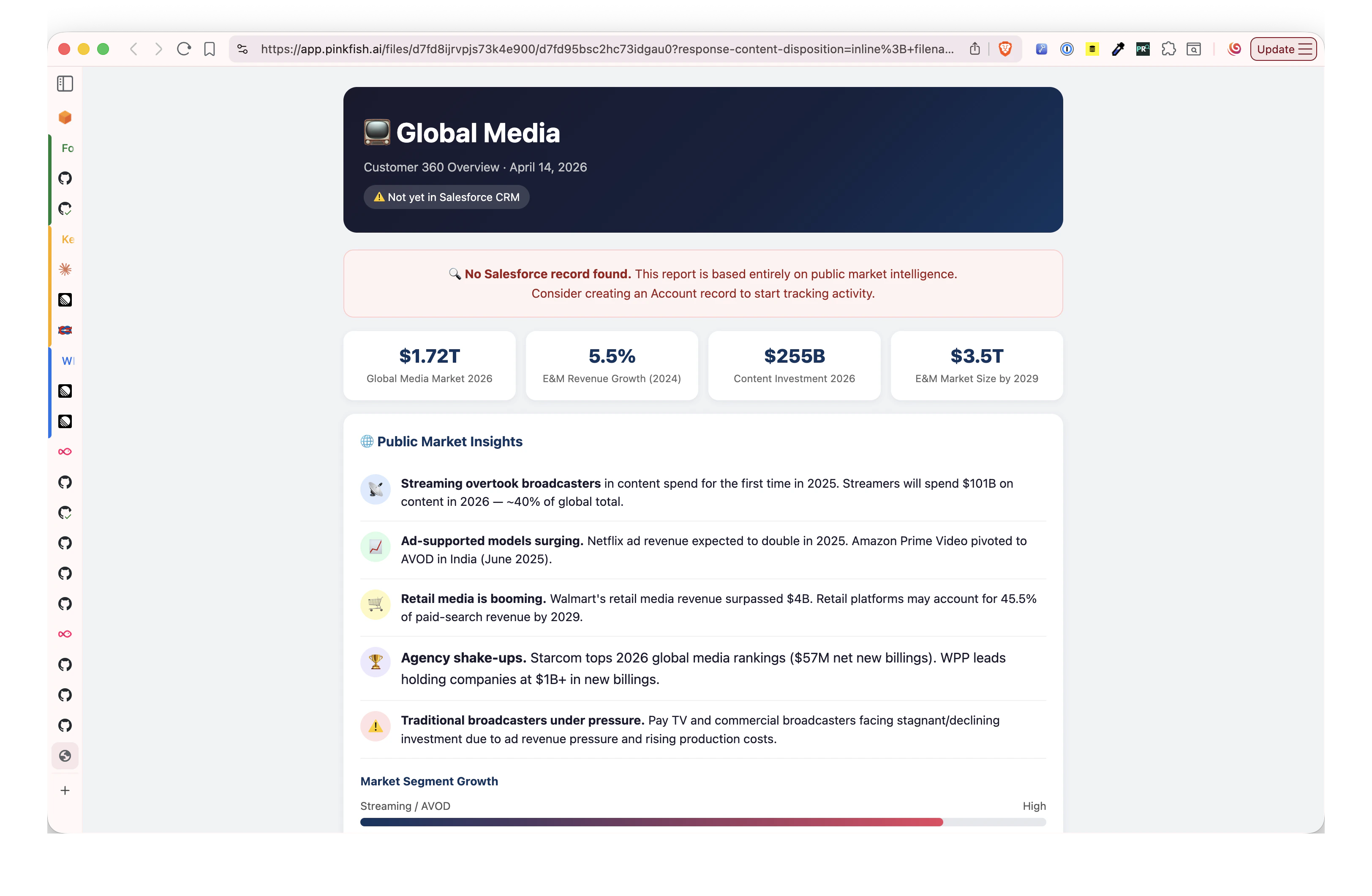 Web-app artifacts stay interactive — they aren't flattened to images — so charts, filters, and other controls still work when you open the link.
## Approving Tools
When an agent needs to use a tool for the first time, Pinkfish asks for approval right in the thread. You'll see a prompt like **🔧 Tool Approval Required** along with four buttons:
* **Reject** — cancel the tool call
* **Approve Once** — allow just this call
* **Approve for this chat** — allow this tool for the rest of the thread
* **Approve always** — allow this tool in any future Slack conversation
Web-app artifacts stay interactive — they aren't flattened to images — so charts, filters, and other controls still work when you open the link.
## Approving Tools
When an agent needs to use a tool for the first time, Pinkfish asks for approval right in the thread. You'll see a prompt like **🔧 Tool Approval Required** along with four buttons:
* **Reject** — cancel the tool call
* **Approve Once** — allow just this call
* **Approve for this chat** — allow this tool for the rest of the thread
* **Approve always** — allow this tool in any future Slack conversation
 If a tool needs to be linked to a specific connection (for example, which Google account to use), Pinkfish shows a dropdown to pick the connection. If the right connection isn't set up yet, you'll be pointed back to the Pinkfish web app to complete the setup and then return to Slack.
## Inviting the Bot to a Channel
When you invite the Pinkfish app to a Slack channel, it immediately posts a short welcome at the channel root introducing itself and showing how to interact with it. The welcome works the same way in public and private channels.
*Inviting the Pinkfish app to a public channel — the welcome posts at the channel root.*
*The same welcome shows up when the bot is invited to a private channel.*
Most conversations with an agent still happen in direct messages — inviting the bot to a channel is primarily for discoverability.
## Notes
* The Pinkfish Slack app authenticates you using the email on your Slack profile. Make sure that email matches the one on your Pinkfish account.
* Each agent connects to a single Slack workspace per organization.
* The Slack Channel is a separate feature from the [Slack MCP server](/api-reference/mcp-servers/application/slack), which lets agents act on Slack as a tool (posting to channels, reading messages, and so on). The two can be used together.
* If your team uses Microsoft Teams instead, see [Microsoft Teams](/channels/microsoft-teams) for the equivalent integration.
* For other ways to start a workflow or agent, see [Triggers](/triggers/event-triggers). For Coworker inside the Pinkfish app, see [Coworker](/coworker/overview).
If a tool needs to be linked to a specific connection (for example, which Google account to use), Pinkfish shows a dropdown to pick the connection. If the right connection isn't set up yet, you'll be pointed back to the Pinkfish web app to complete the setup and then return to Slack.
## Inviting the Bot to a Channel
When you invite the Pinkfish app to a Slack channel, it immediately posts a short welcome at the channel root introducing itself and showing how to interact with it. The welcome works the same way in public and private channels.
*Inviting the Pinkfish app to a public channel — the welcome posts at the channel root.*
*The same welcome shows up when the bot is invited to a private channel.*
Most conversations with an agent still happen in direct messages — inviting the bot to a channel is primarily for discoverability.
## Notes
* The Pinkfish Slack app authenticates you using the email on your Slack profile. Make sure that email matches the one on your Pinkfish account.
* Each agent connects to a single Slack workspace per organization.
* The Slack Channel is a separate feature from the [Slack MCP server](/api-reference/mcp-servers/application/slack), which lets agents act on Slack as a tool (posting to channels, reading messages, and so on). The two can be used together.
* If your team uses Microsoft Teams instead, see [Microsoft Teams](/channels/microsoft-teams) for the equivalent integration.
* For other ways to start a workflow or agent, see [Triggers](/triggers/event-triggers). For Coworker inside the Pinkfish app, see [Coworker](/coworker/overview).