> ## Documentation Index
> Fetch the complete documentation index at: https://docs.pinkfish.ai/llms.txt
> Use this file to discover all available pages before exploring further.
# Tools tab
> MCP connections, embedded services, agents-as-tools, and workflows-as-tools
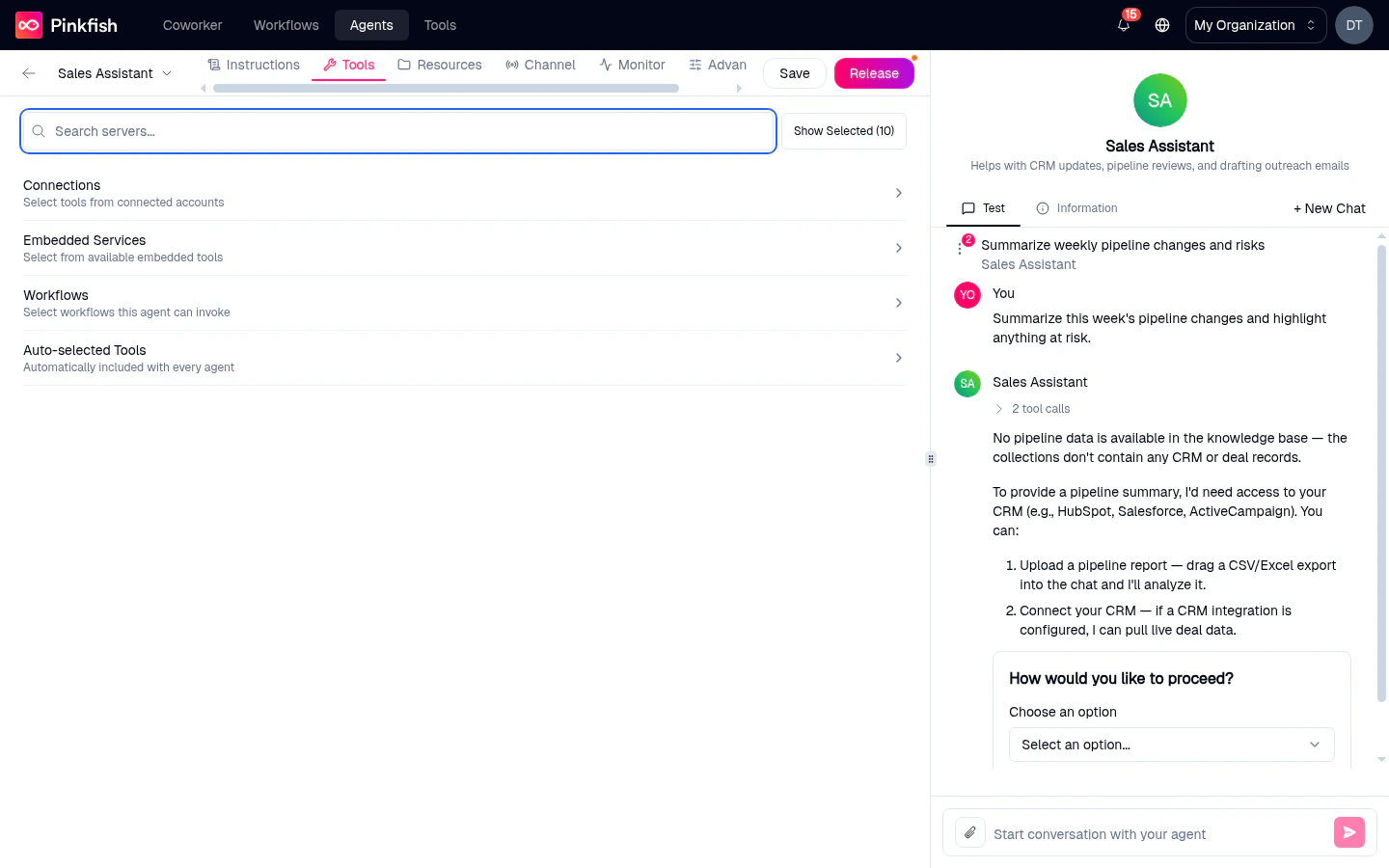
The **Tools** tab is where you decide what the agent can actually *do*. Every tool you pick here becomes callable by the agent at runtime.
 ## The four categories
Tools are grouped into expandable sections. Click a section header to expand or collapse it.
### Connections
MCP servers for third-party integrations that authenticate via OAuth or API keys — Slack, Gmail, Google Drive, Salesforce, HubSpot, Jira, Notion, and many more. These draw from the **Integrations** you've connected in your workspace.
For each server, you can:
* **Check the whole server** — the agent gets every tool the server exposes.
* **Click to expand** — pick a subset of tools. Useful when a server exposes 50 tools but you only need three.
### Embedded Services
Pinkfish's built-in MCP servers that don't require an OAuth connection — things like code execution, artifact management, and agent-memory helpers. These are always available to any user in the org.
### Agents
*(Only visible when other agents exist.)* Other agents in your workspace that this agent is allowed to delegate to. When selected, the target agent shows up as a callable "tool" — the current agent can invoke it the same way it would invoke any other tool.
This is how you build teams of specialized agents instead of one monolithic one.
### Workflows
Pinkfish workflows that the agent can trigger.
> *"Select workflows this agent can invoke"*
A workflow attached here appears to the agent as a tool: the agent decides when to call it, passes input, and receives the workflow output as a structured response. Great for multi-step procedures that you've already encoded as a workflow (e.g. "run the customer onboarding flow").
**Workflows attach here, not under Resources.** A common confusion — "resources" in Pinkfish means data (datastores, filestores, KBs), while workflows are *actions* and live under Tools.
### Auto-selected Tools
Tools that every agent gets automatically. Checkboxes are shown but locked — you can see what's included, not toggle it.
Examples (subject to platform evolution):
* **Write Artifact / Read Artifact / List Artifacts** — lets the agent produce files, spreadsheets, and documents inside a chat.
* **Write Artifact from URL** — ingest content from a URL as an artifact.
* **Run Code** — execute Python snippets.
## Finding tools
* **Search servers…** — filter the entire list by server name or description (case-insensitive, 200 ms debounce).
* **Show Selected (N)** — toggle the view to just the tools you've checked. The `N` always reflects the current selection count.
* **Select all / Deselect all** — per-section bulk toggles.
## Discovery Tools (tool overflow)
Selecting more than 25 tools triggers a banner:
> *"You've added more than 25 tools. To keep agents effective at scale, **Discovery Tools** are automatically enabled so the agent can dynamically find the right tool among the ones selected. This may add a few seconds to execution but improves accuracy."*
With Discovery on, the agent first searches its tool library for candidates before calling any of them — slightly slower per turn but dramatically more accurate when the toolset is broad.
You don't need to enable Discovery Tools manually. Pinkfish decides based on how many tools you selected.
## Tool approvals and interactive UI (human-in-the-loop)
Some tools are configured to pause for explicit user approval before running, and agents can also ask users for input mid-conversation. Unlike fixed "always allow / ask / never" policies, Pinkfish interaction is **runtime-driven**: the agent either drafts a call and waits for **Approve** / **Reject**, or asks the user to pick from options before it proceeds.
In the screenshot above, the Sales Assistant agent discovered it didn't have pipeline data and asked the user *"How would you like to proceed?"* with a **Choose an option** dropdown. The agent wrote the question, Pinkfish rendered it as an interactive control, and execution paused until the user picked.
Approvals have four states:
| State | Meaning |
| ---------- | ---------------------------------------------------------------------------------------------- |
| `PENDING` | Waiting for a human to decide. |
| `APPROVED` | The user clicked Approve — execution resumes. |
| `REJECTED` | The user clicked Reject — the tool call is cancelled; the agent gets the rejection as context. |
| `EXPIRED` | 24-hour TTL elapsed without a decision. The call is treated as a rejection. |
Approvals are surfaced in chat where the conversation is happening — a Coworker chat, a Slack thread, or a Teams thread. They can also be granted without a Pinkfish login when the approval is configured to `allowPublicAccess`.
Approvals are most useful for destructive or sensitive actions — paid calls to external APIs, production writes, outbound email.
Approvals are configured per-tool at the platform level (and on workflow nodes, for workflows that are attached as tools). The Tools tab lets you *pick* the tools; the approval behavior is inherited from each tool's settings.
## Connections — how the agent picks one
If your organization has multiple accounts connected for the same integration (e.g. a personal Gmail and a team Gmail), the agent needs to know which one to use.
* For integrations that belong to *a single user*, the agent uses **your** connection when you're the one chatting with it. When another user chats with the same agent, it uses theirs. Integrations are **not** shared across accounts — this is why sharing an agent doesn't hand out your OAuth tokens.
* For integrations that belong to *an org-level account*, everyone who has access to the agent uses the same connection.
Missing a connection? The agent will report that the tool isn't authenticated; you'll be prompted to connect the integration before continuing.
## Related
* [MCPs](/agents/mcps) — how agents discover and call MCP tools.
* [Resources tab](/agents/resources) — data the agent can read and write (separate from Tools).
* [API connections](/tools/connections) — the integrations that feed the Connections section.
* [Agent Management API](/api-reference/platform/agent-management) — programmatic tool configuration.
## The four categories
Tools are grouped into expandable sections. Click a section header to expand or collapse it.
### Connections
MCP servers for third-party integrations that authenticate via OAuth or API keys — Slack, Gmail, Google Drive, Salesforce, HubSpot, Jira, Notion, and many more. These draw from the **Integrations** you've connected in your workspace.
For each server, you can:
* **Check the whole server** — the agent gets every tool the server exposes.
* **Click to expand** — pick a subset of tools. Useful when a server exposes 50 tools but you only need three.
### Embedded Services
Pinkfish's built-in MCP servers that don't require an OAuth connection — things like code execution, artifact management, and agent-memory helpers. These are always available to any user in the org.
### Agents
*(Only visible when other agents exist.)* Other agents in your workspace that this agent is allowed to delegate to. When selected, the target agent shows up as a callable "tool" — the current agent can invoke it the same way it would invoke any other tool.
This is how you build teams of specialized agents instead of one monolithic one.
### Workflows
Pinkfish workflows that the agent can trigger.
> *"Select workflows this agent can invoke"*
A workflow attached here appears to the agent as a tool: the agent decides when to call it, passes input, and receives the workflow output as a structured response. Great for multi-step procedures that you've already encoded as a workflow (e.g. "run the customer onboarding flow").
**Workflows attach here, not under Resources.** A common confusion — "resources" in Pinkfish means data (datastores, filestores, KBs), while workflows are *actions* and live under Tools.
### Auto-selected Tools
Tools that every agent gets automatically. Checkboxes are shown but locked — you can see what's included, not toggle it.
Examples (subject to platform evolution):
* **Write Artifact / Read Artifact / List Artifacts** — lets the agent produce files, spreadsheets, and documents inside a chat.
* **Write Artifact from URL** — ingest content from a URL as an artifact.
* **Run Code** — execute Python snippets.
## Finding tools
* **Search servers…** — filter the entire list by server name or description (case-insensitive, 200 ms debounce).
* **Show Selected (N)** — toggle the view to just the tools you've checked. The `N` always reflects the current selection count.
* **Select all / Deselect all** — per-section bulk toggles.
## Discovery Tools (tool overflow)
Selecting more than 25 tools triggers a banner:
> *"You've added more than 25 tools. To keep agents effective at scale, **Discovery Tools** are automatically enabled so the agent can dynamically find the right tool among the ones selected. This may add a few seconds to execution but improves accuracy."*
With Discovery on, the agent first searches its tool library for candidates before calling any of them — slightly slower per turn but dramatically more accurate when the toolset is broad.
You don't need to enable Discovery Tools manually. Pinkfish decides based on how many tools you selected.
## Tool approvals and interactive UI (human-in-the-loop)
Some tools are configured to pause for explicit user approval before running, and agents can also ask users for input mid-conversation. Unlike fixed "always allow / ask / never" policies, Pinkfish interaction is **runtime-driven**: the agent either drafts a call and waits for **Approve** / **Reject**, or asks the user to pick from options before it proceeds.
In the screenshot above, the Sales Assistant agent discovered it didn't have pipeline data and asked the user *"How would you like to proceed?"* with a **Choose an option** dropdown. The agent wrote the question, Pinkfish rendered it as an interactive control, and execution paused until the user picked.
Approvals have four states:
| State | Meaning |
| ---------- | ---------------------------------------------------------------------------------------------- |
| `PENDING` | Waiting for a human to decide. |
| `APPROVED` | The user clicked Approve — execution resumes. |
| `REJECTED` | The user clicked Reject — the tool call is cancelled; the agent gets the rejection as context. |
| `EXPIRED` | 24-hour TTL elapsed without a decision. The call is treated as a rejection. |
Approvals are surfaced in chat where the conversation is happening — a Coworker chat, a Slack thread, or a Teams thread. They can also be granted without a Pinkfish login when the approval is configured to `allowPublicAccess`.
Approvals are most useful for destructive or sensitive actions — paid calls to external APIs, production writes, outbound email.
Approvals are configured per-tool at the platform level (and on workflow nodes, for workflows that are attached as tools). The Tools tab lets you *pick* the tools; the approval behavior is inherited from each tool's settings.
## Connections — how the agent picks one
If your organization has multiple accounts connected for the same integration (e.g. a personal Gmail and a team Gmail), the agent needs to know which one to use.
* For integrations that belong to *a single user*, the agent uses **your** connection when you're the one chatting with it. When another user chats with the same agent, it uses theirs. Integrations are **not** shared across accounts — this is why sharing an agent doesn't hand out your OAuth tokens.
* For integrations that belong to *an org-level account*, everyone who has access to the agent uses the same connection.
Missing a connection? The agent will report that the tool isn't authenticated; you'll be prompted to connect the integration before continuing.
## Related
* [MCPs](/agents/mcps) — how agents discover and call MCP tools.
* [Resources tab](/agents/resources) — data the agent can read and write (separate from Tools).
* [API connections](/tools/connections) — the integrations that feed the Connections section.
* [Agent Management API](/api-reference/platform/agent-management) — programmatic tool configuration.