> ## Documentation Index
> Fetch the complete documentation index at: https://docs.pinkfish.ai/llms.txt
> Use this file to discover all available pages before exploring further.
# My Agents
> The /agents page — list, filter, search, and monitor every agent in your workspace
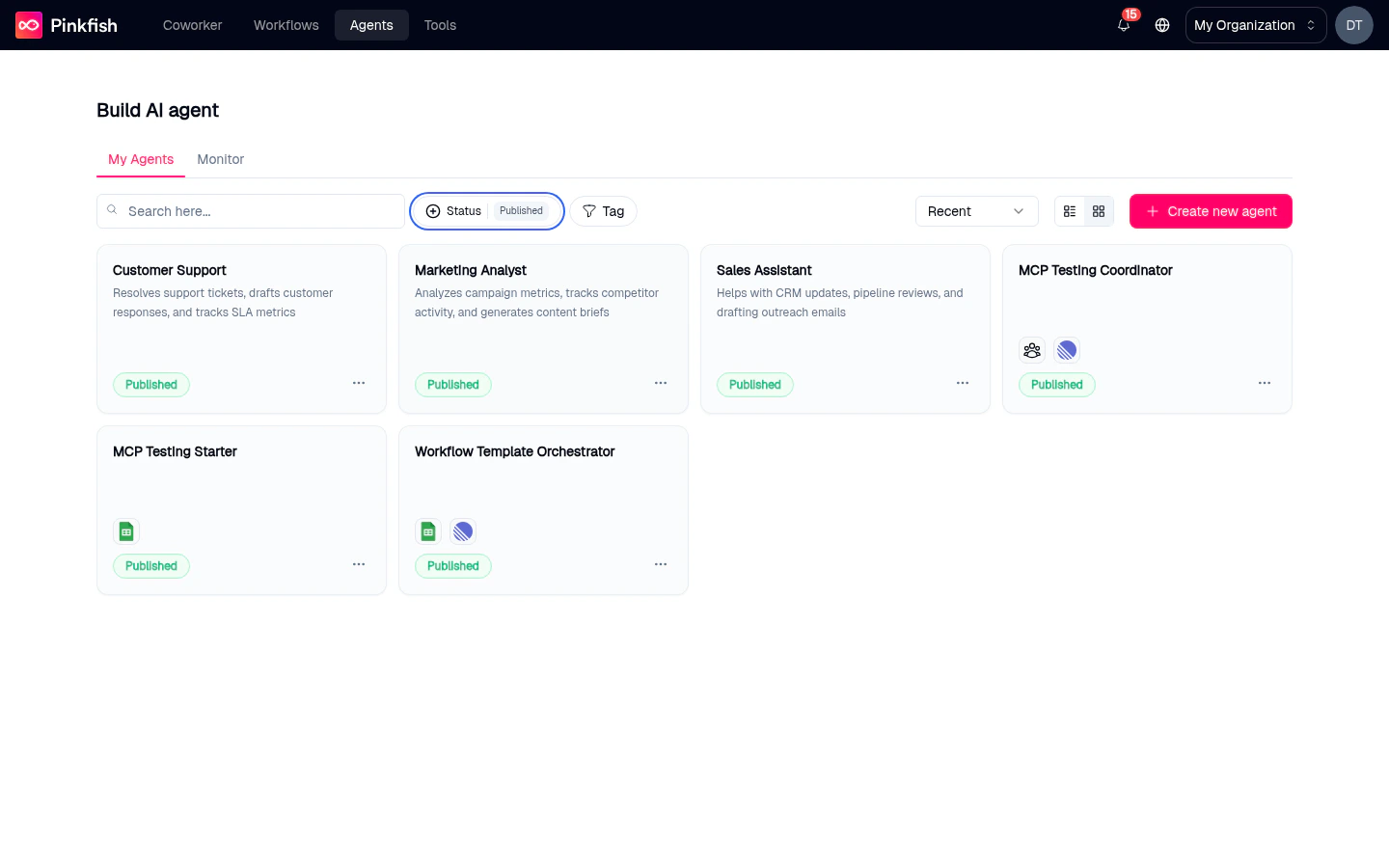
The **Agents** tab in Pinkfish's top navigation opens `/agents` — the home for every agent in your workspace. The page has two sub-tabs:
* **My Agents** — the inventory of every agent you can see or edit.
* **Monitor** — an org-wide feed of agent chats, for debugging and analytics.
 ## My Agents list
The list shows every agent you have permission to view. Each row gives you the essentials at a glance.
### Columns
| Column | What it shows |
| ----------------- | ---------------------------------------------------------------------------------------------------------------------------------------------------------------------------------- |
| **Agent Name** | The agent's name and up to \~80 characters of description. A small "shared" icon appears on agents shared with other accounts. A globe icon appears on agents published as public. |
| **Status** | `Published` / `Draft` / `Unpublished Changes`. See [Save & Release](/agents/releases) for the full model. |
| **Tags** | Up to one tag per row. A dash (`—`) means no tags. Click the tag filter to narrow the list. |
| **Created By** | Either `Created by me`, `Created by anyone`, or `Not created by me`. |
| **Last Modified** | When the agent was last saved. |
| **Actions** | The `⋯` menu described below. |
### Filters, search, and views
* **Search here…** — free-text search over agent name, description, and creator name.
* **Status** — filter by Published, Draft, or Unpublished Changes.
* **Tag** — filter by any tag applied to agents.
* **Recent / alphabetical** — sort order (grid view only).
* **Grid ↔ List** — toggle the view in the top-right. Grid shows cards; list shows the table with a row-action `⋯` menu.
### Creating a new agent
The pink **Create new agent** button in the top-right of the page takes you to `/agents/builder/new`. See [Agent Builder](/agents/agent-builder) for what happens next.
## My Agents list
The list shows every agent you have permission to view. Each row gives you the essentials at a glance.
### Columns
| Column | What it shows |
| ----------------- | ---------------------------------------------------------------------------------------------------------------------------------------------------------------------------------- |
| **Agent Name** | The agent's name and up to \~80 characters of description. A small "shared" icon appears on agents shared with other accounts. A globe icon appears on agents published as public. |
| **Status** | `Published` / `Draft` / `Unpublished Changes`. See [Save & Release](/agents/releases) for the full model. |
| **Tags** | Up to one tag per row. A dash (`—`) means no tags. Click the tag filter to narrow the list. |
| **Created By** | Either `Created by me`, `Created by anyone`, or `Not created by me`. |
| **Last Modified** | When the agent was last saved. |
| **Actions** | The `⋯` menu described below. |
### Filters, search, and views
* **Search here…** — free-text search over agent name, description, and creator name.
* **Status** — filter by Published, Draft, or Unpublished Changes.
* **Tag** — filter by any tag applied to agents.
* **Recent / alphabetical** — sort order (grid view only).
* **Grid ↔ List** — toggle the view in the top-right. Grid shows cards; list shows the table with a row-action `⋯` menu.
### Creating a new agent
The pink **Create new agent** button in the top-right of the page takes you to `/agents/builder/new`. See [Agent Builder](/agents/agent-builder) for what happens next.
 ### Status badges
The **Status** column uses three colored badges. They roll up the draft-vs-release state from the builder.
### Status badges
The **Status** column uses three colored badges. They roll up the draft-vs-release state from the builder.
 | Badge | Meaning |
| ----------------------- | ------------------------------------------------------------------------------------------------------------------------------------------------------------ |
| **Published** | The agent has at least one release and no un-saved changes beyond it. Available in Coworker. |
| **Unpublished Changes** | The agent has a release, but the latest draft differs from it. The release is still live; the draft will overtake it only after you click **Release** again. |
| **Draft** | The agent has never been released. Only you can use it from the builder preview. |
### Row actions
In list view, click the `⋯` icon on any row to open a dropdown with:
| Badge | Meaning |
| ----------------------- | ------------------------------------------------------------------------------------------------------------------------------------------------------------ |
| **Published** | The agent has at least one release and no un-saved changes beyond it. Available in Coworker. |
| **Unpublished Changes** | The agent has a release, but the latest draft differs from it. The release is still live; the draft will overtake it only after you click **Release** again. |
| **Draft** | The agent has never been released. Only you can use it from the builder preview. |
### Row actions
In list view, click the `⋯` icon on any row to open a dropdown with:
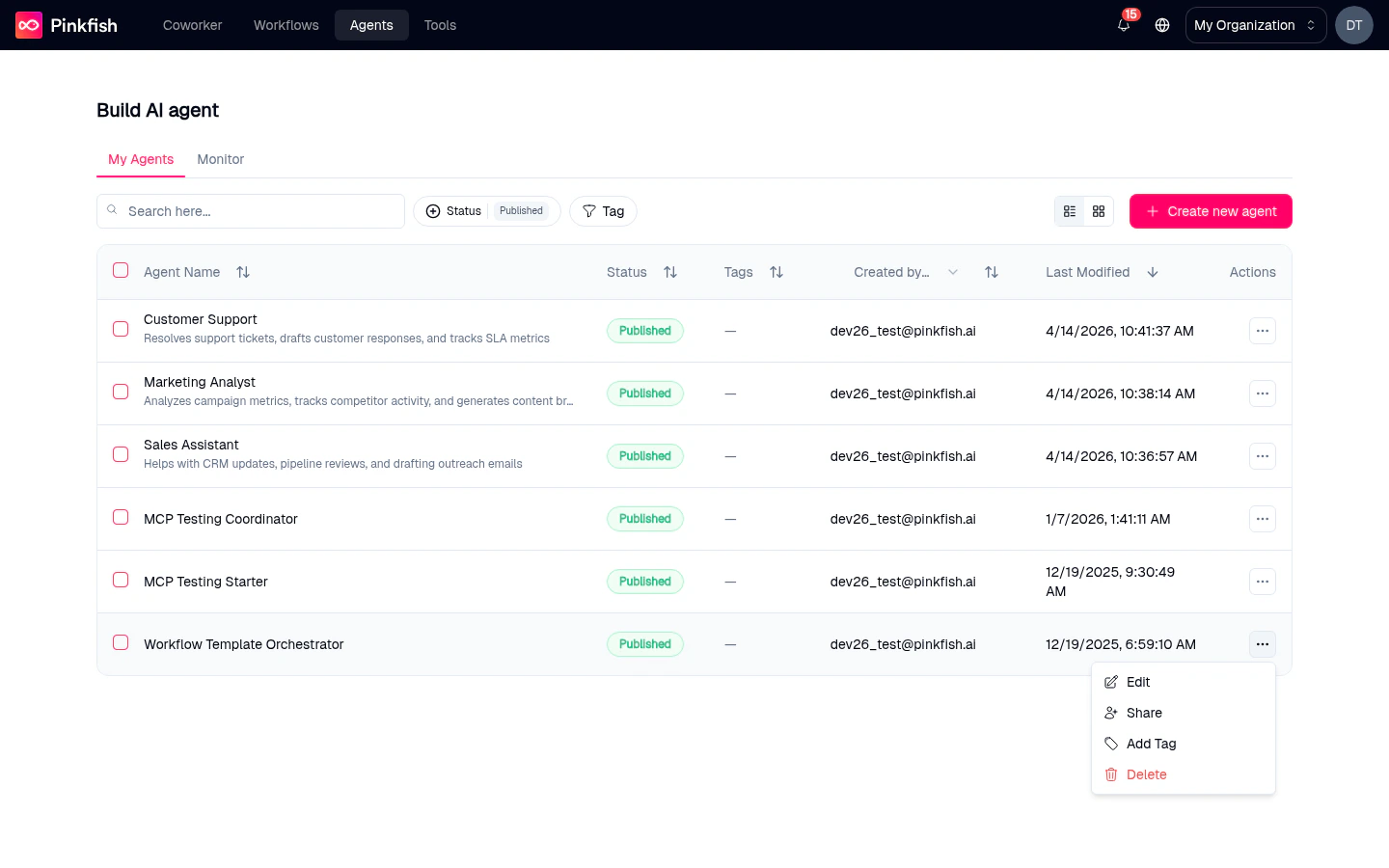 * **Edit** — open the agent in the builder.
* **Share** — open the **Share Agent** modal and pick the people, or your whole organization, who can use this agent. **Chat** lets them use it; **Manage** also lets them configure and share it. Sharing gives access to the agent; it does not share your OAuth connections.
* **Add Tag** — open the tag editor to add or remove tags.
* **Delete** — permanently delete the agent. A confirmation dialog asks *"Are you sure you want to delete this agent?"* before anything is removed.
For public agents, an additional **Remove Public Agent** entry appears — it takes the agent off the public catalog without deleting it.
You can't rename an agent from this menu. Rename from the **Instructions** tab inside the builder.
### Empty state
Before you've created any agent, the list is replaced with a welcome card:
> *"Create your first expert agent that you can interact with to get work done."*
It has a **Create new agent** button and a **Watch: How to create an agent** link.
## Monitor tab
The **Monitor** tab at the top of `/agents` is the org-wide agent chat feed. It's identical to the standalone [Agent Monitor](/orchestration/agent-monitor) page — the same data, opened through a different entry point.
* **Edit** — open the agent in the builder.
* **Share** — open the **Share Agent** modal and pick the people, or your whole organization, who can use this agent. **Chat** lets them use it; **Manage** also lets them configure and share it. Sharing gives access to the agent; it does not share your OAuth connections.
* **Add Tag** — open the tag editor to add or remove tags.
* **Delete** — permanently delete the agent. A confirmation dialog asks *"Are you sure you want to delete this agent?"* before anything is removed.
For public agents, an additional **Remove Public Agent** entry appears — it takes the agent off the public catalog without deleting it.
You can't rename an agent from this menu. Rename from the **Instructions** tab inside the builder.
### Empty state
Before you've created any agent, the list is replaced with a welcome card:
> *"Create your first expert agent that you can interact with to get work done."*
It has a **Create new agent** button and a **Watch: How to create an agent** link.
## Monitor tab
The **Monitor** tab at the top of `/agents` is the org-wide agent chat feed. It's identical to the standalone [Agent Monitor](/orchestration/agent-monitor) page — the same data, opened through a different entry point.
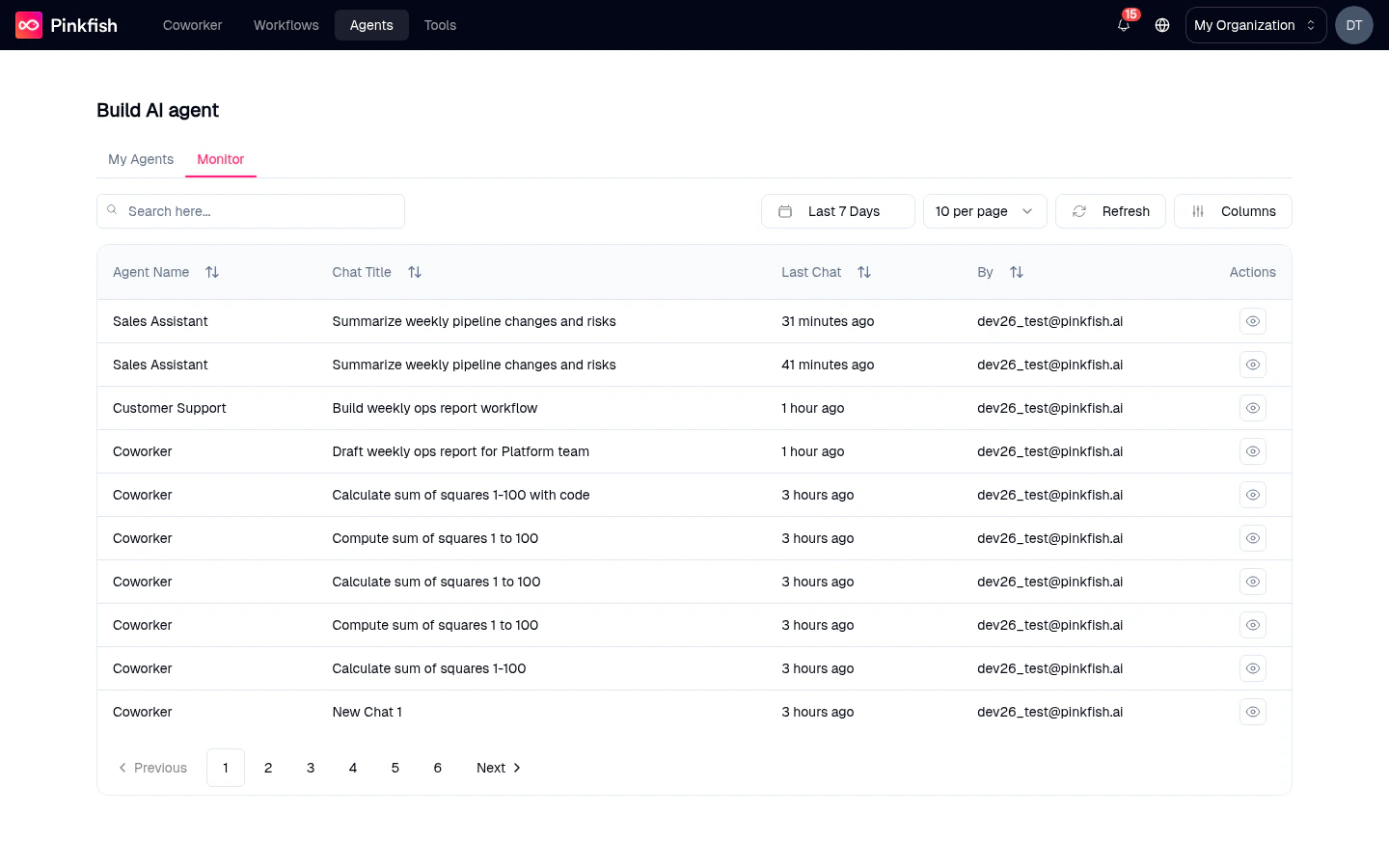 Use it to:
* See every chat across every agent in your org for the last 7 days (customizable).
* Search by agent name, chat title, or user.
* Click a row to drill into the full conversation.
* Toggle which columns to show.
For an agent-scoped version that only shows the current agent's chats, use the **Monitor** tab *inside the builder* — see [Monitor](/agents/monitor).
## Keyboard tips
* `/` focuses the **Search here…** input on the list page.
* Pressing **Esc** closes any open filter dropdown or confirmation.
## Related
* [Agent Builder](/agents/agent-builder) — what happens when you click into a row.
* [Save & Release](/agents/releases) — what the status badges mean under the hood.
* [Agent Monitor](/orchestration/agent-monitor) — the org-wide monitoring page.
Use it to:
* See every chat across every agent in your org for the last 7 days (customizable).
* Search by agent name, chat title, or user.
* Click a row to drill into the full conversation.
* Toggle which columns to show.
For an agent-scoped version that only shows the current agent's chats, use the **Monitor** tab *inside the builder* — see [Monitor](/agents/monitor).
## Keyboard tips
* `/` focuses the **Search here…** input on the list page.
* Pressing **Esc** closes any open filter dropdown or confirmation.
## Related
* [Agent Builder](/agents/agent-builder) — what happens when you click into a row.
* [Save & Release](/agents/releases) — what the status badges mean under the hood.
* [Agent Monitor](/orchestration/agent-monitor) — the org-wide monitoring page.