> ## Documentation Index
> Fetch the complete documentation index at: https://docs.pinkfish.ai/llms.txt
> Use this file to discover all available pages before exploring further.
# AI Agents
> Configurable AI assistants with custom instructions, tools, resources, and channels
An **agent** in Pinkfish is a configurable AI assistant. You define how it behaves with instructions, choose which model it runs on, pick the tools it can call (via MCP servers, attached workflows, or other agents), grant it access to resources (datastores, filestores, knowledge bases), and expose it through one or more channels (web chat, Slack, Microsoft Teams, a public URL). You **save** drafts while iterating and **release** published versions that become usable from Coworker.
 ## What's in this section
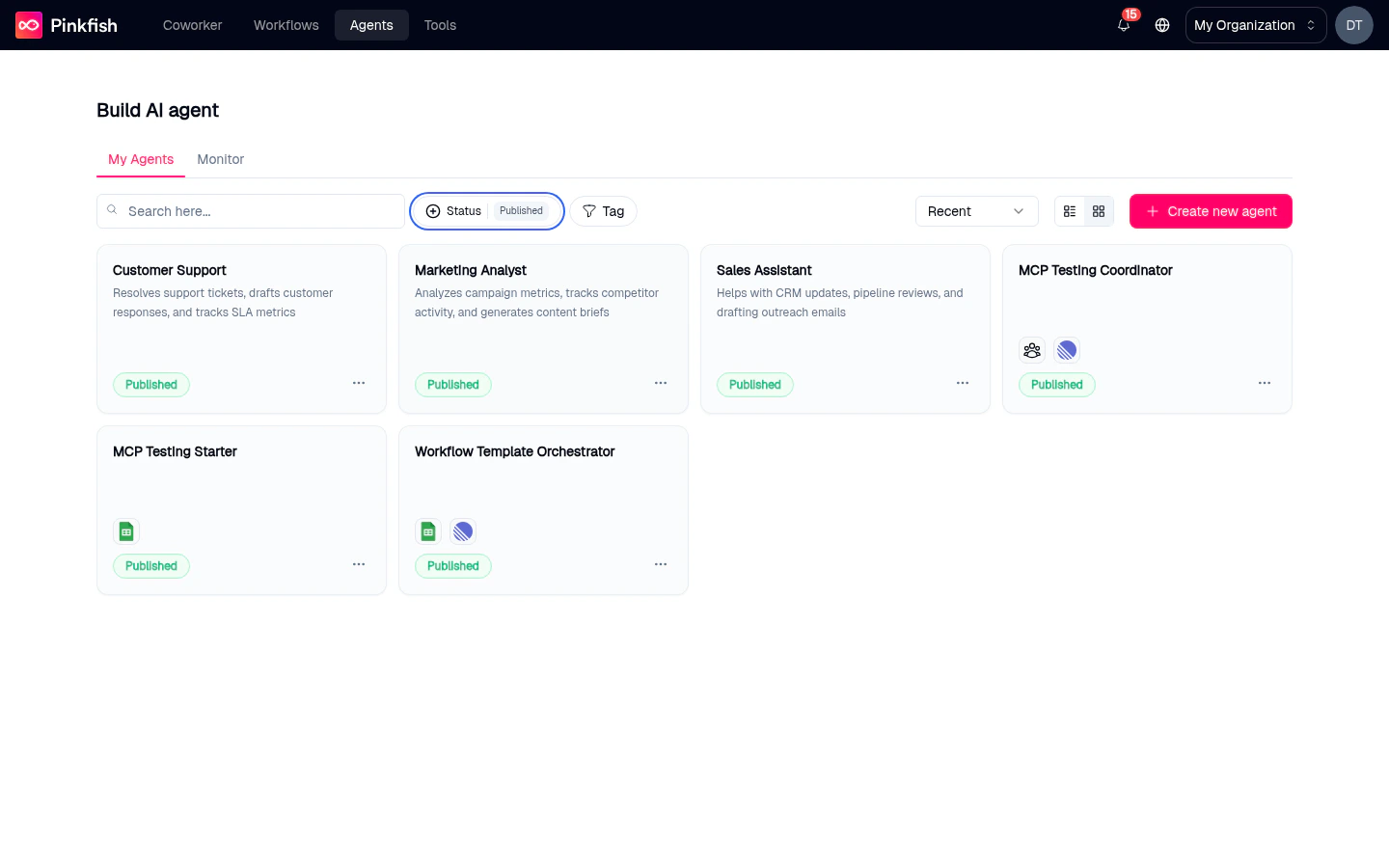
The `/agents` page — list, filter, search, and monitor all agents in your workspace.
Anatomy of the builder: tabs on the left, live preview on the right, save and release controls on top.
Name, icon, description, system prompt, model choice, and prompt bubbles.
MCP connections, embedded services, agents-as-tools, and workflows-as-tools.
Attach datastores, filestores, and knowledge bases with Read / Write / Admin permissions.
Publish your agent to Slack, Microsoft Teams, or a public External URL.
Replay an agent's chats, inspect tool calls, and debug behavior from inside the builder.
Output Schema — force structured JSON responses when calling the agent via API.
The draft-vs-release model, how releases reach Coworker, and how to roll back.
How agents discover and invoke MCP tools from your integrations.
## Agent types
Pinkfish supports two agent types:
* **Chat** — A conversational agent that responds to messages. Use for assistants, researchers, and copilots.
* **Workflow** — An agent bound to a specific workflow. Use when you want a workflow run to be triggered conversationally.
Both types use the same builder.
## Where agents run
An agent can answer messages from any of these places once you release it:
* **Coworker** — The chat tab inside Pinkfish. `@`-mention the agent in a Coworker chat.
* **Slack** — Connect a Slack workspace in the Channels tab.
* **Microsoft Teams** — Connect a Teams tenant in the Channels tab.
* **External (public URL)** — A public link that anyone can chat with, with no Pinkfish login.
* **API** — Programmatic access with an agent API key. See [Agent Management API](/api-reference/platform/agent-management).
## How the pieces fit together
On the **Instructions** tab, give the agent a name, an icon, a description users will see, a system prompt that defines its behavior, and a model. Optionally add prompt bubbles — one-click conversation starters.
On the **Tools** tab, select MCP servers (integrations), Embedded Services, other agents you want this agent to be able to delegate to, and workflows it can trigger. Pinkfish adds a few Auto-selected Tools for every agent.
On the **Resources** tab, grant read/write/admin access to specific datastores, filestores, and knowledge bases. Required tools are added to the Tools tab automatically.
On the **Channels** tab, enable Slack, Microsoft Teams, or make the agent public via External. A published release is required before External works.
The right-hand **Preview** pane is a live chat against your current draft. Click **Information** in the preview to double-check the selected model, tools, and resources.
**Save** commits a draft. **Release** publishes an immutable snapshot that becomes available in everyone's Coworker tab (subject to sharing).
## Agent Memory
Store and recall user preferences and context across conversations and
sessions.
## Sharing agents
Agents can be shared with other people in your org via the agent's **Share** action. Recipients get access to chat with the agent, but they must connect their own integrations — Pinkfish does not share your OAuth tokens. See the [API reference](/api-reference/platform/agent-management) for programmatic sharing.
## Related features
* **[Coworker](/coworker/overview)** — Where released agents appear for `@`-mention and chat.
* **[Agent Monitor](/orchestration/agent-monitor)** — Org-wide view of every agent chat across all users.
* **[Datastores](/resources/database)**, **[Filestores](/resources/file-store)**, **[Knowledge Bases](/resources/knowledge-base)** — The three resource types you can attach.
* **[API connections](/tools/connections)** — The integrations that feed the Tools tab.
## What's in this section
The `/agents` page — list, filter, search, and monitor all agents in your workspace.
Anatomy of the builder: tabs on the left, live preview on the right, save and release controls on top.
Name, icon, description, system prompt, model choice, and prompt bubbles.
MCP connections, embedded services, agents-as-tools, and workflows-as-tools.
Attach datastores, filestores, and knowledge bases with Read / Write / Admin permissions.
Publish your agent to Slack, Microsoft Teams, or a public External URL.
Replay an agent's chats, inspect tool calls, and debug behavior from inside the builder.
Output Schema — force structured JSON responses when calling the agent via API.
The draft-vs-release model, how releases reach Coworker, and how to roll back.
How agents discover and invoke MCP tools from your integrations.
## Agent types
Pinkfish supports two agent types:
* **Chat** — A conversational agent that responds to messages. Use for assistants, researchers, and copilots.
* **Workflow** — An agent bound to a specific workflow. Use when you want a workflow run to be triggered conversationally.
Both types use the same builder.
## Where agents run
An agent can answer messages from any of these places once you release it:
* **Coworker** — The chat tab inside Pinkfish. `@`-mention the agent in a Coworker chat.
* **Slack** — Connect a Slack workspace in the Channels tab.
* **Microsoft Teams** — Connect a Teams tenant in the Channels tab.
* **External (public URL)** — A public link that anyone can chat with, with no Pinkfish login.
* **API** — Programmatic access with an agent API key. See [Agent Management API](/api-reference/platform/agent-management).
## How the pieces fit together
On the **Instructions** tab, give the agent a name, an icon, a description users will see, a system prompt that defines its behavior, and a model. Optionally add prompt bubbles — one-click conversation starters.
On the **Tools** tab, select MCP servers (integrations), Embedded Services, other agents you want this agent to be able to delegate to, and workflows it can trigger. Pinkfish adds a few Auto-selected Tools for every agent.
On the **Resources** tab, grant read/write/admin access to specific datastores, filestores, and knowledge bases. Required tools are added to the Tools tab automatically.
On the **Channels** tab, enable Slack, Microsoft Teams, or make the agent public via External. A published release is required before External works.
The right-hand **Preview** pane is a live chat against your current draft. Click **Information** in the preview to double-check the selected model, tools, and resources.
**Save** commits a draft. **Release** publishes an immutable snapshot that becomes available in everyone's Coworker tab (subject to sharing).
## Agent Memory
Store and recall user preferences and context across conversations and
sessions.
## Sharing agents
Agents can be shared with other people in your org via the agent's **Share** action. Recipients get access to chat with the agent, but they must connect their own integrations — Pinkfish does not share your OAuth tokens. See the [API reference](/api-reference/platform/agent-management) for programmatic sharing.
## Related features
* **[Coworker](/coworker/overview)** — Where released agents appear for `@`-mention and chat.
* **[Agent Monitor](/orchestration/agent-monitor)** — Org-wide view of every agent chat across all users.
* **[Datastores](/resources/database)**, **[Filestores](/resources/file-store)**, **[Knowledge Bases](/resources/knowledge-base)** — The three resource types you can attach.
* **[API connections](/tools/connections)** — The integrations that feed the Tools tab.