> ## Documentation Index
> Fetch the complete documentation index at: https://docs.pinkfish.ai/llms.txt
> Use this file to discover all available pages before exploring further.
# Sticky Notes & Canvas Customization
> Annotate the canvas with colored sticky notes and personalize the background style.
Two small touches make the canvas more expressive: **sticky notes** for leaving context and rationale alongside your workflow, and a **canvas style selector** for personalizing the background.
## Sticky notes
### Adding a note
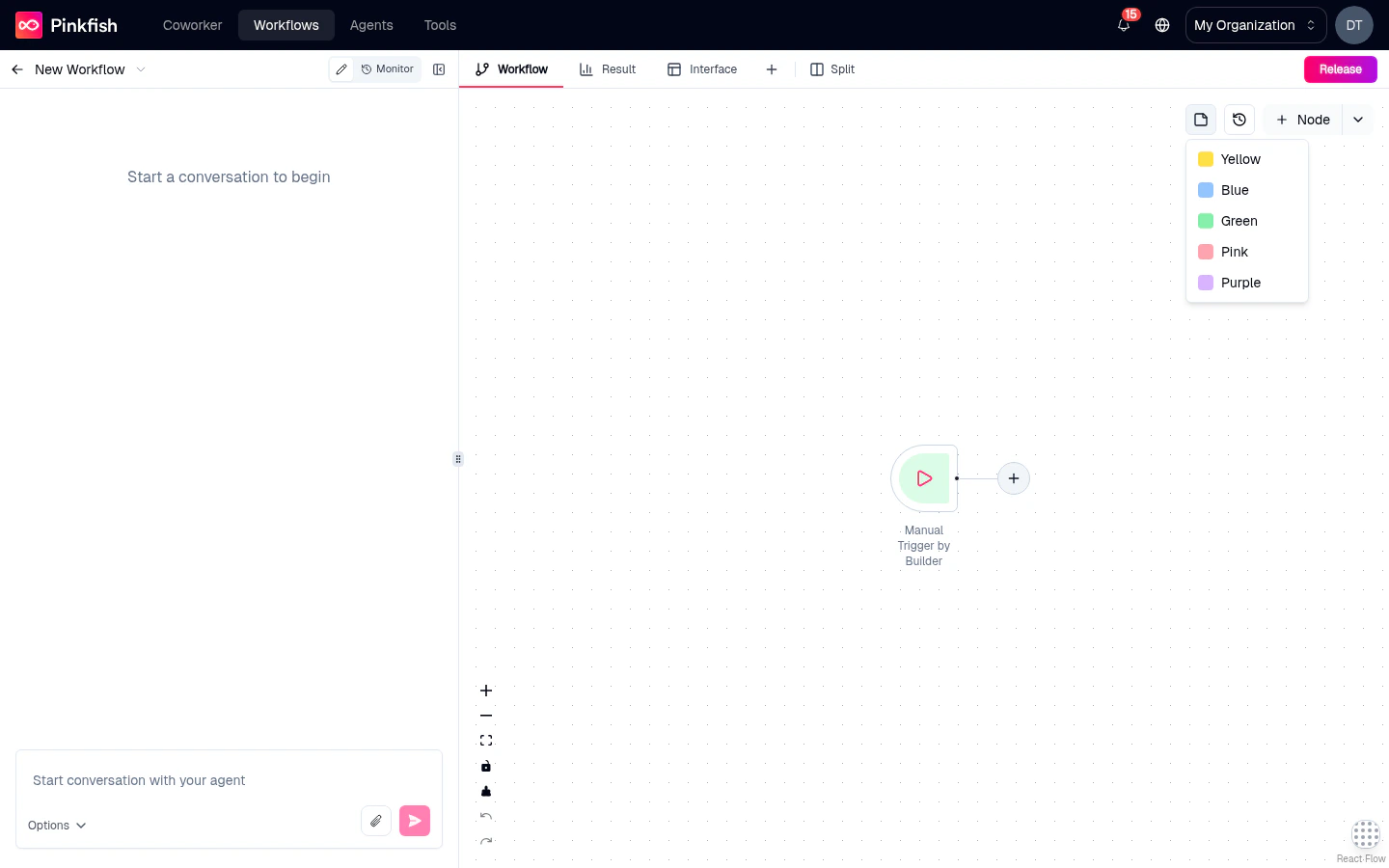
1. Click the **sticky note** button in the canvas toolbar.
2. A color picker opens — pick from **yellow**, **blue**, **green**, **pink**, or **purple**.
3. A sticky note appears at the center of the visible canvas.
Click inside the note to enter edit mode and start typing. Click outside (or press `Esc`) to commit the text.
 ### Editing a note
Double-click any sticky note to edit its text. Notes support plain text — no markdown, no embedded images — just prose for quick annotations.
### Moving, resizing, deleting
* **Move** — drag the note like any other canvas element.
* **Resize** — drag any corner handle.
* **Delete** — select the note and press `Backspace` or `Delete`.
Notes are excluded from workflow execution and from the Code tab — they're purely visual overlays. Deleting or moving a note never affects how the workflow runs.
### When to use them
Document the reasoning behind a non-obvious flow-control decision — "this retries 5x because the upstream API is flaky".
Leave a note next to a complex section so future editors understand the intent.
Use a bright color (yellow) to flag sections that need work before release.
Place a large note *behind* a cluster of related nodes to visually group them.
### Note color conventions
The five colors have no enforced meaning, but teams often adopt conventions:
| Color | Common use |
| ---------- | ----------------------------- |
| **Yellow** | TODOs, work-in-progress |
| **Blue** | Informational context |
| **Green** | Confirmed / tested sections |
| **Pink** | Warnings, gotchas |
| **Purple** | Architectural notes, handoffs |
Pick whatever works for your team — just be consistent.
## Canvas style
### Switching backgrounds
The canvas has a picker for changing its background style. Hover over (or click) the canvas-style toggle in the controls to reveal a popover of options:
* **Dotted** — the default subtle dot grid.
* Several **gradient** options — soft color blends that personalize the canvas without overpowering the nodes.
Each option shows a tiny preview tile; the currently active one gets a checkmark. Click another to switch — the change is instant.
### Why change the style
* **Personalization** — different canvas per project so you instantly recognize which workflow you're in.
* **Contrast** — certain node colors read better against certain backgrounds.
* **Focus** — a softer gradient can be easier on the eyes during long authoring sessions.
The canvas style is saved with the workflow, so everyone viewing the workflow sees the same background.
## Dark mode
Pinkfish follows your OS's dark/light preference automatically. Sticky-note colors and gradients have dark-mode variants that shift into darker, muted hues when dark mode is active. You don't configure this — it just works.
## What's next
The core canvas mechanics that sticky notes and colors live on top of.
Describe, tag, and share the workflow from the header.
### Editing a note
Double-click any sticky note to edit its text. Notes support plain text — no markdown, no embedded images — just prose for quick annotations.
### Moving, resizing, deleting
* **Move** — drag the note like any other canvas element.
* **Resize** — drag any corner handle.
* **Delete** — select the note and press `Backspace` or `Delete`.
Notes are excluded from workflow execution and from the Code tab — they're purely visual overlays. Deleting or moving a note never affects how the workflow runs.
### When to use them
Document the reasoning behind a non-obvious flow-control decision — "this retries 5x because the upstream API is flaky".
Leave a note next to a complex section so future editors understand the intent.
Use a bright color (yellow) to flag sections that need work before release.
Place a large note *behind* a cluster of related nodes to visually group them.
### Note color conventions
The five colors have no enforced meaning, but teams often adopt conventions:
| Color | Common use |
| ---------- | ----------------------------- |
| **Yellow** | TODOs, work-in-progress |
| **Blue** | Informational context |
| **Green** | Confirmed / tested sections |
| **Pink** | Warnings, gotchas |
| **Purple** | Architectural notes, handoffs |
Pick whatever works for your team — just be consistent.
## Canvas style
### Switching backgrounds
The canvas has a picker for changing its background style. Hover over (or click) the canvas-style toggle in the controls to reveal a popover of options:
* **Dotted** — the default subtle dot grid.
* Several **gradient** options — soft color blends that personalize the canvas without overpowering the nodes.
Each option shows a tiny preview tile; the currently active one gets a checkmark. Click another to switch — the change is instant.
### Why change the style
* **Personalization** — different canvas per project so you instantly recognize which workflow you're in.
* **Contrast** — certain node colors read better against certain backgrounds.
* **Focus** — a softer gradient can be easier on the eyes during long authoring sessions.
The canvas style is saved with the workflow, so everyone viewing the workflow sees the same background.
## Dark mode
Pinkfish follows your OS's dark/light preference automatically. Sticky-note colors and gradients have dark-mode variants that shift into darker, muted hues when dark mode is active. You don't configure this — it just works.
## What's next
The core canvas mechanics that sticky notes and colors live on top of.
Describe, tag, and share the workflow from the header.