> ## Documentation Index
> Fetch the complete documentation index at: https://docs.pinkfish.ai/llms.txt
> Use this file to discover all available pages before exploring further.
# Split View
> Show two editor tabs side-by-side to debug, compare, and iterate faster.
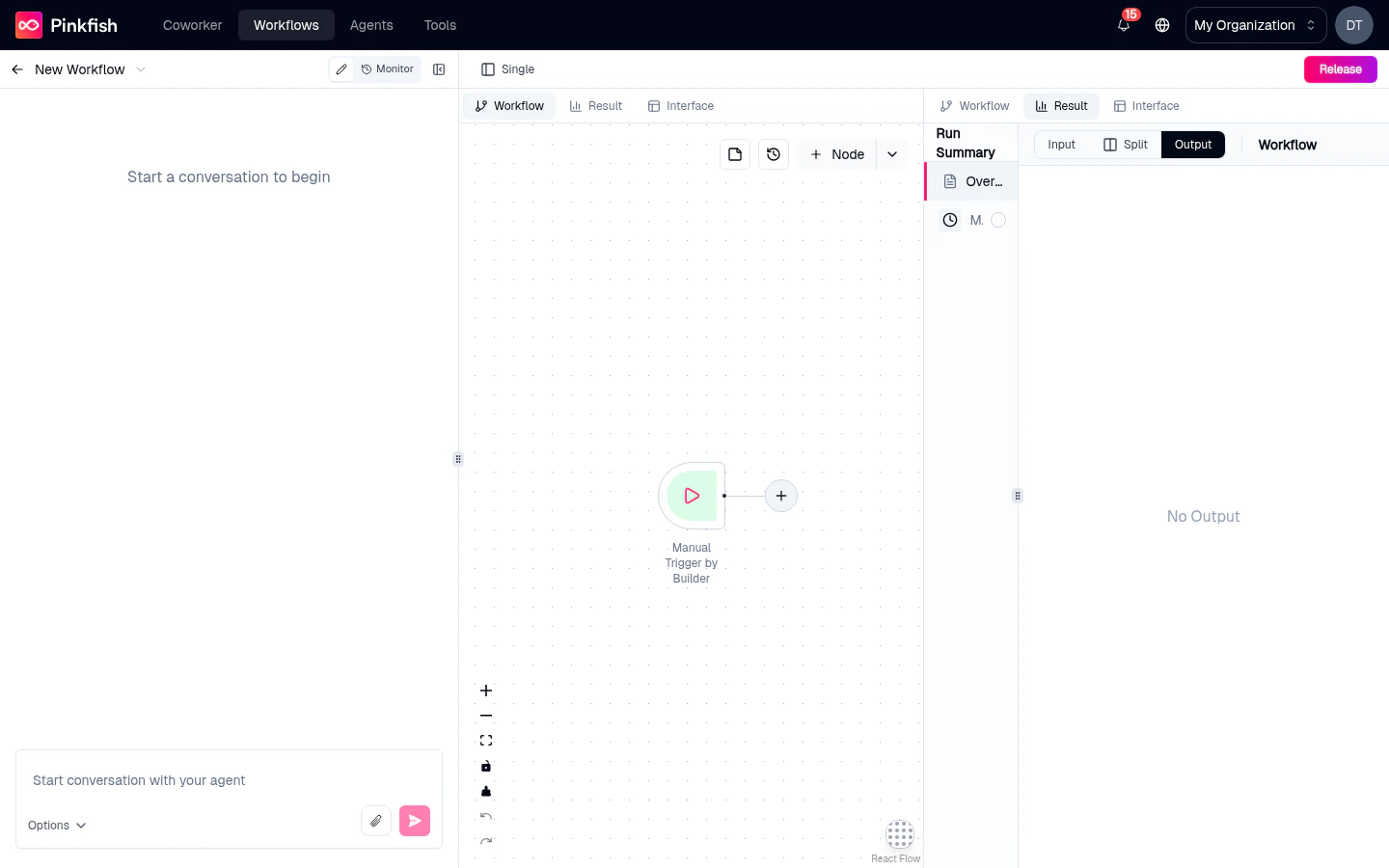
Split View lets you display two of the right-pane tabs simultaneously — for example, the **Workflow** canvas on the left and the **Result** of the selected node on the right. It's especially useful for debugging, where you want to see a node's output without losing sight of the graph.
 ## Turning Split View on
Click the **Split** button on the tab bar (the columns icon, labeled **Split**). The right pane divides in two — each half gets its own tab bar. The currently active tab stays on the left; the right side defaults to the first available tab.
When Split is on, the button flips to **Single** (panel icon) — click it to collapse back into the standard single-pane view.
## Choosing which tab appears on each side
Each half has its own tab bar at the top. Click any tab label within that bar to switch what's shown on that side. Every combination is valid — including putting **Workflow** on the right and **Log** on the left.
## Resizing the split
Drag the vertical divider between the two panels to resize. The split defaults to 50/50 but saves whatever ratio you leave it at.
## Common use cases
**Workflow** left, **Result** right — click nodes on the canvas and watch their outputs appear instantly.
**Workflow** left, **Code** right — see what node maps to what function as you browse.
**Code** left, **Log** right — jump from a log error to the line that produced it.
**Workflow** left, **Interface** right — tweak which node is designated output and see the preview update.
## Keyboard behavior
When both sides show a different tab, click inside whichever side you want to interact with — its controls (zoom, view mode, version selector) become active. Only one side has focus at a time.
## Monitor mode
Split View is specific to the **Editor** view mode. When you switch to [Monitor mode](/agentic-editor/monitor), the right pane takes over entirely and Split is not available.
## What's next
The five tabs that can appear on either side of the split.
The Workflow tab in depth.
## Turning Split View on
Click the **Split** button on the tab bar (the columns icon, labeled **Split**). The right pane divides in two — each half gets its own tab bar. The currently active tab stays on the left; the right side defaults to the first available tab.
When Split is on, the button flips to **Single** (panel icon) — click it to collapse back into the standard single-pane view.
## Choosing which tab appears on each side
Each half has its own tab bar at the top. Click any tab label within that bar to switch what's shown on that side. Every combination is valid — including putting **Workflow** on the right and **Log** on the left.
## Resizing the split
Drag the vertical divider between the two panels to resize. The split defaults to 50/50 but saves whatever ratio you leave it at.
## Common use cases
**Workflow** left, **Result** right — click nodes on the canvas and watch their outputs appear instantly.
**Workflow** left, **Code** right — see what node maps to what function as you browse.
**Code** left, **Log** right — jump from a log error to the line that produced it.
**Workflow** left, **Interface** right — tweak which node is designated output and see the preview update.
## Keyboard behavior
When both sides show a different tab, click inside whichever side you want to interact with — its controls (zoom, view mode, version selector) become active. Only one side has focus at a time.
## Monitor mode
Split View is specific to the **Editor** view mode. When you switch to [Monitor mode](/agentic-editor/monitor), the right pane takes over entirely and Split is not available.
## What's next
The five tabs that can appear on either side of the split.
The Workflow tab in depth.