> ## Documentation Index
> Fetch the complete documentation index at: https://docs.pinkfish.ai/llms.txt
> Use this file to discover all available pages before exploring further.
# Agent Mode
> Design, test, and ship workflows on an infinite canvas — with an AI coding agent that builds alongside you and live execution visible at every step.
**Agent Mode** is Pinkfish's node-based workflow editor. Describe what you want in natural language and the coding agent builds it, or drop nodes onto the canvas yourself. Either way, you get a visual representation of every trigger, tool call, branch, and loop — plus real-time execution feedback, per-node outputs, version history, and a monitor for every past run.
Agent Mode is the successor to [Guided Mode](/guided-editor/overview). Guided Mode walks you through a step-by-step workflow form; Agent Mode hands you an infinite canvas and an AI collaborator. Use Agent Mode for anything beyond the simplest single-step automation — it's strictly more expressive.
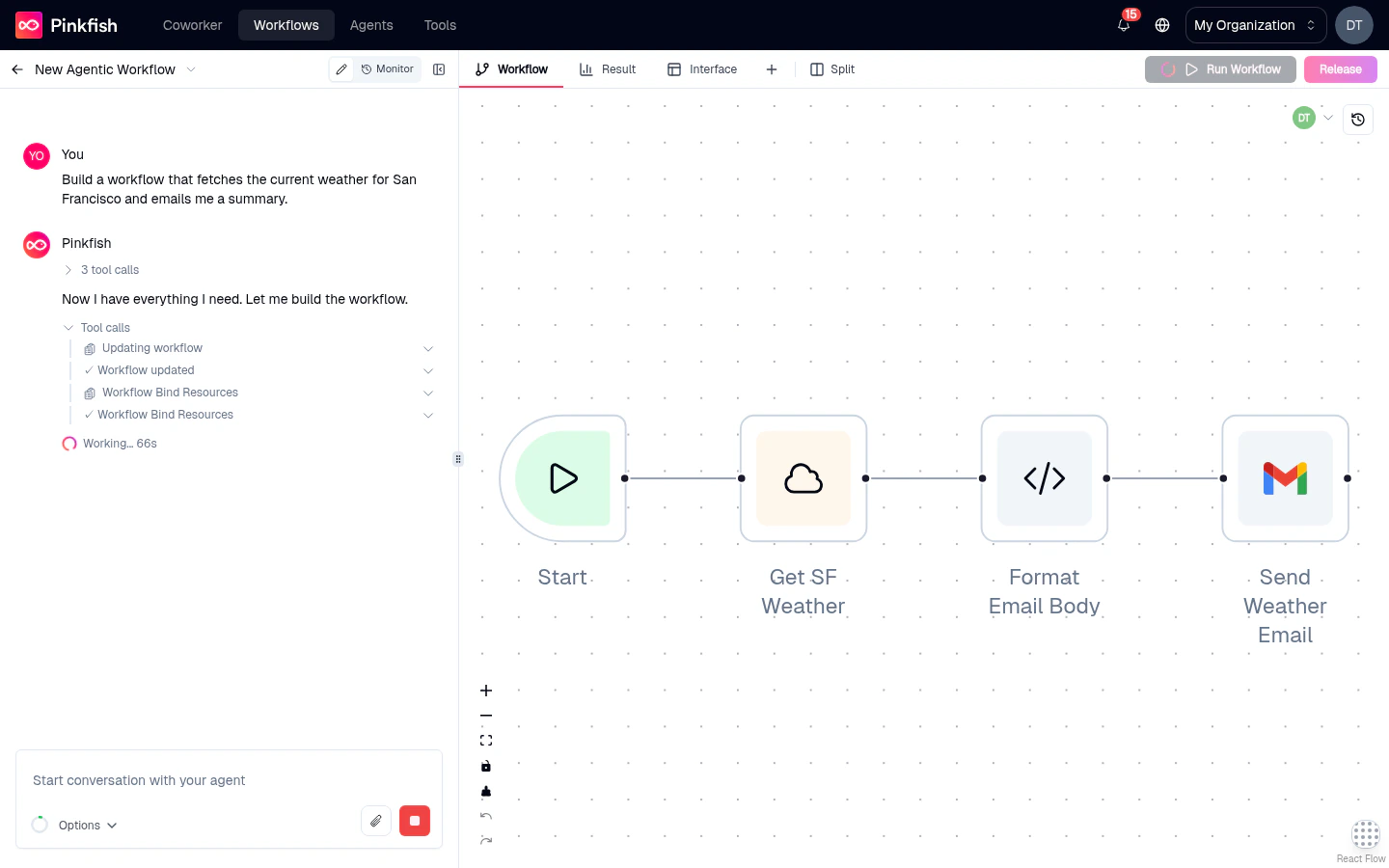 ## The three panels
Every workflow in Agent Mode has the same layout:
The coding agent that builds, edits, and explains your workflow on demand.
The infinite node-graph where your workflow lives. Drag, connect, inspect.
Workflow, Result, Interface, Code, and Log — pin and rearrange the tabs you care about.
The right pane can be [split](/agentic-editor/split-view) to show two tabs side-by-side — great for keeping the canvas and the output in view while you iterate.
## Editor vs. Monitor
Agent Mode has two view modes, switched from the top of the editor:
* **Editor** — the authoring experience described above.
* **Monitor** — the run-history view. Replaces the chat panel with a list of past runs and the canvas with a read-only execution view. See [Monitor tab](/agentic-editor/monitor).
You'll spend most of your time in Editor while building, and flip to Monitor to audit, debug, or watch live runs.
## Build a workflow in 30 seconds
From the Workflows library, click **New Agentic Workflow**. An empty canvas opens with a single Manual trigger and the coding agent chat ready on the left.
Type a prompt like *"When a Gmail email arrives with 'invoice' in the subject, extract the amount and add a row to my Google Sheet"*. Press Enter.
The agent adds a Gmail trigger, a parsing node, and a Google Sheets node, wired together. It explains what it did in the chat.
Click **Run Workflow** in the tab bar. The canvas lights up with live node status. Check the Result tab for the final output.
Once a run succeeds in live mode, click **Release** to promote the draft into a versioned snapshot that the live Gmail trigger now uses.
## The full feature set
### Canvas & nodes
Pan, zoom, connect, undo — the mechanics of the infinite workspace.
The palette browser with Nodes, Triggers, and Interface tabs.
Every executable, control-flow, and special node you can place.
Manual, API, schedule, email, app triggers, and events.
Give your workflow a user-facing form and results page.
Annotate and personalize the canvas.
### Working with the right pane
Workflow, Result, Interface, Code, and Log.
Show two tabs side-by-side for faster debugging.
### Running, iterating, shipping
Manual runs, input dialogs, batch runs, auto-heal.
Iterate without burning real tool calls or re-running expensive steps.
Promote drafts to live, compare versions, restore history, publish as a template.
Inspect every past run — inputs, outputs, logs, agent reasoning.
### Workflow administration
Share, duplicate, tag, describe, and configure resources.
The AI-powered authoring surface.
## Real-time collaboration
Multiple editors can be in the same workflow simultaneously. You'll see other users' avatars in the header and their live cursors on the canvas as they work. Edits sync in real-time — no "someone else is editing" errors, no merge conflicts.
See [Canvas — Collaborating on the canvas](/agentic-editor/canvas#collaborating-on-the-canvas) for what's shared in real time (cursors, node dragging, presence) versus what stays local (selections, edits, zoom).
## Agent Mode vs. Guided Mode
| | Agent Mode | [Guided Mode](/guided-editor/overview) |
| -------------- | ------------------------------------------ | -------------------------------------- |
| Editor | Infinite node canvas | Sequential step form |
| Authoring | Natural-language chat + visual | Fill-in-the-blank |
| Control flow | Full (if/else, loops, parallel, approvals) | Linear steps |
| Sub-workflows | Yes | No |
| Best for | Anything beyond a single-step automation | Very simple linear flows |
| Expressiveness | Strictly more expressive | Simpler to scan at a glance |
Most new workflows should use Agent Mode. Guided Mode remains supported for existing workflows and for the simplest use cases.
## Where to start
Open the chat and describe what you want.
The visual mechanics: dragging, connecting, zooming.
The full catalog of what you can place.
Executions, mock mode, monitor.
## The three panels
Every workflow in Agent Mode has the same layout:
The coding agent that builds, edits, and explains your workflow on demand.
The infinite node-graph where your workflow lives. Drag, connect, inspect.
Workflow, Result, Interface, Code, and Log — pin and rearrange the tabs you care about.
The right pane can be [split](/agentic-editor/split-view) to show two tabs side-by-side — great for keeping the canvas and the output in view while you iterate.
## Editor vs. Monitor
Agent Mode has two view modes, switched from the top of the editor:
* **Editor** — the authoring experience described above.
* **Monitor** — the run-history view. Replaces the chat panel with a list of past runs and the canvas with a read-only execution view. See [Monitor tab](/agentic-editor/monitor).
You'll spend most of your time in Editor while building, and flip to Monitor to audit, debug, or watch live runs.
## Build a workflow in 30 seconds
From the Workflows library, click **New Agentic Workflow**. An empty canvas opens with a single Manual trigger and the coding agent chat ready on the left.
Type a prompt like *"When a Gmail email arrives with 'invoice' in the subject, extract the amount and add a row to my Google Sheet"*. Press Enter.
The agent adds a Gmail trigger, a parsing node, and a Google Sheets node, wired together. It explains what it did in the chat.
Click **Run Workflow** in the tab bar. The canvas lights up with live node status. Check the Result tab for the final output.
Once a run succeeds in live mode, click **Release** to promote the draft into a versioned snapshot that the live Gmail trigger now uses.
## The full feature set
### Canvas & nodes
Pan, zoom, connect, undo — the mechanics of the infinite workspace.
The palette browser with Nodes, Triggers, and Interface tabs.
Every executable, control-flow, and special node you can place.
Manual, API, schedule, email, app triggers, and events.
Give your workflow a user-facing form and results page.
Annotate and personalize the canvas.
### Working with the right pane
Workflow, Result, Interface, Code, and Log.
Show two tabs side-by-side for faster debugging.
### Running, iterating, shipping
Manual runs, input dialogs, batch runs, auto-heal.
Iterate without burning real tool calls or re-running expensive steps.
Promote drafts to live, compare versions, restore history, publish as a template.
Inspect every past run — inputs, outputs, logs, agent reasoning.
### Workflow administration
Share, duplicate, tag, describe, and configure resources.
The AI-powered authoring surface.
## Real-time collaboration
Multiple editors can be in the same workflow simultaneously. You'll see other users' avatars in the header and their live cursors on the canvas as they work. Edits sync in real-time — no "someone else is editing" errors, no merge conflicts.
See [Canvas — Collaborating on the canvas](/agentic-editor/canvas#collaborating-on-the-canvas) for what's shared in real time (cursors, node dragging, presence) versus what stays local (selections, edits, zoom).
## Agent Mode vs. Guided Mode
| | Agent Mode | [Guided Mode](/guided-editor/overview) |
| -------------- | ------------------------------------------ | -------------------------------------- |
| Editor | Infinite node canvas | Sequential step form |
| Authoring | Natural-language chat + visual | Fill-in-the-blank |
| Control flow | Full (if/else, loops, parallel, approvals) | Linear steps |
| Sub-workflows | Yes | No |
| Best for | Anything beyond a single-step automation | Very simple linear flows |
| Expressiveness | Strictly more expressive | Simpler to scan at a glance |
Most new workflows should use Agent Mode. Guided Mode remains supported for existing workflows and for the simplest use cases.
## Where to start
Open the chat and describe what you want.
The visual mechanics: dragging, connecting, zooming.
The full catalog of what you can place.
Executions, mock mode, monitor.