> ## Documentation Index
> Fetch the complete documentation index at: https://docs.pinkfish.ai/llms.txt
> Use this file to discover all available pages before exploring further.
# Editor Tabs
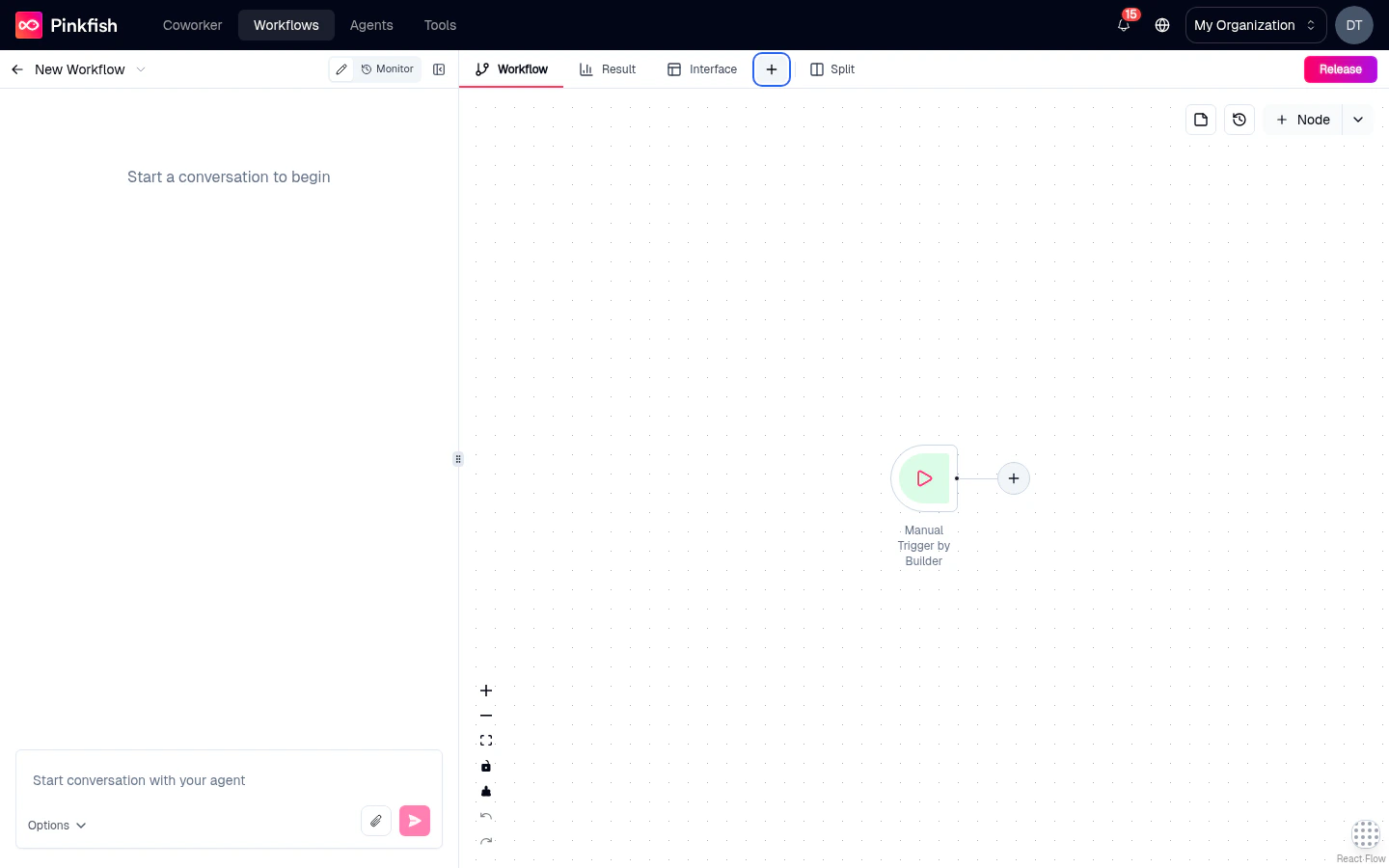
> The right pane in Agent Mode hosts five tabs — Workflow, Result, Interface, Code, and Log — that you can pin, reorder, and switch between.
The right pane of the Agentic Editor is a tabbed workspace. The **Workflow** tab (the canvas itself) is always there; four more tabs — **Result**, **Interface**, **Code**, and **Log** — can be pinned, reordered, or tucked away.
 ## The five tabs
The node canvas — always pinned. Your primary working surface.
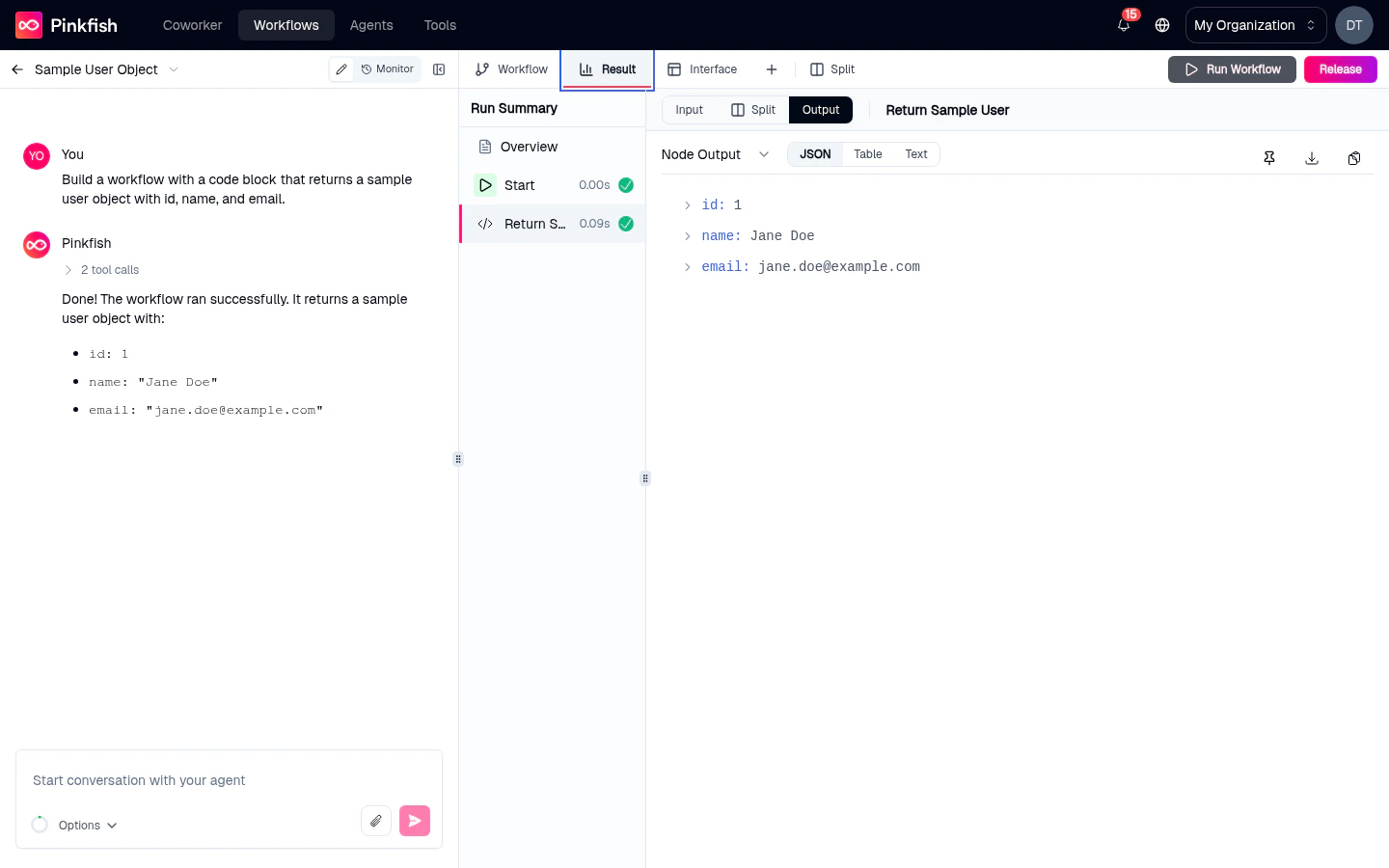
The output of the currently selected node — JSON, table, markdown, HTML, and more.
The [interface builder](/agentic-editor/interface) for your user-facing form and results view.
The read-only source of the workflow, with a version selector to browse history.
Live execution logs streamed during a run.
### Workflow (permanent)
The canvas where you arrange and connect nodes. See [Canvas](/agentic-editor/canvas) for the full mechanics. This tab cannot be unpinned or closed — it's the heart of the editor.
### Result
Shows the **currently selected node's most recent output**. Click a node on the canvas, open the Result tab, and you see exactly what that node produced on the last run.
The Result tab includes a view-mode switcher so you can render the same data different ways:
* **JSON** — collapsible tree, default for structured objects.
* **Table** — for arrays of objects, one row per item.
* **Markdown** — rendered prose for LLM outputs.
* **HTML** — rendered web content, e.g. the output of a code block that returns HTML.
* **Plain text** — raw, unformatted.
## The five tabs
The node canvas — always pinned. Your primary working surface.
The output of the currently selected node — JSON, table, markdown, HTML, and more.
The [interface builder](/agentic-editor/interface) for your user-facing form and results view.
The read-only source of the workflow, with a version selector to browse history.
Live execution logs streamed during a run.
### Workflow (permanent)
The canvas where you arrange and connect nodes. See [Canvas](/agentic-editor/canvas) for the full mechanics. This tab cannot be unpinned or closed — it's the heart of the editor.
### Result
Shows the **currently selected node's most recent output**. Click a node on the canvas, open the Result tab, and you see exactly what that node produced on the last run.
The Result tab includes a view-mode switcher so you can render the same data different ways:
* **JSON** — collapsible tree, default for structured objects.
* **Table** — for arrays of objects, one row per item.
* **Markdown** — rendered prose for LLM outputs.
* **HTML** — rendered web content, e.g. the output of a code block that returns HTML.
* **Plain text** — raw, unformatted.
 You can also **pin a result** with the pin button on the Result tab itself. This keeps the result visible even when you click away to other nodes — useful for comparing outputs across runs. See [Mock mode & pinning](/agentic-editor/mock-mode-and-pinning) for the full pinning story.
### Interface
The [interface builder](/agentic-editor/interface) for configuring your workflow's user-facing form, confirmation screen, and results page.
### Code
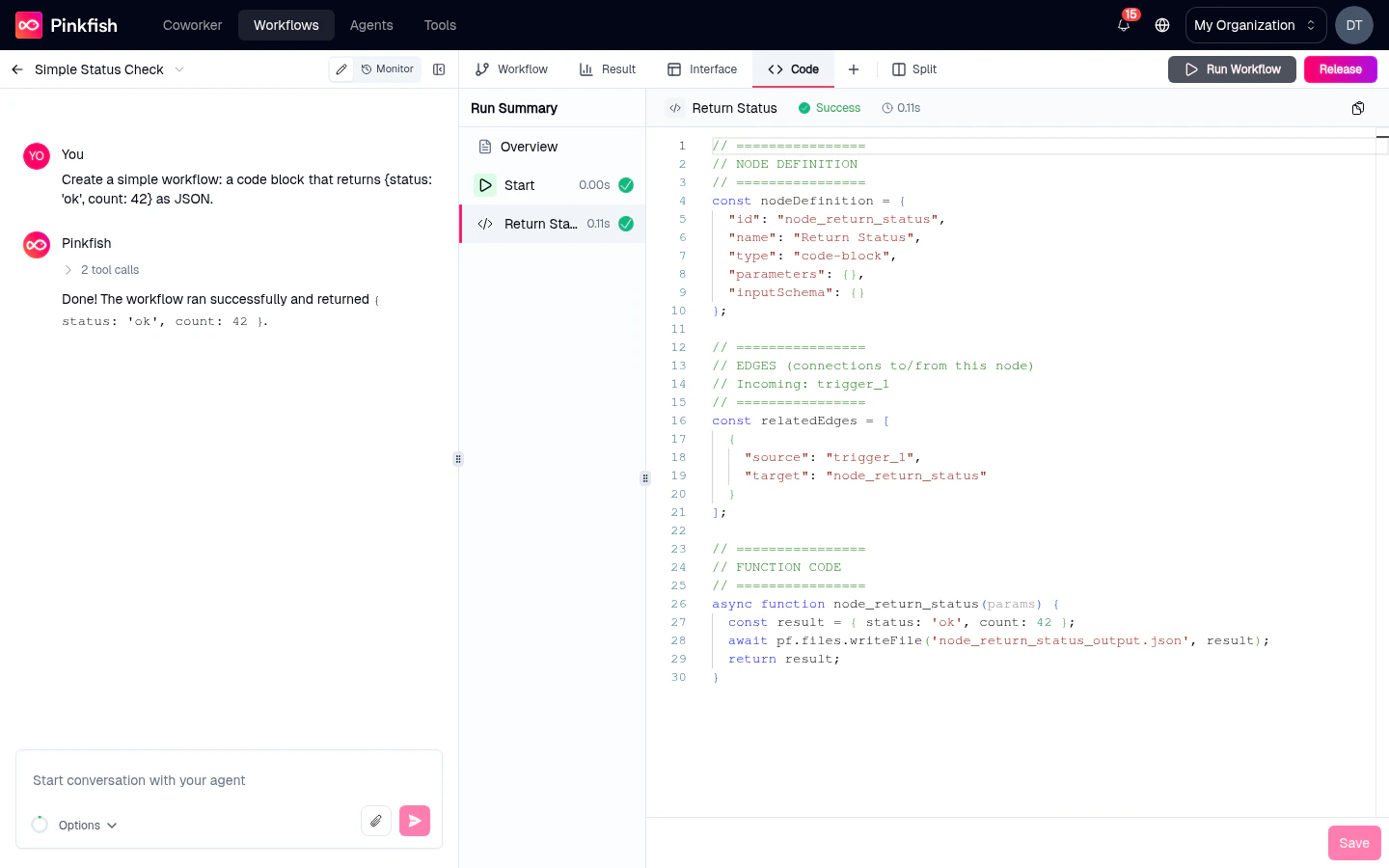
A read-only view of the underlying source code of your workflow — typically a JavaScript/TypeScript module the runtime executes. Useful for:
* Understanding what the coding agent actually wrote.
* Copy-pasting into external AI tools for debugging.
* Sanity-checking that the generated code matches your mental model.
A **version selector** at the top of the Code tab lets you browse previous versions — compare the current draft against a past release without leaving the editor.
You can also **pin a result** with the pin button on the Result tab itself. This keeps the result visible even when you click away to other nodes — useful for comparing outputs across runs. See [Mock mode & pinning](/agentic-editor/mock-mode-and-pinning) for the full pinning story.
### Interface
The [interface builder](/agentic-editor/interface) for configuring your workflow's user-facing form, confirmation screen, and results page.
### Code
A read-only view of the underlying source code of your workflow — typically a JavaScript/TypeScript module the runtime executes. Useful for:
* Understanding what the coding agent actually wrote.
* Copy-pasting into external AI tools for debugging.
* Sanity-checking that the generated code matches your mental model.
A **version selector** at the top of the Code tab lets you browse previous versions — compare the current draft against a past release without leaving the editor.
 ### Log
The real-time execution log for whatever the workflow is doing — stdout from Code Block nodes, MCP tool call results, runtime warnings, and any errors. Logs stream live during a run and remain viewable afterwards.
Entries are timestamped and prefixed by log level (`info`, `warn`, `error`). Click an error to jump to the node that produced it on the Workflow tab.
## Pinning and unpinning tabs
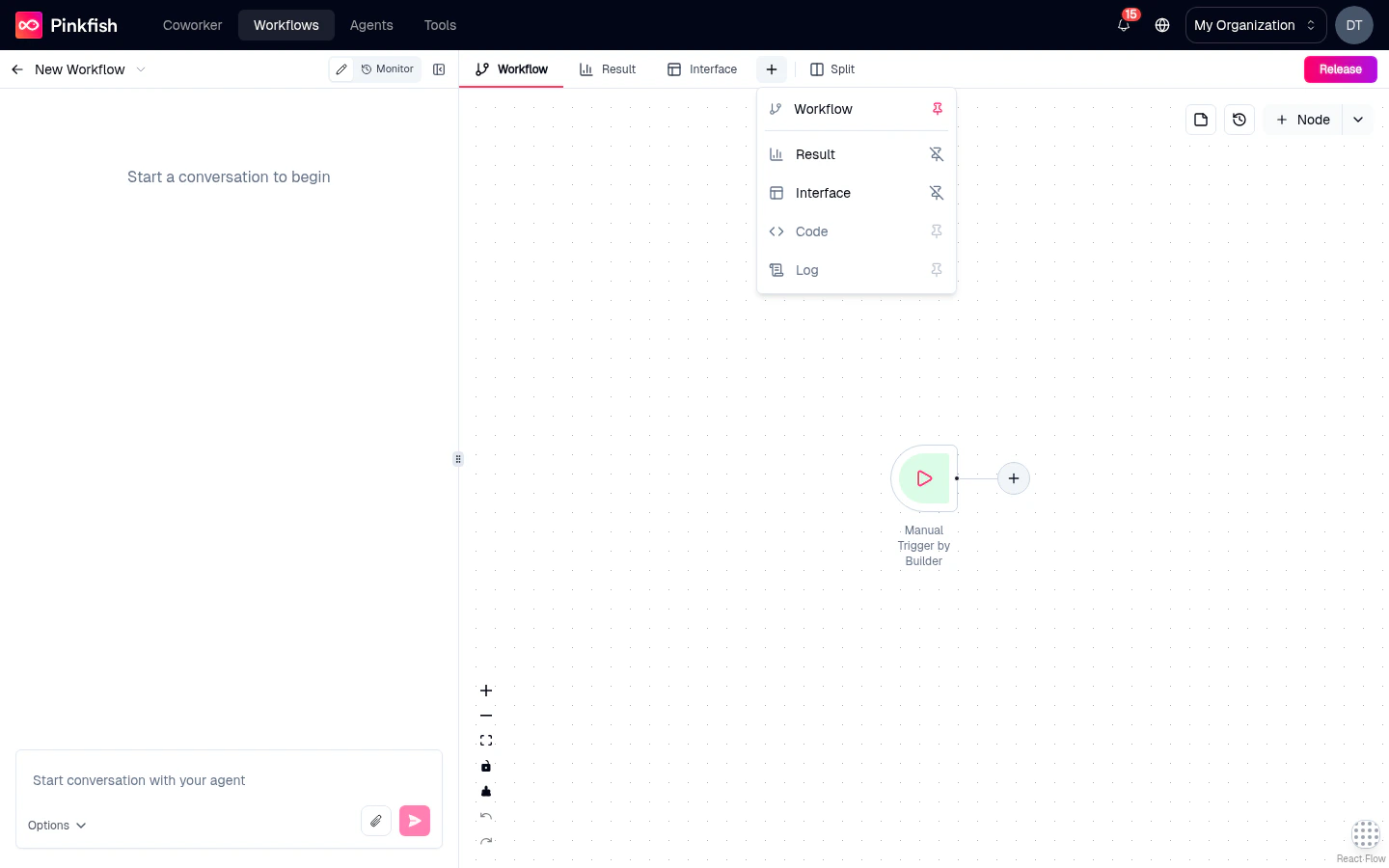
By default, pinned tabs vary depending on what you've been doing. To pin or unpin a tab:
1. Click the **+** button to the right of the tab bar.
2. Pick a tab from the popover to pin it.
3. Click a tab that's already pinned in the popover to unpin.
Unpinned tabs still exist — you just access them via the **+** menu rather than the top bar. The **Workflow** tab is always pinned and can't be toggled.
### Log
The real-time execution log for whatever the workflow is doing — stdout from Code Block nodes, MCP tool call results, runtime warnings, and any errors. Logs stream live during a run and remain viewable afterwards.
Entries are timestamped and prefixed by log level (`info`, `warn`, `error`). Click an error to jump to the node that produced it on the Workflow tab.
## Pinning and unpinning tabs
By default, pinned tabs vary depending on what you've been doing. To pin or unpin a tab:
1. Click the **+** button to the right of the tab bar.
2. Pick a tab from the popover to pin it.
3. Click a tab that's already pinned in the popover to unpin.
Unpinned tabs still exist — you just access them via the **+** menu rather than the top bar. The **Workflow** tab is always pinned and can't be toggled.
 ## Reordering tabs
Drag any tab left or right to reorder. The order is saved per-workflow.
## Switching tabs quickly
* Click a tab to jump to it.
* Use keyboard shortcuts (browser-dependent — typically `Cmd/Ctrl+Opt+ArrowKey`).
* From the [Add Node](/agentic-editor/adding-nodes) flow on the Interface tab, clicking the card automatically jumps you to the Interface tab.
## Tab behavior during runs
While a workflow is running:
* **Workflow** tab shows live node status (running / success / error).
* **Log** tab fills with streaming entries.
* **Result** tab updates as each selected node completes.
* **Code** and **Interface** tabs are unchanged — they're authoring views, not execution views.
## What's next
Show two tabs side-by-side for faster iteration.
The Interface tab's authoring experience in depth.
See how the Log and Result tabs behave during an execution.
Result pinning explained.
## Reordering tabs
Drag any tab left or right to reorder. The order is saved per-workflow.
## Switching tabs quickly
* Click a tab to jump to it.
* Use keyboard shortcuts (browser-dependent — typically `Cmd/Ctrl+Opt+ArrowKey`).
* From the [Add Node](/agentic-editor/adding-nodes) flow on the Interface tab, clicking the card automatically jumps you to the Interface tab.
## Tab behavior during runs
While a workflow is running:
* **Workflow** tab shows live node status (running / success / error).
* **Log** tab fills with streaming entries.
* **Result** tab updates as each selected node completes.
* **Code** and **Interface** tabs are unchanged — they're authoring views, not execution views.
## What's next
Show two tabs side-by-side for faster iteration.
The Interface tab's authoring experience in depth.
See how the Log and Result tabs behave during an execution.
Result pinning explained.